
XMobile X8 MAX X8MAX 2A5WBXMOX8MX
Instruction Manual: 8 inch Touch Screen Panel Digitizer Glass for XMobile X8 MAX X8MAX
Model: XMobile X8 MAX X8MAX 2A5WBXMOX8MX
Introduction
This manual provides essential information for the proper installation and care of your new 8-inch Touch Screen Panel Digitizer Glass, designed specifically for the XMobile X8 MAX X8MAX 2A5WBXMOX8MX tablet. This product is intended for repair or replacement of an old, broken, cracked, or damaged faulty touch screen.
Product Overview
The touch screen digitizer is the outer layer of your tablet's display that registers touch input. This replacement part includes the digitizer glass and comes with pre-cut adhesive for easier installation.
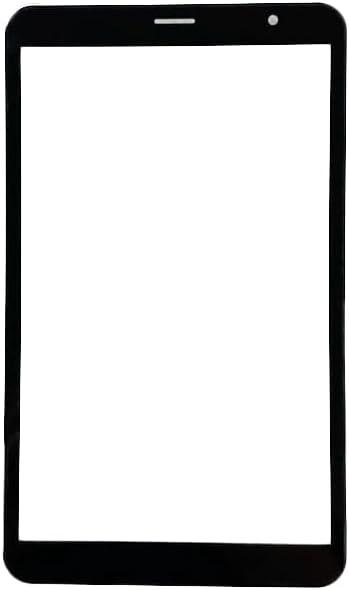
Figure 1: Front view of the 8-inch touch screen digitizer glass. This image shows the complete front panel of the replacement screen, including the camera cutout and sensor area at the top.
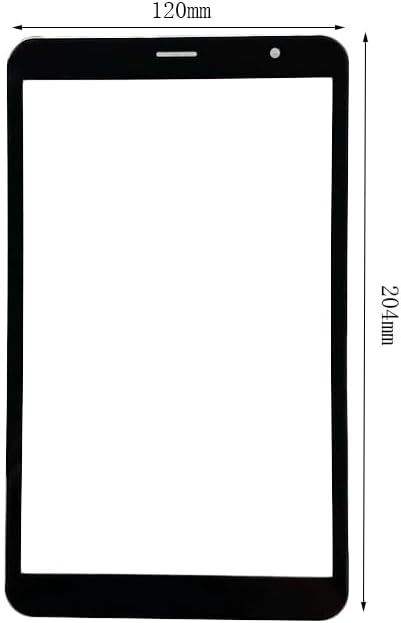
Figure 2: Touch screen digitizer with approximate dimensions. The image indicates a width of 120mm and a height of 204mm, providing a visual reference for the size of the replacement part.
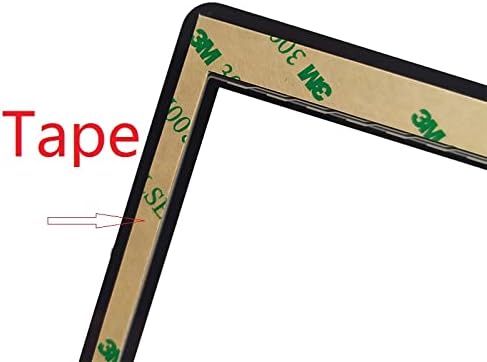
Figure 3: Close-up view of the pre-cut adhesive tape. This image highlights the adhesive strips applied to the edges of the digitizer, which are used for secure mounting during installation.
Compatibility and Verification
It is crucial to verify the compatibility of this digitizer with your specific tablet model before proceeding with installation. While this part is designed for the XMobile X8 MAX X8MAX 2A5WBXMOX8MX, variations can exist.
- Model Number: Ensure your tablet's model number matches "XMobile X8 MAX X8MAX 2A5WBXMOX8MX".
- Internal Components: Before installation, open your tablet and carefully check the touch screen connector cable and its code number. Some tablets of the same model may have different internal components or connector types.
- FCC ID: You may also verify the FCC ID on the back of your tablet, which should correspond to 2A5WBXMOX8MX.

Figure 4: Example of a tablet's back panel displaying the FCC ID. This image shows the FCC ID: 2A5WBXMOX8MX, which can be used to confirm compatibility with the replacement digitizer.
Setup and Installation
Installation of a touch screen digitizer requires technical skill and appropriate tools. If you are not confident in your ability to perform this repair, it is recommended to seek professional assistance. Each screen is tested before shipping to ensure functionality.
Required Tools (Not Included):
- Small Phillips head screwdriver
- Plastic prying tools (spudgers)
- Heat gun or hairdryer (for softening old adhesive)
- Tweezers
- Clean, lint-free cloth
- Isopropyl alcohol (for cleaning residue)
Installation Steps:
- Power Off Tablet: Ensure your tablet is completely powered off and disconnected from any power source before beginning.
- Remove Back Cover: Carefully use prying tools to open the tablet's back cover. Be gentle to avoid damaging internal clips or components.
- Disconnect Battery: Locate and disconnect the battery connector to prevent accidental short circuits during the repair.
- Remove Damaged Digitizer:
- Carefully disconnect the flex cable of the old digitizer from the motherboard.
- Apply gentle heat to the edges of the old digitizer using a heat gun or hairdryer to soften the adhesive.
- Slowly and carefully pry the old digitizer away from the tablet frame. Be cautious of glass shards if the screen is cracked.
- Clean Frame: Thoroughly clean the tablet frame, removing all old adhesive residue and glass fragments. Use isopropyl alcohol on a lint-free cloth if necessary. Ensure the surface is clean and dry.
- Test New Digitizer (Recommended): Before fully installing, connect the flex cable of the new digitizer to the motherboard. Reconnect the battery and briefly power on the tablet to test touch functionality. Power off and disconnect the battery once testing is complete.
- Install New Digitizer:
- Carefully peel off the protective film from the pre-cut adhesive on the back of the new digitizer.
- Align the new digitizer precisely with the tablet frame. Ensure the camera, sensors, and home button (if applicable) cutouts are correctly positioned.
- Gently press down along the edges of the digitizer to secure it firmly to the frame using the adhesive.
- Reconnect the digitizer flex cable to the motherboard.
- Reconnect Battery and Reassemble: Reconnect the battery, then carefully reattach the tablet's back cover, ensuring all clips snap into place.
- Final Test: Power on the tablet and perform a comprehensive test of the touch screen, checking responsiveness across the entire surface.
Operating
Once the new touch screen digitizer is successfully installed, your tablet's touch functionality will be restored. Operate your tablet as you normally would, using touch gestures for navigation and interaction with applications.
- Touch Responsiveness: The digitizer is designed to provide accurate and responsive touch input.
- Multi-touch: Standard multi-touch gestures (e.g., pinch-to-zoom) should function as expected.
Maintenance
Proper care of your tablet's screen will help prolong its lifespan and maintain optimal performance.
- Cleaning: Use a soft, lint-free microfiber cloth to gently wipe the screen. For stubborn smudges, slightly dampen the cloth with water or a screen-specific cleaning solution. Avoid harsh chemicals, abrasive materials, or excessive moisture.
- Protection: Consider using a screen protector to guard against scratches and minor impacts.
- Handling: Avoid dropping the tablet or placing heavy objects on the screen, as this can cause cracks or damage to the digitizer.
- Temperature: Do not expose the tablet to extreme temperatures, as this can affect the adhesive and screen components.
Troubleshooting
If you encounter issues after installing the new digitizer, refer to the following common troubleshooting steps:
- No Touch Response / Partial Touch:
- Ensure the digitizer flex cable is securely and correctly seated in its connector on the motherboard. A loose connection is a common cause.
- Verify that the correct digitizer model was installed. As noted in the compatibility section, some tablets may have variations.
- Perform a hard reset of the tablet (refer to your tablet's original manual for instructions).
- Ghost Touches / Erratic Behavior:
- Check for any debris or foreign objects trapped between the digitizer and the LCD screen.
- Ensure the digitizer flex cable is not pinched or damaged during reassembly.
- Verify that the adhesive is applied evenly and securely, preventing any pressure points on the digitizer.
- Screen Not Turning On (No Display):
- This digitizer is for touch functionality only, not display. If there is no display, the issue is likely with the LCD screen or its connection, not the digitizer.
- Ensure the LCD flex cable is properly connected.
- Physical Damage After Installation:
- If the screen cracks or breaks after installation, it indicates physical impact or improper handling.
If troubleshooting steps do not resolve the issue, professional repair service may be required.
Specifications
| Feature | Detail |
|---|---|
| Product Type | Touch Screen Panel Digitizer Glass |
| Compatible Model | XMobile X8 MAX X8MAX 2A5WBXMOX8MX |
| Screen Size | 8 inch |
| Adhesive | Pre-cut adhesive type on back side |
| Package Dimensions | 9.84 x 5.91 x 1.97 inches |
| Item Weight | 7.7 ounces |
| Manufacturer | Generic |
| ASIN | B0CNH36962 |
| Date First Available | September 22, 2021 |
Warranty Information
Specific warranty details for this Generic brand product are not provided in the available product information. Please refer to the retailer's return policy or contact the seller directly for any warranty-related inquiries.
Support
For technical support or further assistance with installation, it is recommended to consult online repair guides or videos specific to the XMobile X8 MAX X8MAX tablet. If you purchased this item from an online marketplace, you may also contact the seller directly through their platform for product-specific support.
Ask a question about this manual
Ask about setup, troubleshooting, compatibility, parts, safety, or missing instructions. Manuals+ will review the question and use this page’s manual context to help answer it.