1. Introduction
The GPOSY Kids Digital Camera X2 is designed to introduce young children to photography and videography. This durable and multi-functional camera allows kids to capture memories with ease, featuring a dual-camera design, 1080P HD video recording, and various creative modes. It is built to be kid-friendly and withstand typical use by children.
2. What's in the Box
- GPOSY Kids Digital Camera X2 (Purple)
- 32GB SD Card
- USB 2.0 Micro SD Card Reader
- USB Charging Cable
- Lanyard

Image: GPOSY Kids Digital Camera X2 (Purple) with included accessories (32GB SD card, USB adapter, charging cable, lanyard).
3. Product Features
3.1. 1080P HD Video Recorder & 48MP Photos
The camera is equipped with 8x digital zoom, capable of up to 48.0 Mega pixels for photos and 1080P HD resolution for videos (1920x1080P). This allows children to capture clear images and videos, fostering their creativity and imagination.

Image: GPOSY Kids Digital Camera X2 (Purple) highlighting its core features including 1080HD video, dual lens, games, music, time lapse, 8X digital zoom, and 32GB storage.
3.2. Dual-Camera Design & Selfie Mode
Featuring upgraded dual front and rear HD lenses, the camera makes it easy for children to take selfies and capture moments from different perspectives. The 2.0-inch IPS HD eye protection screen ensures comfortable viewing.

Image: GPOSY Kids Digital Camera X2 (Purple) demonstrating its HD front and rear dual lenses for taking selfies and regular photos.
3.3. Multi-Functional & Creative Fun
The camera supports various functions including continuous shooting, timed shooting, self-timer, MP3 playback, and 5 educational games. It also includes 28 frames and 6 filters to stimulate imagination and interest in photography.

Image: GPOSY Kids Digital Camera X2 (Purple) illustrating its multi-functional capabilities: selfie mode, music player, games, and USB transfer.
3.4. Durable & Shockproof Design
Constructed from high-quality, non-toxic silicone material, the camera is safe and soft for children. Its protective shockproof and drop-resistant design ensures durability, minimizing concerns about accidental damage.

Image: GPOSY Kids Digital Camera X2 (Purple) showing its compact size (2.4in x 1.92in x 3.26in) and light weight (0.14lb).
4. Setup
4.1. Charging the Camera
Before first use, fully charge the camera using the provided USB charging cable. Connect the small end of the USB cable to the camera's charging port and the larger end to a USB power source (e.g., computer, wall adapter). The charging indicator light will show the charging status.
4.2. Inserting the SD Card
The camera comes with a 32GB SD card. Locate the SD card slot on the side of the camera. Gently insert the SD card into the slot until it clicks into place. Ensure the card is inserted correctly to avoid damage.
5. Operating Instructions
5.1. Power On/Off
To power on the camera, press and hold the power button located on the top right side. To power off, press and hold the same button until the screen turns off.
5.2. Navigation
Use the arrow buttons (up, down, left, right) to navigate through the menu options on the screen. Press the shutter button (top right) to select an option or confirm an action.

Image: Back view of the GPOSY Kids Digital Camera X2 (Purple) displaying multi-function icons for easy navigation.
5.3. Taking Photos
From the main menu, select the camera icon. Frame your shot using the screen and press the shutter button to take a photo. The camera will emit a shutter sound.
5.4. Recording Videos
Select the video camera icon from the main menu. Press the shutter button to start recording. Press it again to stop recording. Videos are saved automatically to the SD card.
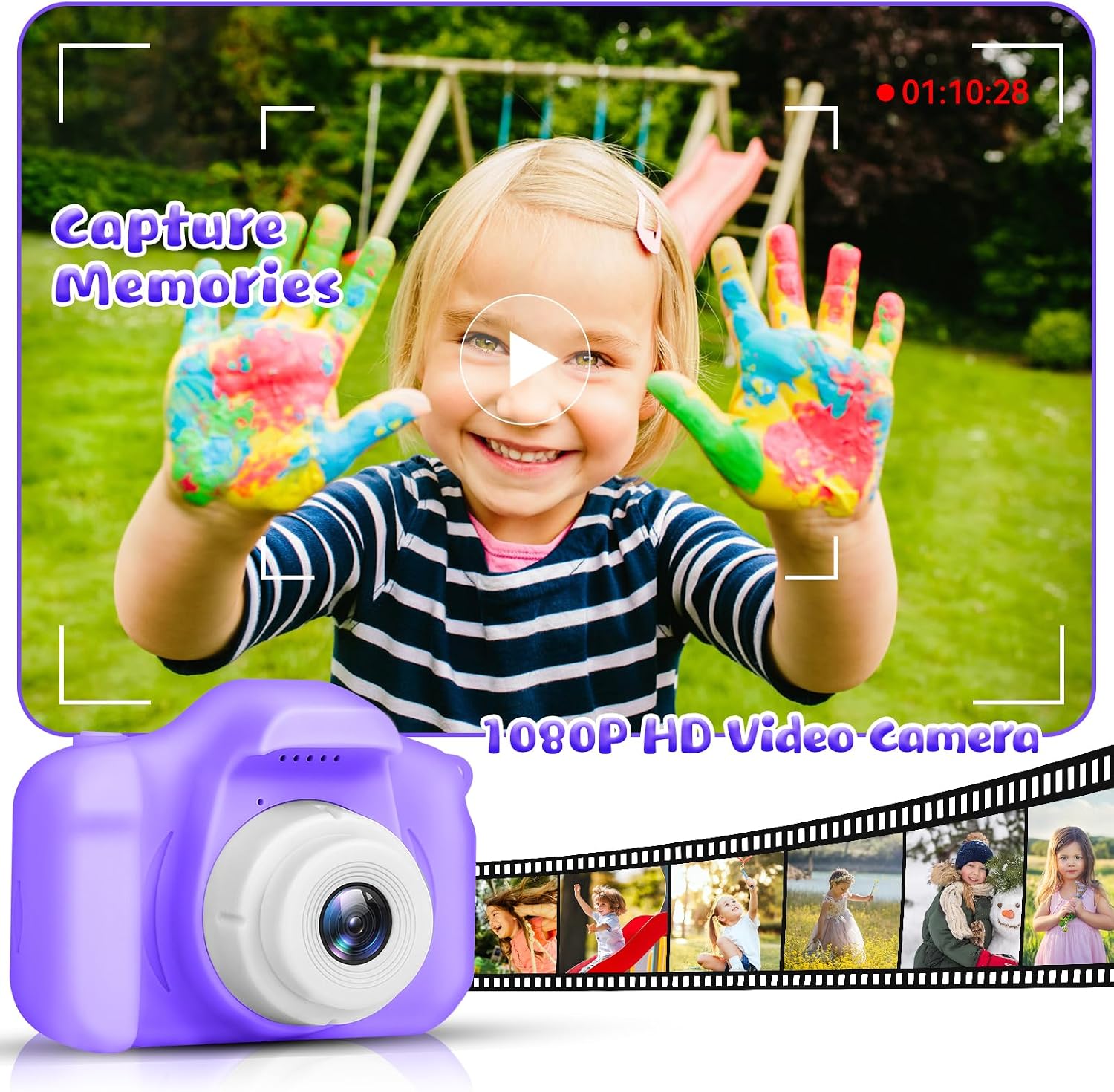
Image: GPOSY Kids Digital Camera X2 (Purple) capturing a child with painted hands, highlighting 1080P HD video recording.
5.5. Selfie Mode
The camera features a dual-lens design. To switch to the front-facing camera for selfies, use the designated button or menu option (refer to on-screen icons).
5.6. Applying Filters and Frames
While in photo or video mode, use the arrow buttons to browse through the available 28 frames and 6 color filters. Select your desired effect before capturing the image or video.

Image: GPOSY Kids Digital Camera X2 (Purple) with various special effects including color filters, black and white, and split screen options.

Image: GPOSY Kids Digital Camera X2 (Purple) showcasing a selection of funny frames that can be applied to photos.
5.7. Playing Games
The camera includes 5 educational puzzle games. Select the game icon from the main menu to access and play them.

Image: GPOSY Kids Digital Camera X2 (Purple) displaying 5 puzzle games on its screen, offering additional entertainment.
5.8. Viewing Media & Transferring Files
To view captured photos and videos, select the playback icon from the main menu. To transfer files to a computer, remove the SD card and insert it into the provided USB card reader, then connect the reader to your computer. Alternatively, connect the camera directly to a computer using the USB cable.

Image: GPOSY Kids Digital Camera X2 (Purple) illustrating USB transfer of photos to a laptop for easy sharing and storage.
5.9. Official Product Video
Video: This video provides a quick overview of the GPOSY Kids Digital Camera X2, highlighting its features and ease of use for children. It demonstrates the camera's compact design and various functions.
6. Maintenance
- Keep the camera dry and away from moisture.
- Clean the camera body with a soft, dry cloth. Avoid using harsh chemicals.
- Protect the lens and screen from scratches.
- Recharge the battery regularly to maintain its lifespan.
7. Troubleshooting
7.1. Camera Not Turning On
- Ensure the battery is charged. Connect the camera to a power source and allow it to charge for at least 30 minutes before attempting to power on again.
- Press and hold the power button for a few seconds.
7.2. Poor Image Quality
- Ensure adequate lighting. The camera performs best in well-lit environments, especially during daytime.
- Clean the camera lens with a soft, lint-free cloth.
7.3. Cannot Delete Photos/Videos from Camera
- Photos and videos cannot be deleted directly from the camera's interface. To manage files, remove the SD card and connect it to a computer using the provided USB card reader.
7.4. SD Card Not Recognized
- Ensure the SD card is inserted correctly and fully into the slot.
- Try reinserting the SD card.
- If the issue persists, try formatting the SD card on a computer (this will erase all data).
8. Specifications
| Feature | Specification |
|---|---|
| Model Name | Kids Camera |
| Model Number | X2 |
| Maximum Webcam Image Resolution | 48 MP |
| Photo Sensor Technology | CMOS |
| Screen Size | 2 Inches |
| Display Type | LCD |
| Memory Storage Capacity | 32 GB (SD Card) |
| Video Resolution | 1080p |
| Connectivity Technology | USB |
| Wireless Technology | Wi-Fi |
| Battery Weight | 22 Grams |
| Special Feature | Voice Recorder |
| Color | Purple |
9. Warranty & Support
The GPOSY Kids Digital Camera X2 comes with a 30-day warranty from the date of purchase. For any product inquiries, technical support, or warranty claims, please contact GPOSY customer service through your retailer's support channels.