
1. Introduction
The TAXNELE KWS-302WF is a multi-functional smart power meter designed to monitor various electrical parameters and provide protection against over/under voltage, over current, and over power. It integrates WiFi connectivity for remote monitoring and control via the Tuya Smart Life application, offering comprehensive energy management and safety features for residential and commercial applications.

Image 1.1: Front view of the KWS-302WF Smart Power Meter with its digital display and a smartphone showing the monitoring app.
2. Product Features
This device offers a wide range of features for advanced power monitoring and protection:
- 8-in-1 Multimeter Display: Simultaneously displays Voltage, Current, Power, Timing, Electric Energy (kWh), Temperature, Frequency, and Power Factor.
- Wide Measurement Ranges: Voltage (AC 100-290V), Current (0-63A), Power (0-17KW), Timing (0-999 Hours), Energy (0-99,999 kWh), Temperature (-20-150°C), Frequency (50-60Hz), Power Factor (0.00-1.00PF).
- Energy Value Storage: Retains Kwh, overvoltage, undervoltage, and overcurrent values in memory during power outages.
- Remote Control & Monitoring: Control and monitor home devices via smartphone using the Tuya Smart Life App, without time or distance limitations.
- Comprehensive Protection Functions: Includes over-voltage, under-voltage, over-current, over-power, and over-temperature protection.
- Easy Installation: Designed for straightforward installation in various indoor or outdoor settings.

Image 2.1: Visual representation of the KWS-302WF's key features and capabilities.
3. Specifications
Detailed technical specifications for the KWS-302WF Smart Power Meter:
| Parameter | Value |
|---|---|
| Model | KWS-302WF |
| Voltage Measurement Range | AC 100-290V |
| Current Measurement Range | 0-63A |
| Power Measurement Range | 0-17kW |
| Timing Measurement Range | 0-999 Hours |
| Electricity Measurement Range | 0-99999 kWh |
| Temperature Range | -20°C to 150°C |
| Frequency Measurement Range | 50-60Hz |
| Power Factor | 0.00-1.00PF |
| Dimensions (L*W*H) | 66mm * 66mm * 82mm (approx.) |
| Material | ABS+PC |
| Manufacturer Part Number | 8451263523021569 |
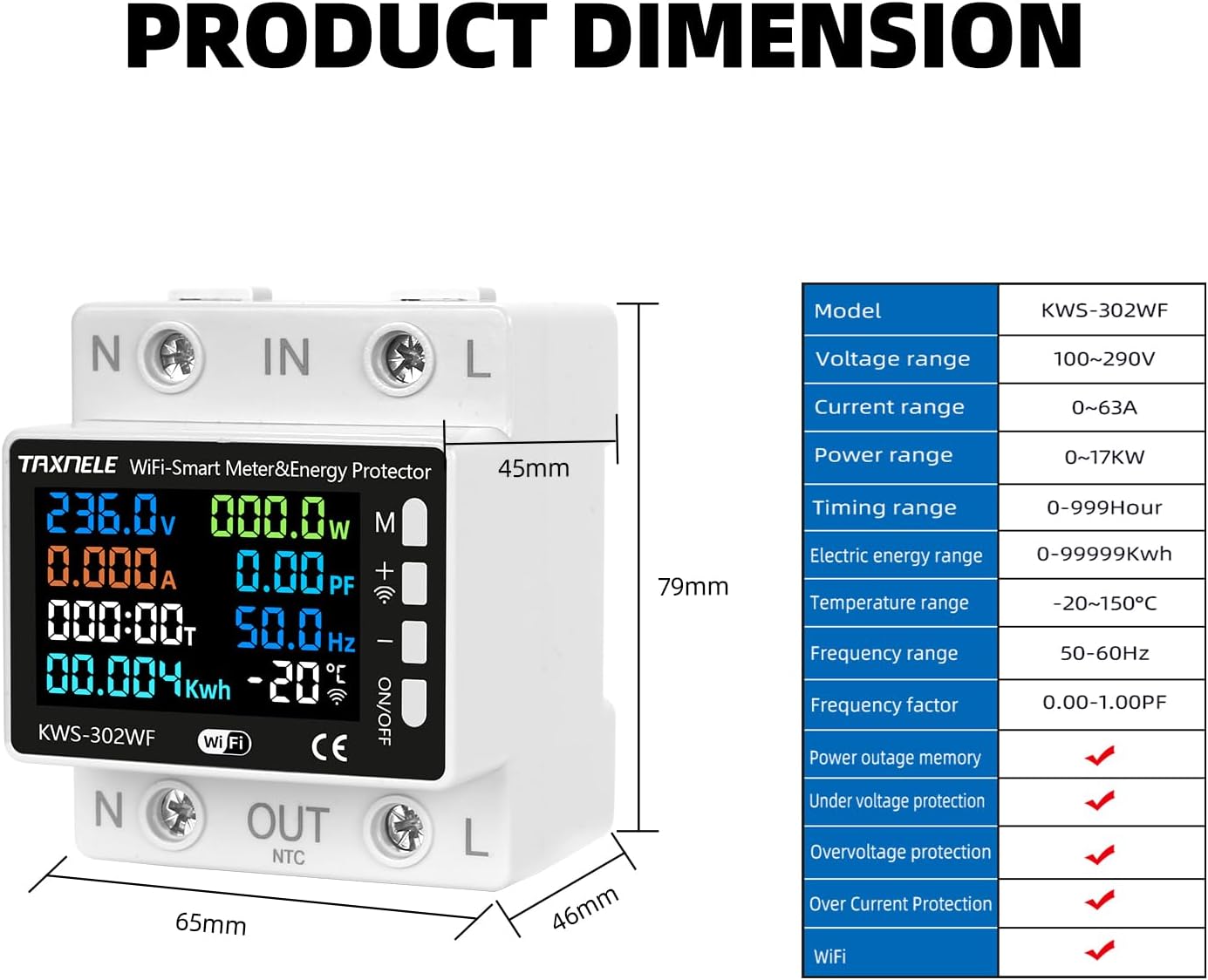
Image 3.1: Product dimensions and a summary of key specifications.
4. Safety Information
Please read and understand all safety instructions before installation and operation. Failure to follow these instructions may result in electric shock, fire, or serious injury.
- Professional Installation Recommended: Installation should be performed by a qualified electrician or professional.
- Power Disconnection: Always disconnect power at the main circuit breaker before installing or servicing the device.
- Voltage Compatibility: Ensure the device's voltage rating matches your electrical system.
- Proper Wiring: Follow the wiring diagram precisely. Incorrect wiring can damage the device or cause hazards.
- Environmental Conditions: Do not expose the device to excessive moisture, dust, or extreme temperatures outside its specified operating range.
- Maintenance: Do not attempt to repair or modify the device. Refer all servicing to qualified personnel.
5. Setup and Installation
This section outlines the steps for physically installing and connecting your KWS-302WF Smart Power Meter.
5.1 Package Contents
Verify that all components are present:
- KWS-302WF Smart Power Meter
- Temperature Sensor (NTC)
- User Manual (this document)
5.2 Wiring Diagram
Follow the wiring diagram carefully for correct installation. Ensure power is OFF before proceeding.
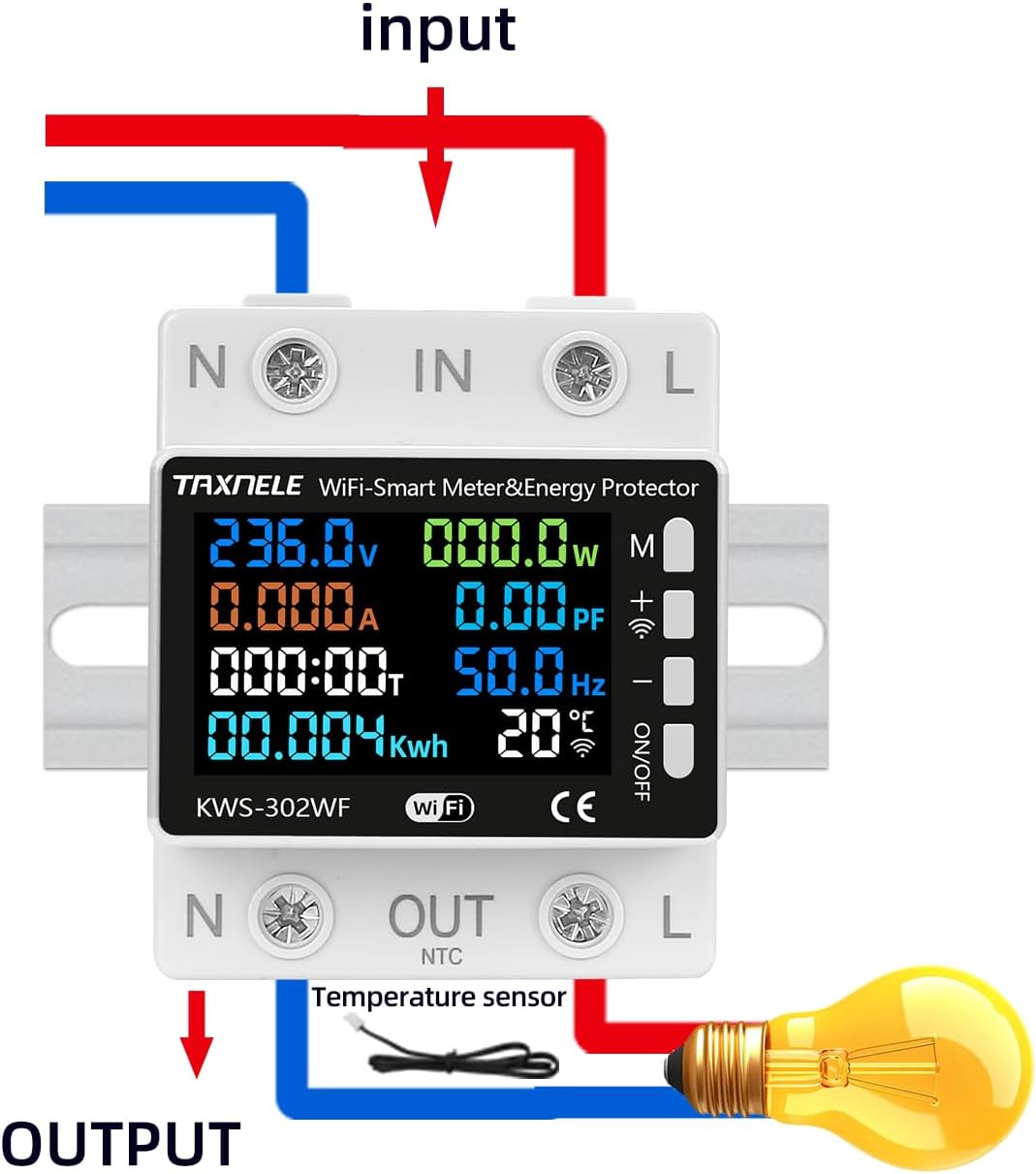
Image 5.1: Wiring connections for the KWS-302WF meter.
- Disconnect Power: Turn off the main power supply at the circuit breaker.
- Mount the Device: Install the KWS-302WF meter in a suitable electrical enclosure or DIN rail.
- Connect Input Wires: Connect the incoming Neutral (N) and Live (L) wires to the 'N IN' and 'L IN' terminals respectively.
- Connect Output Wires: Connect the load's Neutral (N) and Live (L) wires to the 'N OUT' and 'L OUT' terminals respectively.
- Connect Temperature Sensor: Plug the NTC temperature sensor into the designated port labeled 'NTC' on the bottom of the device.
- Verify Connections: Double-check all wiring for secure and correct connections.
- Restore Power: Turn on the main power supply. The device display should illuminate.
6. Operating Instructions
Once powered on, the KWS-302WF will display various parameters on its colorful screen.
6.1 Display Overview
The main display shows real-time readings for:
- Voltage (V)
- Current (A)
- Power (W)
- Power Factor (PF)
- Frequency (Hz)
- Timing (Hours)
- Electric Energy (kWh)
- Temperature (°C)
6.2 Button Functions
The device features control buttons on the side:
- 'M' Button: Used to enter and navigate through the settings menu. Press and hold for 3 seconds to enter settings.
- '+' Button: Used to increase values or move up in menu options.
- '-' Button: Used to decrease values or move down in menu options.
- ON/OFF Button: Manually switches the output relay ON or OFF.
7. Parameter Settings
To configure protection thresholds and other settings, press and hold the 'M' key for 3 seconds to enter the settings display.

Image 7.1: Overview of adjustable parameters on the device display.
Use the '+' and '-' buttons to adjust values and the 'M' button to confirm and move to the next setting. Available settings include:
- Over Voltage Setting (130-290VAC): Set the maximum allowable voltage.
- Under Voltage Setting (100-220VAC): Set the minimum allowable voltage.
- Over Current Setting (0.001-63A): Set the maximum allowable current.
- Timed Power Off Settings: Configure a timer for automatic power disconnection.
- Energy Prepaid: (If applicable) Set a kWh limit.
- Over Power Protection: Set the maximum allowable power (0-17kW).
- Over Temperature Protection: Set the maximum allowable temperature (-20-150°C).
- Screen Sleep Setting: Configure the display's backlight timeout.
8. Alarm Settings
The alarm function is automatically activated once thresholds are set. When a parameter exceeds its set limit, the device will trip the relay, disconnecting power to the load, and may display an alarm indicator.

Image 8.1: Alarm threshold settings as seen in the mobile application.
Key alarm thresholds and their tripping functions:
- Over-Current: Set threshold (0-63A). Triggers relay trip.
- Over-Voltage: Set threshold (130-290V). Triggers relay trip.
- Under-Voltage: Set threshold (100-220V). Triggers relay trip.
- High Power (Overload): Set threshold (1-17KW). Triggers relay trip.
- Over Temperature: Set threshold (-20-150°C). Triggers relay trip.
9. Remote Control (App Integration)
The KWS-302WF integrates with the Tuya Smart or Smart Life application for remote monitoring and control.
9.1 App Installation and Pairing
- Download App: Search for 'Tuya Smart' or 'Smart Life' in your smartphone's app store (iOS/Android) and install it.
- Register/Login: Create an account or log in to your existing account.
- Add Device: In the app, tap '+' to add a new device. Select 'Electrical' > 'Power Strip (Wi-Fi)' or 'Circuit Breaker (Wi-Fi)' (or similar, depending on app version).
- Wi-Fi Connection: Follow the in-app instructions to connect the device to your 2.4GHz Wi-Fi network. This usually involves putting the device into pairing mode (refer to device display or app for specific instructions, often by holding a button).
- Device Renaming: Once paired, you can rename the device for easy identification.
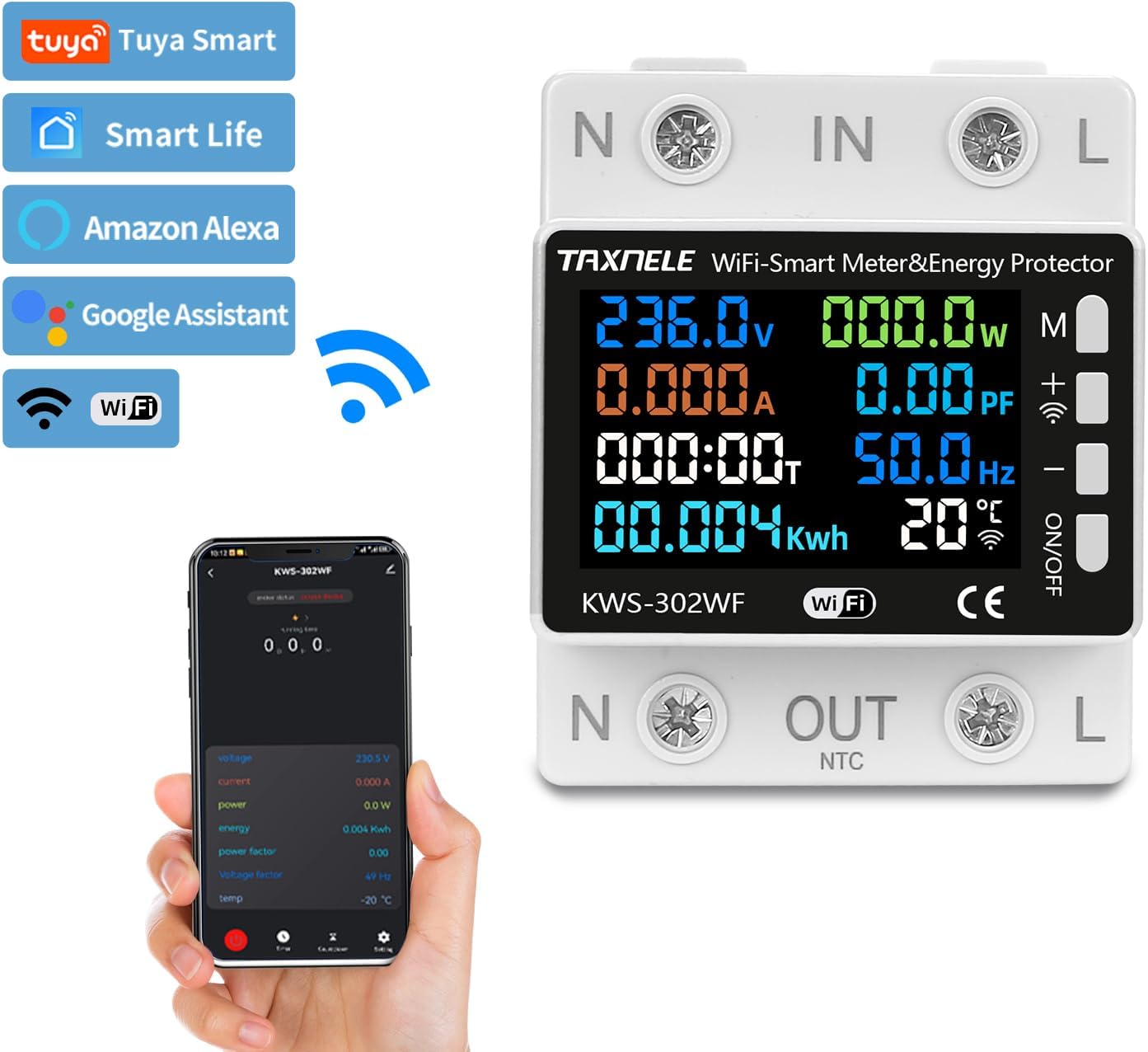
Image 9.1: App compatibility and integration with smart home platforms.
9.2 Remote Monitoring and Control
Through the app, you can:
- View real-time voltage, current, power, and energy consumption.
- Remotely switch the power output ON/OFF.
- Set and adjust protection thresholds (over-voltage, under-voltage, over-current, etc.).
- Access historical energy consumption data.
- Set schedules and timers for power control.

Image 9.2: Real-time monitoring and remote control capabilities via the app.
10. Temperature Measurement
The KWS-302WF includes an external NTC temperature sensor for accurate temperature monitoring within a range of -20°C to 150°C. This allows for over-temperature protection, tripping the relay if the monitored temperature exceeds the set threshold.
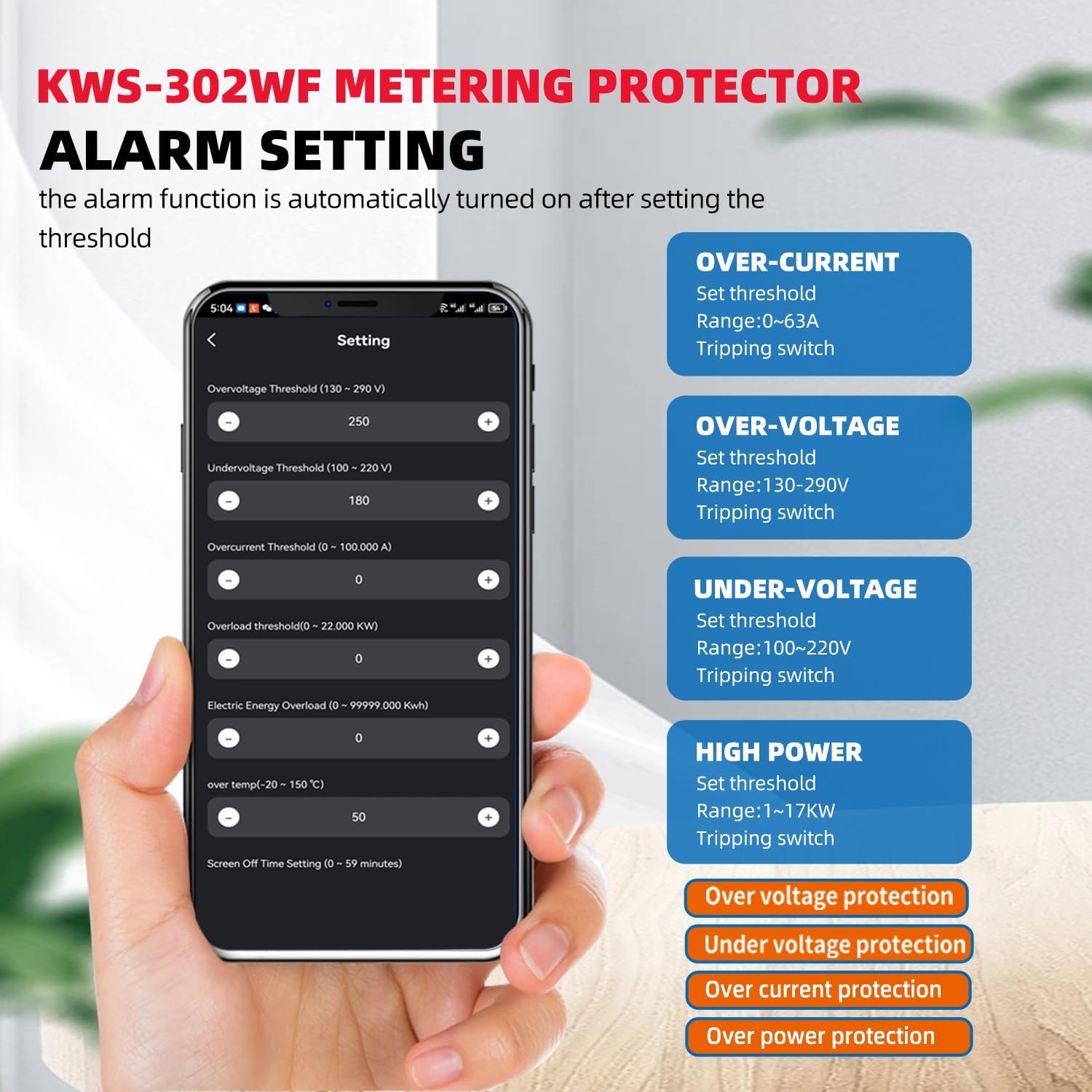
Image 10.1: Location of the NTC temperature sensor port.
11. Maintenance
To ensure optimal performance and longevity of your KWS-302WF Smart Power Meter, follow these maintenance guidelines:
- Cleaning: Gently wipe the device with a dry, soft cloth. Do not use abrasive cleaners, solvents, or liquids that could damage the casing or internal components.
- Environmental Check: Periodically inspect the installation environment to ensure it remains free from excessive dust, moisture, and extreme temperatures.
- Connection Check: Occasionally check the wiring connections to ensure they remain secure.
- Firmware Updates: Check the Tuya Smart Life app periodically for any available firmware updates for the device. Follow in-app instructions for safe updating.
12. Troubleshooting
This section addresses common issues you might encounter with your KWS-302WF Smart Power Meter.
| Problem | Possible Cause | Solution |
|---|---|---|
| Device display is off. | No power supply; Incorrect wiring. | Check main circuit breaker. Verify wiring connections according to the diagram. |
| Device not connecting to Wi-Fi/App. | Incorrect Wi-Fi password; 5GHz Wi-Fi network; Device not in pairing mode; Weak Wi-Fi signal. | Ensure correct 2.4GHz Wi-Fi password. Confirm your router supports 2.4GHz. Put device into pairing mode (refer to app instructions). Move device closer to router or use a Wi-Fi extender. |
| Output power is off (relay tripped). | Over-voltage, under-voltage, over-current, or over-power protection activated; Manual OFF. | Check display for alarm indicators. Reduce load or rectify voltage issue. Reset manually via ON/OFF button or app after resolving the cause. |
| Temperature reading is inaccurate or '---'. | Temperature sensor not connected or faulty. | Ensure the NTC temperature sensor is securely plugged into its port. If issue persists, the sensor may be faulty. |
| Readings appear incorrect. | Incorrect wiring; Device malfunction. | Double-check all wiring. If wiring is correct, contact support. |
13. Warranty and Support
For warranty information, please refer to the terms and conditions provided at the time of purchase or contact your retailer. For technical support, troubleshooting assistance beyond this manual, or inquiries regarding product functionality, please contact TAXNELE customer service or your authorized distributor. Please have your product model (KWS-302WF) and purchase details ready when contacting support.