
1. Introduction
The CMSTEDCD KVM Docking Station JHS-US-DP001-220 is designed to allow two computers to share a single set of peripherals, including two monitors, a keyboard, and a mouse. This device enhances productivity by providing seamless switching between two systems, making it ideal for both home office and professional environments. It supports high-resolution displays and offers multiple USB 3.0 ports for peripheral connectivity.
Package Contents
Please verify that all items are present in the package:
- CMSTEDCD KVM Docking Station
- Desktop Control (3.3ft)
- USB3.0 A-A Cable (3.3ft) x 2
- DC12V Power Adapter
- User Manual

Image: Contents of the CMSTEDCD KVM Docking Station package, including the KVM unit, remote switch, USB cables, power adapter, and user manual.
2. Safety Information
To ensure safe operation and prevent damage to the device or connected equipment, please observe the following safety guidelines:
- Use only the provided DC12V power adapter.
- Do not expose the device to water, moisture, or extreme temperatures.
- Avoid dropping or subjecting the device to severe impacts.
- Do not attempt to open or modify the device. Refer all servicing to qualified personnel.
- Ensure proper ventilation around the KVM switch to prevent overheating.
3. Product Features
- Dual Monitor KVM Switch: Control two computers using one set of keyboard, mouse, and two monitors. Share up to four USB devices simultaneously.
- High Resolution Support: Supports resolutions up to 4K@60Hz, and is backward compatible with 4K@30Hz, 1440P@60Hz, and 1080P@60Hz.
- Dual Display Modes: Supports both Extended working mode (different content on each monitor) and Copy working mode (same content on both monitors).
- USB 3.0 Connectivity: Features four USB 3.0 ports with a maximum transmission bandwidth of 5.0 Gbps (640 MB/s), ensuring stable and high-speed data transfer. Compatible with USB 2.0.
- Convenient Switching: Switch between computers using the button on the device or the wired extension button.
- Stable Performance: Powered by a 12V adapter for stable operation. Durable metal casing ensures minimal heat generation.
- Broad Compatibility: Compatible with various operating systems including Windows and Linux.
4. Port Layout and Product Diagram

Image: Detailed diagram of the KVM Docking Station, illustrating the location and function of each port and control button.
Front Panel
- USB 3.2 Ports (x3): For connecting USB peripherals like keyboard, mouse, USB drives.
- USB-C 3.2 Port: For connecting USB peripherals. Note: This port does not support video transfer.
- SD/Micro SD Card Slots: For memory card access.
- Switch Button (PC1-PC2): Press to switch between connected computers.
- Input Channel (LED): Indicates which computer is currently selected (PC1 or PC2).
- Extend Control Port: Connect the wired extension button for remote switching.
Rear Panel
- Power Switch (ON/OFF): To power the device on or off.
- DC20V Power Input: Connect the provided 12V power adapter here.
- USB-C (PC1 IN): Connects to Computer 1 (Laptop) via a Thunderbolt USB-C cable (use Thunderbolt 3 or higher cables for full functionality).
- DP A / DP B (PC2 IN): Connects to Computer 2 (Desktop) via DisplayPort cables.
- USB 3.0 (PC2 IN): Connects to Computer 2 (Desktop) via a USB 3.0 A-A cable.
- DP OUT A / DP OUT B: Connects to your two monitors via DisplayPort cables.
5. Setup Instructions
Follow these steps to connect your computers and monitors to the KVM Docking Station:
Step 1: Connect Monitors to KVM
- Connect your first monitor to the DP OUT A port on the KVM switch using a DisplayPort cable.
- Connect your second monitor to the DP OUT B port on the KVM switch using a DisplayPort cable.
Step 2: Connect Peripherals to KVM
- Connect your keyboard, mouse, and other USB devices (e.g., USB drive, printer) to the USB 3.2 ports on the front panel of the KVM switch.
- If desired, connect the wired extension button to the Extend Control port.
Step 3: Connect Computer 1 (Laptop) to KVM
- Connect a Thunderbolt USB-C cable (Thunderbolt 3 or higher recommended) from your Laptop's USB-C port to the USB-C (PC1 IN) port on the rear panel of the KVM switch. This single cable handles video, USB data, and power delivery (up to 100W PD).
Step 4: Connect Computer 2 (Desktop) to KVM
- Connect a DisplayPort cable from your Desktop's first DisplayPort output to the DP A (PC2 IN) port on the KVM switch.
- Connect a DisplayPort cable from your Desktop's second DisplayPort output to the DP B (PC2 IN) port on the KVM switch.
- Connect a USB 3.0 A-A cable from your Desktop's USB 3.0 port to the USB 3.0 (PC2 IN) port on the KVM switch. This cable transmits USB data for shared peripherals.
Step 5: Power On
- Connect the DC12V power adapter to the DC20V Power Input port on the KVM switch, then plug it into a power outlet.
- Flip the Power Switch to the ON position. The KVM switch will power on, and the Input Channel LED will indicate the currently selected computer.
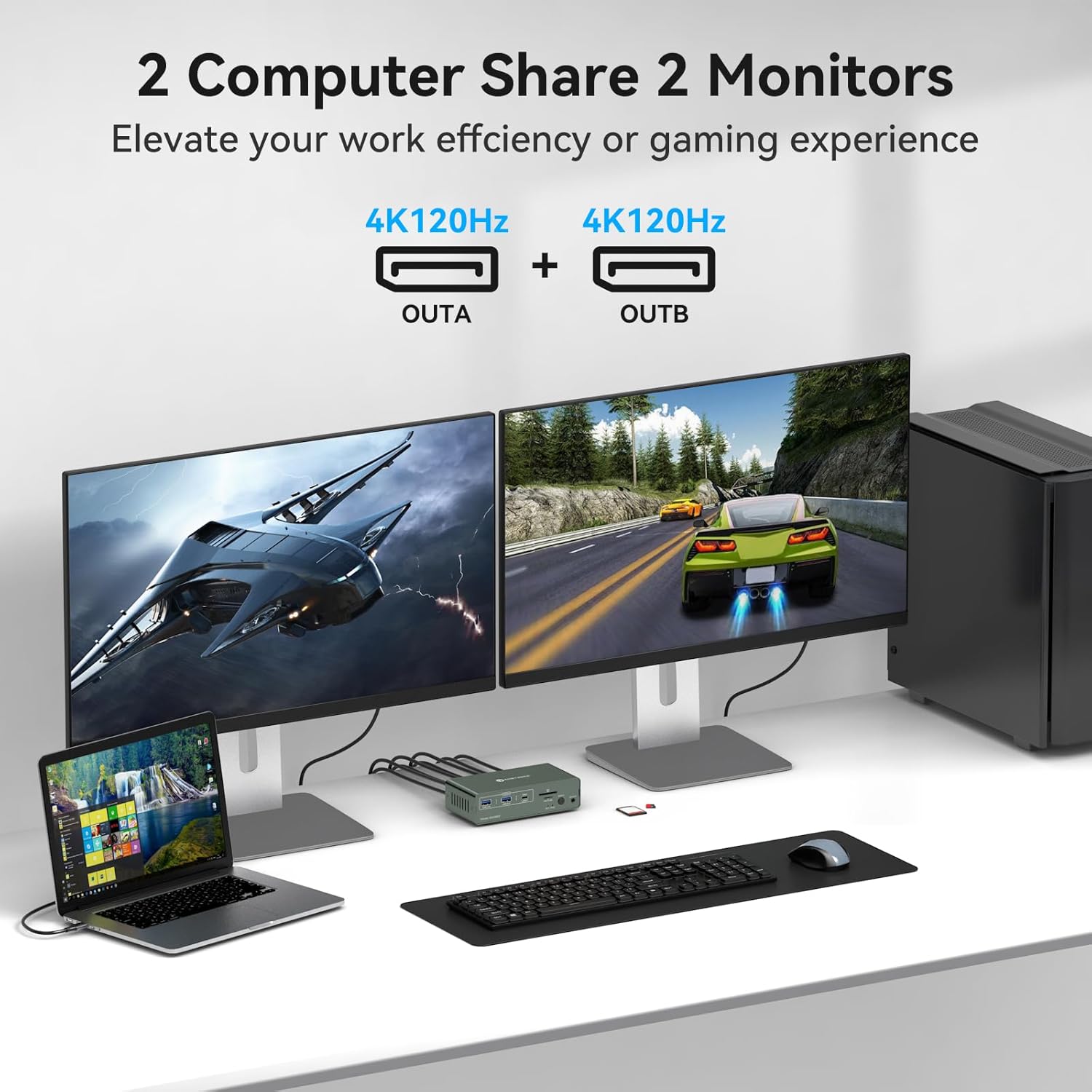
Image: An illustration of the KVM setup, demonstrating how two computers (a laptop and a desktop) share two monitors and a single set of input devices.
6. Operating Instructions
Switching Between Computers
You can switch between Computer 1 and Computer 2 using one of two methods:
- Device Button: Press the Switch Button (PC1-PC2) on the front panel of the KVM switch.
- Wired Extension Button: Press the button on the connected wired extension control.
The Input Channel LED will illuminate to indicate which computer is currently active.
Display Modes
The KVM switch supports two primary display modes for your monitors:
- Extended Working Mode: Each monitor displays different content, extending your desktop workspace. This mode requires your computer's operating system and graphics card to support extended displays.
- Copy Working Mode (Duplicate): Both monitors display the same content, mirroring your desktop.
You can configure these display modes through your computer's display settings (e.g., Windows Display Settings or macOS System Settings).

Image: Visual representation of Extended working mode, where two monitors show different content, and Copy working mode, where both monitors display identical content.
Operating System Specifics

Image: Various display configurations for Windows, including extended and duplicate modes. Also shows macOS configurations, noting that MacBook USB-C ports may not support extended display (ABC Mode).
- Windows: Supports both extended and duplicate display modes across two monitors. Ensure your computer has two HDMI ports or appropriate adapters if not using DisplayPort directly.
- macOS: The MacBook USB-C port may not support extended display (ABC Mode). In some macOS configurations, especially with ARM processors, only mirror or duplicate display modes might be available.
7. Troubleshooting
If you encounter issues with your KVM Docking Station, please refer to the following common solutions:
- No Display on Monitors:
- Ensure all DisplayPort cables are securely connected to both the KVM switch and your monitors/computers.
- Verify that the KVM switch is powered on and the correct input channel is selected.
- Check your computer's display settings to ensure monitors are detected and configured correctly (e.g., extended or duplicate mode).
- Confirm that your computer's graphics card drivers are up to date.
- USB Devices Not Working:
- Ensure the USB 3.0 A-A cable (for PC2) or Thunderbolt USB-C cable (for PC1) is securely connected between the KVM and your computers.
- Try connecting the USB device directly to your computer to confirm it is functional.
- Reconnect the USB device to a different USB port on the KVM switch.
- Unstable Switching or Performance:
- Ensure the KVM switch is receiving stable power from the provided 12V power adapter.
- Avoid using excessively long or low-quality cables, which can degrade signal integrity.
- Restart the KVM switch and both connected computers.
- Resolution or Refresh Rate Issues:
- Verify that your monitors and graphics cards support the desired resolution and refresh rate.
- Check your computer's display settings to ensure the correct resolution and refresh rate are selected.
8. Specifications
| Feature | Specification |
|---|---|
| Model | JHS-US-DP001-220 |
| Brand | CMSTEDCD |
| Connector Type | DisplayPort, USB-C |
| Connectivity Protocol | DisplayPort |
| Max Resolution Support | 4K@60Hz (backward compatible with 4K@30Hz, 1440P@60Hz, 1080P@60Hz) |
| USB Ports | 4 x USB 3.0 (5.0 Gbps) |
| Power Delivery (PC1) | Up to 100W via USB-C |
| Power Input | DC 12V (via included adapter) |
| Compatible Devices | Personal Computers (Laptops, Desktops) |
| Operating System Compatibility | Windows, Linux (macOS with specific limitations) |
| Material | Metal Casing |
| Color | Purple |
9. Maintenance
To ensure the longevity and optimal performance of your KVM Docking Station, follow these maintenance guidelines:
- Cleaning: Use a soft, dry cloth to wipe the exterior of the device. Do not use liquid cleaners or abrasive materials.
- Ventilation: Ensure that the ventilation openings are not blocked to prevent overheating.
- Storage: When not in use for extended periods, store the device in a cool, dry place away from direct sunlight.
- Cable Management: Avoid sharp bends or excessive tension on connected cables to prevent damage.
10. Warranty and Support
The CMSTEDCD KVM Docking Station JHS-US-DP001-220 comes with a replacement service available within 24 months from the date of purchase. If you encounter any problems during use, please contact our professional after-sales support team for assistance.
For support inquiries, please refer to the contact information provided with your purchase or visit the official CMSTEDCD website.