
Important Safety Instructions
Read all instructions carefully before installing, operating, servicing, or maintaining this equipment. Failure to follow these instructions can result in serious injury or death. This UPS contains hazardous voltages. Installation and servicing should be performed by qualified personnel only. Always disconnect the UPS from the AC power source and ensure batteries are disconnected before performing any internal maintenance or servicing. The unit is heavy; use proper lifting techniques and equipment to prevent injury during installation.
- Do not operate the UPS in direct sunlight, near heat sources, or in areas with excessive humidity.
- Ensure proper grounding for the UPS and connected equipment.
- Do not connect non-computer-related items such as medical equipment, life support equipment, microwave ovens, or vacuum cleaners to the UPS.
- Replace batteries with the same type and number of batteries as originally installed.
- Refer to local codes for all wiring.
Product Overview
The APC Smart-UPS On-Line 10kVA/10kW Rackmount UPS (Model SRT10KRMXLT-10KTF) is a high-performance uninterruptible power supply designed to provide reliable power protection for critical IT equipment. This unit features a true double-conversion online architecture, ensuring consistent, high-quality power output regardless of input power conditions. It is designed for rack installation, occupying 10U of rack space, and includes a transformer for flexible output voltage options.
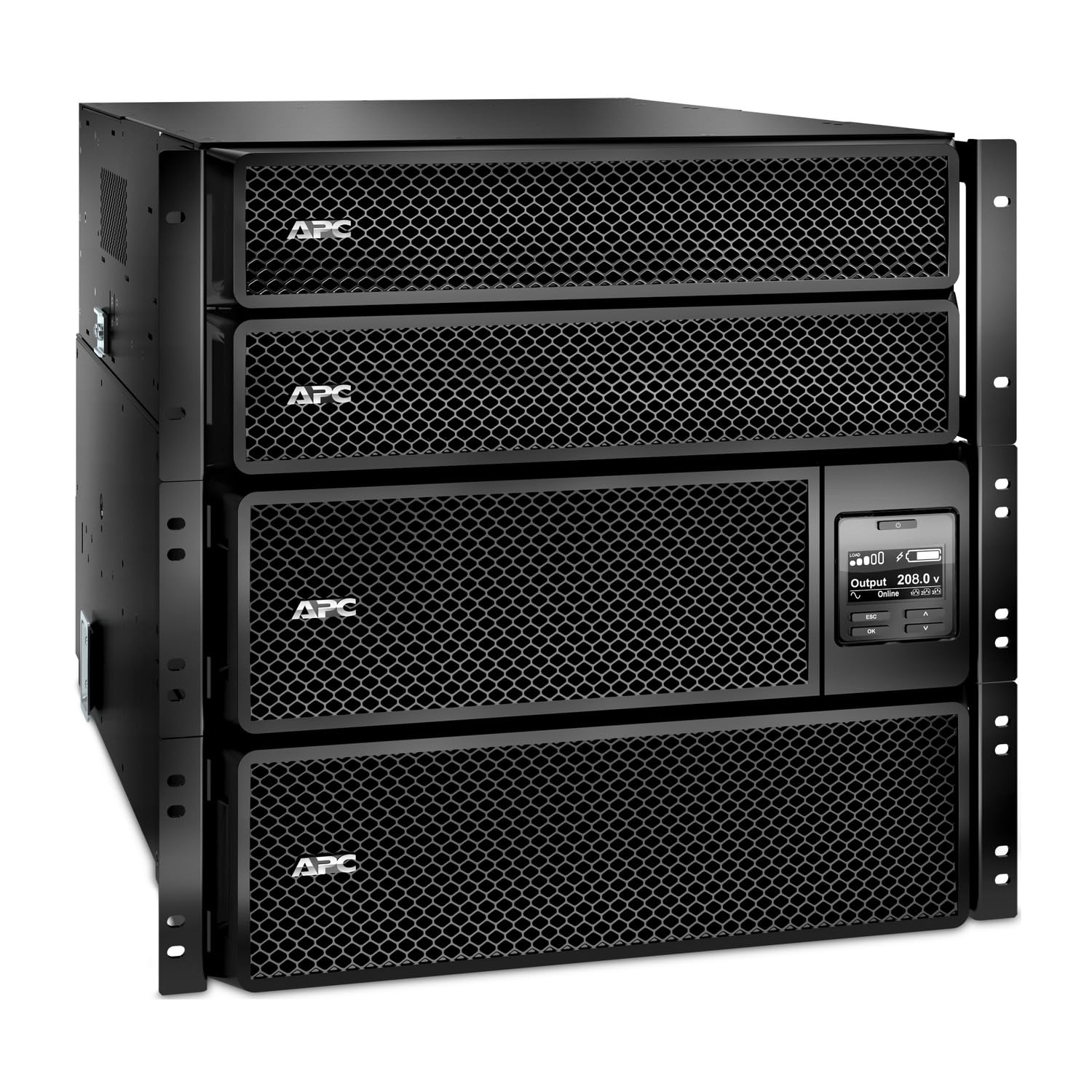
Figure 1: Front view of the APC Smart-UPS On-Line 10kVA/10kW Rackmount UPS. This image displays the front panel with the LCD display, control buttons, and ventilation grilles, indicating its rack-mountable design.
Key Features:
- Capacity: 10kVA / 10kW for robust power delivery.
- Form Factor: Rackmount 10U design for efficient space utilization.
- Input Voltage: 208V AC.
- Output Voltage: 208V / 240V AC directly from the UPS, with an included transformer to provide 120V AC output.
- Output Receptacles: Includes 2x NEMA L5-20R, 4x NEMA L6-20R, 2x NEMA L6-30R, and 2x NEMA L14-30R outlets.
- Network Management Card (NMC): Integrated for remote monitoring and management.
- Scalability: Supports external battery packs for extended runtime.
Setup and Installation
1. Unpacking and Inspection
Carefully unpack the UPS and all accessories. Inspect the unit for any shipping damage. Report any damage to the carrier and your dealer immediately. Retain the packaging for future transport.
2. Rack Mounting
This UPS is designed for installation in a standard 19-inch equipment rack and requires 10U of space. Use the included rail kit for secure mounting. Due to the weight of the unit, it is recommended that at least two people perform the installation. Ensure the rack is stable and capable of supporting the UPS's weight.
- Attach the inner rails to the sides of the UPS.
- Mount the outer rails to the rack posts using the provided hardware.
- Slide the UPS into the rack until it clicks into place. Secure the front of the UPS to the rack with screws.
3. Connecting Input Power
Connect the UPS input power cord to a dedicated 208V AC circuit. Ensure the circuit breaker rating is appropriate for a 10kVA load. Consult a qualified electrician if necessary.
4. Connecting Output Loads
Connect your equipment to the appropriate NEMA outlets on the rear of the UPS. The unit provides 208V/240V output. For 120V loads, connect them to the outlets provided by the included step-down transformer. Distribute the load evenly across the available outlets.
- 2x NEMA L5-20R: 120V, 20A (via transformer)
- 4x NEMA L6-20R: 208V/240V, 20A
- 2x NEMA L6-30R: 208V/240V, 30A
- 2x NEMA L14-30R: 120V/208V, 30A
5. Initial Startup
After all connections are made, turn on the UPS by pressing the power button on the front panel. The UPS will perform a self-test and then enter online mode, providing conditioned power to your connected equipment.
Operation
Front Panel Display
The LCD display on the front panel provides real-time information about the UPS status, load, battery charge, and various settings. Use the navigation buttons to scroll through menus and adjust settings.
Powering On/Off
- To Power On: Press and hold the power button until the display illuminates.
- To Power Off: Press and hold the power button until the display indicates shutdown.
Bypass Mode
The UPS can be placed into bypass mode to allow connected equipment to receive utility power directly, bypassing the UPS's inverter. This is useful for maintenance or when the UPS needs to be taken offline. Refer to the front panel menu for activating bypass mode.
Battery Operation
In the event of a power outage, the UPS will automatically switch to battery power. The LCD will display the remaining runtime. The UPS will automatically return to online mode and recharge its batteries once utility power is restored.
Network Management Card (NMC)
The integrated Network Management Card allows for remote monitoring and control of the UPS over a network. Connect an Ethernet cable to the NMC port and configure its network settings via the front panel or a direct console connection. Refer to the NMC user guide for detailed configuration instructions.
Maintenance
Battery Replacement
The UPS batteries have a typical service life of 3-5 years. The UPS will indicate when battery replacement is necessary. Only replace batteries with APC-approved replacement battery cartridges (RBCs). Battery replacement can be performed by qualified personnel while the UPS is online, ensuring continuous power to connected loads.
Cleaning
Keep the ventilation openings clear of dust and debris to ensure proper airflow. Use a soft, dry cloth to clean the exterior of the UPS. Do not use liquid or aerosol cleaners.
Firmware Updates
Periodically check the APC website for available firmware updates for your UPS and Network Management Card. Firmware updates can provide enhanced features, improved performance, and bug fixes. Follow the instructions provided with the firmware update package carefully.
Troubleshooting
This section provides solutions to common issues you may encounter with your UPS. For more complex problems, contact APC technical support.
| Problem | Possible Cause | Solution |
|---|---|---|
| UPS does not turn on | No input power; UPS not connected to AC source; Battery disconnected. | Check AC power connection and circuit breaker. Ensure internal battery connectors are secure. |
| UPS beeps continuously | On battery power; Overload condition; Battery low/fault. | Check utility power. Reduce connected load. Check battery status on LCD. |
| Connected equipment not receiving power | UPS in bypass mode; Output circuit breaker tripped; UPS fault. | Check UPS mode on LCD. Reset output circuit breakers. Consult LCD for fault codes. |
| Battery runtime is shorter than expected | Batteries nearing end of life; Overload; Batteries not fully charged. | Replace batteries. Reduce connected load. Allow batteries to fully charge. |
Specifications
| Feature | Specification |
|---|---|
| Model Number | SRT10KRMXLT-10KTF |
| Capacity (VA/Watts) | 10kVA / 10kW |
| Input Voltage | 208V AC |
| Output Voltage | 208V / 240V AC (UPS), 120V AC (via transformer) |
| Output Connections | 2x NEMA L5-20R, 4x NEMA L6-20R, 2x NEMA L6-30R, 2x NEMA L14-30R |
| Form Factor | Rackmount 10U |
| Color | Black |
| UPC | 731304732891 |
Warranty and Support
Warranty Information
APC by Schneider Electric provides a standard warranty for this product. The specific terms and duration of the warranty may vary by region. Please refer to the warranty card included with your product or visit the official APC website for detailed warranty information.
Technical Support
For technical assistance, troubleshooting, or service inquiries, please contact APC Technical Support. Have your product model number (SRT10KRMXLT-10KTF) and serial number ready when contacting support.
Online Support: Visit the official APC website (www.apc.com/support) for FAQs, documentation, and support resources.
Phone Support: Refer to the APC website for local contact numbers.