
1. Introduction
Thank you for choosing the Hikity 0710WC Double Din Car Stereo. This manual provides detailed instructions for installation, operation, and maintenance of your new car audio receiver. Please read this manual thoroughly before use to ensure proper functionality and to maximize your user experience. This unit integrates advanced features such as wireless CarPlay, Android Auto, Bluetooth 5.1, FM radio, and a rear view camera input, designed to enhance your driving convenience and entertainment.
2. Safety Information
- Professional Installation Recommended: Due to the complexity of car electrical systems, professional installation is highly recommended to prevent damage to the unit or your vehicle.
- Power Supply: Ensure the unit is connected to a 12V DC power supply with a negative ground. Incorrect voltage or polarity can cause damage.
- Wiring: Carefully follow the wiring diagram. Insulate all exposed wires to prevent short circuits.
- Driving Safety: Do not operate the unit in a way that distracts you from driving. Always prioritize road safety.
- Temperature: Avoid exposing the unit to extreme temperatures or direct sunlight for prolonged periods.
- Moisture: Keep the unit away from water and excessive moisture.
3. Package Contents
Verify that all items are present in the package:
- Hikity 0710WC Car Stereo Unit
- Power Cable
- Horn Cable
- Backup Camera
- Remote Control
- External Microphone
- Antenna Head
- User Manual (this document)

4. Product Overview and Key Features
The Hikity 0710WC is a universal double din car stereo designed for broad compatibility and enhanced in-car entertainment.
4.1. Universal Double Din Design
This unit features a universal 7-inch dual din design with a bare wire harness, making it suitable for installation in most vehicles. The screen measures 178mm * 100mm (L * H), and the installation size is 178mm * 100mm * 60mm (L * H * D). It supports sound effect adjustments and speaker volume balancing.
4.2. Wireless CarPlay & Android Auto
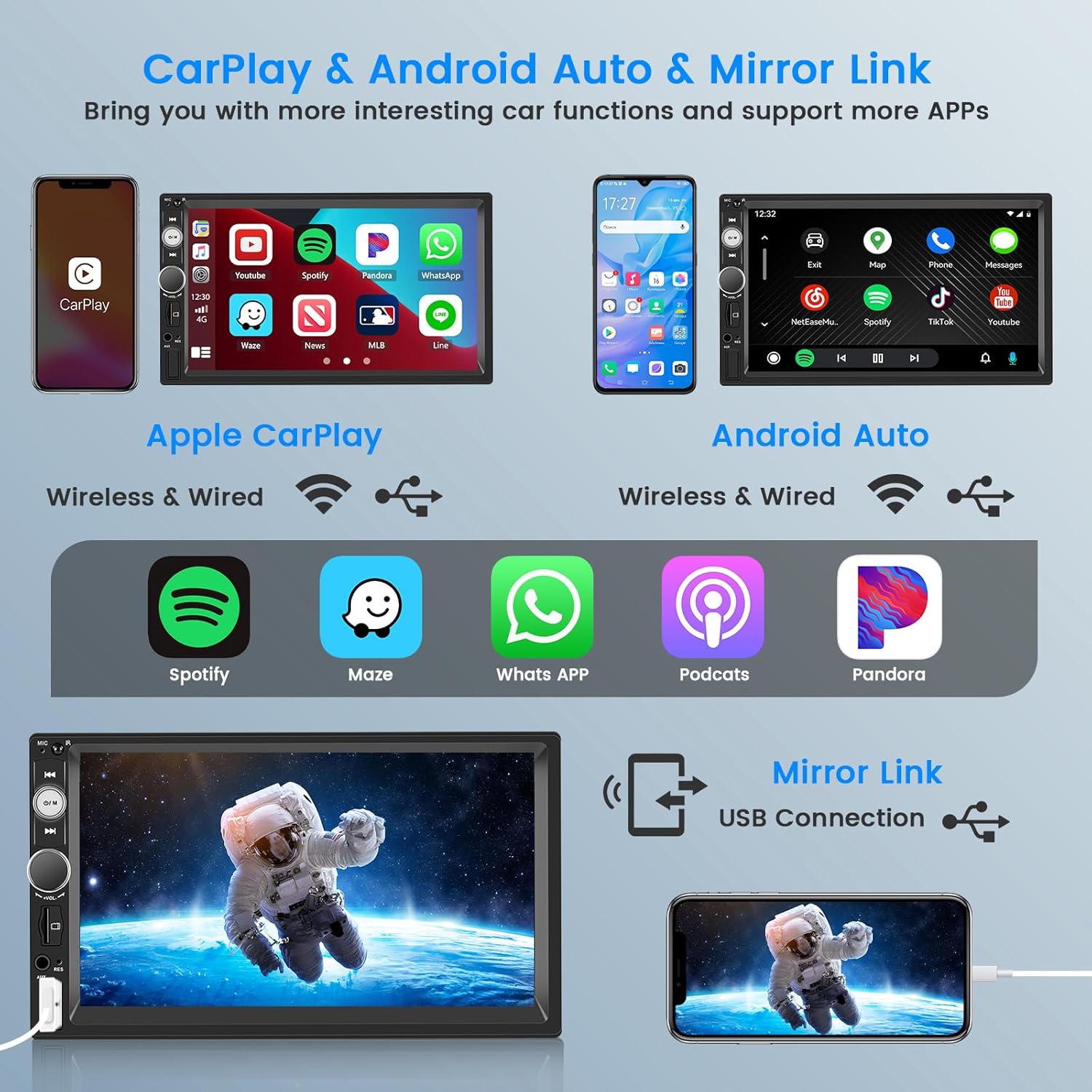
Enjoy seamless integration with your smartphone. Connect wirelessly via Bluetooth 5.1 for Apple CarPlay and wired/wireless for Android Auto. Access navigation, make calls, send messages, and play music directly from the touchscreen or using voice commands (Siri/Hey Google).
4.3. Mirror Link & Dual USB
The unit supports Mirror Link for both iOS and Android phones via the USB port, allowing you to display your phone screen on the car stereo. It includes two USB ports (one front, one rear) for phone charging and media playback from USB drives or TF cards. An AUX input is also available.
4.4. Rear View Camera Input & Steering Wheel Control
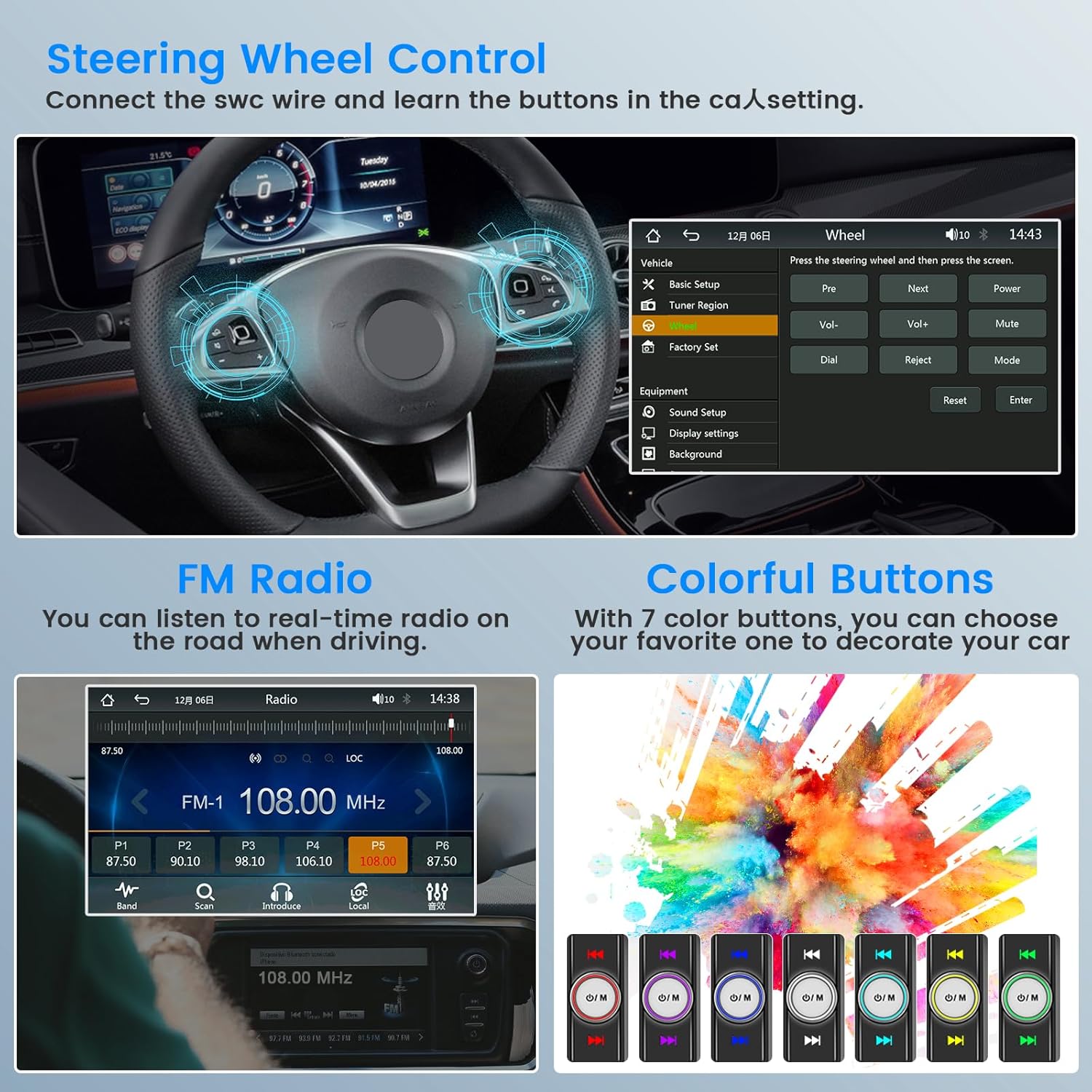
Equipped with a 170° viewing angle, waterproof rear view camera. The 7-inch touchscreen automatically displays the parking image when the vehicle is in reverse gear. The unit also supports steering wheel controls for convenient operation while driving.

4.5. Bluetooth 5.1 & External Microphone
The upgraded Bluetooth 5.1 technology ensures stable signal and high-quality sound for hands-free calling and wireless audio streaming. An external microphone is included to improve communication clarity.

4.6. 7-Inch 1024*600 Touchscreen
The high-resolution 1024*600 touchscreen provides a bright, delicate, and clear display for all functions.

4.7. FM Radio & Customizable Backlight
Listen to real-time radio with the built-in FM tuner. The unit also features a seven-color backlight for the physical buttons, allowing you to customize the aesthetic to match your car's interior.
5. Installation Guide
This section provides general installation guidelines. Specific vehicle requirements may vary. It is recommended to consult a professional installer if you are unsure about any steps.
5.1. Pre-Installation Checks
- Confirm your vehicle's dash size, ensuring it accommodates a double din unit (178mm x 100mm).
- Verify compatibility with your vehicle's factory wiring harness and radio antenna adapter.
- Disconnect the vehicle's negative battery terminal before starting any electrical work.
5.2. Wiring Diagram
Refer to the following diagram for proper wiring connections. Ensure all connections are secure and insulated.

General Wiring Connections:
- Power Cable: Connect to vehicle's power supply (12V DC, negative ground).
- Horn Cable: Connect as per vehicle's horn wiring.
- Speaker Wires: Connect to corresponding vehicle speakers (Front Left, Front Right, Rear Left, Rear Right).
- Backup Camera Input (CAMIN): Connect the video signal from the backup camera.
- Reverse Trigger Wire: Connect to the vehicle's reverse light positive to automatically switch to the camera view when reversing.
- Steering Wheel Control (SWC): Connect to your vehicle's SWC wires (if applicable) for button learning.
- Antenna: Connect the radio antenna.
- External Microphone: Plug into the dedicated MIC input.
5.3. Mounting the Unit
Secure the car stereo into the double din opening using appropriate mounting brackets (not always included, may require vehicle-specific kit). Ensure it is firmly in place to prevent vibrations.
6. Initial Setup and Configuration
6.1. Power On
After installation, reconnect the vehicle's negative battery terminal. Turn on your vehicle's ignition. The unit should power on automatically.
6.2. Language and Time Settings
Navigate to the 'Settings' menu to set your preferred language, time, and date.
6.3. Bluetooth Pairing
- On the stereo, go to the Bluetooth menu.
- Enable Bluetooth on your smartphone and search for available devices.
- Select 'Hikity' (or similar device name) from the list on your phone.
- Confirm the pairing code on both devices if prompted.
6.4. Steering Wheel Control Learning
If your vehicle has steering wheel controls, access the 'SWC' or 'Steering Wheel Control' settings in the unit's menu. Follow the on-screen instructions to assign functions to your steering wheel buttons.
7. Operating Instructions
7.1. Main Interface
The main interface provides access to all primary functions: Radio, Bluetooth, CarPlay, Android Auto, Mirror Link, USB/TF playback, AUX input, and Settings.

7.2. Radio Function
- Select 'Radio' from the main menu.
- Use the 'Scan' function to automatically search for and save available FM stations.
- Manually tune by pressing the frequency up/down buttons.
7.3. Wireless CarPlay / Android Auto
- Ensure your phone's Bluetooth is on and paired with the stereo.
- Select 'CarPlay' or 'Android Auto' from the main menu.
- Follow any on-screen prompts on your phone to establish the connection.
- For wired Android Auto, connect your phone via USB.
7.4. Mirror Link
- Connect your smartphone to the stereo via a USB cable.
- Select 'Mirror Link' from the main menu.
- Follow the instructions on the stereo and your phone to enable screen mirroring.
7.5. Media Playback (USB/TF/AUX)
- Insert a USB drive or TF card into the respective port, or connect an AUX device.
- Select 'USB', 'TF', or 'AUX' from the main menu.
- Browse and play your media files.
7.6. Rear View Camera
When the vehicle is shifted into reverse gear, the stereo will automatically display the rear view camera feed on the screen.
8. Maintenance
- Cleaning: Use a soft, dry cloth to clean the screen and unit. Do not use abrasive cleaners or solvents.
- Dust: Regularly clean dust from vents and ports to ensure proper airflow.
- Software Updates: Check the manufacturer's website for any available firmware updates to ensure optimal performance and compatibility.
9. Troubleshooting
If you encounter issues, refer to the following common problems and solutions:
| Problem | Possible Cause | Solution |
|---|---|---|
| Unit does not power on. | Incorrect wiring; Blown fuse; Loose power connection. | Check power cable connections; Inspect vehicle's fuse box; Ensure battery is connected. |
| No sound. | Speaker wires incorrectly connected; Volume too low; Mute function active. | Verify speaker wiring; Increase volume; Disable mute. |
| Bluetooth connection issues. | Phone not in pairing mode; Incorrect pairing code; Interference. | Ensure phone Bluetooth is on and discoverable; Re-pair devices; Move closer to the unit. |
| CarPlay/Android Auto not connecting. | Incorrect phone settings; USB cable issue (for wired); App not updated. | Check phone settings for CarPlay/Android Auto; Try a different USB cable; Update phone apps. |
| Rear camera not displaying. | Camera wiring incorrect; Reverse trigger wire not connected. | Check camera video and power connections; Ensure reverse trigger wire is correctly connected to reverse light. |
If problems persist after attempting these solutions, please contact Hikity customer service for further assistance.
10. Specifications
| Feature | Detail |
|---|---|
| Model Number | 0710WC |
| Screen Size | 7 Inch |
| Screen Resolution | 1024 x 600 |
| Installation Size | 178mm x 100mm x 60mm (L x H x D) |
| Connectivity Technology | Auxiliary, Bluetooth 5.1, USB |
| Special Features | Wireless Apple CarPlay, Wired/Wireless Android Auto, Mirror Link, Rear View Camera Input, Steering Wheel Control, FM Radio, EQ Settings, 7-Color Backlight |
| Compatible Devices | Smartphone (iOS, Android) |
| Audio Output Mode | Stereo |
| Surround Sound Channel | 4.0 |
| Video Encoding Support | MKV/AVI/TS/TP/MP4/M4V |
| Item Weight | 1.65 pounds |
| Color | Black |
11. Warranty and Customer Support
Hikity provides a 30-day money-back guarantee for any reason and lifetime user support for its products.
For any questions regarding installation, usage, or troubleshooting, please contact Hikity customer service. You can reach them via the Amazon platform by visiting the 'Hikity Tech' seller page and clicking 'Ask a question', or by emailing hikityservices@163.com. Please include your Amazon order number when contacting support.


