
ECOWITT GW1200BU
ECOWITT Wi-Fi Gateway Weather Station GW1200 User Manual
Model: GW1200BU
1. Introduction
The ECOWITT GW1200 Wi-Fi Gateway Weather Station is a compact and versatile device designed to monitor indoor environmental conditions and act as a central hub for a wide range of Ecowitt wireless sensors. It features built-in sensors for temperature, humidity, and barometric pressure, making it a complete indoor weather station on its own. Furthermore, its IoT-ready capabilities allow it to connect to and manage various Ecowitt-developed sensors and smart control devices, providing comprehensive environmental monitoring and automation.
This manual provides detailed instructions for setting up, operating, maintaining, and troubleshooting your GW1200 Wi-Fi Gateway Weather Station.

Figure 1.1: The ECOWITT GW1200 Wi-Fi Gateway Weather Station unit.
2. Package Contents
Upon unpacking your ECOWITT GW1200, please verify that all components are present and in good condition. The standard package includes:
- ECOWITT GW1200 Wi-Fi Gateway Unit (with integrated temperature, humidity, and barometric pressure sensor probe)
- USB Power Cable (approximately 1.5m/3ft extension cable for flexible placement)
- Instruction Manual (this document)
Note: A USB power adapter (2.0 or later) is required but not included in the package.

Figure 2.1: Overview of the GW1200 gateway, its integrated 3-in-1 sensor probe, and USB power connection.
3. Setup and Installation
3.1 Powering the Gateway
The GW1200 gateway is powered via a USB connection. Connect the provided USB cable to the gateway unit and then to a compatible USB power adapter (not included) or a USB port on a computer or power bank. The 1.5m/3ft extension cable allows for flexible placement to ensure accurate readings from the built-in sensors.
3.2 Wi-Fi Configuration
To enable data upload and remote access, the GW1200 must be connected to your Wi-Fi network. There are two primary methods for Wi-Fi configuration:
- Using the Ecowitt APP (Recommended):
Download the "Ecowitt" application from your smartphone's app store (available for iOS and Android). Follow the in-app instructions to add your GW1200 device and configure its Wi-Fi settings. This method is generally the most straightforward.
- Using a Web Browser:
Detailed instructions for web-based Wi-Fi configuration can be found in the Quick Start Guide included with your product. This method typically involves connecting directly to the gateway's temporary Wi-Fi hotspot and accessing its configuration page via a web browser.
Ensure your Wi-Fi network has internet access for the gateway to upload data and receive firmware updates.

Figure 3.1: The GW1200 in a typical indoor setup, showing its compact size and connection to a power source, with a smartphone displaying the Ecowitt app interface.
4. Operation
4.1 Built-in Sensor Readings
Once powered on, the GW1200 immediately begins measuring indoor temperature, humidity, and barometric pressure using its integrated 3-in-1 sensor. These readings are accessible via the Ecowitt APP.
4.2 Connecting External Sensors
The GW1200 acts as a gateway for a wide array of Ecowitt-developed wireless sensors (sold separately). It can collect data from various types of sensors, including but not limited to:
- Outdoor Temperature and Humidity Sensors (e.g., WN32)
- Rain Gauge Sensors (e.g., WH40)
- Wireless Anemometers (e.g., WS68)
- Outdoor Sensor Arrays (e.g., WS90)
- Thermo-hygrometer Sensors (up to 8 WN31)
- Soil Moisture Sensors (up to 8 WH51/WH51L)
- Pool Thermometers (up to 8 WN34L/WN34D)
- PM2.5 Air Quality Sensors (up to 4 WH41/WH43)
- Air Quality Sensors (WH45/WH46)
- Water Leak Sensors (WH55)
- Lightning Sensors (WH57)
Sensors are typically automatically detected by the GW1200 once they are powered on and within range (up to 100 meters RF communication). You can manage and calibrate these sensors through the Ecowitt APP.

Figure 4.1: The GW1200 gateway's compatibility with a wide range of Ecowitt Wi-Fi weather sensors and IoT devices.

Figure 4.2: Illustration of the GW1200's 100M RF communication range, demonstrating its ability to connect to sensors across different areas like bedrooms, kitchens, offices, warehouses, and greenhouses.
4.3 Viewing Live Data and Data Management
The Ecowitt APP serves as your primary interface for viewing real-time data from the GW1200 and all connected sensors. Within the app, you can:
- View current readings for temperature, humidity, barometric pressure, and data from all paired external sensors.
- Access historical data and graphs.
- Manage sensor calibration settings.
- Select and deselect active sensors.
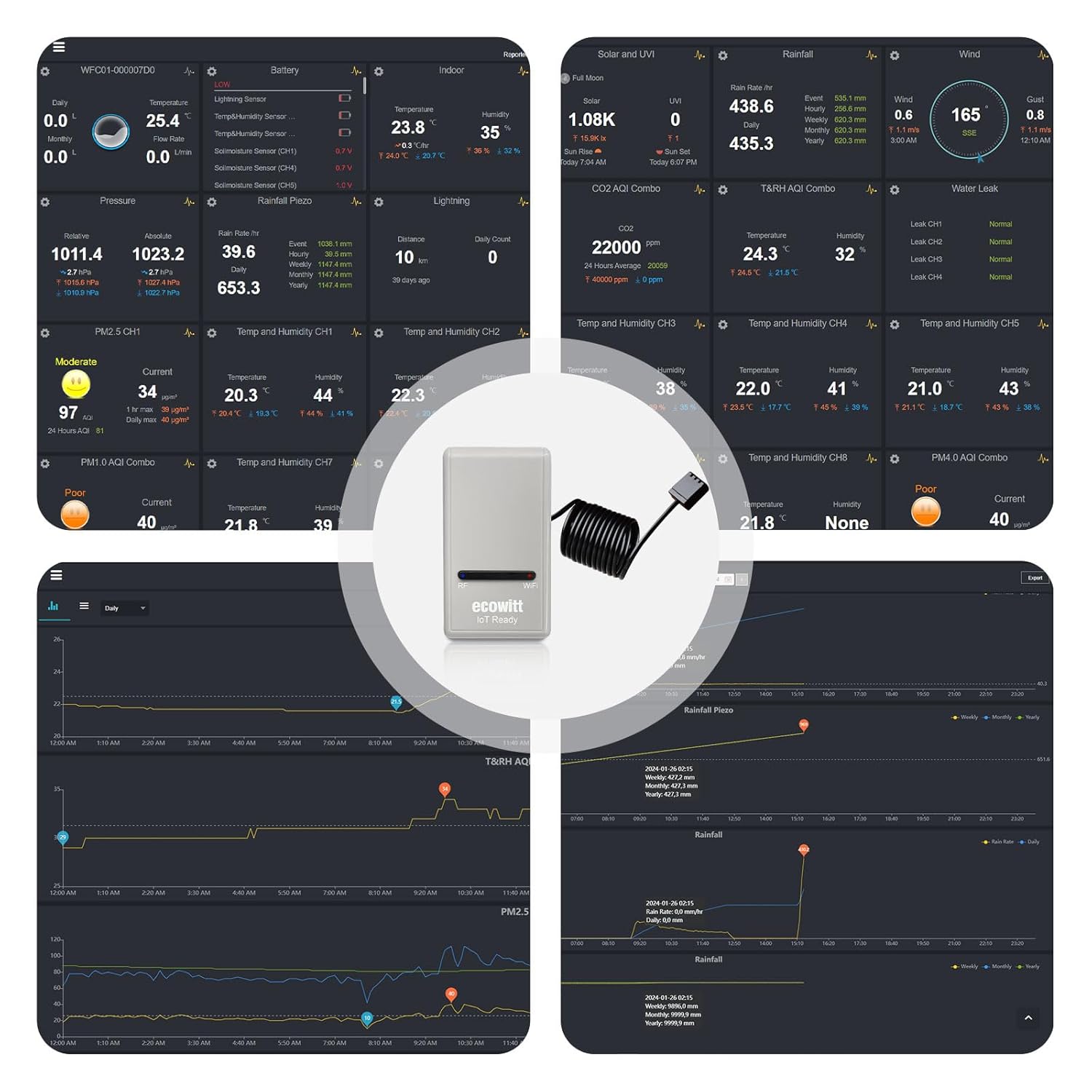
Figure 4.3: A representation of the Ecowitt app interface, displaying various environmental data points collected by the GW1200 and connected sensors, including temperature, humidity, pressure, PM2.5, and more.
4.4 Publishing Data to Internet Weather Services
After successful Wi-Fi configuration, the GW1200 can upload collected weather data to various online weather station servers. This allows you to view your data remotely and contribute to community weather networks. Supported platforms include:
- ecowitt.net (Default upload server)
- wunderground.com
- weathercloud.net
- wow.metoffice.gov.uk
- Customized servers (for advanced users)

Figure 4.4: The Ecowitt GW1200 supports data upload to multiple popular online weather platforms, allowing for broader data sharing and access.
4.5 IoT Control Capabilities
Beyond data collection, the GW1200 can also pair with Ecowitt smart control devices, such as the WFC01 watering timer and AC1100 smart switch. After Wi-Fi configuration, these devices can be controlled directly from the Ecowitt APP, enabling smart home automation based on your weather data.
4.6 Firmware Updates
The GW1200 supports firmware updates to introduce new features and improve performance. You can configure the device to automatically update its firmware when connected to the internet. This option is unchecked by default. If enabled, the device will automatically upgrade firmware provided it has internet access.
5. Maintenance
The ECOWITT GW1200 Wi-Fi Gateway Weather Station is designed for low maintenance. To ensure optimal performance and longevity:
- Keep the unit clean and free from dust. Use a soft, dry cloth for cleaning.
- Avoid exposing the unit to extreme temperatures, direct sunlight for prolonged periods, or excessive moisture.
- Ensure the sensor probe is not obstructed to allow for accurate readings.
- Periodically check the connection of the USB power cable.
6. Troubleshooting
If you encounter issues with your GW1200 gateway, refer to the following common troubleshooting steps:
| Problem | Possible Cause | Solution |
|---|---|---|
| Gateway not powering on. | No power from USB source; faulty USB cable. | Ensure USB power adapter is working and connected properly. Try a different USB port or adapter. Check USB cable for damage. |
| Cannot connect to Wi-Fi. | Incorrect Wi-Fi password; gateway out of Wi-Fi range; network issues. | Double-check Wi-Fi password. Move gateway closer to router. Restart router. Ensure your Wi-Fi is 2.4GHz (most IoT devices do not support 5GHz). Re-attempt Wi-Fi configuration via Ecowitt APP. |
| No data from external sensors. | Sensors not powered; sensors out of range; interference. | Ensure external sensors have fresh batteries and are powered on. Move sensors closer to the GW1200. Check for large metal objects or thick walls between gateway and sensors. Re-pair sensors if necessary via the Ecowitt APP. |
| Data not uploading to internet services. | No internet connection; incorrect server settings. | Verify your Wi-Fi network has active internet access. Check server settings in the Ecowitt APP or web interface. Ensure the gateway's firmware is up to date. |
| Inaccurate readings from built-in sensor. | Sensor probe obstructed; placed in an unsuitable location. | Ensure the sensor probe is freely exposed to ambient air. Avoid placing the unit near heat sources, vents, or in direct sunlight. |
7. Specifications
| Feature | Detail |
|---|---|
| Model Number | GW1200BU |
| Product Dimensions | 1.97 x 1.18 x 2.17 inches (5.0 x 3.0 x 5.5 cm); 3.88 ounces (110 g) |
| Built-in Sensors | Temperature, Humidity, Barometric Pressure |
| Connectivity Technology | Wi-Fi (2.4GHz) |
| RF Frequency | 915 MHz |
| Power Source | USB Powered |
| Material | Acrylonitrile Butadiene Styrene (ABS) |
| Color | Grey |
| Recommended Uses | Home, Office, IoT Function |
| Manufacturer | ECOWITT |
| Date First Available | November 10, 2023 |

Figure 7.1: A comparison table highlighting key differences and similarities between the GW1100 and GW1200 models, including material and measurement range.
8. Warranty and Support
8.1 Warranty Information
Specific warranty details for your ECOWITT GW1200 Wi-Fi Gateway Weather Station are typically provided with your purchase documentation or can be found on the official ECOWITT website. Please retain your proof of purchase for warranty claims.
8.2 Customer Support
For technical assistance, troubleshooting beyond this manual, or inquiries regarding your product, please visit the official ECOWITT website or contact their customer support team. Contact information is usually available on the manufacturer's website or in your product packaging.