
Introduction
The OYDL X28 Handheld Retro Game Console is a portable gaming device designed for an immersive retro gaming experience. Featuring a 5.5-inch IPS screen, a powerful T618 CPU, and Android 11 operating system, it supports a wide variety of emulator games and offers modern connectivity options like Wi-Fi and Bluetooth for multiplayer gaming. This manual provides essential information for setting up, operating, and maintaining your X28 console.
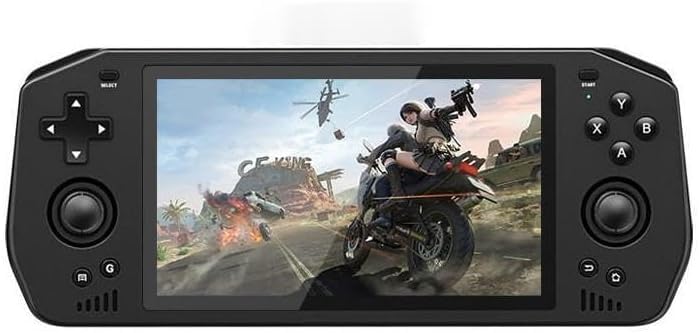
Figure 1: OYDL X28 Handheld Retro Game Console in operation, showcasing its 5.5-inch display with a game running.
Package Contents
Please check the package contents upon unboxing to ensure all items are present:
- 1 x OYDL X28 Game Console
- 1 x Type-C Charging Cable
- 1 x English User Manual

Figure 2: The complete package contents of the OYDL X28 console, including the device, charging cable, and user manual.
Product Overview
The OYDL X28 is designed for portable gaming with a focus on performance and user comfort. Key features include:
- Display: 5.5-inch IPS screen with 720x1280 resolution, fully-laminated, G+G COB 5-point touch.
- Processor: T618 (UMS512/512T) 8-Core CPU (2x A75 + 6x A55) at 1.8-2.0GHz.
- Memory: 4GB LPDDR4/4X RAM and 64GB EMMC storage.
- Operating System: Android 11.
- Battery: 5000mAh lithium battery for extended playtime.
- Connectivity: Wi-Fi (IEEE 802.11 ac/b/g/n), Bluetooth 5.0, USB Type-C (x2), Mini HDMI (C-type).
- Audio: Stereo dual speakers with built-in BOX, 3.5mm headphone interface.
- Controls: Dual joysticks (support press function), D-pad, A/B/X/Y buttons, L1/L2/R1/R2 trigger buttons, Select, Start, Menu, Back, Home buttons.

Figure 3: The 5.5-inch IPS multi-touch screen of the OYDL X28, designed for clear display and comfortable viewing.
Controls and Ports
Familiarize yourself with the layout of the console's buttons and ports for optimal use.

Figure 4: Detailed diagram illustrating the function and location of each button and port on the OYDL X28 console.
- Power Button: Located on the top left, used to power on/off the device.
- Volume Up/Down: Located on the top right, controls the audio output level.
- Directional Pad (D-pad): Left side, for directional input.
- A, B, X, Y Buttons: Right side, primary action buttons.
- Select Button: Left side, typically for menu selections.
- Start Button: Right side, typically for starting games or pausing.
- G Button: Left side, function may vary by application.
- Menu Button: Bottom left, accesses system or application menus.
- Back Button: Bottom right, navigates back in menus.
- Home Button: Bottom right, returns to the home screen.
- R1, R2, L1, L2: Shoulder and trigger buttons on the top edge.
- Joysticks: Two analog joysticks, one on each side, with press functionality.
- Type-C Ports (x2): Both can be used for charging, only one supports single handle connection.
- Mini HDMI Port: For connecting to external displays. Note: When HDMI output is active, the console's screen will be black.
- 3.5mm Headphone Jack: For audio output to headphones.
- TF Card Slot: For expandable storage.
Setup
- Charging the Console: Before first use, fully charge the console. Connect the provided Type-C charging cable to one of the Type-C ports on the console and the other end to a 5V/2A Type-C charger. The charging indicator light will be red while charging and turn green when fully charged.
- Powering On/Off: Press and hold the Power Button for a few seconds to turn the console on or off. A short press will put the device to sleep or wake it up.
- Initial Setup: Upon first boot, follow the on-screen prompts to complete the Android 11 initial setup, including language selection, Wi-Fi connection, and Google account setup (optional).
- Inserting TF Card (Optional): If you wish to expand storage, carefully insert a TF card into the designated slot until it clicks into place.
Operating
Basic Navigation
- Use the Joysticks or Directional Pad to navigate through menus and games.
- Press A to confirm selections, and Back to return to the previous screen.
- The Home button will always take you back to the Android home screen.
- The Menu button provides context-sensitive options within applications.
Game Play
The OYDL X28 does not come with pre-installed games. Users are expected to install their preferred games and emulators compatible with Android 11. You can download games from the Google Play Store or transfer game ROMs to the device's storage or TF card.
- Installing Games: Access the Google Play Store (requires Google account) or use a file manager to install APK files.
- Emulator Support: The console supports a variety of mainstream emulator games. Install your preferred emulator application from the Google Play Store.
- Controls Mapping: Within emulator applications, you may need to map the physical buttons of the console to the in-game controls. Refer to the specific emulator's instructions for this process.
Connectivity
Wi-Fi Connection
- Go to Settings > Network & internet > Wi-Fi.
- Turn on Wi-Fi and select your desired network from the list.
- Enter the password if prompted and connect.

Figure 5: The OYDL X28 supports wireless connectivity, allowing for connection to Wi-Fi networks and external Bluetooth controllers.
Bluetooth Connection
The console supports Bluetooth 5.0 for connecting external controllers or audio devices.
- Go to Settings > Connected devices > Connection preferences > Bluetooth.
- Turn on Bluetooth.
- Put your Bluetooth device into pairing mode.
- Select the device from the list of available devices on the console to pair.
HDMI Output
Connect the console to an external display (TV, monitor, projector) using a Mini HDMI (Type-C) cable.
- Connect one end of the Mini HDMI cable to the console's HDMI port.
- Connect the other end to the HDMI input of your external display.
- Switch your external display's input source to the corresponding HDMI port.
- Note: When HDMI output is active, the console's built-in screen will turn black.
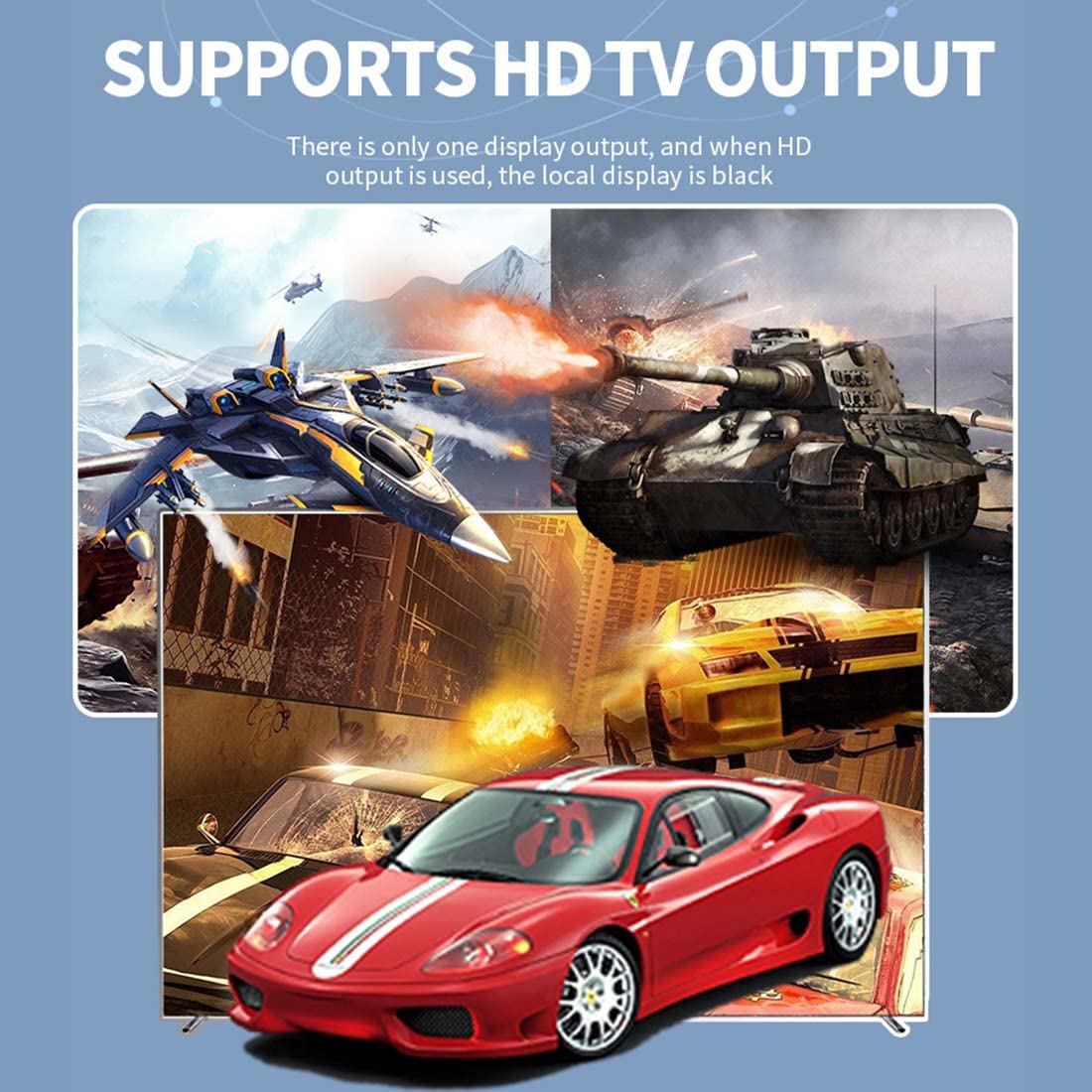
Figure 6: The OYDL X28 supports HD TV output via its Mini HDMI port, allowing gameplay on a larger screen.
Charging and Battery
- Battery Capacity: 5000mAh.
- Charging: Use the provided Type-C cable and a 5V/2A charger.
- Charging Indicator: Red light indicates charging, green light indicates full charge.
- Low Battery Indicator: Red light indicates low battery.
- Battery Life: Up to 5 hours of gaming depending on usage.
- Battery Care: To prolong battery life, avoid completely draining the battery frequently and store the device with a partial charge if not used for extended periods.
Maintenance
- Cleaning: Use a soft, dry, lint-free cloth to clean the console's screen and body. Do not use liquid cleaners or aerosols directly on the device.
- Storage: Store the console in a cool, dry place away from direct sunlight and extreme temperatures.
- Protection: Avoid dropping the device or exposing it to excessive force. The screen is fully-laminated and dust-proof, but still susceptible to damage from impacts.
- Software Updates: Periodically check for system updates via the Android settings to ensure optimal performance and security.
Troubleshooting
| Problem | Possible Cause | Solution |
|---|---|---|
| Console does not power on. | Battery is drained. | Connect the console to a charger and allow it to charge for at least 30 minutes before attempting to power on again. |
| Screen is black when connected to TV via HDMI. | This is normal behavior. | When HDMI output is active, the console's screen is designed to turn off. Ensure your TV input is correctly selected. |
| Cannot connect to Wi-Fi. | Incorrect password; router issue; out of range. | Double-check the Wi-Fi password. Restart your router. Move closer to the Wi-Fi router. |
| Games are lagging or crashing. | Too many background apps; insufficient storage; game/emulator incompatibility. | Close unnecessary background applications. Free up storage space. Ensure the game/emulator is compatible with Android 11 and the console's hardware. |
| Buttons or joysticks are unresponsive. | Software glitch; physical damage. | Restart the console. If the issue persists, perform a factory reset (backup data first). If still unresponsive, contact customer support. |
Specifications
| Feature | Detail |
|---|---|
| Model | X28 |
| Dimensions | 20.8 x 8.1 x 2.7 cm (8.18 x 3.18 x 1.06 inches) |
| Weight | 400g (1.32 pounds) |
| Display | 5.5-inch IPS, 720x1280 resolution, G+G COB 5-point touch |
| Processor | UMS512/512T (T618) 8-Core (2x A75 + 6x A55), 1.8-2.0GHz |
| RAM | 4GB LPDDR4/4X |
| Storage | 64GB EMMC (expandable via TF card) |
| Operating System | Android 11 |
| Battery | 5000mAh |
| Charging | 5V/2A Type-C |
| Wi-Fi | IEEE 802.11 ac/b/g/n |
| Bluetooth | 5.0 |
| Ports | 2x Type-C, 1x Mini HDMI (C-type), 1x 3.5mm Headphone Jack, 1x TF Card Slot |
| Sensors | G-sensor, Gyroscope, P/L Sensor, Compass |
| Audio | Stereo dual speakers, MIC |
| Vibration | Supported |
Warranty and Support
For warranty information and technical support, please refer to the purchase platform or contact OYDL customer service directly. Keep your purchase receipt as proof of purchase.
Manufacturer: OYDL
Date First Available: November 9, 2023
For further assistance, you may visit the OYDL Store on Amazon.