
SARAJO K889
SARAJO E88s Obstacle Avoidance Drone User Manual
Model: K889
Introduction
The SARAJO E88s Obstacle Avoidance Drone is a compact and portable quadcopter designed for ease of use and advanced flight capabilities. It features a foldable design, making it convenient to carry and store. Equipped with an HD FPV camera, the drone provides real-time video transmission and adjustable camera angles for high-resolution imaging.
Key features include:
- 360° Obstacle Avoidance: Intelligent system detects and automatically avoids obstacles in all directions.
- 8K HD Dual Camera: Offers high-resolution video and image capture with free switching between cameras.
- Optical Flow Positioning: Ensures stable hovering and accurate height locking, reducing camera shake.
- Brushless Motor: Provides enhanced wind resistance and stable flight performance.
- User-Friendly Controls: Features one-touch start/landing, altitude hold, headless mode, and speed adjustment, suitable for various skill levels.

Figure 1: E88s Upgraded Version Drone highlighting optical flow and brushless motor features.
Package Contents and Setup
Package Contents
Verify that all components are present in the package:
- Aircraft (Drone) × 1
- Storage Box × 1
- Spare Fan Blades × 4
- Body Battery × 1
- Remote Control × 1
- USB Charging Cable (not explicitly listed but implied for battery)
- Screwdriver (not explicitly listed but implied for blade installation)

Figure 2: E88s Drone with its remote control, storage case, and packaging.
Initial Setup
- Charge the Battery: Connect the drone's body battery to the charging cable and a suitable USB power source. Ensure the battery is fully charged before first use.
- Install Drone Battery: Insert the charged battery into the designated compartment on the drone.
- Install Remote Control Batteries: Insert 3x AA batteries (not included) into the remote control.
- Unfold the Drone: Gently unfold the drone's arms until they lock into place.
- Propeller Installation (if necessary): If propellers are not pre-installed, attach them according to the markings (A and B) on the propellers and motor arms. Ensure they are securely fastened.
- Download App: Scan the QR code in the quick start guide (or search app store) for the official drone control application on your smartphone.
Operating Instructions
Basic Flight Operations
- Power On: Place the drone on a flat, level surface. Press and hold the power button on the drone until the indicator lights turn on. Power on the remote control.
- Pairing: Push the left joystick up then down to pair the remote control with the drone. The drone's lights will stop flashing and become solid once paired.
- One-Key Takeoff/Landing: Press the one-key takeoff button (often indicated by an arrow pointing up) to automatically launch the drone to a stable hovering altitude. Press it again for automatic landing.
- Altitude Hold: The drone will automatically maintain its current altitude, allowing for easier control of horizontal movement.
- Headless Mode: Activate headless mode to control the drone based on the remote control's orientation, regardless of the drone's front direction. This simplifies control for beginners.
- Speed Adjustment: Use the speed switch button on the remote control to cycle through different flight speeds (e.g., low, medium, high) to match your skill level and environment.
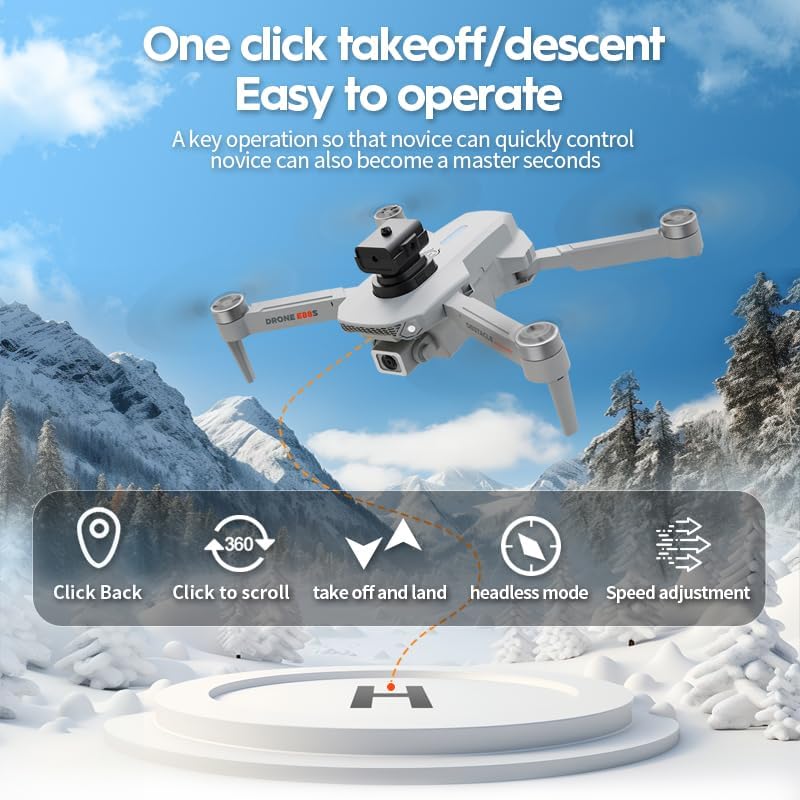
Figure 3: Illustration of one-click takeoff/descent and other easy-to-operate functions.
Advanced Features
- 360° Obstacle Avoidance: The drone is equipped with sensors that detect obstacles in all directions. When an obstacle is detected, the drone will automatically adjust its flight path to avoid collision. This system provides enhanced safety during flight.
- Optical Flow Positioning: This feature uses a downward-facing camera to analyze ground patterns, allowing the drone to maintain a stable hover even indoors or in areas with limited GPS signal. This ensures precise altitude locking and reduces drift.
- HD Dual Camera Operation:
- Switching Cameras: Use the dedicated button on the remote control or within the app to switch between the front and bottom cameras.
- Photo/Video Capture: Press the photo button to take a still image or the video button to start/stop recording. Media is saved to the connected smartphone or an inserted SD card (if applicable).
- Gesture Photography: Perform specific hand gestures in front of the camera to trigger photo or video recording. Refer to the app's instructions for specific gestures.
- App Control: Connect your smartphone to the drone's Wi-Fi network to access advanced flight modes, real-time FPV view, and media management through the dedicated application.

Figure 4: Four-sided obstacle avoidance detection for various environments.

Figure 5: Overview of the drone's multiple intelligent functions.
Maintenance
- Propeller Inspection: Regularly check propellers for any damage (cracks, bends, chips). Replace damaged propellers immediately using the spare blades provided.
- Motor Cleaning: Keep the brushless motors free from dust, dirt, and debris. Use a soft brush or compressed air to clean them.
- Battery Care:
- Do not overcharge or over-discharge the battery.
- Store batteries in a cool, dry place away from direct sunlight and extreme temperatures.
- If storing for extended periods, charge the battery to approximately 50% capacity.
- Drone Body Cleaning: Wipe the drone's body with a soft, dry cloth. Avoid using harsh chemicals or solvents.
- Storage: When not in use, fold the drone and store it in its original storage box to protect it from damage.
Troubleshooting
| Problem | Possible Cause | Solution |
|---|---|---|
| Drone does not power on. | Battery is not charged or not properly installed. | Ensure battery is fully charged and correctly inserted. |
| Drone does not respond to remote control. | Not paired, remote control batteries low, or out of range. | Re-pair the drone and remote. Replace remote control batteries. Ensure drone is within operating range. |
| Drone drifts during flight. | Not calibrated, or strong wind interference. | Perform gyroscope calibration (refer to app/quick start guide). Fly in calm conditions. |
| Camera feed is blurry or distorted. | Lens is dirty, or poor Wi-Fi connection. | Clean the camera lens gently. Ensure strong Wi-Fi connection between phone and drone. |
| Obstacle avoidance not working. | Sensors are blocked or dirty, or feature is disabled. | Clean obstacle avoidance sensors. Ensure feature is enabled in the app. |
Specifications
| Feature | Detail |
|---|---|
| Brand | SARAJO |
| Model Name | 8K dual-camera obstacle avoidance drone |
| Model Number | K889 |
| Special Features | 360-degree obstacle avoidance, Optical flow positioning, Brushless motor |
| Video Capture Resolution | 8K (Stated, actual output 1920x1080 Pixels) |
| Connectivity Technology | Wi-Fi |
| Control Type | Remote Control, App Control |
| Battery Capacity | 3000 Milliamp Hours (Body Battery) |
| Item Weight | 395 Grams (approx. 13.9 ounces) |
| Product Dimensions | 30"L x 26"W x 8"H (unfolded) |
| Material | Plastic |
| Age Range (Description) | All |
Warranty and Support
For warranty information and technical support, please refer to the documentation included with your purchase or contact SARAJO customer service directly. Contact details may be available on the product packaging or the official SARAJO website.
Please retain your proof of purchase for any warranty claims.
Ask a question about this manual
Ask about setup, troubleshooting, compatibility, parts, safety, or missing instructions. Manuals+ will review the question and use this page’s manual context to help answer it.