
1. Product Overview
The EKAT Android 13 Car Radio is a 7-inch touchscreen stereo designed for various Ford models. It features a 1080P HD display, a 4-core CPU, 2GB RAM, and 64GB ROM, providing a responsive and feature-rich in-car entertainment system. Key functionalities include Wireless CarPlay, Android Auto, Bluetooth, GPS navigation, FM RDS radio, and steering wheel control (SWC) support.
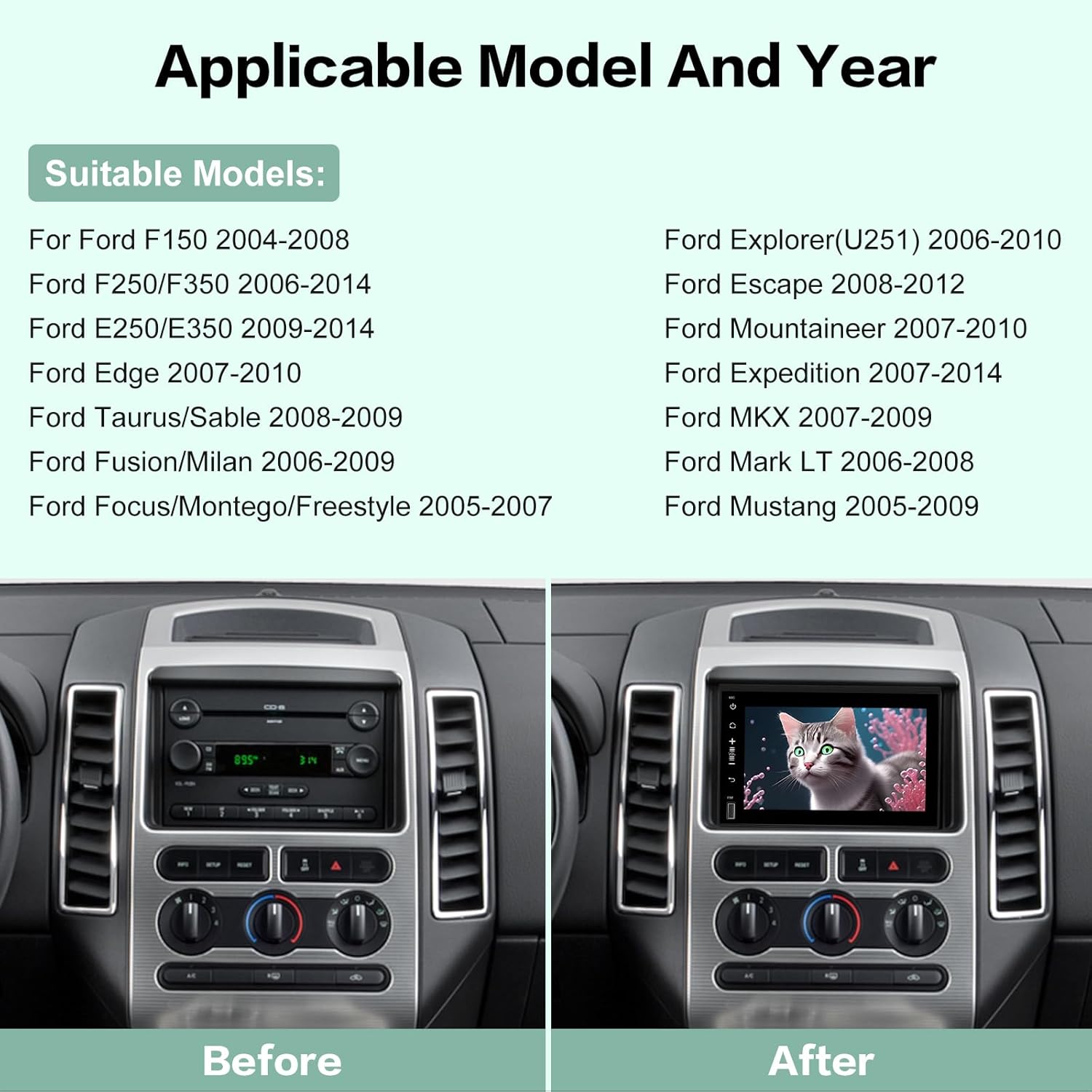
1.1 Applicable Models
This unit is compatible with the following Ford vehicles:
- Ford F150 F-150: 2004-2008
- Ford F250/F350: 2006-2014
- Ford E250/E350: 2009-2014
- Ford Edge: 2007-2010
- Ford Taurus/Sable: 2008-2009
- Ford Fusion/Milan: 2006-2009
- Ford Focus/Montego/Freestyle: 2005-2007
- Ford Explorer (U251): 2006-2010
- Ford Escape: 2008-2012
- Ford Mountaineer: 2007-2010
- Ford Expedition: 2007-2014
- Ford MKX: 2007-2009
- Ford Mark LT: 2006-2008
- Ford Mustang: 2005-2009

2. Setup
2.1 Package Contents
Before installation, verify that all components are present in the package:
- EKAT Android 13 Car Radio Unit
- Power Cable (with vehicle-specific connectors)
- RCA Cable Set
- Rear Camera Input Cable
- Adapter Antenna
- GPS Antenna
- USB Cable
- Canbus Decoder
- User Manual

2.2 Installation Overview
The EKAT Android 13 Car Radio is designed for plug-and-play installation with a vehicle-specific harness. No wire splicing is typically required. Ensure the vehicle's power is disconnected before beginning installation.
2.2.1 Connecting the Backup Camera
The reversing input cable must be connected even if a reversing camera is not used. Follow these steps for camera wiring:
- Red Cable ①: Connect to the positive pole of the car reversing light cable.
- Black Cable ②: Connect to the negative pole of the car reversing light cable.
- The other two red extension cables ③ and ④ do not need to be connected.

2.2.2 CAN Bus and Steering Wheel Controls
After connecting the Canbus, it is necessary to set it correctly for steering wheel controls to function. The procedure is as follows:
- Go to Settings.
- Select Factory Setup.
- Input password 1234.
- Choose Car Settings.
- Select the appropriate Luzheng + the year and model of your car/Ford F150.

2.3 Unboxing and Component Overview Video
Watch this video for a detailed unboxing and overview of the components included with your EKAT car radio.
Video 2.1: Function Video and Package for Ford. This video demonstrates the unboxing process and identifies the various cables and accessories included with the car radio unit.
3. Operating Instructions
3.1 Initial Power On and User Interface
Upon first power-on, the unit will boot to the Android home screen. Remove any protective films from the screen. The user interface is intuitive and can be customized. Long-press on the home screen to change the UI theme.
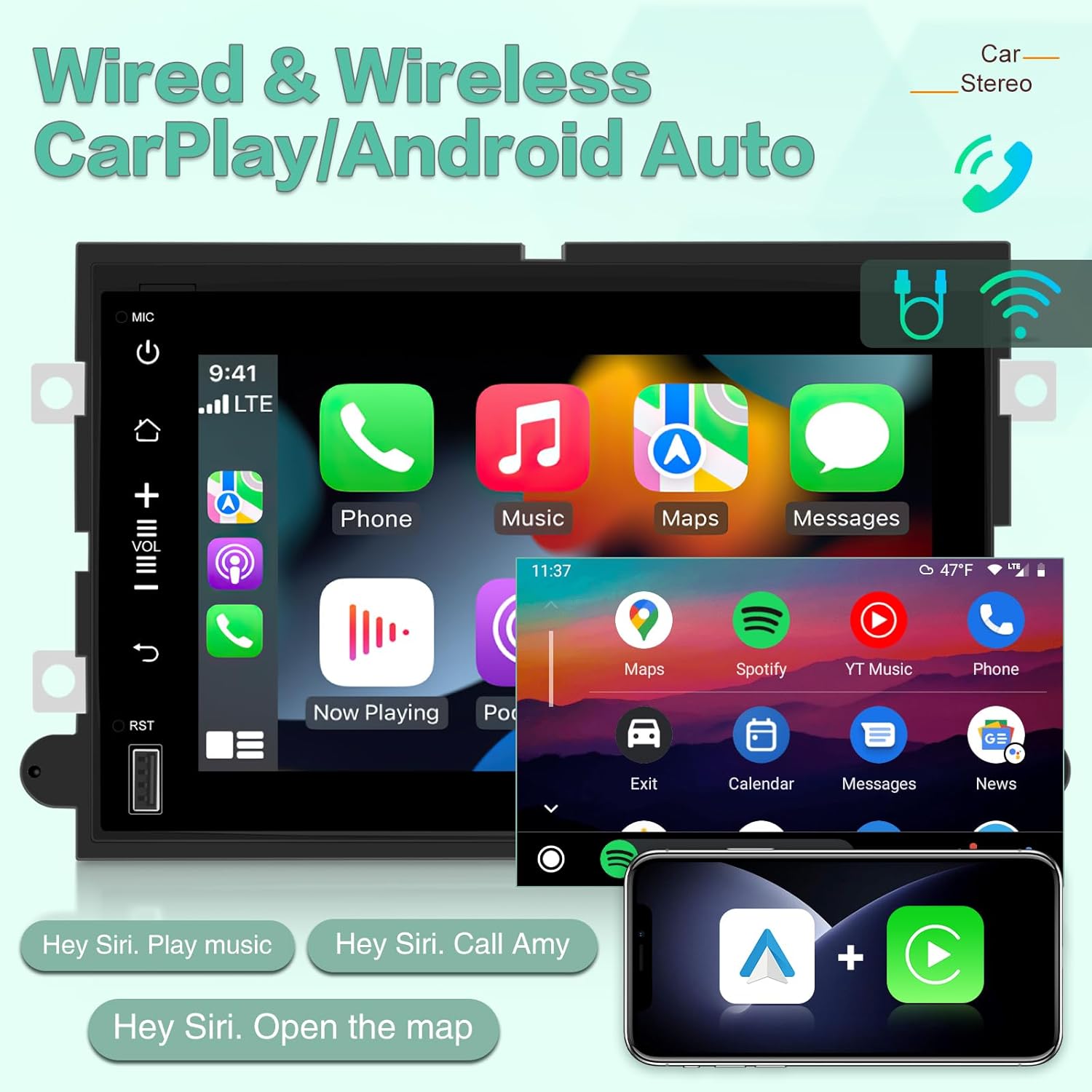
3.2 Wireless and Wired CarPlay / Android Auto
Connect your smartphone via Wireless or Wired CarPlay/Android Auto to access navigation, music, calls, and voice assistants (Siri/Google Assistant) for safe, hands-free operation.
3.3 Wi-Fi and Hotspot Connection
Connect the car radio to a Wi-Fi network or your phone's hotspot to access online features, download apps, and use online maps.

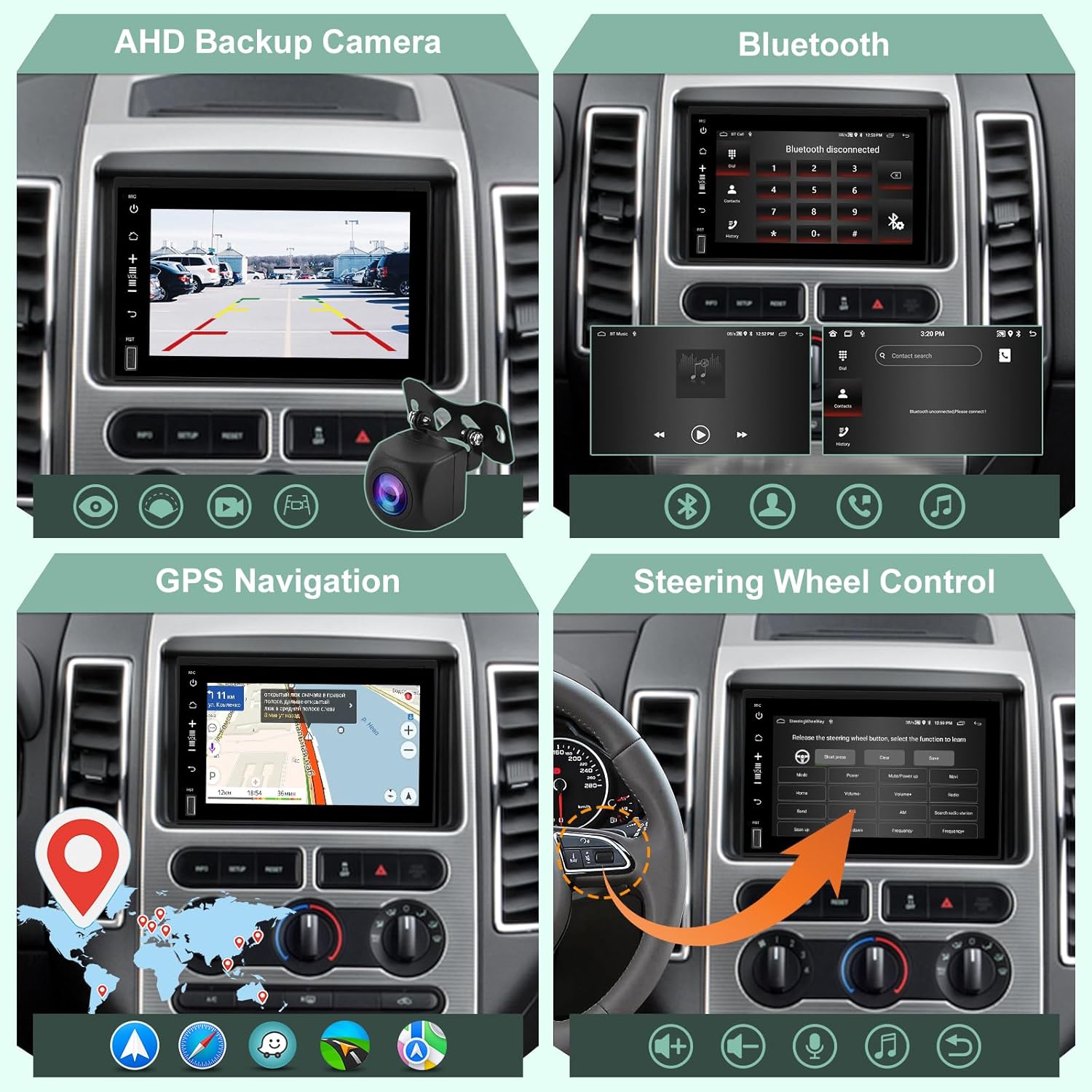
3.4 GPS Navigation
The unit supports GPS navigation with both online and offline map capabilities. Download offline maps for your area to ensure navigation even without an internet connection.
3.5 Bluetooth Connectivity
Pair your phone via Bluetooth for hands-free calling and music playback. The default Bluetooth pairing password is 0000.
3.6 FM RDS Radio
Tune into various radio stations and receive real-time traffic and news broadcasts via FM RDS functionality.

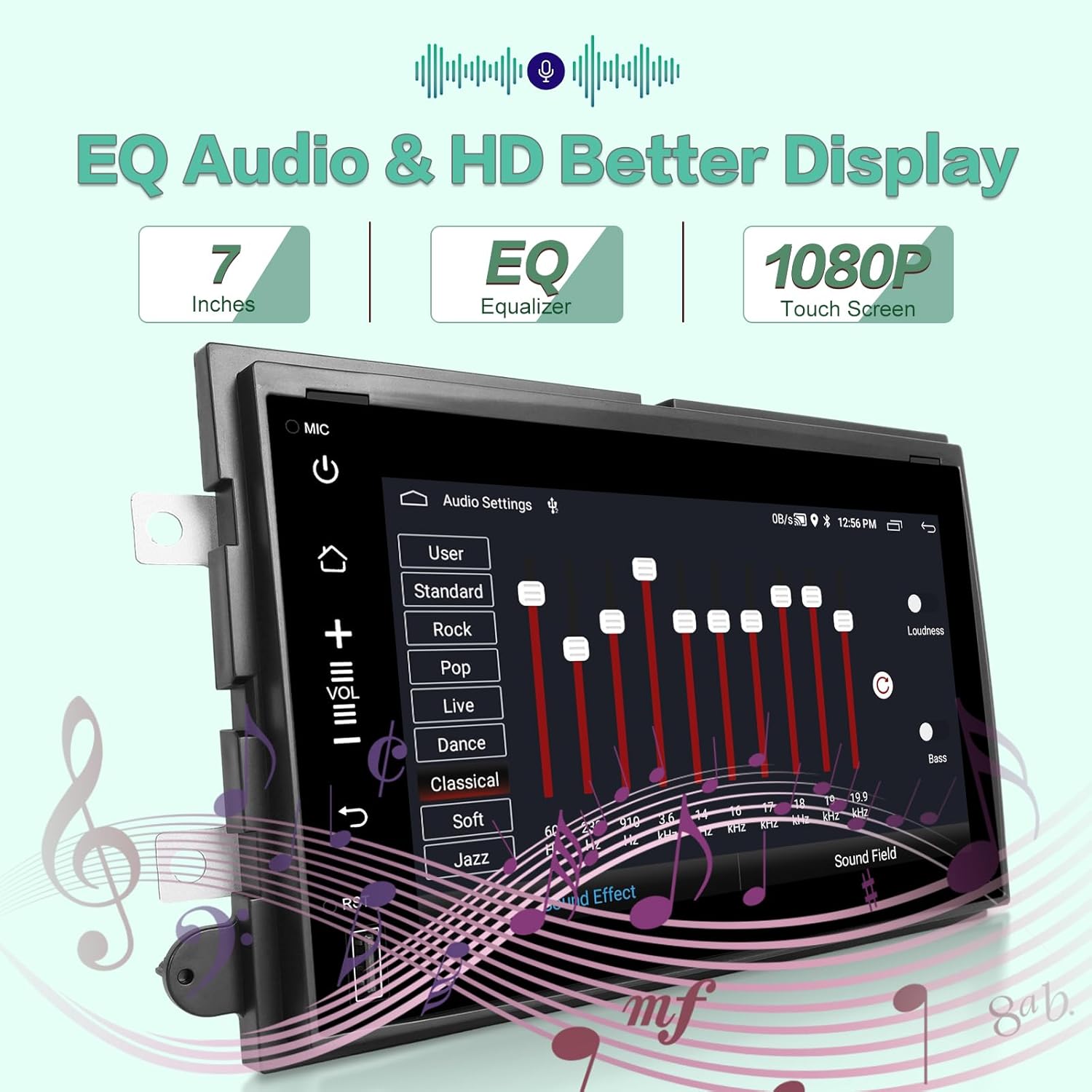
3.7 EQ Audio Settings
Adjust the equalizer (EQ) settings to customize the audio output to your preference, enhancing the sound quality to closely match the original recording.
3.8 Mirror Link and Split Screen
Use the Mirror Link feature (wired or wireless) to display your smartphone screen on the car radio. The Split Screen function allows you to run two applications simultaneously for enhanced multitasking.
3.9 Steering Wheel Control (SWC)
Once the Canbus is correctly configured (refer to Section 2.2.2), you can use your vehicle's steering wheel controls to manage functions like volume, track changes, and answering calls.
3.10 AHD Backup Camera
When a compatible AHD backup camera is connected, the display automatically switches to the camera view when the vehicle is in reverse, helping to eliminate blind spots and avoid obstacles.
4. Maintenance
To ensure optimal performance and longevity of your EKAT Android 13 Car Radio, follow these maintenance guidelines:
- Screen Cleaning: Use a soft, lint-free cloth slightly dampened with water or a screen cleaner. Avoid harsh chemicals or abrasive materials.
- Software Updates: Periodically check for software updates through the system settings to ensure you have the latest features and bug fixes.
- Environmental Conditions: Avoid exposing the unit to extreme temperatures, direct sunlight for prolonged periods, or excessive moisture.
- Connection Checks: Occasionally check all cable connections to ensure they are secure, especially after any vehicle maintenance.
5. Troubleshooting
If you encounter issues with your car radio, refer to the following common troubleshooting steps:
- No Power/Screen Blank: Ensure all power cables are securely connected. Check vehicle fuses. If the unit repeatedly shuts off, verify power supply stability.
- CarPlay/Android Auto Disconnects: Ensure your phone's operating system is up to date. Check the USB cable for damage if using a wired connection. For wireless, ensure stable Wi-Fi/Bluetooth connection and minimal interference.
- Unresponsive Touch Screen: Try restarting the unit. If the issue persists, contact customer support.
- Steering Wheel Controls Not Working: Re-verify the CAN bus settings as described in Section 2.2.2. Ensure the Canbus decoder is correctly installed.
- No Sound: Check volume levels on both the car radio and your connected device. Verify speaker connections. Check EQ settings to ensure no channels are muted or set too low.
- GPS Signal Issues: Ensure the GPS antenna is properly installed and has a clear line of sight to the sky.
For persistent issues or problems not covered here, please contact EKAT customer service.
6. Specifications
| Feature | Specification |
|---|---|
| Item Weight | 2.83 pounds |
| Package Dimensions | 11.69 x 9.65 x 4.41 inches |
| Display Size | 7 Inches |
| Warranty | 2 YEARS |
| Voice Command | Touchscreen |
| ASIN | B0CMX5LTLP |
| Date First Available | November 8, 2023 |
| Manufacturer | EKAT |
| Vehicle Service Type | Car |
| Special Feature | Bluetooth |
| Connectivity Technology | Bluetooth |
| Map Type | Worldwide |
| Included Components | CAR RADIO |
| Audio Output Mode | Stereo |
| Mounting Type | Dashboard Mount |
| Resolution | 1080p |
7. Warranty and Support
EKAT provides comprehensive support for your car radio:
- Technical Support: 7*24 hours of after-sales technical support is available to assist with installation and operation questions.
- Money-Back Service: Enjoy a 30-day money-back service from the date of purchase.
- After-Sales Support: The product comes with 24 months of after-sales support.
If you have any questions or require assistance, please do not hesitate to contact us.
