
DUODUOGO T30
DUODUOGO 10.1 inch Android Tablet User Manual
Model: T30
1. Introduction
Welcome to the user manual for your new DUODUOGO 10.1 inch Android Tablet. This device is designed to provide a seamless and powerful experience for all your digital needs, from entertainment to productivity. Please read this manual carefully to ensure proper use and to maximize the performance and longevity of your tablet.

Figure 1.1: DUODUOGO 10.1 inch Android Tablet and accessories.
2. What's in the Box
Upon opening the package, please verify that all the following items are included:
- 1 x DUODUOGO 10.1 inch Android Tablet
- 1 x Tablet Case
- 1 x Type-C USB Cable
- 1 x Charger
- 1 x User Manual
3. Product Overview
The DUODUOGO T30 tablet is engineered for high performance and user convenience. Below are key features and components:
3.1. Performance and Storage
Equipped with a powerful octa-core processor and 8GB RAM (4GB physical + 4GB virtual memory), the tablet ensures smooth multitasking and fast application loading. The 64GB internal storage is expandable up to 1TB via a TF card, providing ample space for all your files.

Figure 3.1: Performance and Storage Capabilities.

Figure 3.2: Octa-Core Processor for Enhanced Performance.
3.2. Display and Audiovisual
Experience vibrant visuals on the 10.1-inch IPS HD display with a resolution of 1920x1200 pixels. The tablet features dual speakers for an immersive audio experience and supports Widevine L1 DRM for high-quality streaming content.
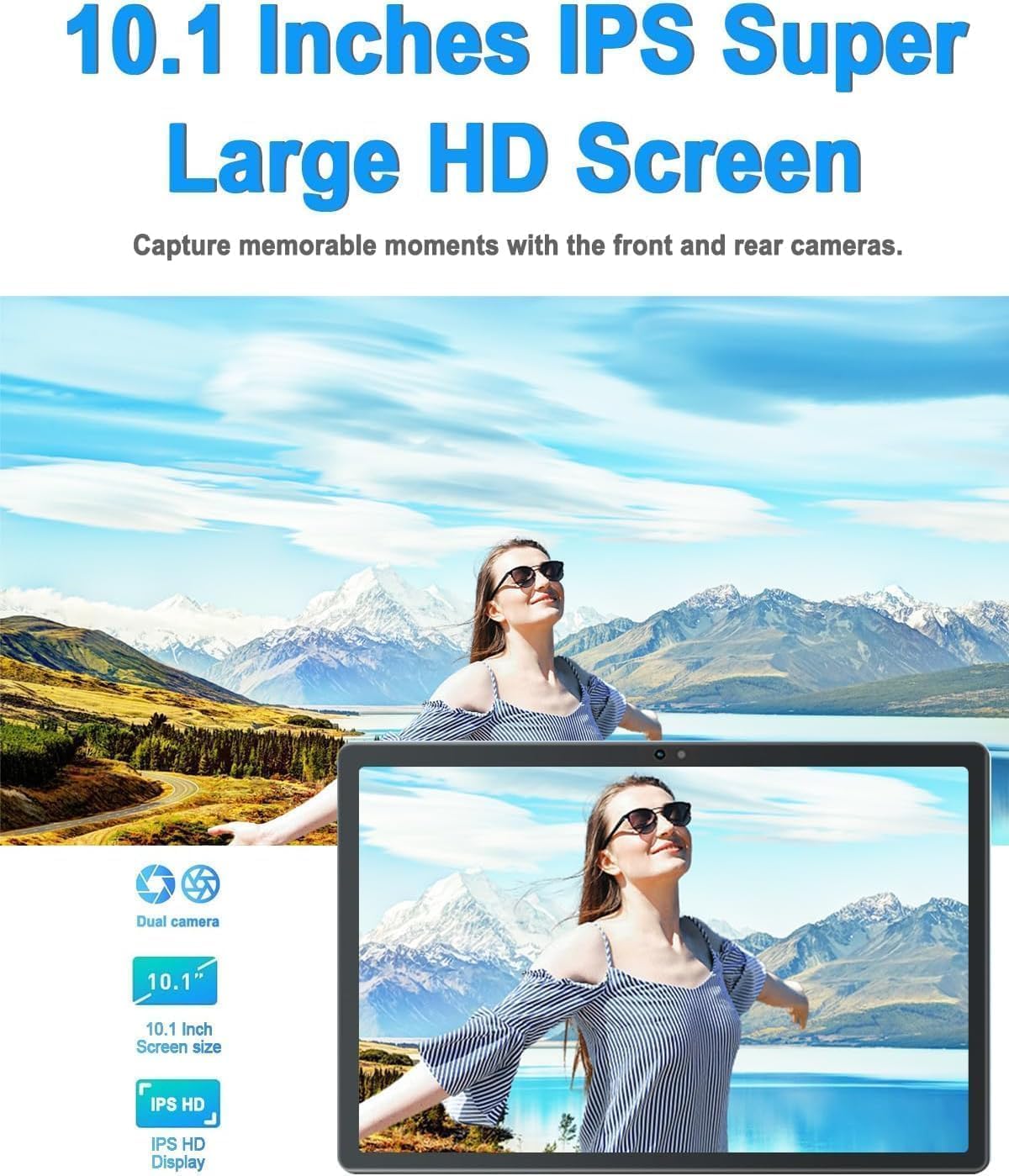
Figure 3.3: 10.1-inch IPS HD Display and Dual Cameras.

Figure 3.4: Immersive Audiovisual Experience.
3.3. Cameras and Connectivity
Capture moments with the 8MP rear camera and 5MP front camera. The tablet supports stable Wi-Fi (802.11ac) and Bluetooth 4.3 for seamless connectivity. It also includes GPS navigation capabilities.

Figure 3.5: Key Features and Connectivity Options.
3.4. Software and Battery
The tablet runs on the latest Android system and is GMS certified, ensuring full access to the Google Play Store and all its applications. A 6000 mAh battery provides extended usage time for various activities.

Figure 3.6: Google GMS Certification and App Access.
Video 3.1: Overview of the 10.1 inch Android Tablet's features and capabilities.
4. Setup Guide
4.1. Initial Charging
Before first use, fully charge your tablet. Connect the Type-C USB cable to the tablet's charging port and the other end to the provided charger. Plug the charger into a power outlet. The battery indicator on the screen will show charging progress.
4.2. Power On/Off
- To Power On: Press and hold the Power button (usually located on the side or top edge) until the DUODUOGO logo appears.
- To Power Off: Press and hold the Power button until the power options menu appears. Select "Power off" and confirm.
4.3. Initial Setup Wizard
The first time you power on the tablet, you will be guided through a setup wizard. Follow the on-screen prompts to:
- Select your language.
- Connect to a Wi-Fi network.
- Sign in with your Google account or create a new one.
- Set up screen lock (PIN, pattern, password).
- Review and accept terms and conditions.
5. Operating Instructions
5.1. Navigating the Interface
- Touch: Tap an icon or option to select it.
- Touch and Hold: Press and hold an item to access more options.
- Swipe: Drag your finger across the screen to scroll or navigate between screens.
- Pinch: Use two fingers to zoom in or out on photos and web pages.
5.2. Basic Functions
- Home Screen: Tap the Home button (circle icon) to return to the main screen.
- Recent Apps: Tap the Recent Apps button (square icon) to view and switch between recently used applications.
- Back: Tap the Back button (triangle icon) to go back to the previous screen.
- Notifications: Swipe down from the top of the screen to access the notification panel and quick settings.
- Volume Control: Use the physical Volume Up/Down buttons on the side of the tablet.
5.3. Connecting to Wi-Fi
- Go to Settings > Network & internet > Wi-Fi.
- Toggle Wi-Fi On.
- Select your desired network from the list.
- Enter the password if prompted and tap Connect.
5.4. Using Cameras
Open the Camera app from your home screen or app drawer. You can switch between the front and rear cameras using the camera switch icon. Tap the shutter button to take a photo or start/stop video recording.

Figure 5.1: HD Large Screen Display for optimal viewing.
6. Maintenance and Care
To ensure the longevity and optimal performance of your DUODUOGO tablet, follow these maintenance guidelines:
- Cleaning: Use a soft, lint-free cloth to clean the screen and body. For stubborn smudges, slightly dampen the cloth with water or a screen cleaner. Avoid harsh chemicals.
- Temperature: Do not expose the tablet to extreme temperatures (hot or cold) or direct sunlight for prolonged periods.
- Water Exposure: This tablet is not waterproof. Avoid contact with liquids.
- Storage: When not in use for extended periods, store the tablet in a cool, dry place.
- Software Updates: Regularly check for and install system updates to ensure your tablet has the latest features and security patches. Go to Settings > System > System update.
7. Troubleshooting
If you encounter issues with your tablet, refer to the following common problems and solutions:
- Tablet won't turn on:
- Ensure the battery is charged. Connect the charger and wait a few minutes before attempting to power on.
- Press and hold the Power button for at least 10-15 seconds to force a restart. - Screen is unresponsive:
- Restart the tablet.
- Ensure your hands are clean and dry. - Wi-Fi connection issues:
- Ensure Wi-Fi is enabled in Settings.
- Restart your Wi-Fi router.
- Forget the network in tablet settings and reconnect.
- Ensure you are within range of the Wi-Fi signal. - Apps are crashing or freezing:
- Close and reopen the app.
- Clear the app's cache (Settings > Apps > [App Name] > Storage & cache > Clear cache).
- Update the app from Google Play Store.
- Uninstall and reinstall the app. - Slow performance:
- Close unused apps running in the background.
- Clear cache and temporary files.
- Ensure sufficient storage space is available.
- Restart the tablet regularly. - Battery drains quickly:
- Reduce screen brightness.
- Turn off Wi-Fi, Bluetooth, and GPS when not in use.
- Close background apps.
- Limit notifications.
- Check battery usage in Settings to identify power-hungry apps.
If the problem persists, please contact DUODUOGO customer support for further assistance.
8. Specifications
| Feature | Specification |
|---|---|
| Brand | DUODUOGO |
| Model Number | T30 |
| Operating System | Android |
| Screen Size | 10.1 inches |
| Screen Resolution | 1920 x 1200 pixels IPS |
| Processor | Octa-Core, 2 GHz (MediaTek) |
| RAM | 8GB (4GB + 4GB virtual) |
| Internal Storage | 64GB |
| Expandable Storage | Up to 1TB (TF card) |
| Rear Camera | 8 MP |
| Front Camera | 5 MP |
| Battery Capacity | 6000 mAh |
| Wireless Type | 802.11ac Wi-Fi |
| Bluetooth | Bluetooth 4.3 |
| Connectivity | Type-C USB, 3.5mm Headphone Jack |
| Item Weight | 1.04 pounds |
| Product Dimensions | 9.6 x 6.4 x 0.32 inches |
9. Warranty and Support
Your DUODUOGO tablet comes with a standard manufacturer's warranty. Please refer to the warranty card included in your product packaging for specific terms and conditions, including warranty period and coverage details.
For technical support, troubleshooting assistance, or warranty claims, please contact DUODUOGO customer service through the contact information provided on the product packaging or the official DUODUOGO website.
Please retain your proof of purchase for warranty purposes.
Ask a question about this manual
Ask about setup, troubleshooting, compatibility, parts, safety, or missing instructions. Manuals+ will review the question and use this page’s manual context to help answer it.