
1. Introduction
This manual provides comprehensive instructions for the MOMAX Mag.Link Pro Magnetic Charging Active Stylus Pen (TP9EPRO). Please read this manual carefully before using the product to ensure proper operation and to maximize its features. Keep this manual for future reference.
2. Package Contents
- MOMAX Mag.Link Pro Active Stylus Pen (TP9EPRO)
- USB-C Charging Cable
- User Manual
3. Product Features
- Transparent Industrial Design: Features an exclusive design allowing a clear view of the internal circuit board, encased in a durable aluminum alloy shell.
- Dual Charging Capability: Supports both USB-C wired charging and magnetic wireless charging.
- Precision Control: Offers tilt and pressure sensitivity for accurate drawing and writing.
- Palm Rejection: Allows users to rest their palm on the screen naturally while using the stylus.
- Touch Control: Equipped with a touch button for quick functions, such as double-click to switch to multitask.
- Long Battery Life & Smart Power-Saving: Provides up to 8 hours of battery life and features an automatic sleep mode after 1 minute of inactivity to conserve energy.
- High Compatibility: Compatible with all iPad models that support Apple Pencil.
4. Setup
4.1 Charging the Stylus
The MOMAX Mag.Link Pro stylus supports two charging methods:
- USB-C Charging: Connect the provided USB-C cable to the stylus's charging port and to a compatible USB power adapter or device.
- Magnetic Wireless Charging: Attach the stylus magnetically to the side of a compatible iPad. The stylus will begin charging wirelessly.
A full charge provides up to 8 hours of continuous use. The stylus enters an automatic sleep mode after 1 minute of inactivity to save power.

Image: The MOMAX Mag.Link Pro stylus alongside its USB-C charging cable, illustrating the wired charging option.

Image: The MOMAX Mag.Link Pro stylus magnetically attached to the side of an iPad, showcasing its wireless charging and storage method.
4.2 Pairing/Connection
The MOMAX Mag.Link Pro stylus connects automatically to compatible iPad models when magnetically attached or when powered on near the device. Ensure your iPad's Bluetooth is enabled for optimal functionality.
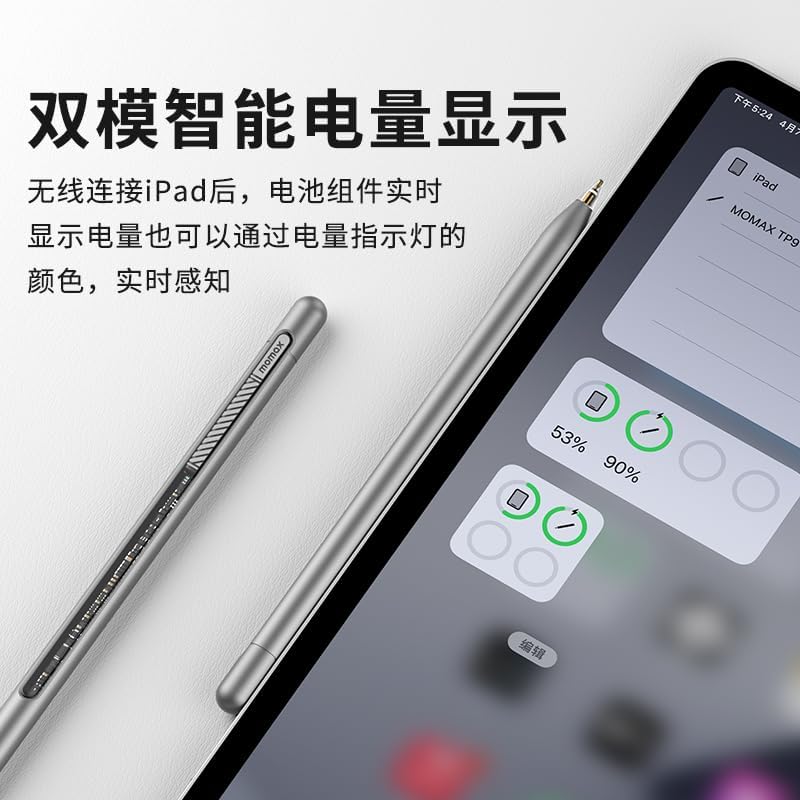
Image: An iPad screen displaying battery widgets, showing the charge level of the MOMAX Mag.Link Pro stylus and the iPad itself. The stylus is shown next to the iPad.
5. Operating Instructions
5.1 Basic Usage
Hold the stylus as you would a traditional pen. The stylus is ready for use immediately after connection to your iPad for writing, drawing, and navigation.

Image: A person using the MOMAX Mag.Link Pro stylus on an iPad, demonstrating its application for digital tasks.
5.2 Touch Control Functions
The stylus features a touch-sensitive button. A double-click on this button allows for quick switching between multitasking applications or other customizable functions within compatible apps.
5.3 Palm Rejection
The integrated palm rejection technology allows you to comfortably rest your hand on the iPad screen while writing or drawing, preventing unintended marks or inputs.

Image: A hand resting on an iPad screen while using the MOMAX Mag.Link Pro stylus, demonstrating the palm rejection feature in action during a drawing application.
5.4 Tilt and Pressure Sensitivity
The stylus supports tilt and pressure sensitivity, enabling varied line thickness and shading effects based on the angle and force applied, similar to traditional art tools.
6. Maintenance
6.1 Cleaning
Wipe the stylus body with a soft, dry, lint-free cloth. Avoid using harsh chemicals, abrasive cleaners, or getting moisture into any openings.
6.2 Storage
When not in use, store the stylus in a safe place to prevent damage. Magnetic attachment to a compatible iPad provides a secure storage option.
6.3 Tip Replacement
Over time, the stylus tip may wear down. If replacement is needed, refer to MOMAX's official website or authorized retailers for genuine replacement tips and instructions.
7. Troubleshooting
- Stylus not responding: Ensure the stylus is charged. Re-attach it magnetically to your iPad to re-establish connection. Check iPad Bluetooth settings.
- Stylus not charging: Verify the USB-C cable is securely connected or that the stylus is correctly aligned for magnetic wireless charging on your iPad. Ensure the iPad itself has sufficient power.
- Inaccurate input: Ensure your iPad screen is clean. Restart your iPad and try reconnecting the stylus.
- Compatibility issues: Confirm your iPad model supports Apple Pencil, as the MOMAX Mag.Link Pro is compatible with these models.
8. Specifications
| Model Number | TP9EPRO |
| Brand | MOMAX |
| Material | Aluminum |
| Item Weight | 14 g |
| Package Dimensions | 20 x 3 x 3 cm |
| Color | Multi |
| Compatible Devices | iPad models that support Apple Pencil |
| Batteries Included | Yes |
| Batteries Required | No (internal rechargeable battery) |
| Other Display Features | Wireless |

Image: A close-up view of the MOMAX Mag.Link Pro stylus, highlighting its transparent industrial design and internal circuit board.
9. Compatibility
The MOMAX Mag.Link Pro stylus is designed for high compatibility with all iPad models that support the Apple Pencil. For a definitive list of compatible iPad models, please refer to Apple's official documentation or the MOMAX product page.
10. Safety Information
- Do not expose the stylus to extreme temperatures, direct sunlight, or high humidity.
- Avoid dropping or subjecting the stylus to strong impacts.
- Do not attempt to disassemble or modify the stylus. This will void the warranty.
- Keep out of reach of children.
- Dispose of the product responsibly according to local regulations.
11. Warranty and Support
For warranty information, technical support, or customer service inquiries, please refer to the official MOMAX website or contact your point of purchase. Please retain your proof of purchase for warranty claims.