
Lazmin112 K21+
YEEMI K21+ 4G Flip Phone User Manual
Model: K21+ | Brand: Lazmin112
1. Introduction
This user manual provides comprehensive instructions for the operation and maintenance of your YEEMI K21+ 4G Flip Phone. Please read this manual carefully before using the device to ensure proper functionality and safety.
Package Contents:
- 1 x YEEMI K21+ Flip Phone
- 1 x Lithium-ion Battery (4800 mAh)
- 1 x Charging Cable (Micro USB)
- 1 x User Manual
2. Product Specifications
| Feature | Specification |
|---|---|
| Model | YEEMI K21+ |
| Material | Metal, ABS |
| Weight | Approx. 208 g / 7.3 oz |
| Main Screen | 2.6 inches |
| External Screen | 1.77 inches |
| Memory (RAM/ROM) | 32 MB RAM, 32 MB ROM |
| Storage Card Support | Up to 32 GB (not included) |
| SIM Card Slot Type | Dual SIM (supports up to 3 Nano SIM cards) |
| Network Bands | GSM: B3, B5, B8; CDMA: BCO; WCDMA: B1, B5, B8; FDD: B1, B3, B5, B7, B8, B20; TDD: B38, B39, B40, B41 |
| Battery Type | 4800 mAh Lithium-ion battery |
| Media Support | MP3, MP4 |
| USB Interface | Micro USB |
| Key Features | Voice, Camera, Recording, MP3, MP4, Radio, Games, Calculator, Ebook, Calendar, Flashlight, SOS, Timer, GPS, Large Buttons, Family Numbers |
| Supported Languages | Vietnamese, Thai, Spanish, Arabic, Russian, French, English, Indonesian, Hebrew, Turkish, Portuguese |
3. Setup and First Use
3.1. Installing the Battery and SIM Card(s)
To begin using your phone, you need to install the battery and your SIM card(s).
- Open the back cover: Gently pry open the back cover of the phone.
- Insert SIM card(s): Locate the SIM card slots. This phone supports dual SIM cards and up to three Nano SIMs. Carefully insert your Nano SIM card(s) into the designated slots with the gold contacts facing down.
- Insert memory card (optional): If you wish to expand storage, insert a microSD card (up to 32GB, not included) into the memory card slot.
- Insert the battery: Align the battery contacts with the phone's contacts and gently press the 4800 mAh lithium-ion battery into place.
- Close the back cover: Replace the back cover, ensuring it clicks securely into place.

Figure 3.1: The YEEMI K21+ flip phone in its open position, displaying the main screen and the large, easy-to-use keypad. This view helps in understanding the layout for battery and SIM card installation.
3.2. Charging the Phone
Before first use, fully charge the phone's battery.
- Connect the Micro USB charging cable to the phone's charging port.
- Connect the other end of the cable to a compatible USB power adapter or computer USB port.
- The charging indicator on the screen will show the charging status. Disconnect the charger once the battery is full.

Figure 3.2: A close-up view of the phone's speaker, illustrating its powerful audio capabilities. While not directly showing charging, this image highlights a key feature of the phone's design.
3.3. Powering On/Off
- To Power On: Press and hold the Power/End Call button (usually red) until the screen lights up.
- To Power Off: Press and hold the Power/End Call button until a power-off menu appears, then select "Power Off" or confirm.
4. Operating Instructions
4.1. Understanding the Dual Screens
The YEEMI K21+ features both an internal main screen (2.6 inches) and an external color screen (1.77 inches).
- The external screen displays essential information like time, date, battery status, and incoming call notifications without needing to open the phone.
- The main internal screen is used for all primary operations, including dialing, navigating menus, viewing messages, and using applications.
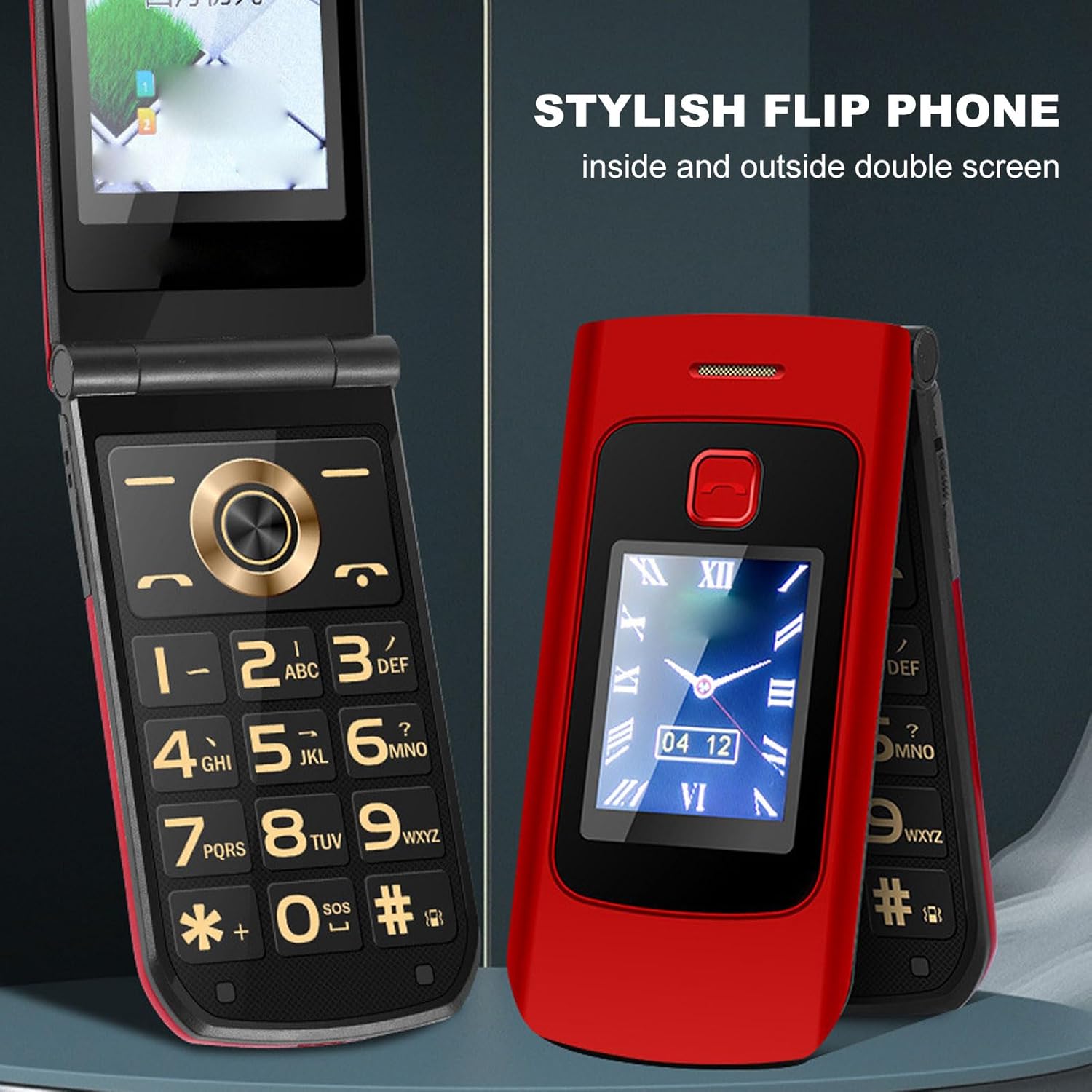
Figure 4.1: This image showcases both the internal and external screens of the YEEMI K21+ flip phone, highlighting its dual-screen design for convenience and ease of use.
4.2. Making and Receiving Calls
- To Make a Call: Open the phone, dial the number using the large keypad, and press the Green Call button.
- To Receive a Call: When the phone rings, open the phone (if closed) and press the Green Call button. You can also answer directly by pressing the Green Call button if the phone is already open.
- To End a Call: Press the Red End Call button or close the phone.
4.3. SOS Function and GPS Positioning
The phone is equipped with a dedicated SOS button for emergencies and GPS positioning for location tracking.
- Setting up SOS: Navigate to the SOS settings in the phone's menu. Add up to 5 emergency contacts.
- Using SOS: In an emergency, press and hold the SOS button (located on the back or side of the phone). The phone will automatically dial the emergency contacts one by one until one answers, and send an emergency SMS with your GPS location.

Figure 4.2: The external screen of the phone, displaying essential information and highlighting its 4G Dual SIM Dual Standby capability, which is crucial for connectivity and emergency services.
4.4. Key Features Overview
The YEEMI K21+ comes with several features designed for convenience and accessibility.
- Large Buttons: The keypad features large, easy-to-read buttons for effortless dialing and navigation.
- Powerful Speaker: Ensures clear and loud audio for calls and notifications.
- Voice Broadcast: Announces incoming calls and dialed numbers for users with visual impairments.
- Flashlight: A built-in flashlight for convenience in low-light conditions.
- Vibration Alert: Strong vibration ensures you don't miss important calls.

Figure 4.3: The phone's external display, emphasizing the strong vibration feature that helps users not miss calls, especially useful for those with hearing difficulties.
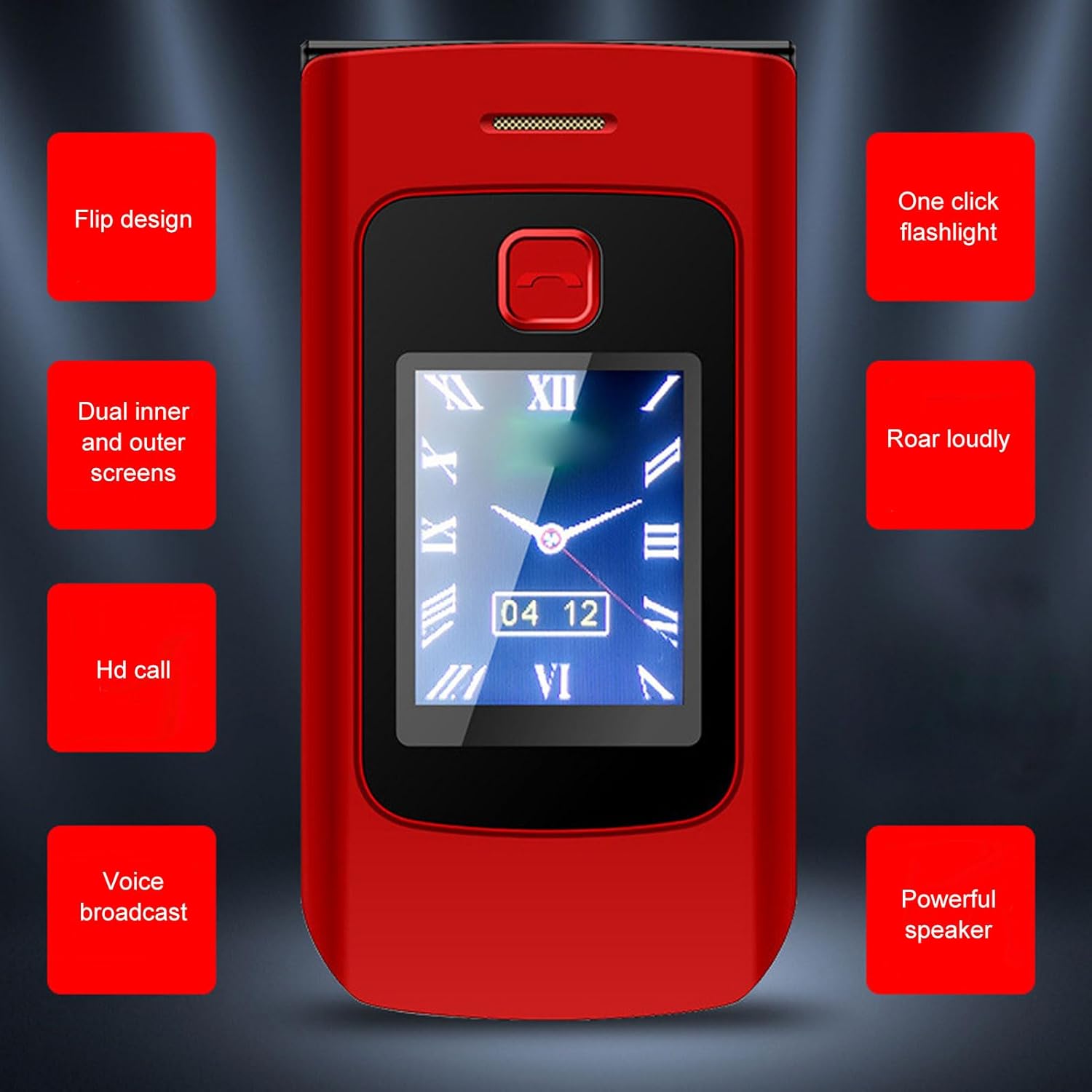
Figure 4.4: A visual summary of the phone's key features, including its flip design, dual screens, HD call quality, voice broadcast, one-click flashlight, and powerful speaker.
5. Maintenance and Care
Proper care will extend the life of your YEEMI K21+ flip phone.
- Cleaning: Use a soft, dry cloth to clean the phone's surface. Avoid using liquid cleaners or aerosols.
- Storage: Store the phone in a cool, dry place away from direct sunlight and extreme temperatures.
- Battery Care: Avoid fully discharging the battery frequently. Charge the phone regularly to maintain battery health.
- Hinge Durability: The phone features a durable alloy shaft designed for repeated opening and closing.

Figure 5.1: This image illustrates the robust hinge design of the phone, capable of 170-degree rotation, ensuring durability even with frequent opening and closing.
6. Troubleshooting
If you encounter issues with your phone, refer to the following common problems and solutions:
| Problem | Possible Cause | Solution |
|---|---|---|
| Phone does not power on | Low battery; Battery not installed correctly | Charge the battery; Reinstall the battery correctly. |
| Cannot make/receive calls | No SIM card; SIM card not inserted correctly; Out of network coverage | Insert SIM card; Reinsert SIM card; Move to an area with network coverage. |
| Poor call quality | Weak signal; Obstruction to speaker/microphone | Move to an area with better signal; Ensure speaker/microphone are not blocked. |
| Battery drains quickly | Too many background applications; Old battery | Close unused applications; Consider replacing the battery if it's old. |
7. Warranty and Support
For warranty information and customer support, please refer to the documentation provided at the time of purchase or contact your retailer. Keep your purchase receipt as proof of purchase.
Ask a question about this manual
Ask about setup, troubleshooting, compatibility, parts, safety, or missing instructions. Manuals+ will review the question and use this page’s manual context to help answer it.