1. Introduction
The GOWENIC Mini MP3 Music Player is a compact and portable device designed for on-the-go audio enjoyment. It features a built-in 180mAh battery for extended listening, supports lossless audio playback, and offers memory card expansion up to 64GB (Micro SD card not included). This manual provides essential information for setting up, operating, and maintaining your MP3 player.
2. Product Overview
The GOWENIC Mini MP3 Music Player is designed for ease of use and portability. Below are key features and components.
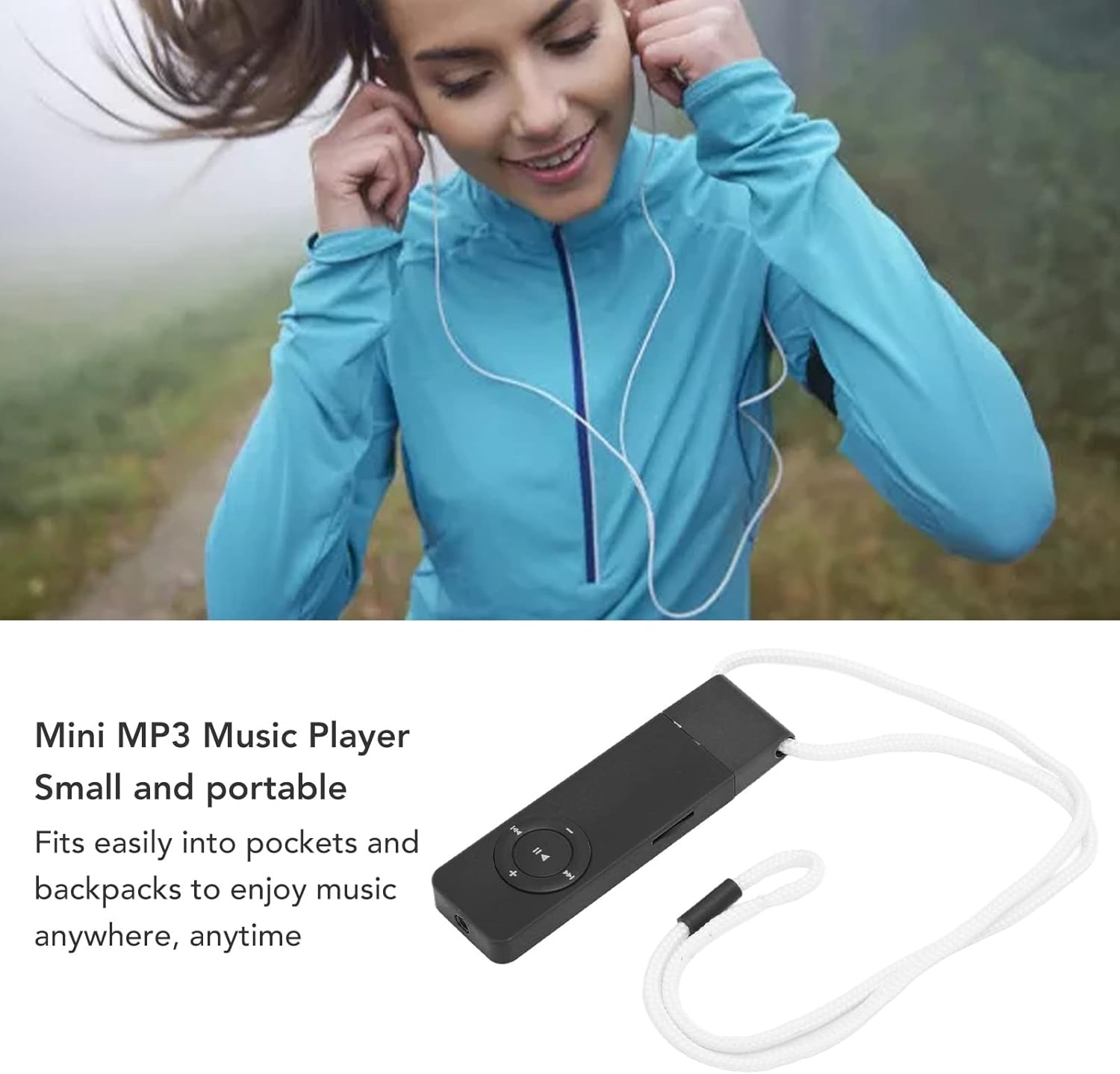
Figure 2.1: The compact GOWENIC Mini MP3 Music Player shown with an attached lanyard, highlighting its small size and portability.
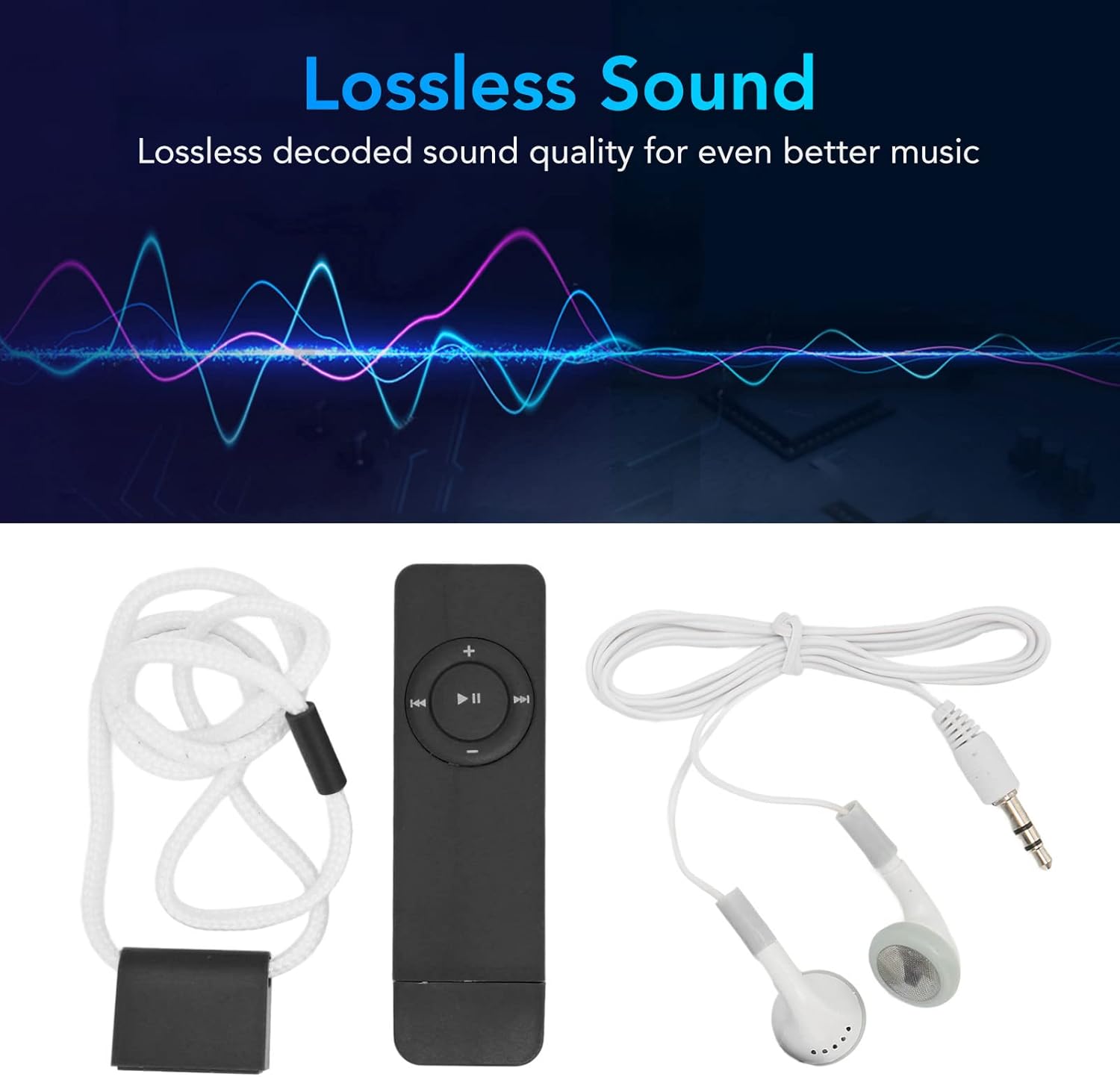
Figure 2.2: The MP3 player displayed alongside its wired headphones, emphasizing its lossless sound capabilities.

Figure 2.3: Interface diagram illustrating the functions of the MP3 player's buttons, including volume, power switch, next/previous song, and fast forward/rewind.
Components:
- MP3 Player Unit: Main device with integrated display and control buttons.
- Wired Headphones: For audio output.
- USB Charging Cable: For charging and data transfer.
- Lanyard: For convenient carrying.
Key Features:
- Compact Design: Small and lightweight for easy portability.
- Lossless Sound Quality: Enhanced audio experience.
- Memory Card Support: Expandable up to 64GB via Micro SD card (not included).
- Multi-functional: Supports music playback, voice recording, FM radio, and e-book reading.
- Bluetooth Connectivity: For wireless audio output.
- Built-in Battery: 180mAh rechargeable battery.
3. Setup
3.1 Charging the Device
Before first use, fully charge the MP3 player. Connect the provided USB cable to the device's charging port and plug the other end into a USB power source (e.g., computer USB port, mobile phone charger, power bank). The device features multiple charging modes for convenience.

Figure 3.1: The MP3 player can be charged via computer USB, mobile phone charger, mobile power bank, or a plug-in USB port.
3.2 Inserting a Memory Card
The MP3 player requires a Micro SD card (up to 64GB) to store music and other files. The Micro SD card is not included with the device.
- Locate the Micro SD card slot on the side of the device.
- Gently insert the Micro SD card into the slot until it clicks into place. Ensure the card is oriented correctly.
- To remove, gently press the card inward until it springs out.

Figure 3.2: The MP3 player with its memory card slot and integrated USB plug for direct connection.
3.3 Transferring Music and Files
To transfer files to your MP3 player:
- Connect the MP3 player to your computer using the USB cable. The device should appear as a removable disk.
- Open the removable disk folder.
- Drag and drop your desired MP3 audio files, e-books, or other compatible files into the device's storage.
- Once files are transferred, safely eject the device from your computer before disconnecting the USB cable.
4. Operating Instructions
4.1 Power On/Off
- Power On: Locate the power switch (refer to Figure 2.3) and slide it to the 'ON' position. The device will power on and display the main menu.
- Power Off: Slide the power switch to the 'OFF' position.
4.2 Navigation and Controls
The device features a touch screen and physical buttons for navigation:
- Touch Screen: Tap icons to select functions or navigate menus.
- Volume Buttons: Use the '+' and '-' buttons to adjust the volume.
- Playback Controls: Use the Play/Pause, Next Song, and Previous Song buttons for media control.
- Lock Function: Some models may have a lock function to prevent accidental button presses during playback.
4.3 Music Playback
- From the main menu, select the 'Music' icon.
- Browse your music library by artist, album, or song.
- Select a song to begin playback.
- Use the playback controls to play/pause, skip tracks, or adjust volume.
- The device supports lossless sound quality for an enhanced listening experience.
- For audiobooks or long recordings, the device can resume playback from where you last stopped.
4.4 Voice Recording
The MP3 player includes a voice recording function.
- From the main menu, select the 'Record' icon.
- Follow on-screen prompts to start, pause, and save recordings.
4.5 Bluetooth Connectivity
Connect your MP3 player to Bluetooth headphones or speakers for wireless audio.
- From the main menu, select the 'Bluetooth' icon.
- Turn on Bluetooth on the MP3 player and ensure your Bluetooth audio device is in pairing mode.
- Search for available devices and select your audio device to pair.
Video 4.1: A short demonstration of the MP3 player's Bluetooth function and its compact design.
Video 4.2: This video highlights the MP3 player's Bluetooth connectivity, showing how to pair it with external devices.
Video 4.3: A demonstration of easily pairing the MP3 player with Bluetooth speakers or headphones.
4.6 E-book Reading
Read e-books stored on your memory card.
- From the main menu, select the 'E-book' icon.
- Choose an e-book file to open and read.
4.7 FM Radio
Listen to FM radio stations.
- From the main menu, select the 'FM' icon.
- Note: Wired headphones must be plugged into the device to act as an antenna for FM radio reception.
- Use the navigation buttons to scan for stations or tune manually.
Video 4.4: This video demonstrates the MP3 player's FM radio and voice recorder functions.
5. Specifications
| Feature | Detail |
|---|---|
| Brand | GOWENIC |
| Model | GOWENIC7ekusdz92g-12 |
| Memory Storage Capacity | Up to 64 GB (via Micro SD card) |
| Compatible Devices | Earphone |
| Display Technology | No display (touch screen interface) |
| Batteries Included | No (built-in 180mAh rechargeable battery) |
| Connector Type | USB |
| Compatible Media Type | MP3, Micro SD, SD Card |
| Colour | Black |
| Connectivity Technology | USB, Bluetooth |
| Supported Standards | MP3 |
6. Maintenance
- Cleaning: Use a soft, dry cloth to clean the device. Avoid liquid cleaners or abrasive materials.
- Storage: Store the MP3 player in a cool, dry place away from direct sunlight and extreme temperatures.
- Battery Care: To prolong battery life, avoid fully discharging the battery frequently. Charge the device regularly, even if not in use for extended periods.
- Water Resistance: This device is not waterproof. Avoid exposure to water or high humidity.
7. Troubleshooting
7.1 Device Not Turning On
- Ensure the battery is charged. Connect the device to a power source and allow it to charge for at least 30 minutes before attempting to power on again.
- Verify the power switch is in the 'ON' position.
7.2 Music Not Playing / Files Not Found
- Ensure a Micro SD card is properly inserted into the device.
- Verify that music files are in a compatible format (e.g., MP3).
- Check if the files were transferred correctly to the Micro SD card. Reconnect to a computer and verify the files are present on the device's storage.
7.3 Music Repeating One Song
- Navigate to the playback settings within the music player interface.
- Check the 'Play mode' options. Ensure 'Shuffle' or 'Loop All' is selected instead of 'Loop Single'.
Video 7.1: A demonstration of the shuffle playback feature on the MP3 player.
7.4 Bluetooth Connection Issues
- Ensure Bluetooth is enabled on both the MP3 player and the receiving audio device.
- Place the MP3 player and the Bluetooth audio device close to each other during pairing.
- Ensure the Bluetooth audio device is in pairing mode.
- If previously paired, try unpairing and re-pairing the devices.
7.5 FM Radio Not Working
- Ensure wired headphones are securely plugged into the device. Wired headphones act as the antenna for FM radio reception.
- Try scanning for stations again in an open area.
8. Warranty and Support
For warranty information or technical support, please refer to the product packaging or contact GOWENIC customer service directly. Keep your purchase receipt as proof of purchase.