
Philips 32PHT6918/98
Philips 32PHT6918/98 6900 Series Google Smart LED TV User Manual
Model: 32PHT6918/98
Introduction
This manual provides essential information for the setup, operation, and maintenance of your Philips 32PHT6918/98 6900 Series Google Smart LED TV. Please read this manual thoroughly before using your television to ensure proper and safe operation.
The Philips 32PHT6918/98 integrates Google TV, offering a personalized viewing experience by consolidating content from various apps and subscriptions. It features voice control via Google Assistant, allowing for hands-free operation and smart home device management. The television also incorporates Philips Pixel Plus HD for optimized picture quality and Dolby Audio for enhanced sound.
Important Safety Information
Always follow basic safety precautions when using this product to reduce the risk of fire, electric shock, and injury to persons.
- Do not expose the TV to rain or moisture.
- Do not open the TV casing. Refer all servicing to qualified personnel.
- Ensure proper ventilation around the TV.
- Use only the power cord supplied with the TV.
- Keep batteries out of reach of children.
What's in the Box
Upon unpacking, please verify that all components are present:
- Philips 32PHT6918/98 LED TV
- Remote Control
- 2 x AAA Batteries (for Remote Control)
- Power Cord
- Table Top Stand

Image: Front view of the Philips 32PHT6918/98 LED TV, showcasing its slim bezel design and integrated stand.
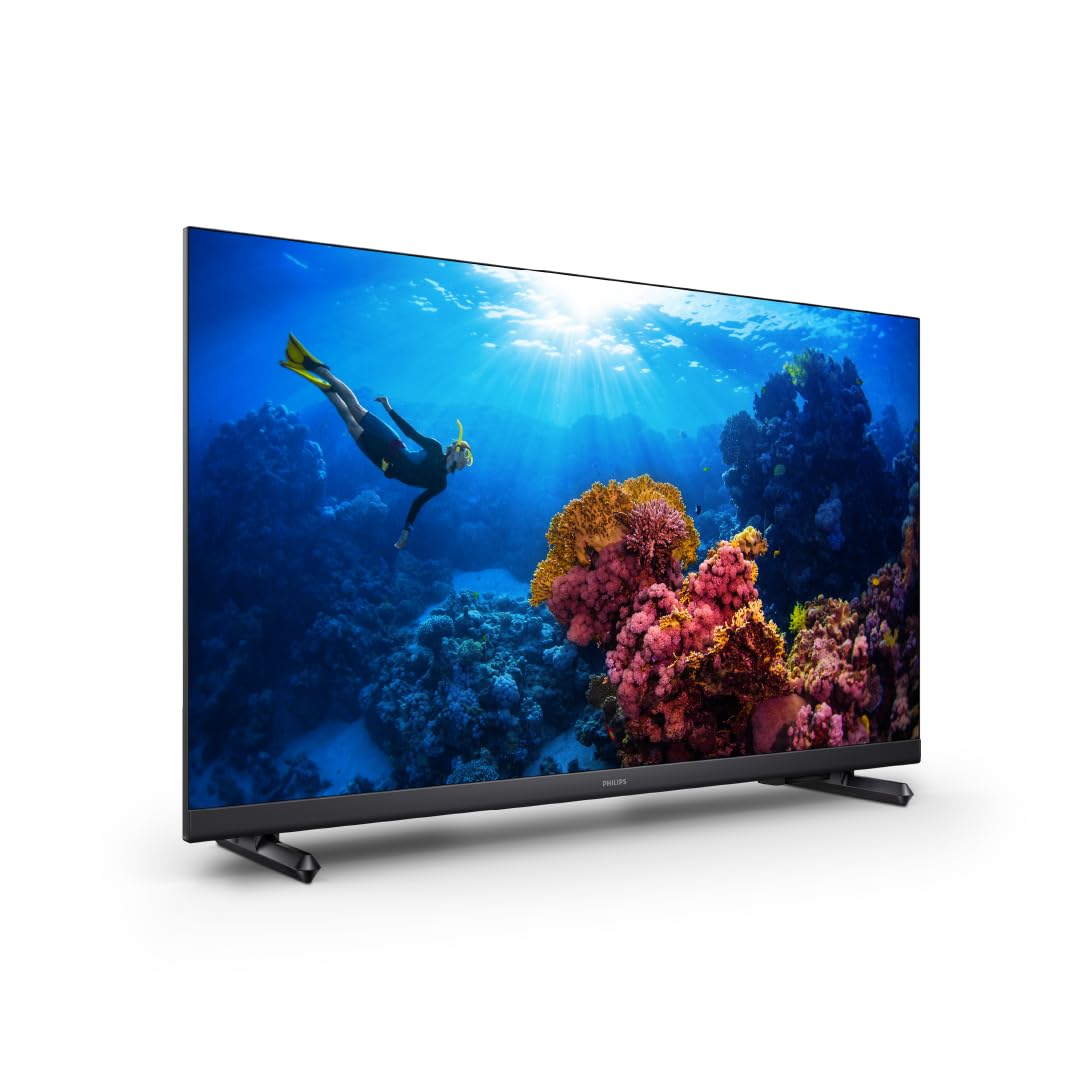
Image: The Philips TV remote control, featuring dedicated buttons for streaming services, Google Assistant, and standard navigation.
Setup
1. Attaching the Table Top Stand
- Carefully place the TV screen-down on a soft, flat surface to prevent damage.
- Align the stand with the mounting holes on the bottom of the TV.
- Secure the stand using the provided screws. Do not overtighten.
Alternatively, for wall mounting, refer to the wall mount kit instructions (sold separately). The TV supports VESA compatible wall mounts.
2. Connecting Peripherals
The TV offers various connectivity options:
- HDMI: Connect external devices such as Blu-ray players, game consoles, or set-top boxes. The TV has multiple HDMI ports.
- USB: For media playback from USB storage devices.
- Antenna/Cable: Connect an antenna or cable TV input for broadcast channels.
- Ethernet (LAN): For a wired internet connection.
- Audio Output: For connecting external audio systems.

Image: Rear view of the Philips 32PHT6918/98 LED TV, highlighting the various input and output ports for connectivity.
3. Power Connection
- Insert the power cord firmly into the AC IN port on the TV.
- Plug the other end of the power cord into a wall outlet.
4. Initial Setup Wizard
Upon first power-on, the TV will guide you through the initial setup process:
- Language Selection: Choose your preferred language.
- Network Connection: Connect to your Wi-Fi network or use a wired Ethernet connection.
- Google Account Sign-in: Sign in with your Google account to access Google TV features, apps, and personalized recommendations.
- Channel Scan: Scan for available broadcast channels if an antenna is connected.
- Privacy Settings: Configure your privacy preferences.
Operating Your TV
Remote Control Functions
Familiarize yourself with the remote control buttons for optimal navigation:
- Power Button: Turns the TV on or off.
- Google Assistant Button: Activates voice control. Press and hold to speak commands.
- Navigation Pad (Up/Down/Left/Right/OK): For menu navigation and selection.
- Back Button: Returns to the previous screen.
- Home Button: Accesses the Google TV home screen.
- Volume Up/Down: Adjusts the volume level.
- Channel Up/Down: Changes TV channels.
- App Shortcut Buttons: Direct access to popular streaming services (e.g., Netflix, YouTube, Prime Video).
Google TV Interface
The Google TV interface organizes content from your apps and subscriptions. The home screen provides personalized recommendations, quick access to your watchlist, and installed applications.
- For You Tab: Discover new movies and shows based on your viewing history.
- Live Tab: Access live TV channels (if configured).
- Apps Tab: Browse and launch installed applications.
- Library Tab: Find your purchased or rented content.
Voice Control with Google Assistant
Your Philips TV supports Google Assistant for voice commands. Press the Google Assistant button on your remote and speak clearly into the microphone.
- "Open Netflix"
- "Find action movies"
- "What's the weather like?"
- "Dim the lights" (requires compatible smart home devices)
Picture and Sound Settings
Access the TV settings menu to adjust picture and sound preferences:
- Picture Modes: Select from various presets (e.g., Standard, Vivid, Movie, Game) or customize brightness, contrast, color, and sharpness.
- Sound Modes: Choose audio presets (e.g., Standard, Music, Movie, Speech) or adjust bass and treble. Dolby Audio technology enhances the sound experience.
- Pixel Plus HD: The TV's processing engine optimizes picture quality for sharp images, rich colors, and smooth motion.
Maintenance
Cleaning the TV
- Always unplug the TV before cleaning.
- Use a soft, lint-free cloth to gently wipe the screen and cabinet.
- For stubborn marks, lightly dampen the cloth with water or a mild, non-abrasive screen cleaner. Do not spray cleaner directly onto the screen.
- Avoid using alcohol, benzene, thinners, or other volatile substances.
Remote Control Battery Replacement
When the remote control's range decreases or it becomes unresponsive, replace the batteries:
- Open the battery compartment cover on the back of the remote control.
- Remove the old AAA batteries.
- Insert two new AAA batteries, ensuring correct polarity (+/-).
- Close the battery compartment cover.
Troubleshooting
No Power
- Ensure the power cord is securely plugged into both the TV and the wall outlet.
- Check if the wall outlet is functioning by plugging in another device.
- Press the power button on the TV itself, not just the remote.
No Picture, But Sound is Present
- Verify the correct input source is selected (e.g., HDMI 1, TV).
- Check all cable connections between the TV and external devices.
- Try restarting the connected device.
Poor Picture Quality
- Adjust picture settings (brightness, contrast, sharpness) in the TV menu.
- Ensure the input source is providing a high-quality signal.
- For broadcast channels, check antenna connection and signal strength.
- The Philips Pixel Plus HD engine optimizes picture quality; ensure it is enabled in settings if applicable.
No Sound or Poor Sound Quality
- Check the volume level and ensure the TV is not muted.
- Verify audio cable connections to external sound systems.
- Adjust sound settings in the TV menu, including Dolby Audio options.
- If using external speakers, ensure they are powered on and correctly configured.
Remote Control Not Working
- Replace the batteries with new AAA batteries.
- Ensure there are no obstructions between the remote and the TV's IR sensor.
- If using Bluetooth remote, ensure it is paired correctly.
Network Connection Issues
- Restart your router and modem.
- Check Wi-Fi password and ensure it is entered correctly.
- If using a wired connection, ensure the Ethernet cable is securely connected.
- Go to network settings on the TV and try reconnecting.
Specifications
| Brand | Philips |
| Model | 32PHT6918/98 |
| Model Name | 6900 Series |
| Screen Size | 32 Inches |
| Display Technology | LED |
| Display Resolution | 1366 x 768 Pixels (HD Ready) |
| Operating System | Google TV |
| Refresh Rate | 60 Hz |
| Aspect Ratio | 16:9 |
| Audio Output Mode | Stereo, Dolby Audio |
| Special Features | Built-In Speaker, Intelligent Voice Recognition (Google Assistant), Pixel Plus HD |
| Connectivity Technology | Bluetooth, HDMI, Wi-Fi |
| Hardware Interface | HDMI |
| Mounting Type | Table Top, Wall Mount (VESA compatible) |
| Product Dimensions (D x W x H) | 8.9D x 71.7W x 42.6H centimetres |
| Package Dimensions | 84.8 x 52.8 x 13.8 cm |
| Item Weight | 5.06 kg |
Image: Energy Efficiency Rating label for the Philips 32PHT6918/98 TV, indicating an annual energy cost of $15 and consumption of 55kWh, rated as "Very Good".
Warranty and Support
For warranty information, please refer to the warranty card included with your product or visit the official Philips support website. Philips typically offers a manufacturer's warranty covering defects in materials and workmanship.
For technical support, troubleshooting assistance, or service requests, please contact Philips Customer Support. You can find contact details on the official Philips website or in the documentation provided with your TV.
Online Resources:
- Official Philips Support Website: www.philips.com/support
- Product Registration: Register your product online to receive updates and support.
Related Documents - 32PHT6918/98
 |
Philips 6700 Series Television User Manual User manual for Philips 6700 Series televisions (32PQT6731/98, 40PQT6731/98, 43PQT6731/98). Includes setup, remote control operation, Google TV features, connectivity, and troubleshooting. |
 |
Philips ME6 LCD Styling Sheet and Mechanical Parts List This document provides styling information and a detailed mechanical parts list for Philips ME6 LCD televisions. It includes an exploded view diagram with numbered components and a comprehensive table of parts with their respective item numbers, 12NC codes, and descriptions, covering various models in the ME6 LCD series. |
 |
Philips 6917 Series Television Quick Start Guide Quick start guide for the Philips 6917 series television, covering unpacking, stand assembly, VESA mounting, connections, and initial setup. |
 |
Philips 7906/7966 Series Television Quick Start Guide Concise guide for setting up your Philips 7906 or 7966 series television, including stand assembly, wall mounting, and connections. |
 |
Philips AMBILIGHT TV 6900 Series Benutzerhandbuch Umfassendes Benutzerhandbuch für den Philips AMBILIGHT TV 6900 Series (Modell 32PFS6900). Enthält Anleitungen zur Einrichtung, Bedienung, Fehlerbehebung und technischen Daten. |
 |
Philips Fidelio B97 Soundbar 7.1.2 with Wireless Subwoofer | Immersive Home Theater Audio Discover the Philips Fidelio B97 Soundbar, a 7.1.2 channel system with Dolby Atmos and IMAX Enhanced for unparalleled surround sound. Features detachable speakers, multi-room audio via DTS Play-Fi, and seamless connectivity. |
Ask a question about this manual
Ask about setup, troubleshooting, compatibility, parts, safety, or missing instructions. Manuals+ will review the question and use this page’s manual context to help answer it.