
Dopesplay
Dopesplay 14.1" Laptop Screen Extender User Manual
Model: DR145
1. Introduction
Thank you for choosing the Dopesplay 14.1" Laptop Screen Extender. This portable monitor is designed to enhance your productivity by providing a triple or dual screen setup for your laptop. Featuring FHD 1200P IPS screens, it delivers clear and vibrant visuals. This manual provides essential information for setup, operation, maintenance, and troubleshooting to ensure optimal performance of your device.
2. Safety Information
Please read and follow all safety instructions carefully before using this product to prevent injury or damage.
- Do not expose the device to extreme temperatures, humidity, or direct sunlight.
- Avoid dropping or subjecting the device to strong impacts.
- Use only the provided cables and accessories.
- Keep the device away from water and other liquids.
- Do not attempt to disassemble or repair the device yourself. Contact qualified personnel for service.
- If the screen is visibly cracked or damaged upon arrival, do not use it. Contact customer support immediately for a replacement.
3. Package Contents
Verify that all items are present in your package:
- 1 x Dopesplay 14.1" Dual Monitor
- 1 x Mini HDMI to HDMI Cable
- 1 x Type-C to USB3.0 and Type-C Cable
- 1 x USB-C to USB-C Cable
- 1 x User Manual

Image: Contents of the Dopesplay 14.1" Laptop Screen Extender package.
4. Product Overview
The Dopesplay 14.1" Laptop Screen Extender features two detachable FHD 1200P IPS screens, designed for portability and ease of use. It offers a 16:10 aspect ratio, 250 nit brightness, and a 1:1000 contrast ratio for clear and vibrant images.
Key Features:
- Detachable and Foldable Design: Allows for easy portability and installation.
- FHD 1200P IPS Screens: Provides high-resolution, wide viewing angle displays.
- Adjustable Kickstand: Offers flexibility in positioning for optimal viewing comfort.
- Multiple Connection Methods: Supports Type-C and HDMI/USB-A connections.
Ports and Buttons:
- Mini HDMI Port: For video input.
- Type-C Ports: For power and video/data transfer.
- Brightness +/- Buttons: Adjust screen brightness.
- Menu Button: Access display settings.

Image: Overview of the Dopesplay 14.1" Laptop Screen Extender's design and display features.
5. Setup Instructions
Follow these steps to set up your Dopesplay Laptop Screen Extender.
5.1. Unboxing and Initial Inspection
- Carefully remove the monitor from its packaging.
- Inspect the screens for any visible cracks or damage. If found, contact customer support immediately.
Video: Unboxing and initial setup of the Dopesplay 14.1" Laptop Screen Extender.
5.2. Attaching the Monitors to Your Laptop
- Open the right monitor and gently pull it out. Rotate the articulating plate 180 degrees and slide it into the groove until it clicks securely.
- Open the left monitor and its back bracket. Rotate the monitor 180 degrees to face the front.
- Attach both monitors to your laptop using the spring clips, ensuring a secure fit.
Image: Demonstrates the adjustable kickstand and rotation for optimal positioning.
5.3. Connecting the Cables
The connection method depends on your laptop's available ports:
Option 1: Two Full-Function Type-C Ports
- Connect each monitor to a full-function Type-C port on your laptop using the provided USB-C to USB-C cables. This is the simplest plug-and-play method.
Option 2: One Full-Function Type-C Port and One USB 3.0 Port
- Connect one monitor using the USB-C to USB-C cable to the full-function Type-C port.
- For the second monitor, use the Mini HDMI to HDMI cable for video and the Type-C to USB3.0 cable for power, connecting them to the respective ports on your laptop.
Option 3: Using a Docking Station (Recommended for Mac users or limited ports)
- Step 1: Connect the Type-C port on your docking station to the adapter to ensure power supply. Without this, a single Type-C port on your laptop may not support dual screen display.
- Step 2: Connect the USB-A port on your docking station to the Type-C port in the center of the monitor using the provided 2-in-1 cable. The first screen should power up.
- Step 3: Connect the HDMI port on the docking station to the Mini HDMI port on the second monitor using the HDMI cable.
- Step 4: The monitor must be connected to an external power source (e.g., 5V/2A adapter via Type-C cable) to function properly. Without this, it will only receive video input and not power on.

Image: Visual guide for connecting the screen extender using different port configurations.
Video: Detailed steps on how to connect the monitor via a docking station.
6. Operating Instructions
Once connected, you can configure your display settings.
6.1. Display Modes
The Dopesplay screen extender supports various display modes:
- Extended Display: Each screen shows different content, expanding your workspace.
- Duplicate Display: All screens mirror the content of your primary laptop screen.
- Portrait Display: Screens can be rotated 90 degrees for vertical viewing, ideal for documents or coding.

Image: Illustration of different display modes (Duplicated, Extended, Portrait) for Mac and Windows.
6.2. Adjusting Display Settings (Brightness, Contrast, etc.)
Use the physical buttons on the monitor to access the OSD (On-Screen Display) menu and customize settings:
- Press the Menu button to open the OSD.
- Use the Brightness + and Brightness - buttons to navigate and adjust values.
- Adjust settings such as Backlight, Brightness, Contrast, and Sharpness to your preference.
Video: Demonstrates the triple monitor setup for laptops and various usage scenarios.
6.3. Mac Specific Display Settings
For Mac users, additional steps are required to extend multiple screens:
- Click the Apple menu in the top left corner of your screen.
- Select "System Preferences" or "Settings."
- Click "Displays."
- Go to the "Arrangement" tab. Initially, screens may be mirrored.
- Select the "DP" display and click "Stop Mirroring." This will change it to an extended display.
- Select "USB Display" and do the same.
- Return to "Arrangement" and drag the displays into the correct physical positions to match your setup.
Video: Instructions on how to extend multiple screens on Mac operating systems.
7. Compatibility
The Dopesplay portable screen extender is widely compatible with 14"-17.3" laptops and various devices.
- Operating Systems: Compatible with Windows, Mac OS 11+, and Chrome OS.
- Devices: Supports full-featured Type-C or Thunderbolt 3/4 devices, including Dell, HP, Lenovo, Surface, MacBook Pro, MacBook Air, PS4/5, Xbox, and Switch.
- Note: For Mac users, a driver download may be required for both screens to function properly due to chip limitations. Please contact customer support for the driver.

Image: Visual representation of the wide compatibility with different devices and operating systems.
8. Troubleshooting
If you encounter issues, refer to the following common solutions:
- One screen not lighting up (Mac users): Ensure you have downloaded and installed the necessary driver. Contact customer support for assistance.
- No display/power: Verify that the monitor is connected to an external power source (5V/2A adapter) via the Type-C cable, in addition to the video input.
- Screen flickering or unstable display: Check all cable connections to ensure they are secure. Try using different ports or cables if available.
- Incorrect display mode (mirroring instead of extended): Adjust display settings in your operating system (refer to Section 6.3 for Mac).
- Image quality issues: Adjust brightness, contrast, and sharpness settings via the OSD menu (refer to Section 6.2).
For further assistance, please contact Dopesplay customer service.
9. Specifications
| Parameter | Value |
|---|---|
| Product Dimensions | 0.46 x 12.6 x 8.27 inches |
| Item Weight | 5.24 pounds |
| Manufacturer | Dopesplay |
| ASIN | B0CMT29W9J |
| Item Model Number | DR145 |
| Standing Screen Display Size | 14.1 Inches |
| Aspect Ratio | 16:10 |
| Voltage | 5 Volts |
| Resolution | 1920 x 1200 (FHD 1200p) |
| Image Brightness | 250 Candela |
| Screen Surface Description | Glossy |
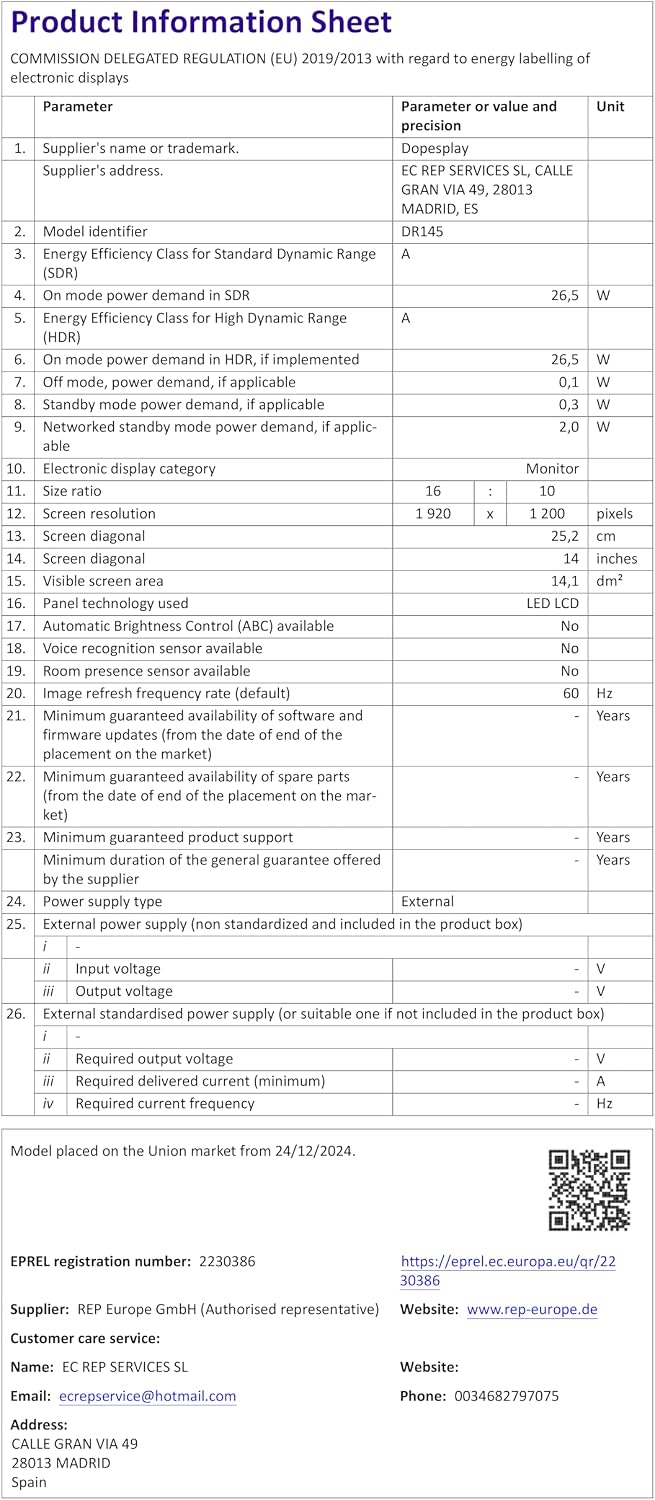
Image: Official Product Information Sheet detailing technical specifications.
10. Maintenance
To ensure the longevity and optimal performance of your Dopesplay screen extender, follow these maintenance guidelines:
- Cleaning: Use a soft, lint-free cloth to gently wipe the screen and exterior. For stubborn smudges, slightly dampen the cloth with water or a screen-cleaning solution. Avoid harsh chemicals or abrasive materials.
- Storage: When not in use, fold the screen extender and store it in a dry, cool place, preferably in its original packaging or a protective sleeve, to prevent dust accumulation and accidental damage.
- Handling: Always handle the device with care, especially when attaching or detaching from your laptop, to avoid stressing the hinges or screen panels.
11. Warranty and Support
Dopesplay provides a one-year quality guarantee for this product. If you encounter any issues, or if any accessories are missing or damaged upon receipt, please do not hesitate to contact our customer service team.
Our dedicated 24-hour friendly customer service is available to assist you with any questions or concerns regarding your Dopesplay Laptop Screen Extender.
For support, please refer to the contact information provided with your purchase or visit the official Dopesplay website.
Ask a question about this manual
Ask about setup, troubleshooting, compatibility, parts, safety, or missing instructions. Manuals+ will review the question and use this page’s manual context to help answer it.