
1. Introduction
Thank you for choosing the Omikamo Foldable Bluetooth Keyboard with Numeric Keypad. This portable, full-size keyboard is designed for convenience and efficiency, supporting multi-device connections across various operating systems. This manual provides essential information for setup, operation, and maintenance to ensure optimal performance.

Image: The Omikamo Foldable Bluetooth Keyboard shown in its unfolded state, positioned next to a tablet, illustrating its full-size layout and numeric keypad.
2. Setup and Connection
2.1 Bluetooth Connection Steps
- Ensure the Bluetooth function on your device (phone, tablet, laptop) is turned ON.
- Turn on the power switch of the keyboard.
- For initial pairing or switching between devices, press and hold Fn + C. The keyboard will enter pairing mode, indicated by a flashing blue light.
- On your device, navigate to "Settings" > "Bluetooth" and select the keyboard from the list of available Bluetooth devices.
- Once connected, your device will display a "Connection complete" message.
2.2 Multi-Device Switching
The keyboard supports connection to up to three devices simultaneously. To switch between paired devices:
- Press Fn + A for Device 1.
- Press Fn + S for Device 2.
- Press Fn + D for Device 3.
2.3 System Switching
To optimize keyboard functionality for different operating systems, switch the keyboard's system mode:
- Press and hold Fn + Q for iOS devices.
- Press and hold Fn + W for Windows devices.
- Press and hold Fn + E for Android devices.
- Press and hold Fn + R for Mac OS devices.

Image: A visual guide detailing the Bluetooth pairing process and how to switch between iOS, Windows, Android, and Mac OS systems using Fn key combinations.
3. Operating Instructions
3.1 Folding Mechanism and Stability
The keyboard features an upgraded folding design with a fixed switch. When unfolded, engage the retaining buckle to lock the keyboard flat, allowing stable use on uneven surfaces or your lap.

Image: A user operating the Omikamo Foldable Bluetooth Keyboard comfortably on their lap, highlighting its stable design when unfolded.
3.2 LED Power Display
The integrated display screen provides real-time information:
- Remaining Power: Shows the current battery level.
- Bluetooth Connection Status: Indicates if the keyboard is connected.
- Uppercase Status: Shows if Caps Lock is active.
- Charging Breathing Light: Illuminates during charging.

Image: A detailed view of the keyboard's LED display, illustrating battery percentage and charging status via its Type-C port.
3.3 Numeric Keypad
The integrated numeric keypad facilitates quick calculations and efficient numeric data entry.

Image: The Omikamo keyboard displayed with a magnified view of its numeric keypad, emphasizing its full-size functionality.
3.4 Multimedia Shortcut Functions
Utilize the Fn key in combination with the function keys for various shortcuts:
- Fn + Esc: Back to Home page
- Fn + F1: Search
- Fn + F2: Select
- Fn + F3: Copy
- Fn + F4: Stick (Paste)
- Fn + F5: Cut
- Fn + F6: Previous Track
- Fn + F7: Play/Pause
- Fn + F8: Next Track
- Fn + F9: Mute
- Fn + F10: Volume Down
- Fn + F11: Volume Up
- Fn + F12: Lock Screen
Image: An illustration of the Omikamo keyboard with callouts indicating the various multimedia shortcut keys and their corresponding functions.
3.5 Quiet and Comfortable Typing
The keys feature a scissor-type switch structure, providing enhanced tactile feedback and typing stability. The subtle construction and non-slip materials contribute to a comfortable, quiet, and precise typing experience.

Image: Detailed views of the keyboard's internal scissor-switch mechanism and its robust metal hinge, illustrating the design for quiet and stable typing.
4. Maintenance
The Omikamo Foldable Bluetooth Keyboard is constructed from wear-resistant aluminum material, designed for durability. To maintain its condition:
- Wipe the surface with a soft, dry cloth to remove dust and fingerprints.
- Avoid exposing the keyboard to excessive moisture or extreme temperatures.
- When transporting, ensure the keyboard is fully folded and the magnetic closure is secure to prevent accidental opening and potential damage.
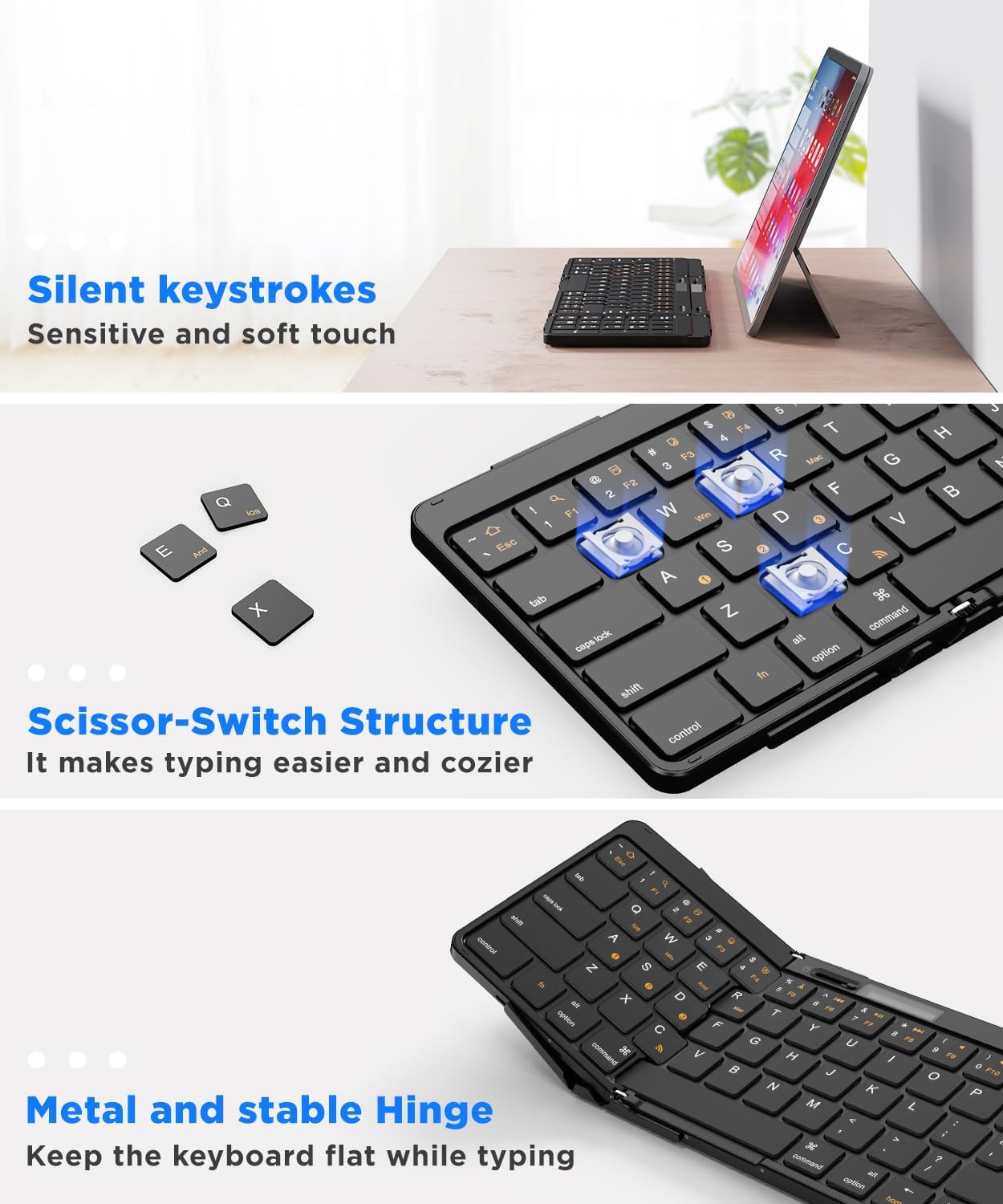
Image: The Omikamo Foldable Bluetooth Keyboard shown in its compact, folded configuration, ready for storage or travel.
5. Troubleshooting
If you encounter issues with your Omikamo Foldable Bluetooth Keyboard, please refer to the following common solutions:
- Keyboard not connecting: Ensure Bluetooth is enabled on your device. Try re-pairing the keyboard by pressing Fn + C and selecting it from your device's Bluetooth list.
- Incorrect key input: Verify that the keyboard is set to the correct operating system mode (Fn + Q/W/E/R).
- Keyboard unresponsive: Check the LED power display for battery level. If low, connect the keyboard to a power source using the provided USB-C cable.
- Keys not working consistently: Ensure the keyboard is fully unfolded and the fixed switch is engaged for stability.
6. Specifications
| Feature | Detail |
|---|---|
| Brand | Omikamo |
| Model Number | Omikamo Foldable Bluetooth Keyboard |
| Connectivity Technology | Bluetooth |
| Compatible Devices | Laptop, PC, Smartphone, Tablet (iOS, Android, Windows, Mac OS) |
| Keyboard Description | Foldable, Wireless, Portable, Lightweight, Numeric Keypad |
| Material | Aluminum |
| Item Weight | 14.7 ounces |
| Package Dimensions | 9.26 x 4.73 x 1.02 inches |
| Standby Time | Up to 150 days |
| Charging Time | Approximately 2 hours for full charge |
6.1 What's in the Box
- 1 x Omikamo Foldable Bluetooth Keyboard
- 1 x USB Cable (Type-C)
- 1 x User Manual
7. Warranty and Support
Omikamo provides 100% warranty support for this product. If you have any questions or concerns, please contact us. Your satisfaction is our priority.
How to Contact Us:
- Click on our store name: "xiaoxiao-US store"
- Click the "Ask a question" button.