
1. Introduction and Overview
The Peplink MAX BR2 Pro is a high-performance router designed for demanding connectivity needs, particularly in vehicle applications. It features dual 2.5 Gbps WAN ports, four 10/100/1000M LAN ports, and two embedded x62 5G cellular modems with redundant SIM slots. This device supports Wi-Fi 6 and offers multiple WAN options, including dual Ethernet WANs, dual 5G/LTE, USB WAN, and Wi-Fi as WAN, ensuring robust and flexible internet access. Its ignition sensing capability is specifically designed to protect vehicle batteries from over-discharge when used in mobile environments.
2. Package Contents
Verify that all items are present in your package:
- 1x BR2 Pro Router
- 1x 12V3A 4-Pin Power Supply
- 8x LTE/5G Antennas
- 2x Dual Band Wi-Fi Antennas
- 1x GPS Antenna

Image: Contents of the Peplink MAX BR2 Pro package, showing the router, power adapter, eight LTE/5G antennas, two Wi-Fi antennas, and one GPS antenna.
3. Product Features
- Dual 2.5 Gbps WAN Ports: For high-speed wired internet connections.
- Four 10/100/1000M LAN Ports: For connecting multiple wired devices.
- Dual Embedded x62 5G Cellular Modems with Redundant SIM Slots: Ensures reliable 5G/LTE connectivity with failover capabilities.
- 1 Gbps Router Throughput: Supports up to 150 recommended users.
- Simultaneous Dual-Band (2.4GHz / 5GHz) Wi-Fi 6: Provides fast and efficient wireless connectivity.
- 2x2 MIMO: Enhances Wi-Fi performance and range.
- Multiple WAN Options: Includes Dual Ethernet WANs, Dual 5G/LTE, USB WAN, and Wi-Fi as WAN for versatile connectivity.
- Cellular Data Rate: 5G: 4 Gbps / 700 Mbps (Downlink/Uplink); LTE CAT-20: 2 Gbps / 150 Mbps (Downlink/Uplink).
- Multiple Power Options: 802.3at PoE input for simplified cabling and an Industrial microfit connector for secure power input, especially in vehicle applications.
- Ignition Sensing: Protects vehicle batteries from over-discharge.
4. Setup
Follow these steps to set up your Peplink MAX BR2 Pro router:
- Install Antennas: Carefully screw all eight LTE/5G antennas, two Wi-Fi antennas, and one GPS antenna into their respective ports on the router. Ensure they are finger-tight.
- Insert SIM Cards: Open the SIM card slots and insert your active 5G/LTE SIM cards. The router supports redundant SIM slots for continuous connectivity.
- Connect Power: Connect the 12V3A 4-Pin Power Supply to the DC IN port on the router. Alternatively, if using PoE, connect an 802.3at PoE source to the 5/WAN 1 port.
- Connect WAN (Internet Source):
- For wired internet, connect your modem or existing network to one of the 2.5 Gbps WAN ports (5/WAN 1 or 2).
- For cellular internet, ensure SIM cards are inserted and antennas are connected.
- For Wi-Fi as WAN, configure this option via the router's web interface after initial setup.
- Connect LAN (Local Devices): Connect your computers, switches, or other network devices to the 10/100/1000M LAN ports (1-4).
- Initial Configuration: Access the router's web administration interface by connecting a device to a LAN port or via Wi-Fi (using default SSID/password, usually found on a label on the device). Follow the on-screen instructions to complete the initial setup, including changing default credentials and configuring WAN priorities.

Image: Front view of the Peplink MAX BR2 Pro, highlighting the various Ethernet ports (LAN and WAN), serial port, USB port, I/O, ignition sensing input, and DC power input.

Image: Back view of the Peplink MAX BR2 Pro, illustrating the multiple antenna connectors for cellular (1A, 1B, 1C, 1D, 2A, 2B, 2C, 2D), GPS, and Wi-Fi (A, B), as well as the dual cellular SIM card slots.
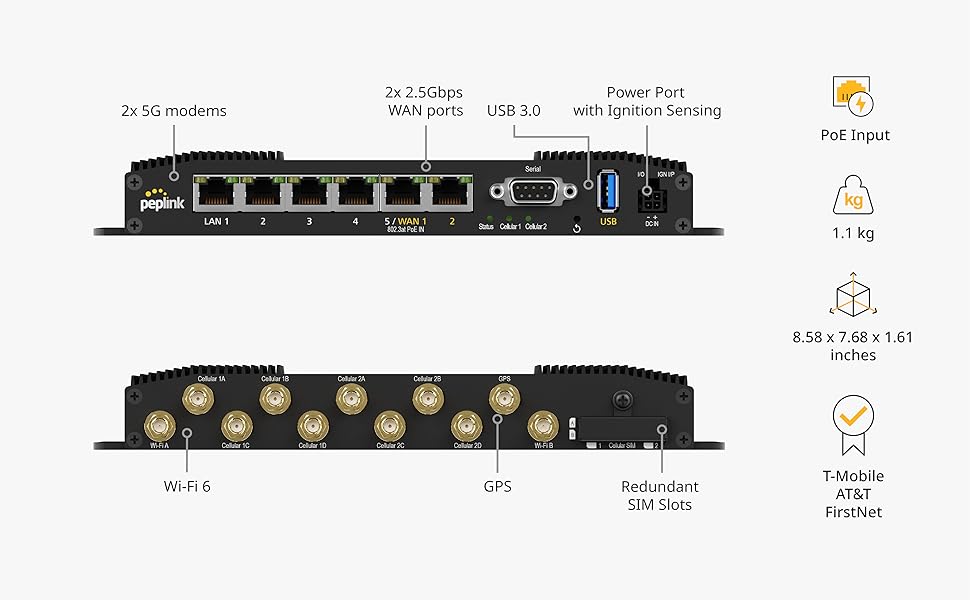
Image: Detailed diagram of the Peplink MAX BR2 Pro, labeling key features such as dual 5G modems, 2.5Gbps WAN ports, USB 3.0, power port with ignition sensing, PoE input, Wi-Fi 6, GPS, and redundant SIM slots.
5. Operating Instructions
5.1 WAN Management
The MAX BR2 Pro offers flexible WAN options to ensure continuous internet access. You can prioritize connections or use them simultaneously for increased bandwidth and reliability.
- Dual Ethernet WANs: Connect up to two wired internet sources for primary or backup connectivity.
- Dual 5G/LTE Cellular: Utilize the two embedded 5G modems with redundant SIM slots. The router can automatically switch between SIMs or carriers based on signal strength or data caps.
- USB WAN: Connect a compatible USB modem for additional cellular connectivity.
- Wi-Fi as WAN: Connect to an existing Wi-Fi network as an internet source.
5.2 SpeedFusion WAN Bonding
Leverage Peplink's SpeedFusion technology to combine the bandwidth of multiple WAN connections, creating a single, faster, and more reliable connection. This is particularly beneficial for critical applications requiring uninterrupted service.

Image: A visual representation of how dual 5G connections can be bonded to combine speed and bandwidth from multiple WAN connections.
5.3 Wi-Fi 6 Connectivity
The router supports Wi-Fi 6 (802.11ax) for enhanced wireless performance, higher capacity, and improved efficiency, especially in environments with many connected devices. It operates on simultaneous dual-bands (2.4GHz and 5GHz) with 2x2 MIMO technology.
5.4 Vehicle Applications and Ignition Sensing
Designed for mobile environments, the MAX BR2 Pro includes ignition sensing. This feature allows the router to detect when a vehicle's ignition is on or off, enabling it to manage power consumption and prevent the vehicle's battery from over-discharging when the engine is not running.

Image: The Peplink MAX BR2 Pro positioned within a vehicle, illustrating its suitability for mobile applications. Text highlights the secure Molex Micro-Fit power connector and the ignition sensing feature that protects the vehicle battery.

Image: A schematic diagram showing the Peplink MAX BR2 Pro installed in a vehicle, connected to various antennas (GNSS, 5G) and the car battery with an ignition sensing connection, demonstrating its mobile deployment capabilities.
5.5 Video Demonstration: Dual-WAN Routers
Video: This video introduces Peplink's B One and B One 5G Dual-WAN Routers, demonstrating their features including Wi-Fi 6, dual Ethernet WAN, Starlink integration, 5G/LTE as backup, and failover capabilities. While showcasing a different model, the principles of dual-WAN, 5G connectivity, and failover are relevant to the MAX BR2 Pro.
6. Maintenance
To ensure optimal performance and longevity of your Peplink MAX BR2 Pro, consider the following maintenance tips:
- Firmware Updates: Regularly check for and install the latest firmware updates from the Peplink website or via the router's web interface. Firmware updates often include security patches, bug fixes, and performance enhancements.
- Physical Cleaning: Keep the router clean and free from dust. Use a soft, dry cloth to wipe the exterior. Ensure ventilation slots are not obstructed to prevent overheating.
- Environmental Conditions: Operate the router within its specified temperature and humidity ranges. Avoid exposing it to direct sunlight, extreme temperatures, or moisture.
- Cable Management: Ensure all cables (power, Ethernet, antennas) are securely connected and not under strain. Proper cable management can prevent accidental disconnections and damage.
- Antenna Placement: For optimal cellular and Wi-Fi performance, ensure antennas are positioned correctly and not obstructed by metal objects or other electronic devices.
7. Troubleshooting
If you encounter issues with your Peplink MAX BR2 Pro, try the following troubleshooting steps:
- No Power: Check the power adapter connection to the router and the power outlet. Ensure the power outlet is functional.
- No Internet Connection:
- Verify that your WAN source (modem, cellular network) is active and providing internet.
- Check WAN cable connections.
- Ensure SIM cards are correctly inserted and active.
- Access the router's web interface to check WAN status and configuration.
- Slow Wi-Fi Speed:
- Ensure Wi-Fi antennas are properly connected and positioned.
- Check for interference from other electronic devices.
- Verify that your devices support Wi-Fi 6 for optimal performance.
- Reduce the number of devices connected to the Wi-Fi network if performance is consistently low.
- Device Not Connecting to Wi-Fi: Verify the Wi-Fi SSID and password. Ensure the device is within range of the router's Wi-Fi signal.
- Router Unresponsive: Try restarting the router by disconnecting and reconnecting the power. If the issue persists, perform a factory reset (refer to the full user manual for instructions, as this will erase all configurations).
8. Specifications
| Feature | Specification |
|---|---|
| Model Number | MAX-BR2-PRO-5GN-T-PRM |
| WAN Ports | 2x 2.5 Gbps Ethernet |
| LAN Ports | 4x 10/100/1000M Ethernet |
| Cellular Modems | 2x Embedded x62 5G |
| SIM Slots | Redundant SIM Slots |
| Wireless Type | 802.11ax (Wi-Fi 6), Simultaneous Dual-Band (2.4GHz / 5GHz), 2x2 MIMO |
| Router Throughput | 1 Gbps |
| Recommended Users | 1-150 |
| 5G Cellular Data Rate | 4 Gbps (Downlink) / 700 Mbps (Uplink) |
| LTE CAT-20 Cellular Data Rate | 2 Gbps (Downlink) / 150 Mbps (Uplink) |
| Power Input | 12V3A 4-Pin Power Supply, 802.3at PoE input |
| Special Features | Ignition Sensing for Vehicle Applications |
| Item Weight | 4.71 pounds |
| Package Dimensions | 11.69 x 11.22 x 3.9 inches |
| Color | Black |
| Compatible Devices | Gaming Console, Personal Computer, Smartphone |
9. Warranty and Support
For warranty information, technical support, and additional resources, please refer to the official Peplink website or contact Peplink customer service. Keep your purchase receipt for warranty claims.
You can visit the Peplink Store on Amazon for more product details and support options.


