
CAMVILD WiFi801Pro
CAMVILD WiFi Trail Camera User Manual
Model: WiFi801Pro | Brand: CAMVILD
Introduction
The CAMVILD WiFi Trail Camera is a high-performance device designed for wildlife monitoring, backyard security, and various outdoor observation needs. It captures impressive 30MP images and 4K HD video, featuring a rapid 0.2-second trigger speed and 850nm low-glow night vision. With built-in WiFi and Bluetooth, you can easily connect to the camera via a mobile app for real-time observation, photo transfer, and setting adjustments.

Figure 1: CAMVILD WiFi Trail Camera, designed for outdoor use.
What's in the Box
Verify that all items are present upon unboxing:
- 1 x CAMVILD WiFi Trail Camera
- 1 x 32GB SD Card
- 1 x Mounting Strap
- 1 x Mounting Bracket
- 3 x Screws
- 1 x USB Cable (for connecting camera to computer)
- 1 x Instruction Manual
Setup Guide
- Install Batteries: Open the camera casing and insert 8 AA batteries into the designated battery compartment. Ensure correct polarity.
Video 1: Demonstrates the process of installing batteries and setting up the camera for initial use.
Detailed description: This video shows how to install 8 AA batteries into the camera's battery compartment. The camera's internal screen and control buttons are visible.
- Insert SD Card: Insert the provided 32GB SD card into the SD card slot until it clicks into place. Ensure the card is inserted in the correct orientation.
- Power On to TEST Mode: Push the camera's power switch to the "TEST" position. The camera's internal screen will activate, allowing you to navigate menus and prepare for app connection.
- Download the App: Scan the QR code in the included instruction manual or search for "WiFicamera" in your mobile device's app store (App Store for iOS, Google Play Store for Android) and download the application.
- Enable Bluetooth and WiFi on Phone: Ensure both Bluetooth and WiFi are enabled on your smartphone.
- Connect via Bluetooth: Open the "WiFicamera" app. Click on the "Connect Bluetooth" option within the app. The app will search for available devices. Select your camera's Bluetooth ID (e.g., OCB740) from the list and connect.
- Connect via WiFi: After successful Bluetooth connection, the app will prompt you to connect to the camera's WiFi signal. Go to your phone's WiFi settings and select the camera's WiFi network (e.g., CAM_056C). Enter the default password (usually 12345678 or found in the manual). Once connected, return to the app.

Figure 2: Initial steps for connecting the camera to the mobile app, including scanning QR code and downloading the app.

Figure 3: Further steps for app connection, showing Bluetooth and WiFi activation on the phone.

Figure 4: Final steps for app connection, confirming successful WiFi connection and access to camera functions.
Note: If the switch is pushed from "TEST" to "ON" and then back to "TEST", you will need to repeat the Bluetooth and WiFi connection steps.
Operating Instructions
Using the Mobile App
Once connected to the camera via the "WiFicamera" app, you can access various functions:
- Real-time Monitoring: View a live feed from the camera on your phone. This allows for precise aiming and immediate observation.
- Manual Capture: Take photos or record videos manually directly from the app interface.
Video 2: Demonstrates how to manually take pictures and shoot video using the mobile app interface.
Detailed description: This video shows the live view interface within the app, demonstrating how to tap buttons to capture still images and start/stop video recording manually.
- Preview and Download: Access captured photos and videos stored on the SD card directly through the app. You can preview them and download them to your phone.
Video 3: Demonstrates how to preview and download captured photos and videos from the camera to your mobile device via the app.
Detailed description: This video shows navigating the app to view recorded media, selecting files, and initiating the download process to the phone's storage.
- Adjust Settings: Modify camera parameters such as resolution (30MP photos, 4K video), video length, interval, PIR sensitivity, and time-lapse settings directly from the app.
Video 4: Demonstrates how to modify photo and video parameters, including resolution and shooting time, using the app's settings menu.
Detailed description: This video shows accessing the settings menu in the app and adjusting various camera parameters like resolution (e.g., 30M for photos, 4K for video) and other shooting preferences.
Automatic Operation (ON Mode)
After configuring settings via the app, push the camera's power switch to the "ON" position. The camera will automatically enter its working state, detecting motion and capturing images/videos according to your settings. If the WiFi connection is disconnected while in ON mode, the camera will continue to detect movement and shoot, storing photos and videos on the SD card.
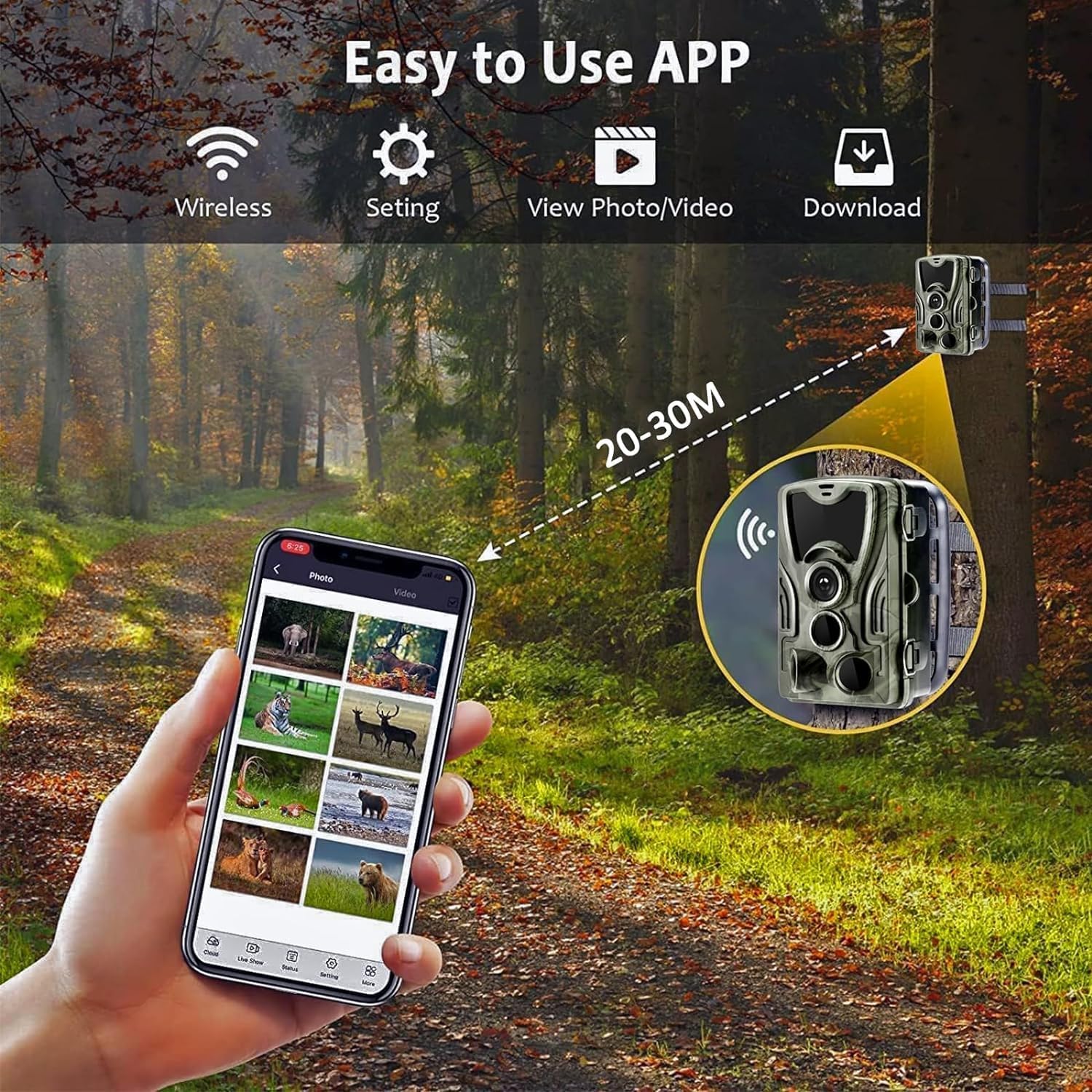
Figure 5: Illustrates the camera's wireless connectivity and ease of use with the mobile app for viewing and downloading media within a 20-30 meter range.

Figure 6: Explains the difference between ON and TEST modes, highlighting that in ON mode, the camera automatically detects motion and records.
Key Features in Operation
- 30MP Photo & 4K HD Video: Captures high-resolution still images and ultra-high-definition video for clear and detailed recordings.

Figure 7: Demonstrates the superior clarity of 30MP photo resolution compared to lower resolutions.
- 0.2S Trigger Speed: Ensures quick capture of fast-moving subjects, minimizing missed events.
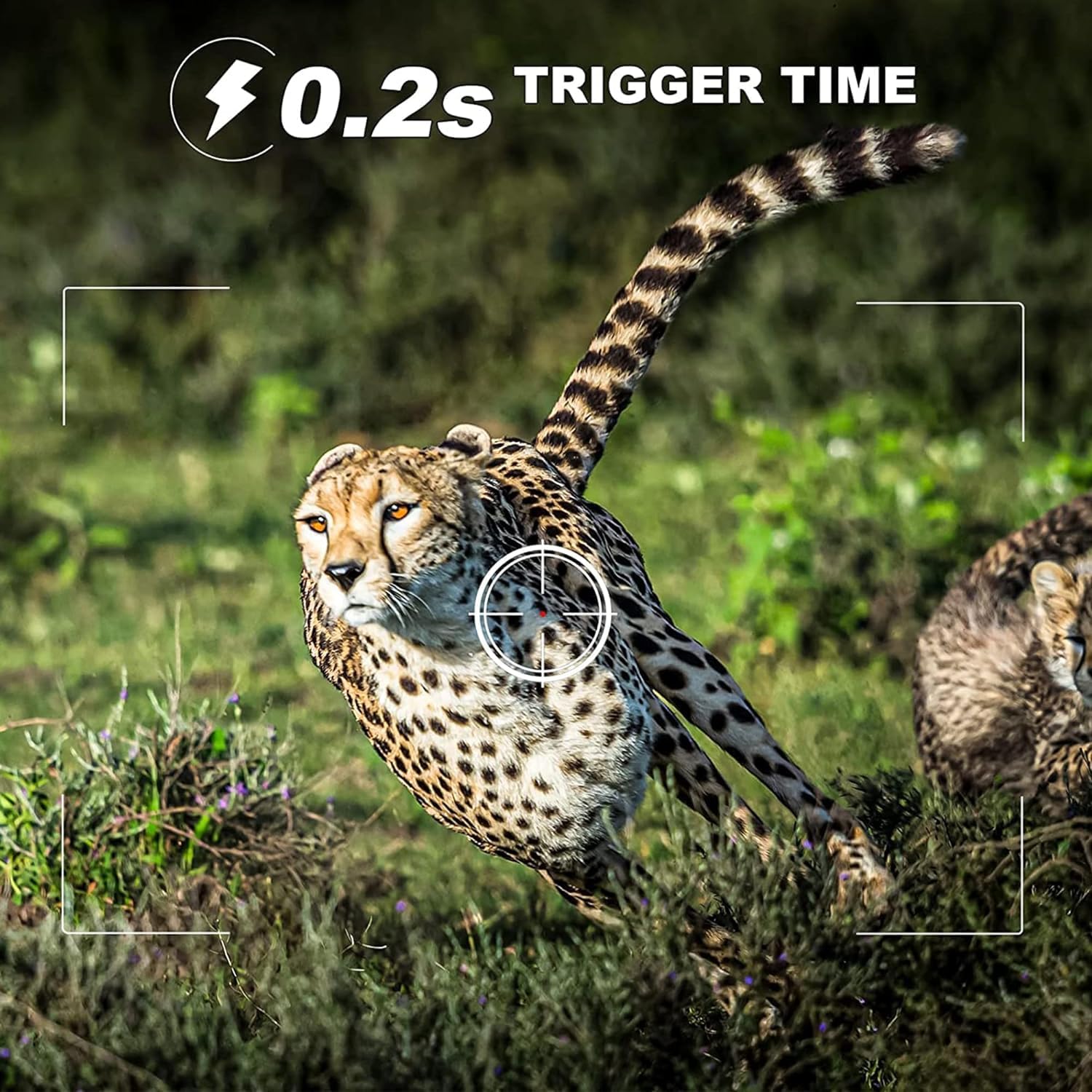
Figure 8: Illustrates the rapid 0.2-second trigger speed, capturing fast-moving wildlife.
- 850nm Low Glow Night Vision: Provides clear night recordings without scaring wildlife, with a range of 20m/65ft. Sensitivity is adjustable.

Figure 9: Shows the camera's effective night vision capabilities, capturing clear images in low-light conditions up to 65 feet.
- 120° Wide-Angle Field of View: Captures a broad area, increasing the likelihood of detecting activity.

Figure 10: Depicts the camera's 120-degree wide-angle field of view, covering a large area for comprehensive monitoring.
- Time-lapse Function: Record events over extended periods, such as plant growth or construction progress, compiling them into video format.
Maintenance
- Waterproof Protection: The camera features an IP66 waterproof rating, ensuring durability in various weather conditions. Ensure the battery compartment and ports are securely sealed before outdoor deployment.

Figure 11: Highlights the camera's IP65 waterproof design, suitable for outdoor environments.
- Cleaning: Regularly clean the camera lens and PIR sensors with a soft, dry cloth to ensure optimal performance and clear image capture. Avoid abrasive materials or harsh chemicals.
- Battery Life: Monitor battery levels through the app or camera screen. Replace batteries when low to prevent interruption of recording.
- SD Card Management: Periodically review and format the SD card to maintain optimal recording performance and free up storage space.
Troubleshooting
If you encounter issues with your CAMVILD WiFi Trail Camera, consider the following common solutions:
- Camera Not Turning On: Ensure batteries are correctly installed with proper polarity and are fully charged. Check that the power switch is firmly in the "TEST" or "ON" position.
- App Connection Issues (Bluetooth/WiFi):
- Confirm the camera is in "TEST" mode before attempting to connect via Bluetooth.
- Ensure Bluetooth and WiFi are enabled on your mobile device.
- Verify you are connecting to the correct camera Bluetooth ID and WiFi network.
- Double-check the WiFi password.
- If the connection drops after switching to "ON" mode, this is normal behavior. Reconnect via Bluetooth and WiFi when the camera is back in "TEST" mode to access live view or settings.
- Try restarting both the camera (by cycling the power switch) and your mobile device.
- No Photos/Videos Captured:
- Ensure the camera is in "ON" mode for automatic motion-activated recording.
- Check if the SD card is properly inserted and not full. Format the SD card if necessary (this will erase all data).
- Adjust PIR sensitivity settings. If sensitivity is too low, it may not detect motion.
- Verify that the camera's time and date settings are correct.
- Poor Image/Video Quality:
- Clean the camera lens and infrared sensors.
- Check the resolution settings in the app; ensure they are set to 30MP for photos and 4K for video.
- Ensure adequate lighting for daytime shots, and proper placement for night vision (avoiding reflective surfaces).
For further assistance, please refer to the official CAMVILD support channels.
Specifications
| Feature | Specification |
|---|---|
| Model Name | WiFi801Pro |
| Effective Still Resolution | 30 MP |
| Video Capture Resolution | 4K |
| Trigger Speed | 0.2 seconds |
| Night Vision | 850nm Low Glow (20m/65ft range) |
| Field of View | 120° Wide-Angle |
| Connectivity | Bluetooth, Wi-Fi |
| Waterproof Rating | IP65, IP66 |
| Power Source | Battery Powered (8 x AA batteries, not included) |
| Storage | Supports SD card (32GB card included) |
| Dimensions (L x W x H) | 5.31 x 3.34 x 2.75 inches |
| Item Weight | 1.19 pounds |
| Included Components | 32GB card, strap, bracket, screws, USB cable, instruction manual |
Warranty and Support
For warranty information and technical support, please refer to the contact details provided in your product packaging or visit the official CAMVILD website. Keep your purchase receipt for warranty claims.
Ask a question about this manual
Ask about setup, troubleshooting, compatibility, parts, safety, or missing instructions. Manuals+ will review the question and use this page’s manual context to help answer it.