
1. Introduction
This manual provides detailed instructions for the setup, operation, and maintenance of the HK SYSTEMS RP326 thermal receipt printer. This printer is designed for various business environments, including retail, convenience stores, restaurants, and cafes. It offers versatile connectivity options and efficient printing capabilities.
The RP326 printer features an 80mm thermal printing mechanism with an auto-cutter, capable of printing at speeds up to 250mm/second. It supports multiple interfaces including USB, Serial, and Ethernet, ensuring compatibility with Windows, Mac, and Linux operating systems. The printer also includes support for cash drawer connection via an RJ11 port.
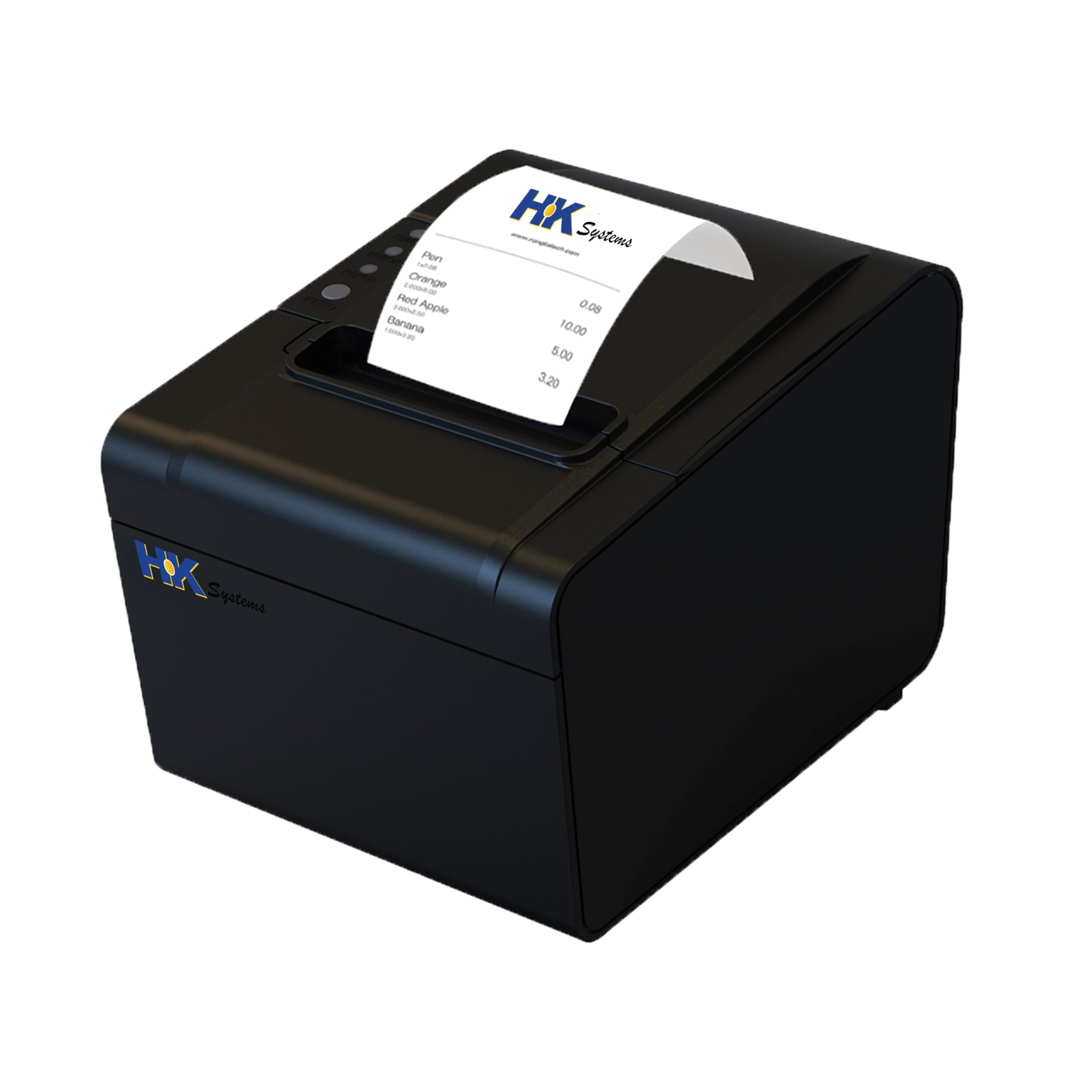
Figure 1: Front view of the HK SYSTEMS RP326 Thermal Receipt Printer.
2. What's in the Box
Carefully unpack the box and ensure all the following items are present:
- HK SYSTEMS RP326 Thermal Receipt Printer
- Test Thermal Paper Roll
- USB Drive (containing printer drivers)
- Serial Cable
- USB Cable
- Power Adaptor
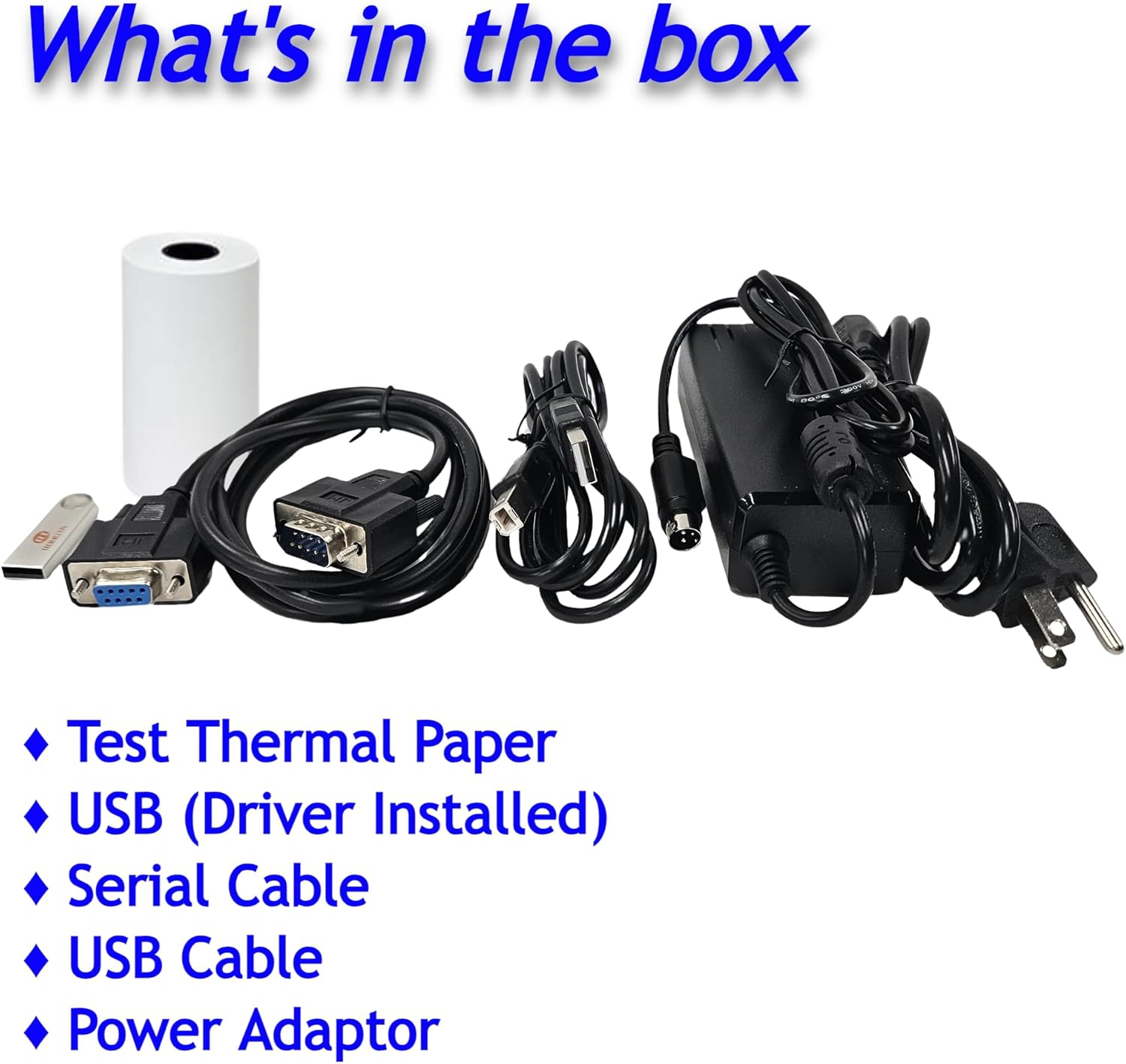
Figure 2: Included components in the product packaging.
3. Product Overview
The HK SYSTEMS RP326 printer is equipped with multiple ports for various connectivity needs. Understanding these ports is crucial for proper setup and operation.

Figure 3: Rear view of the printer highlighting available interfaces.
- Serial Port: For serial data communication.
- USB Port: For direct connection to a computer.
- LAN Port (Ethernet): For network connectivity.
- RJ11 Port: For connecting a cash drawer.
- Power Port: For connecting the power adapter.
4. Setup
4.1. Loading Thermal Paper
- Open the printer cover by pressing the release button or lever.
- Insert the thermal paper roll with the printing side facing up. Ensure the roll is seated correctly in the paper compartment.
- Pull a small amount of paper out past the cutter.
- Close the printer cover firmly until it clicks into place.
4.2. Connecting the Printer
- Power Connection: Connect the power adapter to the printer's power port and then plug it into an electrical outlet.
- Interface Connection: Choose one of the following connection methods:
- USB: Connect the USB cable from the printer to an available USB port on your computer.
- Serial: Connect the serial cable from the printer to the serial port on your computer or POS system.
- Ethernet: Connect an Ethernet cable from the printer's LAN port to your network router or switch.
- Cash Drawer Connection (Optional): If using a cash drawer, connect its RJ11 cable to the RJ11 port on the printer.
4.3. Driver Installation
Proper driver installation is required for the printer to function with your operating system (Windows, Mac, or Linux). The necessary printer drivers are provided on the included USB drive.
- Insert the provided USB drive into your computer.
- Locate and run the appropriate driver installer for your operating system.
- Follow the on-screen instructions to complete the driver installation.
- After installation, it may be necessary to restart your computer.
5. Operating Instructions
5.1. Power On/Off
- Power On: Ensure the power adapter is connected. Press the power button, usually located on the front or side of the printer. The power indicator light should illuminate.
- Power Off: Press and hold the power button until the printer shuts down.
5.2. Printing a Receipt
Once the printer is connected and drivers are installed, you can print receipts from your POS software or application. The printer will automatically cut the receipt after printing.

Figure 4: Printer displaying a self-test receipt with configuration details.
6. Maintenance
6.1. Cleaning the Printer
Regular cleaning helps maintain print quality and extends the printer's lifespan.
- Turn off the printer and disconnect the power cable before cleaning.
- Use a soft, lint-free cloth dampened with isopropyl alcohol to clean the thermal print head. Allow it to dry completely before use.
- Clean the paper path and exterior with a dry, soft cloth.
6.2. Replacing Thermal Paper
Refer to Section 4.1 for detailed instructions on loading thermal paper.
7. Troubleshooting
7.1. Common Issues
- Printer Not Responding: Check power connections, USB/Serial/Ethernet cable connections, and ensure the printer is powered on. Verify driver installation.
- Poor Print Quality: Ensure you are using thermal paper. Clean the print head as described in Section 6.1.
- Paper Jam: Turn off the printer, open the cover, and carefully remove any jammed paper. Close the cover and restart the printer.
- Cutter Lock: If the auto-cutter is locked, turn off the printer, open the cover, and manually adjust the gear if accessible. Then close the cover and restart.

Figure 5: Auto-cutter mechanism with attention label for cutter lock.
7.2. System Incompatibility Notice
The HK SYSTEMS RP326 printer (Model RPH326B) is NOT compatible with the following systems and platforms:
- Clover
- Square
- Doordash
- Postmasters
- Ubereats
- Grubhub
- Lightspeed
- Chromebook
This printer also does not support Wi-Fi or Bluetooth connectivity.
8. Specifications
| Feature | Specification |
|---|---|
| Model Number | RPH326B |
| Printing Technology | Thermal |
| Max Print Speed Monochrome | 250 ppm (43 receipts per minute) |
| Maximum Black and White Print Resolution | 203 dpi |
| Maximum Media Size | 80mm (3 inches) |
| Hardware Interface | Ethernet, Serial Interface, USB |
| Additional Printer Functions | Print Only, Auto-Cutter |
| Control Method | App (via connected system) |
| Product Dimensions | 5.2"D x 6.3"W x 5.3"H (13.2 x 16 x 13.5 cm) |
| Item Weight | 4.11 pounds (1.86 kg) |
| Ink Color | Black (thermal ink) |
| Power Input | 24V DC, 2.5A (typical) |
| Operating System Support | WIN2003/WINXP/WIN7/WIN8/WIN10/LINUX/Mac |
9. Warranty and Support
9.1. Warranty Information
The HK SYSTEMS RP326 printer comes with a limited warranty. Please refer to the warranty card included in your product packaging or contact HK SYSTEMS customer service for specific terms and conditions.
9.2. Customer Support
For technical assistance, troubleshooting not covered in this manual, or warranty inquiries, please contact HK SYSTEMS customer support. Contact information can typically be found on the HK SYSTEMS official website or on the product packaging.