
1. Introduction
This manual provides essential information for the proper setup, operation, and maintenance of your Philips USB-C to 4-Port USB 2.0 Hub, model SWL3573S/37. Please read these instructions thoroughly before using the product to ensure optimal performance and longevity.

Image 1: Philips USB-C to 4-Port USB 2.0 Hub. This image displays the compact gray hub with its integrated USB-C cable and four USB-A ports.
2. Package Contents
Verify that all items are present in the package:
- 1 x Philips USB-C to 4-Port USB 2.0 Hub (Model: SWL3573S/37)
3. Product Features
The Philips USB-C to 4-Port USB 2.0 Hub offers the following features:
- Four USB-A 2.0 Ports: Provides connectivity for multiple USB-A devices.
- Data Transfer Speed: Supports data transfer rates up to 480 Mbps.
- USB-C Input: Connects to your host device via a USB-C port.
- Plug-and-Play: No driver or software installation required for most operating systems.
- Universal Compatibility: Works with Windows 7 and up, macOS, and other USB-C compatible devices.
- Durable Design: Features an aluminum housing for enhanced durability and portability.

Image 2: Key components of the Philips USB-C Hub. This image highlights the USB-C connector and the four USB-A 2.0 ports on the hub.
4. Setup Instructions
Follow these steps to set up your USB-C hub:
- Connect the Hub: Insert the USB-C connector of the Philips hub into an available USB-C port on your laptop, tablet, or desktop computer.
- Connect USB-A Devices: Plug your USB-A accessories (e.g., keyboard, mouse, flash drive, external hard drive) into the four USB-A ports on the hub.
- Verify Connection: Your operating system should automatically detect the hub and connected devices. No additional drivers are typically required.

Image 3: Connecting the USB-C Hub to a laptop. This image demonstrates the hub plugged into a laptop's USB-C port, with other USB-A devices connected to the hub.
5. Operating Instructions
Once connected, the Philips USB-C hub operates as a direct extension of your computer's USB ports.
- Data Transfer: Use the USB-A ports to transfer data between your connected devices and your computer. The hub supports speeds up to 480 Mbps.
- Peripheral Connectivity: Connect standard USB-A peripherals such as keyboards, mice, printers, and USB-powered accessories.
- Hot-Swapping: Devices can be connected and disconnected from the hub while your computer is running without requiring a restart.
6. Compatibility
The hub is designed for broad compatibility:
- Operating Systems: Compatible with Windows 7, Windows 10, macOS, and other operating systems that support USB-C and USB 2.0 standards.
- Host Devices: Works with USB-C enabled laptops, tablets, and desktop computers, including MacBook Pro, MacBook Air, and various PC models.
- USB-A Devices: Supports all standard USB-A 2.0 devices and is backward compatible with USB 1.1 devices.

Image 4: Universal compatibility of the USB-C Hub. This image illustrates the hub's broad compatibility with various operating systems and devices.
7. Maintenance
To ensure the longevity and proper functioning of your Philips USB-C hub:
- Cleaning: Use a soft, dry cloth to clean the exterior of the hub. Avoid liquid cleaners or solvents.
- Storage: Store the hub in a cool, dry place when not in use. Its compact size makes it suitable for travel.
- Handling: Avoid dropping the device or exposing it to extreme temperatures or moisture.
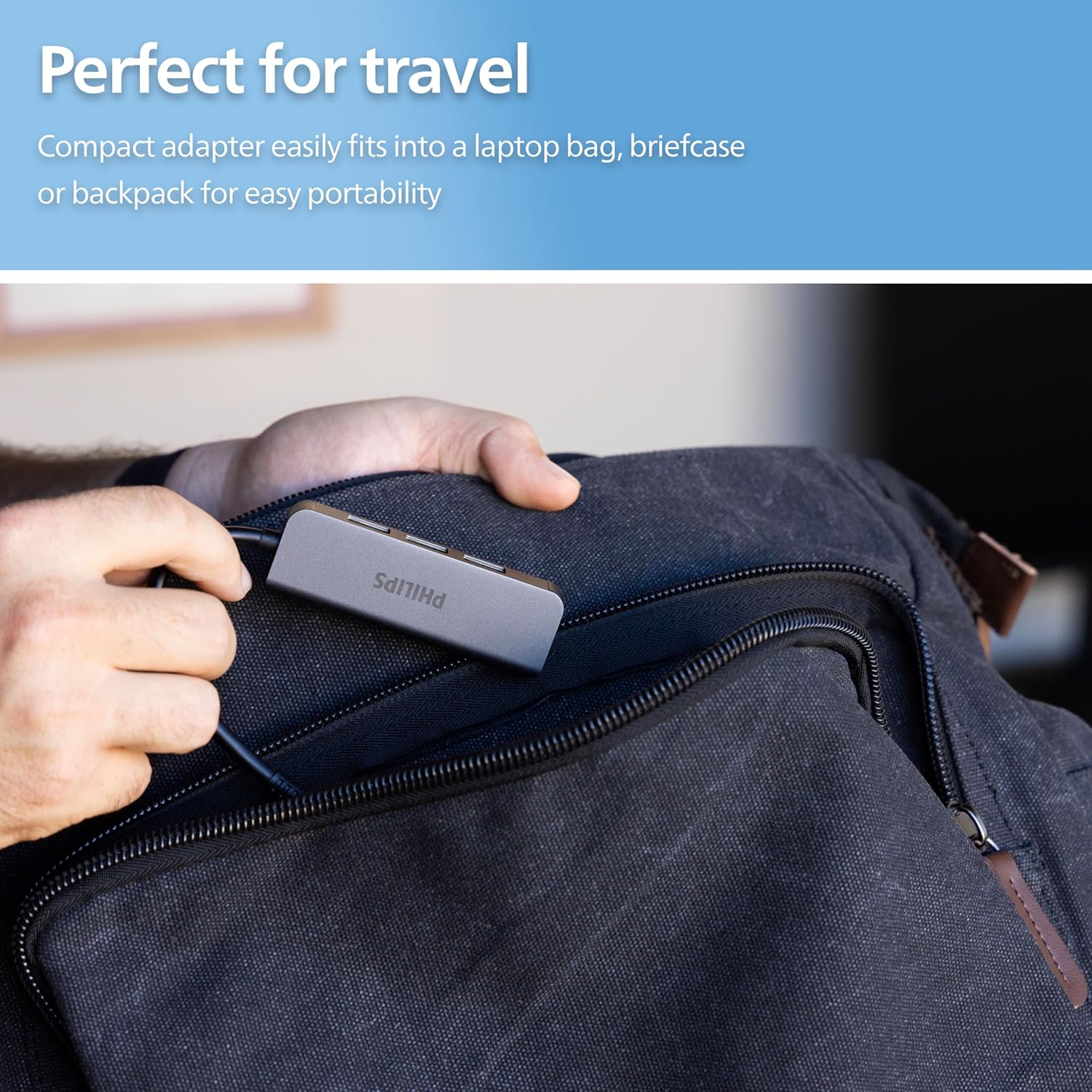
Image 5: Portability of the USB-C Hub. This image shows the compact hub being easily stored in a backpack, highlighting its suitability for travel.
8. Troubleshooting
| Problem | Solution |
|---|---|
| Device not recognized by computer. |
|
| Slow data transfer speeds. |
|
| Connected device is not receiving power. |
|
9. Specifications
- Model: SWL3573S/37
- Input: USB-C
- Output: 4 x USB-A 2.0 Ports
- Data Transfer Speed: Up to 480 Mbps
- Compatibility: Windows 7+, macOS, USB-C compatible devices
- Material: Aluminum Housing
- Dimensions: Approximately 6.57 x 5.94 x 1.46 inches (Package Dimensions)
- Weight: Approximately 2.08 ounces
10. Warranty and Support
This Philips product is backed by a limited-lifetime replacement pledge. For technical assistance or warranty inquiries, please contact U.S.-based technical support, available Monday-Friday, 7 AM-8 PM, Central Time.
For further information or support, please visit the official Philips website or refer to your purchase documentation.


