
Philips SWV9173GR/37
Philips SWV9173GR/37 2-Device HDMI 2.1 Switch User Manual
Model: SWV9173GR/37
1. Introduction

Image: The Philips SWV9173GR/37 2-Device HDMI 2.1 Switch, a compact gray device with two HDMI input ports, one HDMI output port, and a selection button on top.
The Philips SWV9173GR/37 2-Device HDMI 2.1 Switch is designed to expand the HDMI input capabilities of your display. This device allows you to connect two HDMI source devices to a single HDMI input port on your television or monitor, enabling easy switching between them. It supports advanced video and audio formats, ensuring high-quality signal transmission for your entertainment system.
This manual provides detailed instructions for the proper installation, operation, and maintenance of your HDMI switch.
2. Product Features
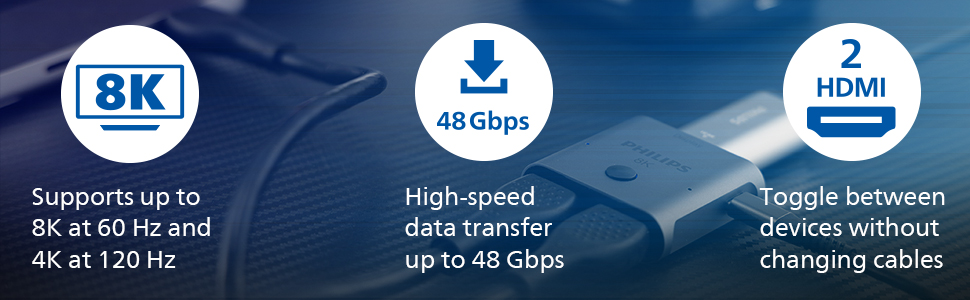
Image: A graphic highlighting key features: support for up to 8K at 60 Hz and 4K at 120 Hz, high-speed data transfer up to 48 Gbps, and the ability to toggle between two HDMI devices without changing cables.
- Universal Compatibility: Works with all brands of HDMI cables and HDMI-enabled devices, including TVs, gaming consoles (e.g., PS5, Xbox Series X), Blu-ray/DVD players, and streaming media players.
- Two HDMI Ports: Connects two source devices to one TV HDMI port. Easily toggle between devices using the integrated button.
- 8K Ultra HD Support: Supports data transfer up to 48 Gbps, 8K resolution at 60 Hz, and 4K resolution at 120 Hz.
- Advanced Audio Support: Compatible with HDCP 2.2 (with compatible sources), Dolby Atmos, and HD Dolby 7.1 surround sound.
- Premium Design: Features a durable aluminum housing and LED indicator lights to show the currently selected source device.
- Power Options: Includes a 6-foot USB-A to USB-C cable for power, connectable to a USB-equipped wall outlet or a TV's USB port if additional power is needed.
3. Package Contents
- Philips HDMI Switch Splitter (Model: SWV9173GR/37)
- 6 ft. USB-A to USB-C Power Cable
Note: Additional HDMI cables are required and sold separately to connect your source devices to the HDMI switch and the switch to your display.
4. Setup Instructions
Follow these steps to connect your Philips HDMI 2.1 Switch:
- Connect Source Devices: Using high-quality HDMI 2.1 cables (sold separately), connect your two HDMI source devices (e.g., gaming console, Blu-ray player) to the "Input 1" and "Input 2" ports on the Philips HDMI switch.
- Connect to Display: Connect one end of an HDMI 2.1 cable (sold separately) to the "Output" port on the Philips HDMI switch and the other end to an available HDMI input port on your television or monitor.
- Power Connection (Optional): If your setup requires additional power, connect the included 6 ft. USB-A to USB-C power cable to the USB-C port on the HDMI switch. Connect the USB-A end to a USB-equipped wall outlet or a USB port on your TV. The switch may operate without external power if the HDMI source provides sufficient 5V power, but external power is recommended for stable performance, especially with high-bandwidth signals (8K@60Hz, 4K@120Hz).

Image: The Philips HDMI 2.1 Switch connected to an AV receiver, demonstrating how source devices and the display are linked. The image highlights the 48 Gbps data transfer capability.

Image: A close-up view of the Philips HDMI 2.1 Switch with two HDMI cables plugged into its input ports, illustrating the plug-and-play simplicity of connecting multiple devices.

Image: The Philips HDMI 2.1 Switch with its included 6 ft. USB-A to USB-C power cable connected, showing how to provide external power to the device.
5. Operating Instructions
Once all connections are made and your devices are powered on, operate the HDMI switch as follows:
- Select Input: Press the button located on the top of the Philips HDMI switch to toggle between the connected HDMI input sources.
- LED Indicators: The LED indicator lights next to each input port will illuminate to show which source device is currently selected and active.
- Display Output: The video and audio from the selected source device will be displayed on your connected television or monitor.
6. Maintenance
To ensure the longevity and optimal performance of your Philips HDMI 2.1 Switch, follow these maintenance guidelines:
- Cleaning: Use a soft, dry cloth to clean the exterior of the device. Avoid using liquid cleaners or abrasive materials.
- Handling: Handle the switch with care. Avoid dropping it or subjecting it to strong impacts.
- Environment: Keep the device in a cool, dry place, away from direct sunlight, excessive heat, and moisture.
- Cable Management: Ensure HDMI and power cables are not excessively bent or strained, which can damage the cables or ports.
7. Troubleshooting
If you encounter issues with your Philips HDMI 2.1 Switch, refer to the following common problems and solutions:
- No Signal or Black Screen:
- Ensure all HDMI cables are securely connected to the switch, source devices, and display.
- Verify that the correct input is selected on your TV/monitor and on the HDMI switch (check LED indicators).
- Try connecting the USB power cable to the switch, even if it previously worked without it. Some devices or high-resolution signals may require external power.
- Test with different HDMI cables, especially certified HDMI 2.1 cables, as cable quality can affect signal transmission, particularly at 8K/4K 120Hz.
- Bypass the switch and connect the source device directly to the display to confirm the source and display are functioning correctly.
- Flickering or Intermittent Signal:
- This often indicates a cable issue or insufficient power. Ensure the USB power cable is connected and providing stable power.
- Replace HDMI cables with shorter, higher-quality, or certified HDMI 2.1 cables.
- Reduce the resolution or refresh rate settings on your source device (e.g., from 4K@120Hz to 4K@60Hz) to see if the issue persists.
- Resolution or Refresh Rate Issues (e.g., PS5/Xbox Series X not recognizing 120Hz VRR):
- Ensure all connected HDMI cables are certified HDMI 2.1 cables capable of supporting the desired bandwidth (48 Gbps).
- Verify that your display and source devices are fully HDMI 2.1 compliant and support the specific features (e.g., VRR, 120Hz) you are trying to use.
- Ensure the USB power cable is connected to provide stable power for high-bandwidth signals.
- Check for firmware updates for your source device or display.
- Switch Button Unresponsive:
- Disconnect and reconnect the power cable (if used) or all HDMI cables to reset the device.
- Ensure the device is receiving power (LEDs should be active).
8. Specifications
| Model Number | SWV9173GR/37 |
| Brand | Philips |
| Connector Type | HDMI |
| HDMI Version | 2.1 |
| Max Resolution Support | 8K@60Hz, 4K@120Hz |
| Data Transfer Rate | Up to 48 Gbps |
| Audio Support | Dolby Atmos, HD Dolby 7.1 Surround Sound |
| HDCP Compliance | HDCP 2.2 (with compatible source) |
| Power Input | USB-C (6 ft. USB-A to USB-C cable included) |
| Compatible Devices | DVD Player, Gaming Console, Projector, Satellite Antenna, Television |
| Dimensions (L x W x H) | 7.01 x 2.83 x 1.46 inches |
| Item Weight | 3.52 ounces |
9. Warranty and Technical Support
This Philips HDMI 2.1 Switch is backed by a limited-lifetime replacement pledge. For technical assistance or warranty claims, please contact Philips customer support.
U.S.-based Technical Support: Available Monday-Friday, 7 AM-8 PM Central Time.
Please refer to the product packaging or the official Philips website for the most current contact information and detailed warranty terms.
Ask a question about this manual
Ask about setup, troubleshooting, compatibility, parts, safety, or missing instructions. Manuals+ will review the question and use this page’s manual context to help answer it.