
Introduction
This manual provides essential information for the setup, operation, maintenance, and troubleshooting of your KEEBMONKEY 8.8 Inch Touchscreen Display Bar. Please read this manual thoroughly before using the product to ensure proper functionality and to prevent damage.
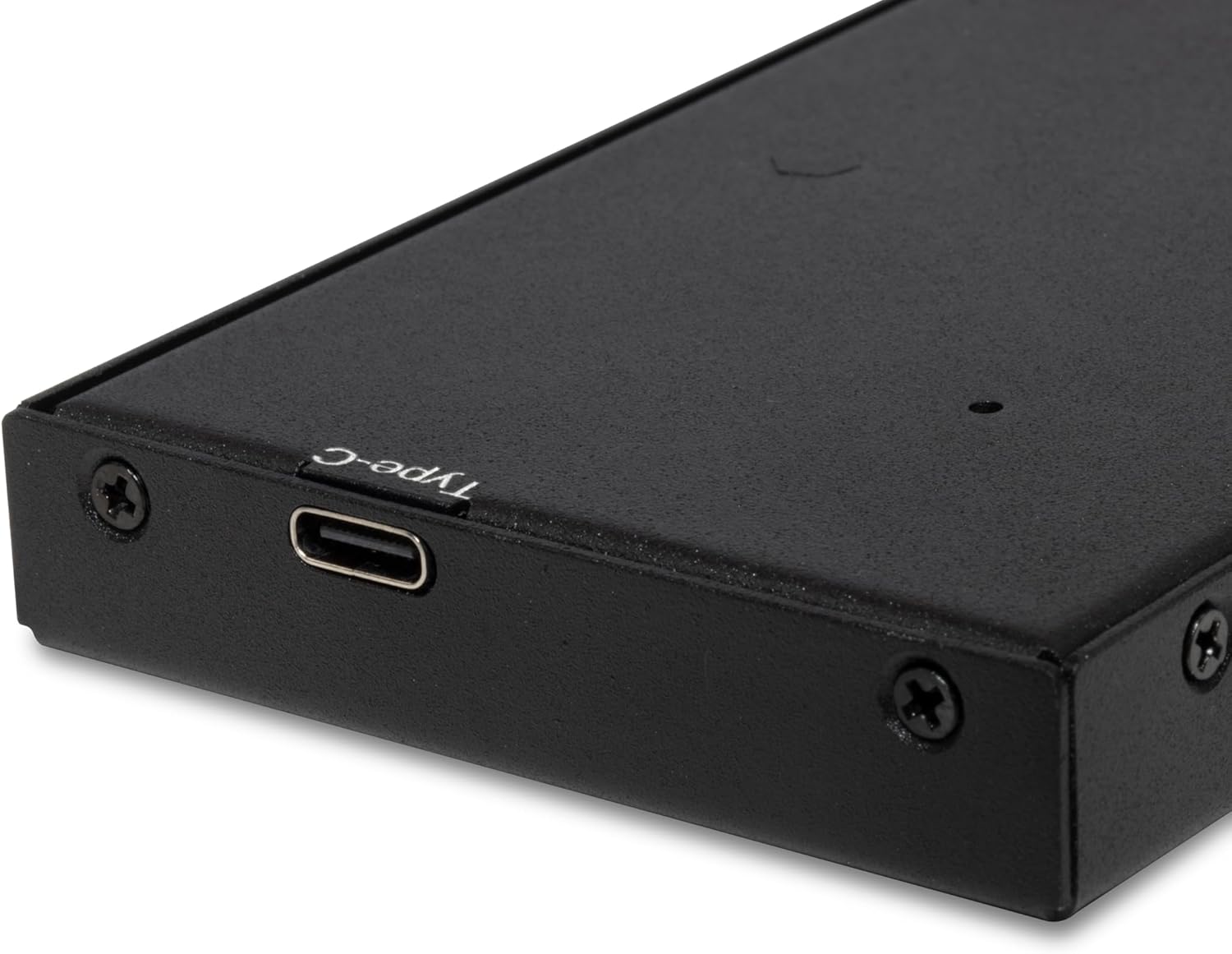
Image: Front view of the KEEBMONKEY 8.8 Inch Touchscreen Display Bar, showcasing its sleek design.
Product Overview
The KEEBMONKEY 8.8 Inch Touchscreen Display Bar is a compact, high-resolution IPS monitor designed to extend your desktop space or provide dedicated control/monitoring functions. It features a 1920x480 resolution, 600 cd/m² brightness, and 5-point capacitive touch functionality, all powered and connected via a single USB-C cable.
Key Features:
- Ultra-Crisp Display: 1920 x 480 IPS screen with 600 cd/m² brightness and 800:1 contrast ratio.
- Sleek, Space-Saving Design: Aluminum-framed 8.8" touchscreen (233x66x14.5 mm) with adjustable orientation.
- Touch-Enabled Efficiency: Capacitive 5-point touch screen for simplified navigation and multitasking.
- Effortless Setup: Plug-and-play connectivity, compatible with Windows and Mac systems.
- Robust and Adaptable Design: Sturdy metal frame and versatile mounting options, including an adjustable rear stand.
Components:
The package typically includes the KEEBMONKEY 8.8 Inch Display Bar and a USB-C to USB-C cable.

Image: Close-up view of the USB-C port on the side of the display bar, labeled "Type-C". This port is used for both power and data transmission.

Image: Rear view of the KEEBMONKEY 8.8 Inch Display Bar, showing screw holes for various mounting options and the central mounting point for the adjustable stand.
Setup Instructions
- Unpack the Device: Carefully remove the KEEBMONKEY 8.8 Inch Display Bar and its accessories from the packaging.
- Position the Display: Place the display bar in your desired location. If using the adjustable rear stand, attach it securely and adjust the angle for optimal viewing.
- Connect to Your Computer:
- Locate the USB-C port on the side of the display bar.
- Connect one end of the provided USB-C to USB-C cable to the display bar.
- Connect the other end of the USB-C cable to a full-featured USB-C port on your computer (Windows or Mac). This single cable provides power, display signal, and touch functionality.
- Power On: The display should automatically power on and be detected by your operating system.
- Driver Installation (if necessary): While advertised as plug-and-play, some systems, particularly Windows, may require specific drivers for full functionality, especially for touch. If the display or touch function does not work immediately:
- Check your computer's Device Manager (Windows) or System Information (Mac) to see if the display is recognized.
- Visit the official KEEBMONKEY support website (refer to the product packaging or manufacturer's website for the URL) to download the latest drivers for your operating system.
- Install any necessary drivers as per the instructions provided on the support website.
- Configure Display Settings:
- Windows: Right-click on your desktop, select "Display settings". You may need to extend your display to the KEEBMONKEY monitor and adjust its orientation (e.g., landscape, portrait) and scaling.
- Mac: Go to System Settings > Displays. Arrange the displays as needed and adjust resolution or scaling.

Image: The KEEBMONKEY 8.8 Inch Display Bar connected and displaying content horizontally, positioned below a main monitor.
Operating Instructions
Basic Display Functionality:
Once connected and configured, the display bar functions as an extended monitor. You can drag windows and applications onto it, use it for monitoring system performance, displaying chat applications, or as a dedicated media control panel.
Touchscreen Operation:
The 5-point capacitive touchscreen allows for intuitive interaction. Use your fingers to tap, swipe, pinch, and zoom on compatible applications. Ensure that the touch drivers are correctly installed for this functionality to work.
- Tap: Single tap to select or activate items.
- Double Tap: Double tap to open files or applications.
- Swipe: Drag your finger across the screen to scroll or navigate.
- Pinch-to-Zoom: Use two fingers to zoom in or out on content.

Image: The KEEBMONKEY 8.8 Inch Display Bar configured in a vertical orientation, displaying an image.
Orientation Adjustment:
The display supports both horizontal and vertical orientations. You can change the display orientation through your operating system's display settings:
- Windows: Display settings > Orientation.
- Mac: System Settings > Displays > Rotation.
Maintenance
- Cleaning the Screen: Use a soft, lint-free cloth slightly dampened with water or a screen-cleaning solution. Avoid harsh chemicals or abrasive materials.
- Cleaning the Casing: Wipe the aluminum frame with a dry or slightly damp soft cloth.
- Storage: When not in use for extended periods, store the display bar in a cool, dry place, away from direct sunlight and extreme temperatures.
- Cable Care: Avoid bending or crimping the USB-C cable excessively to prevent internal damage.
Troubleshooting
If you encounter issues with your KEEBMONKEY 8.8 Inch Touchscreen Display Bar, please refer to the following common solutions:
No Display / Screen Remains Black:
- Check Cable Connection: Ensure the USB-C cable is securely connected to both the display bar and a full-featured USB-C port on your computer. Try a different USB-C port if available.
- Verify Power: Confirm that your computer's USB-C port can supply sufficient power. Some older or less powerful USB-C ports may not provide enough power for both display and touch.
- Restart Computer: A simple restart can often resolve detection issues.
- Driver Installation: As mentioned in the setup, ensure display drivers are installed. Visit the KEEBMONKEY support website for specific drivers if the device is not recognized as a display.
- Display Settings: Check your operating system's display settings to ensure the KEEBMONKEY display is detected and set to "Extend" or "Duplicate" your main display.
Touch Functionality Not Working:
- USB-C Cable: Ensure you are using a full-featured USB-C cable that supports data, video, and power. Some USB-C cables are charge-only.
- Driver Installation: Touch functionality often requires specific drivers. Download and install the latest touch drivers from the KEEBMONKEY support website for your operating system.
- Operating System Settings:
- Windows: Go to Control Panel > Hardware and Sound > Tablet PC Settings. Click "Setup" under "Configure your pen and touch displays" and follow the on-screen instructions to calibrate the touch screen.
- Mac: Touch functionality on external displays may require third-party drivers or specific software. Consult the KEEBMONKEY support website for Mac-specific touch solutions.
"USB Display" Device in Device Manager (Windows Code 28):
This indicates that the device is recognized but lacks the necessary drivers to function correctly. Follow these steps:
- Download Drivers: Visit the official KEEBMONKEY support website. Search for drivers specific to the "8.8 Inch Display Bar" or model B0CMDWJNXZ.
- Install Drivers: Run the downloaded driver installer. If no installer is provided, you may need to manually update the driver through Device Manager:
- Right-click on the "USB Display" device in Device Manager.
- Select "Update driver".
- Choose "Browse my computer for drivers" and navigate to the folder where you extracted the downloaded drivers.
- Follow the prompts to complete the installation.
- Restart: Restart your computer after driver installation.
Flickering or Unstable Display:
- Check Cable: Replace the USB-C cable with another known good, full-featured USB-C cable.
- Power Supply: Ensure the USB-C port on your computer can provide stable power. If possible, try connecting to a powered USB-C hub or a different computer.
- Refresh Rate/Resolution: In display settings, try lowering the refresh rate or resolution to see if stability improves.
Specifications
| Feature | Specification |
|---|---|
| Screen Size | 8.8 Inches |
| Resolution | 1920x480 Pixels |
| Aspect Ratio | 21:9 |
| Image Brightness | 600 cd/m² |
| Contrast Ratio | 800:1 |
| Screen Surface | Glossy |
| Touch Function | Capacitive 5-point touch |
| Connectivity | Full-featured USB-C (Power, Display, Touch) |
| Compatibility | Windows, Mac |
| Product Dimensions | 0.57 x 9.17 x 2.59 inches (233x66x14.5 mm) |
| Item Weight | 1.3 pounds |
| Manufacturer | KEEBMONKEY |
Warranty and Support
For warranty information and technical support, please refer to the official KEEBMONKEY website or contact their customer service directly. Keep your purchase receipt as proof of purchase for any warranty claims.
KEEBMONKEY Official Website: Visit KEEBMONKEY Store on Amazon (This link is provided as a general reference to the brand's presence, specific support contact details should be sought from the manufacturer's official channels).