
Introduction
The Sawgmore Q1 Android 10.0 TV Box is a smart media player designed to transform your television into a smart entertainment hub. Featuring a Quad-core H313 processor, 2GB RAM, and 16GB ROM, it supports 4K video decoding, dual-band Wi-Fi, and Bluetooth 5.2, offering a seamless and high-quality viewing experience. This manual provides detailed instructions to help you get the most out of your device.

Image: The Sawgmore Q1 Android TV Box and its accompanying remote control.
Package Contents
Please verify that all items listed below are included in your package:
- 1 x Sawgmore Q1 Android 10.0 TV Box
- 1 x US Power Adapter
- 1 x Remote Control
- 1 x HD Cable
- 1 x User Manual (this document)
Product Overview
Familiarize yourself with the ports and indicators on your Sawgmore Q1 TV Box:
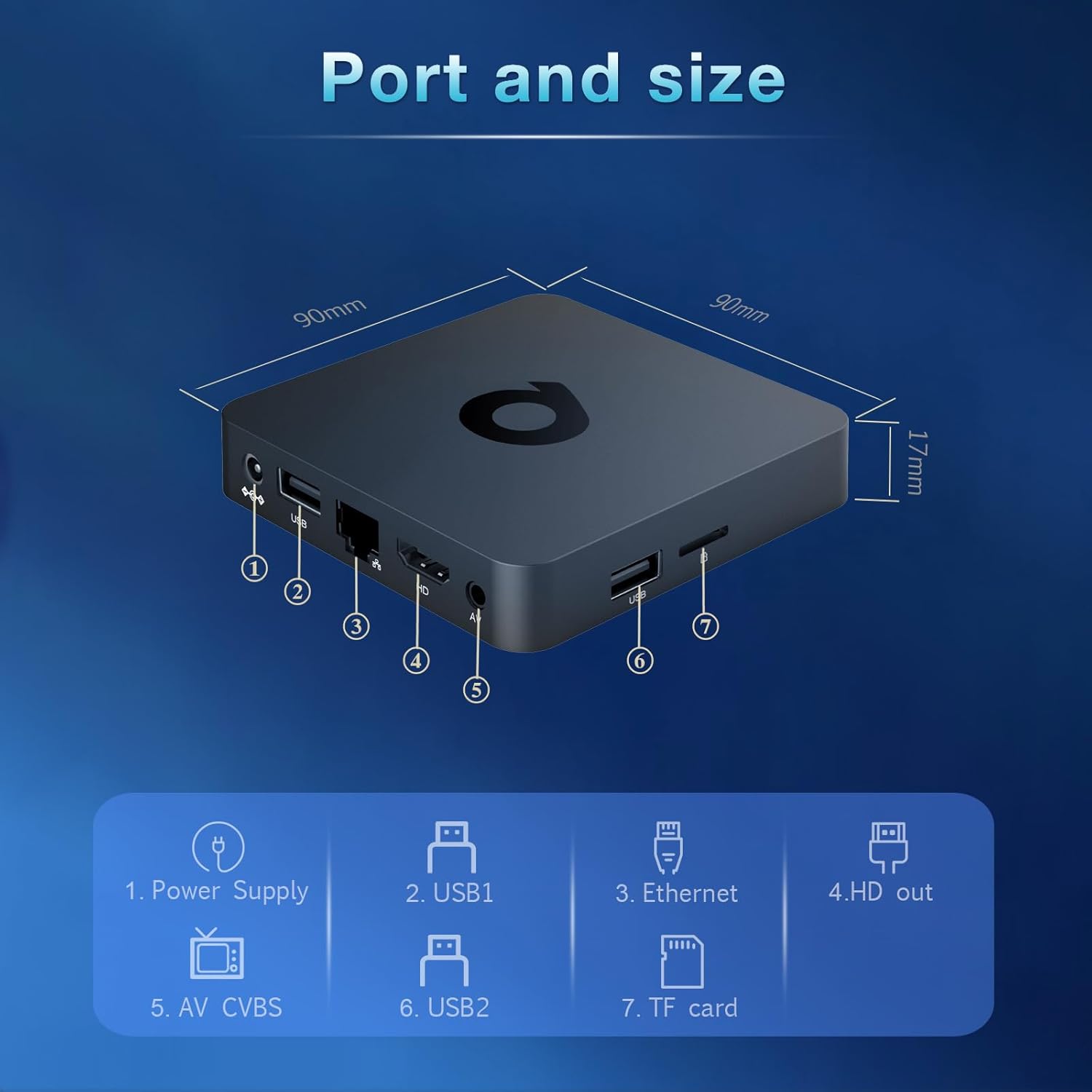
Image: Diagram illustrating the various ports and their functions on the Sawgmore Q1 TV Box.
- Power Supply: Connects to the power adapter.
- USB1: USB 2.0 port for connecting peripherals like a mouse, keyboard, or USB drive.
- Ethernet: RJ-45 port for wired network connection.
- HD Out: HDMI 2.0a port for connecting to your TV or display.
- AV CVBS: Analog video/audio output for older TVs.
- USB2: Additional USB 2.0 port.
- TF Card: Slot for Micro SD cards (up to 64GB).
Setup
Follow these steps for the initial setup of your TV Box:
- Connect to TV: Connect one end of the provided HD Cable (HDMI) to the "HD Out" port on the TV Box and the other end to an HDMI input on your television. Note the HDMI input number on your TV.
- Connect Power: Plug the US Power Adapter into the "Power Supply" port on the TV Box, then plug the adapter into a wall outlet. The power indicator LED on the box should turn blue.
- Connect to Network (Optional):
- Wired: Connect an Ethernet cable from your router to the "Ethernet" port on the TV Box.
- Wireless: During the initial setup wizard, you will be prompted to connect to a Wi-Fi network. Select your network and enter the password.
- Power On: Turn on your television and select the correct HDMI input source using your TV remote. The TV Box should automatically power on and display the boot screen.
- Initial Setup Wizard: Follow the on-screen instructions to complete the initial setup, including language selection, screen calibration, and network configuration.
Operating Instructions
Once set up, you can begin using your Sawgmore Q1 TV Box:
Navigation
Use the provided remote control to navigate the Android TV interface. The directional pad (up, down, left, right) moves the cursor, and the "OK" button confirms selections. The "Back" button returns to the previous screen, and the "Home" button takes you to the main screen.

Image: The Android TV interface displayed on a television screen, showing various applications and navigation elements.
App Installation
Access the Google Play Store from the home screen to download and install a wide variety of applications, including streaming services, games, and utilities. Ensure you are logged in with a Google account.

Image: A visual representation of the Android TV OS 10.0 interface, highlighting various installed applications and the Google Play Store.
4K Video Decoding
The TV Box supports up to 4K@60fps ultra high definition video decoding. Ensure your television is 4K compatible and that you are playing 4K content for the best visual experience.

Image: A television screen displaying high-resolution 4K video content, demonstrating the device's 4K video decoding capability.
Voice Control
The intelligent remote control supports voice commands. Press the microphone button on the remote and speak your command to search for content, open apps, or control playback.
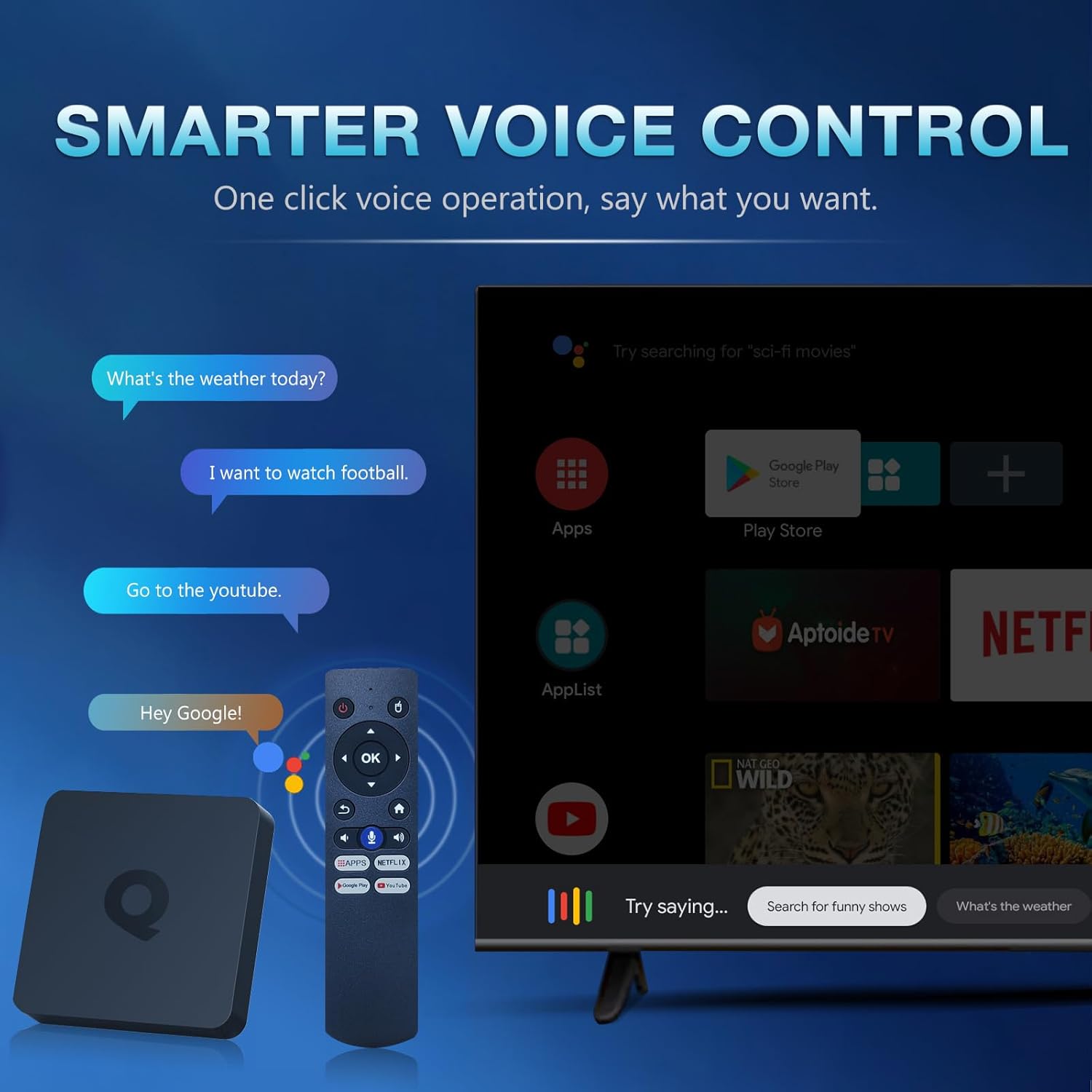
Image: An illustration of the voice control feature, showing a user interacting with the TV Box via voice commands through the remote.
Multi-Screen Sharing
The TV Box supports Airplay, DLNA, and Miracast protocols, allowing you to cast videos and photos from your mobile phone or tablet to the big screen.

Image: A depiction of the multi-screen sharing functionality, showing content from a mobile device being mirrored onto the television via the TV Box.
Maintenance
To ensure the longevity and optimal performance of your Sawgmore Q1 TV Box, consider the following maintenance tips:
- Cleaning: Use a soft, dry cloth to clean the exterior of the device. Avoid liquid cleaners or abrasive materials.
- Ventilation: Ensure the TV Box is placed in a well-ventilated area to prevent overheating. Do not block the ventilation holes.
- Software Updates: Periodically check for system updates in the device settings to ensure you have the latest features and security patches.
- Power Cycle: If the device becomes unresponsive, disconnect the power adapter for a few seconds and then reconnect it to perform a power cycle.
Troubleshooting
If you encounter issues with your Sawgmore Q1 TV Box, refer to the following common problems and solutions:
- No Power:
- Ensure the power adapter is securely connected to the TV Box and the wall outlet.
- Verify the wall outlet is functioning correctly.
- No Display on TV:
- Check if the HD Cable is securely connected to both the TV Box and the TV.
- Ensure your TV is set to the correct HDMI input source.
- Try a different HDMI cable or TV HDMI port.
- Wi-Fi Connection Issues:
- Ensure your Wi-Fi router is on and functioning.
- Re-enter the Wi-Fi password in the network settings.
- Move the TV Box closer to the router or try a wired Ethernet connection.
- Remote Control Not Responding:
- Ensure the remote control has fresh batteries (batteries not included).
- Point the remote directly at the TV Box.
- Apps Crashing or Freezing:
- Close and restart the app.
- Clear the app's cache and data in the device settings (Settings > Apps > [App Name] > Storage > Clear Cache/Clear Data).
- Ensure the TV Box has sufficient free storage space.
Specifications
Detailed technical specifications for the Sawgmore Q1 Android 10.0 TV Box:
| Feature | Specification |
|---|---|
| Chipset | H313 Quad-Core 64bit Cortex-A53 |
| GPU | Mali-G31 MP2 |
| FLASH Storage | EMMC 16GB |
| SDRAM | 2GB |
| USB Ports | 2 x USB 2.0 |
| LAN | Ethernet 10/100M standard RJ-45 |
| Wireless Connectivity | 2.4G / 5G Dual-band Wi-Fi 802.11 a/b/g/n |
| Bluetooth | 5.2 |
| Card Reader | Micro SD cards, Maximum support 64G |
| Display Port | HD (HDMI 2.0a for 4K@60Hz) |
| Power Supply | INPUT: 100-240V 50/60HZ, OUTPUT: DC 5V/2.5A |
| Operating System | Android 10.0 |
| Decoder Format Support | 4K VP9, H.265/H.264, 1080P (VC-1, MPEG-1/2/4, VP6/8) |
| Media Format Support | Avi/Ts/Vob/Mkv/Mov/ISO/wmv/asf/flv/dat/mpg/mpeg |
| Music Format Support | MP3/WMA/AAC/WAV/OGG/DDP/HD/FLAC/APE |
| Photo Format Support | HD JPEG/BMP/GIF/PNG/TIFF |
| HDD File System | FAT16/FAT32/NTFS |
| Subtitle Support | SRT/SMI/SUB/SSA/IDX+USB |
| Product Dimensions | 9.2 x 9.2 x 1.7 cm |
| Product Weight | 420 g |

Image: Close-up of the Allwinner H313 chip, highlighting the high-performance System-on-Chip (SOC) that powers the device.

Image: An illustration showcasing the dual-band Wi-Fi and Bluetooth 5.2 connectivity options, allowing connection to various peripherals.
Warranty and Support
For any product inquiries, technical assistance, or warranty information, please refer to the contact details provided on the product packaging or the official Sawgmore website. Keep your purchase receipt as proof of purchase for warranty claims.