
1. Introduction
The VersaCheck X1 Silver 2024 software is designed for personal check creation, enabling users to print bank-compliant checks. This software helps manage accounts, track transactions, and create checks with advanced security features. It offers a cost-effective solution compared to purchasing pre-printed checks.
Video 1: VersaCheck 2024 Overview. This video provides a general introduction to the VersaCheck 2024 software, highlighting its key features and benefits for personal check creation and financial management.
2. System Requirements
To ensure optimal performance, your system should meet the following requirements:
- Operating System: Windows 11, Windows 10, Windows 8.1, Windows 8, Windows 7.
- Printer: Laser or inkjet printer supported by Windows.
- Internet Connection: Required for software download and activation.
3. Installation
Follow these steps to download and install your VersaCheck X1 Silver 2024 software:
- Download: After purchase, locate the download link provided. Download the software installer to your computer.
- Run Installer: Double-click the downloaded installer file to begin the installation process.
- Follow Prompts: Follow the on-screen instructions to complete the installation. This typically involves accepting the license agreement and choosing an installation directory.
- Activation: Upon first launch, you may be prompted to activate the software using your license key.
- Print Credits: The software includes 165 print validation codes. Additional print codes are available free inside VersaCheck Check Refills (not ValueChex), which can be purchased online.
4. Operating Instructions
4.1 Creating and Printing Personal Checks
VersaCheck X1 Silver allows you to create and print personalized checks.
- Check Design: Utilize a variety of templates to design your personal checks.
- Data Entry: Input payee information, amounts, dates, and memos.
- Printing: Print checks using your compatible laser or inkjet printer.
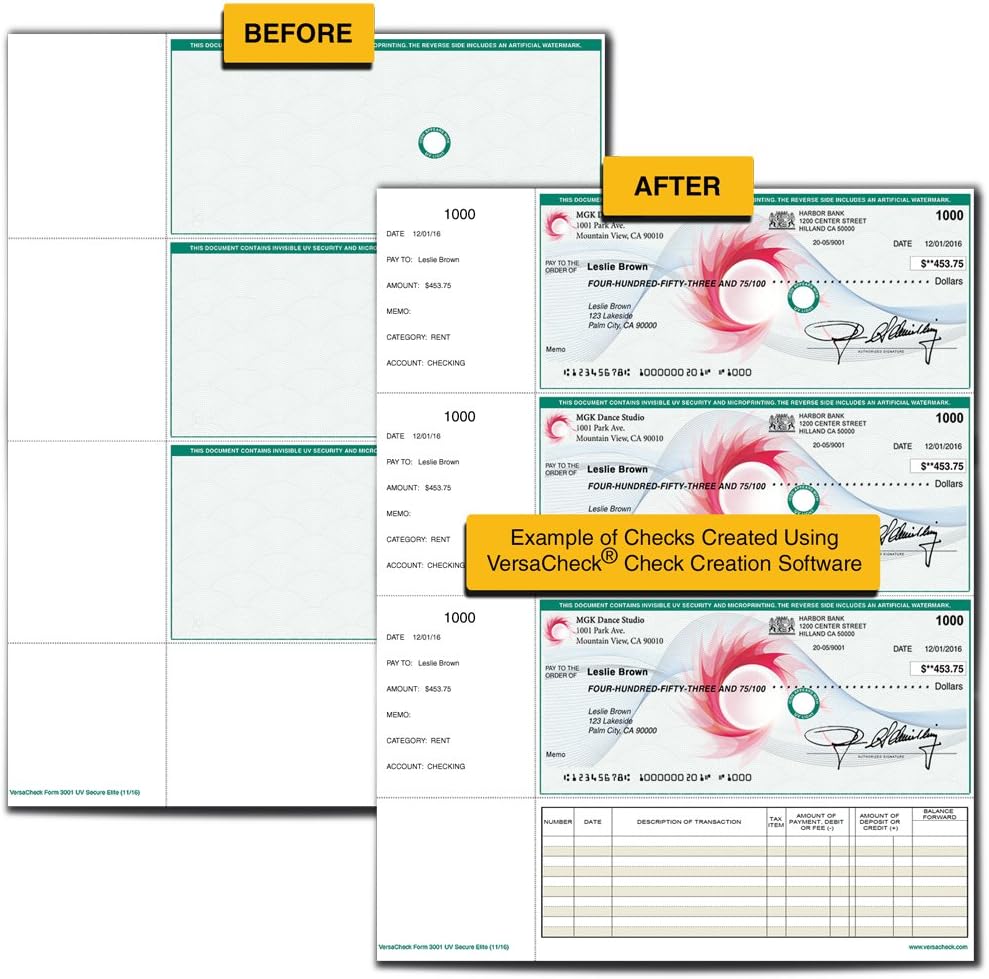
Image 1: Check Creation Example. This image illustrates the transformation from a blank check paper to a fully printed personal check using VersaCheck software, highlighting the customization and security elements.

Image 2: Create & Print Custom Checks. This image details the process of creating and printing custom checks, emphasizing features like custom DNA tags, managing multiple accounts, and enhanced security.
4.2 Financial Management
The software includes tools to help you manage your finances effectively.
- Account Management: Set up and manage unlimited accounts.
- Transaction Tracking: Track accounts and transactions.
- Activity Alerts: Receive alerts for account activity.
- Finance & Contact Manager: Organize financial data and contacts.

Image 3: Home Finance Management. This image displays the main screen for financial management within VersaCheck, illustrating features such as check writing, auto-scheduling, and an overview of accounts and transactions.
4.3 Auto-Pay-Scheduler
Schedule reminders and automatic payments to streamline your financial tasks.
4.4 Integrated Email Check Printing
Instantly receive and print checks sent to you via email.
4.5 Compatibility with Other Software
VersaCheck X1 Silver can be used as a standalone application or integrated with other financial software such as QuickBooks and Quicken.
5. Security Features
The software incorporates advanced security measures to protect your checks from counterfeiting and fraud.
- INKcrypt Counterfeit-Proof Safeguards: Utilizes unique DNA security patterns and icons.
- Personalized DNA Security: Each check you print can have a unique DNA security pattern.
- UV Fluorescent Ink: Invisible UV fluorescent ink can be used for additional security, visible only under UV light.
- Micro Print Border: A fine line of text that appears as a solid line to the naked eye, but reveals micro-printed words when magnified.
- Erasure Protection: Designed to show signs of alteration if attempts are made to erase information.

Image 4: VersaCheck Silver Security. This image highlights the security features of VersaCheck Silver, including compliance with banking standards and the use of DNA security patterns to prevent fraud.
6. Maintenance
To ensure the longevity and optimal performance of your VersaCheck software, consider the following maintenance tips:
- Software Updates: Regularly check for and install software updates to benefit from new features, security enhancements, and bug fixes.
- Data Backup: Periodically back up your financial data and check templates to prevent data loss.
- System Scans: Ensure your computer's antivirus and anti-malware software is up-to-date and performs regular scans.
7. Troubleshooting
If you encounter issues with your VersaCheck X1 Silver software, try the following steps:
- Installation Issues: If the software fails to install, ensure your system meets the minimum requirements and temporarily disable any antivirus software that might interfere with the installation process. Re-enable antivirus after installation.
- Printing Problems: Verify your printer is correctly connected, has sufficient ink/toner, and the correct paper type is loaded. Check printer settings within the VersaCheck software.
- Software Not Responding: Close and restart the application. If the issue persists, restart your computer.
- Error Messages: Note down any error messages displayed and refer to the online support resources or contact customer support for specific guidance.
- Print Credits: If you are unable to print due to insufficient print credits, ensure you have purchased VersaCheck Check Refills (not ValueChex) which include additional print codes.
8. Specifications
| Product Name | VersaCheck X1 Silver 2024 - 1 User Personal Check Creation Software [PC Download] |
| Model | X1 Silver 2024 |
| Brand | VersaCheck |
| Platform | PC Download |
| Operating Systems Supported | Windows 11, 10, 8.1, 8, 7 |
| User License | 1 User |
| Included Print Credits | 165 (additional credits with VersaCheck Check Refills) |
| Key Features | Personal check creation, financial management, INKcrypt security, Auto-Pay-Scheduler, email check printing, compatibility with QuickBooks/Quicken. |
9. Support and Warranty
For technical assistance, product inquiries, or warranty information, please refer to the official VersaCheck website or contact their customer support.
- Online Resources: Visit the VersaCheck support portal for FAQs, knowledge base articles, and user forums.
- Customer Service: Contact VersaCheck customer service for direct assistance with software issues or questions.