
1. Introduction
This manual provides detailed instructions for the installation, operation, and maintenance of the BROLEO T9-W Waterproof Touch Button Access Control System. This device is a non-contact proximity card and password-integrated access control machine designed for reliable performance in various environments.
Key features include:
- Metal touch backlight keyboard for ease of use.
- IPX5 waterproof design, suitable for outdoor installation.
- Supports up to 2000 users.
- Wiegand output interface for Wiegand26 card number output.
- Integrated tamper alarm and doorbell function.
- Compatible with both ID (EM) and IC (MF) card types.
The system is widely applicable in office buildings, residential areas, and other public security locations.
2. Package Contents
Please verify that all items are present in the package:
- 1 x BROLEO T9-W Metal Access Control Machine
- 1 x Screw Package (including mounting screws and wrench)
- 1 x User Manual (this document)

Image: BROLEO T9-W Access Control System shown with included mounting screws and an L-shaped wrench for installation.
3. Setup and Installation
3.1 Mounting the Device
Select a suitable location for installation, ensuring it is secure and provides adequate access for wiring. Use the provided screws and wrench to securely mount the access control machine to a wall or surface.

Image: The BROLEO T9-W access control unit is shown mounted on a textured wall beside a door, demonstrating a typical installation scenario.
3.2 Wiring Diagram
The access control system requires a DC12V power supply and features a Wiegand 26-Bit interface. Carefully connect the wiring harness according to the provided diagram (not included in this digital manual, refer to the physical manual for detailed wiring schematics). Ensure all connections are secure to prevent malfunctions.
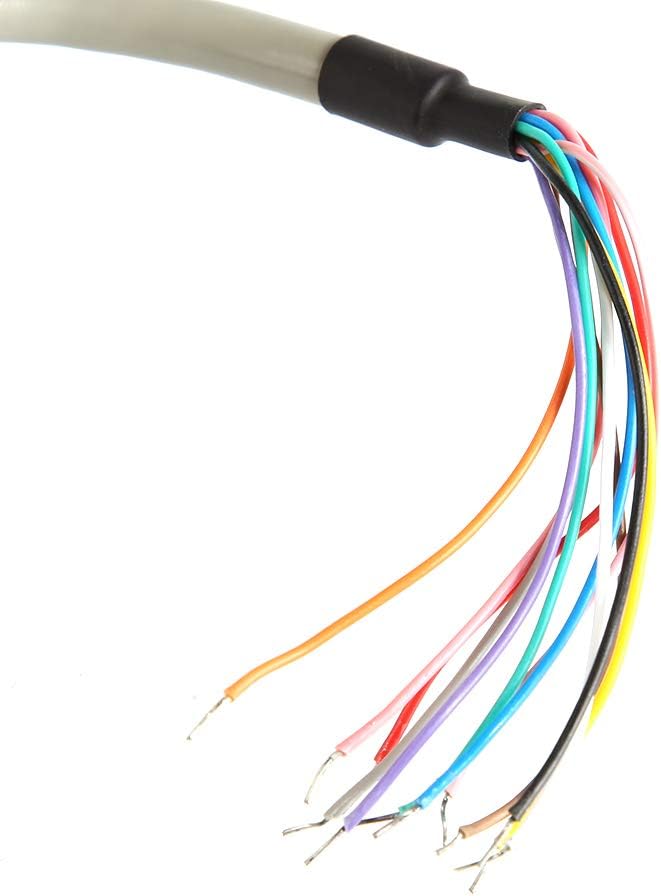
Image: A close-up of the multi-colored wiring harness, showing individual wires stripped and ready for connection to the access control system.
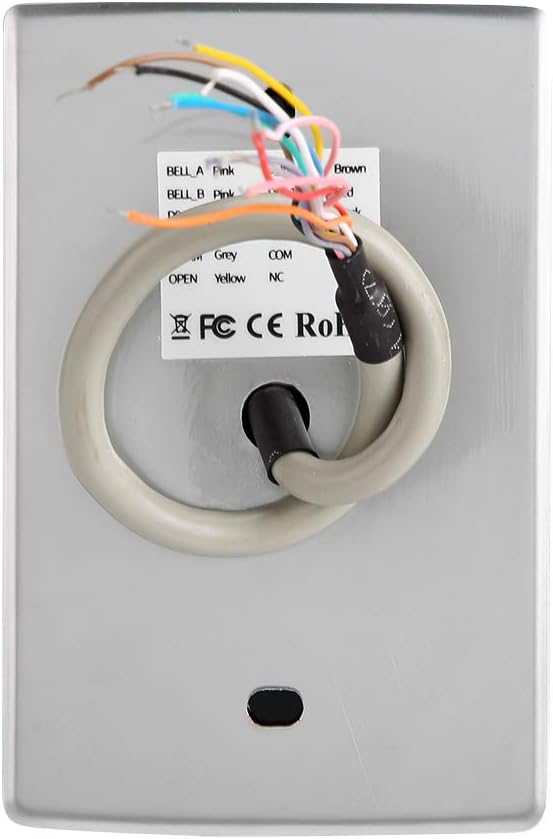
Image: The back of the BROLEO T9-W unit, displaying the wiring port with a connected cable and a product label with technical information.
4. Operating Instructions
4.1 User Management
The system supports up to 2000 users. Refer to the detailed programming instructions in your physical manual for adding, deleting, or modifying user cards and passwords. This typically involves entering a master code followed by specific commands.
4.2 Accessing the System
To gain access, users can either present a registered proximity card or enter a valid password on the touch keypad.
- Card Access: Hold your registered ID (125 kHz) or IC (13.56 MHz) card within 1 to 6 cm of the device's reading area. The system will emit an audible confirmation upon successful reading.
- Password Access: Enter your registered password using the touch keypad. Press the '#' key to confirm your entry.
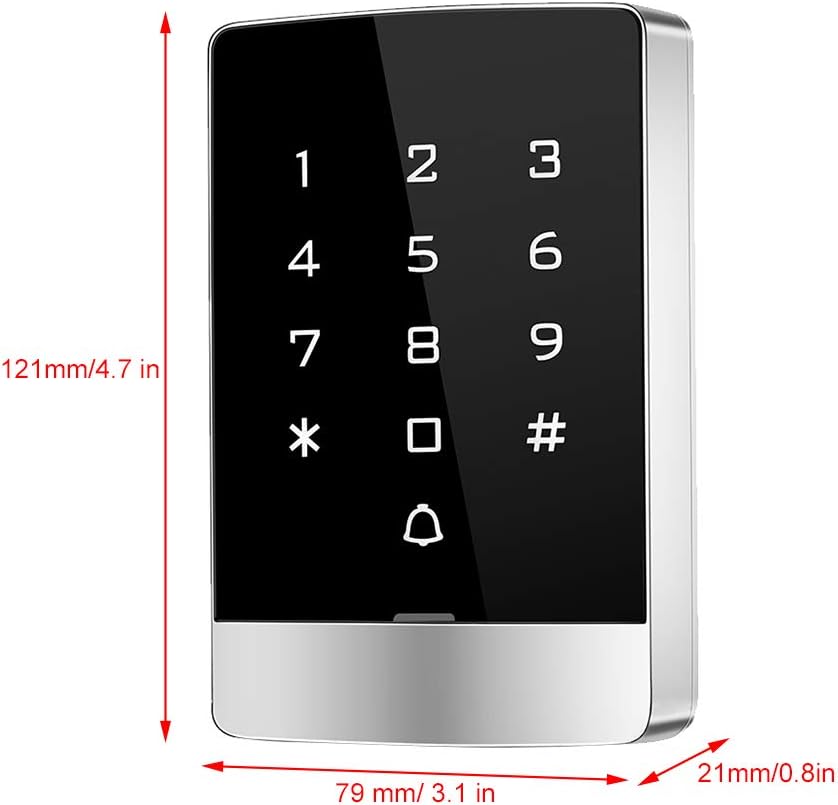
Image: A person is shown holding a proximity card near the BROLEO T9-W access control unit, demonstrating the card access method.

Image: The BROLEO T9-W unit is displayed alongside an IC card, illustrating the type of card compatible with the system.

Image: A hand is shown interacting with the touch keypad of the BROLEO T9-W access control system, demonstrating manual password entry.
5. Maintenance
The BROLEO T9-W system is designed for durability with an IPX5 waterproof rating. To ensure optimal performance:
- Regularly clean the keypad surface with a soft, damp cloth. Avoid abrasive cleaners.
- Ensure the power supply is stable and within the specified DC12V range.
- The built-in tamper alarm will activate if the unit is forcibly disassembled, indicating a security breach. Address any tamper alerts promptly.
6. Troubleshooting
If you encounter issues with your BROLEO T9-W access control system, consider the following general troubleshooting steps:
- No Power: Check the power connections and ensure the DC12V power supply is functioning correctly.
- Card Not Reading: Ensure the card is registered and held within the specified reading distance (1-6 cm). Verify the card type (ID or IC) matches the system's configuration.
- Keypad Unresponsive: Check for any physical damage or debris on the touch keypad. If the keypad is completely unresponsive, a power cycle (disconnecting and reconnecting power) may resolve the issue.
- Door Not Unlocking: Verify that the lock mechanism is properly connected and receiving the unlock signal from the access control unit. Check for any error messages or indicators on the unit.
For persistent issues, consult a qualified technician or contact customer support.
7. Specifications

Image: The BROLEO T9-W access control unit is shown with its dimensions: 121mm (4.7 in) height, 79mm (3.1 in) width, and 21mm (0.8 in) depth.
| Feature | Specification |
|---|---|
| Model Number | BROLEO1kmxr3ugda-12 (T9-W) |
| Operating Voltage | DC12V |
| Card Reading Distance | Approx. 1 to 6 cm (0.3-2.3 inches) |
| Static Current | ≤30mA |
| Storage Capacity | 2000 users |
| Card Type Support | ID (EM), IC (MF) |
| Frequency | 125 kHz (ID), 13.56 MHz (IC) |
| Ambient Temperature | -40°C to 60°C (-40°F to 140°F) |
| Door Opening Time | 0-99 seconds (adjustable) |
| Interface | Wiegand 26-Bit |
| Waterproof Rating | IPX5 |
| Dimensions (H x W x D) | 121mm x 79mm x 21mm (4.7 in x 3.1 in x 0.8 in) |
8. Warranty and Support
Warranty information for the BROLEO T9-W Access Control System is not available in the provided product data. Please refer to the product packaging or contact your retailer for details regarding warranty coverage and customer support.