
1. Introduction
Welcome to the user manual for your roiesvry XS16 3.0-inch Mini Smartphone. This compact device is designed for portability and essential communication, offering a full Android 10 experience in a small form factor. This manual provides detailed instructions to help you set up, operate, maintain, and troubleshoot your new smartphone.
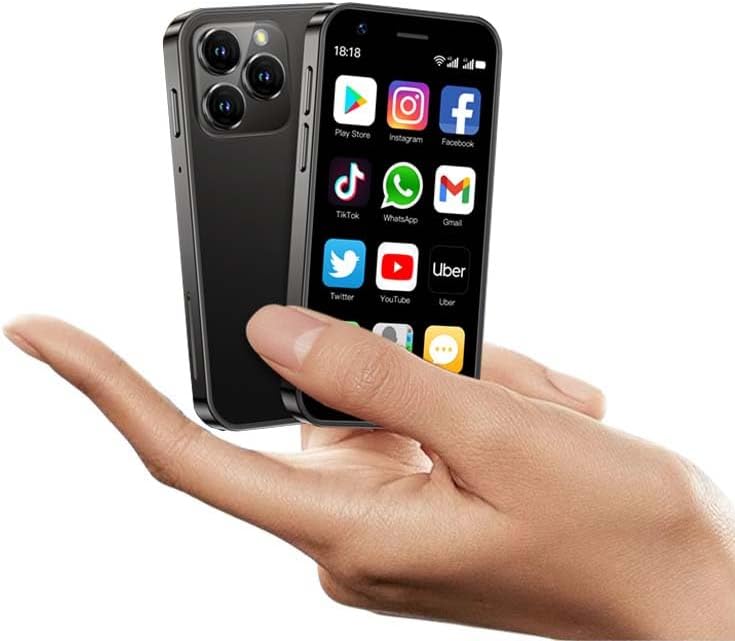
Image 1.1: The roiesvry XS16 Mini Smartphone, showcasing its compact size and user interface.
The XS16 features a 3.0-inch HD touchscreen, a 2000mAh battery, and runs on Android 10, providing access to the Google Play Store and a wide range of applications. It supports dual SIM functionality and includes front and rear cameras for capturing photos and videos.
2. Setup Guide
2.1. Package Contents
Before you begin, ensure all items are present:
- roiesvry XS16 Mini Smartphone
- USB Type-C Charging Cable
- Protective Film (pre-applied or included)
- Protective Case
- User Manual (this document)
2.2. SIM Card and Storage Card Installation
The XS16 supports dual SIM cards and a TF (microSD) card for expandable storage.
- Locate the SIM card tray on the side of the device.
- Use the provided SIM ejector tool (if included) or a small paperclip to gently push into the small hole next to the tray to eject it.
- Place your Nano-SIM cards and/or TF card into the designated slots on the tray. Ensure they are correctly oriented as indicated on the tray.
- Carefully reinsert the tray into the phone until it clicks into place.
2.3. Initial Charging
Before first use, fully charge your smartphone.
- Connect the USB Type-C cable to the charging port at the bottom of the phone.
- Connect the other end of the cable to a compatible USB power adapter (not always included) and plug it into a wall outlet.
- The battery indicator on the screen will show charging progress. A full charge typically takes a few hours.

Image 2.1: The roiesvry XS16 Mini Smartphone charging via its Type-C port.
2.4. Power On and Initial Configuration
- Press and hold the Power button (usually on the right side) until the screen lights up.
- Follow the on-screen prompts to select your language, connect to a Wi-Fi network, and set up your Google account.
- You can download applications from the Google Play Store after completing the initial setup.
Video 2.1: Demonstration of Google Play Store app download and Bluetooth connection on a mini smartphone.
3. Operating Your Smartphone
3.1. Basic Navigation
The XS16 uses a touchscreen interface for all operations.
- Tap: Select an item or open an app.
- Swipe: Scroll through menus, home screens, or web pages.
- Pinch: Zoom in or out on images and web pages.
- Long Press: Access contextual menus or move app icons.
3.2. Making Calls and Sending Messages
To make a call, open the Phone app, dial the number, and tap the call icon. To send a message, open the Messaging app, select a contact or enter a number, type your message, and tap send.
3.3. Camera Functions
Your smartphone is equipped with a 2MP front camera and a 5MP rear camera.
- Open the Camera app from your home screen or app drawer.
- Tap the shutter button to take a photo.
- Switch between front and rear cameras using the camera toggle icon.
- Explore different modes like Portrait or Video if available.

Image 3.1: Detail of the rear camera system on the roiesvry XS16 Mini Smartphone.

Image 3.2: The smartphone's camera in use for taking selfies.
3.4. Internet and Apps
Connect to Wi-Fi or use your mobile data (4G LTE) to browse the internet and use applications.
- Open the Browser app for web browsing.
- Access the Google Play Store to download and install new applications.
- The phone supports popular apps for social media, streaming, and games.

Image 3.3: The Android 10 operating system with various applications.
Video 3.1: Demonstration of one-hand control and app usage on a mini smartphone.
Video 3.2: Overview of the soyes Mini Phone 4G Unlocked, showing various features and apps.
Video 3.3: Features of a Mini Smartphone with a 3.0-inch HD Screen, including app usage and camera.
Video 3.4: Overview of the XS16 Pro Mini Smartphone, highlighting its features and compact design.
4. Maintenance and Care
4.1. Battery Care
The XS16 is equipped with a 2000mAh battery. To maximize battery life and longevity:
- Avoid extreme temperatures.
- Do not let the battery completely drain frequently.
- Use the provided or a certified Type-C charger.
4.2. Cleaning Your Device
Use a soft, lint-free cloth to clean the screen and body of your phone. Avoid using harsh chemicals or abrasive materials.
4.3. Software Updates
Periodically check for system updates to ensure optimal performance and security. Go to Settings > System > System update to check for and install updates.
4.4. Storage Management
The phone comes with 64GB of internal storage. You can expand this using a TF card. Regularly manage your storage by deleting unnecessary files and uninstalling unused apps to maintain performance.

Image 4.1: The 64GB storage capacity of the smartphone.
5. Troubleshooting
5.1. No Mobile Network / SIM Card Issues
Important Note for US Users: While the product is advertised as 'Unlocked for All Carriers', some users have reported compatibility issues with major US carriers. It is highly recommended to verify compatibility with your specific carrier before relying on this device for cellular service.
- Ensure the SIM card is correctly inserted into the tray.
- Check if your SIM card is active and has a valid plan.
- Restart the phone.
- Verify your carrier's network settings (APN settings) are correctly configured.
- Contact your mobile carrier to confirm device compatibility with their network bands.
5.2. Phone Does Not Turn On or Charge
- Ensure the phone has been charged for at least 30 minutes using a working charger and cable.
- Try a different USB Type-C cable and power adapter.
- Perform a forced restart by holding the Power button for 10-15 seconds.
5.3. Apps Crashing or Slow Performance
- Close background applications.
- Clear the cache of problematic apps (Settings > Apps > [App Name] > Storage > Clear cache).
- Ensure sufficient free storage space.
- Restart the device.
5.4. Touchscreen Unresponsive
- Restart the phone.
- Ensure the screen is clean and free of moisture or debris.
- If a screen protector is installed, ensure it is properly applied and not interfering with touch sensitivity.
6. Product Specifications

Image 6.1: The 3.0-inch HD screen of the roiesvry XS16 Mini Smartphone.
| Feature | Detail |
|---|---|
| Model Name | XS16 |
| Operating System | Android 10 |
| Screen Size | 3.0 Inches |
| Resolution | 800 x 480 |
| CPU Model | MediaTek Kompanio 800T |
| CPU Speed | 1 GHz |
| RAM | 3 GB |
| Memory Storage Capacity | 64 GB |
| Battery Capacity | 2000 Milliamp Hours (Lithium Polymer) |
| Connectivity Technologies | Cellular (4G LTE), Wi-Fi, Bluetooth, GPS |
| Audio Jack | USB-C |
| Other Camera Features | Front, Rear |
| Human Interface Input | Touchscreen |
| Form Factor | Bar |
| Item Weight | 8.1 ounces |
| Package Dimensions | 4.45 x 4.45 x 2.01 inches |
| Manufacturer | SOYES |
| Date First Available | November 1, 2023 |
7. Warranty and Support
For warranty information, product support, or technical assistance, please contact the seller directly through your purchase platform. Keep your proof of purchase for any warranty claims.
The manufacturer, SOYES, provides the underlying technology for this device. For specific inquiries not covered in this manual, reaching out to your point of purchase is the recommended first step.