1. Introduction
Thank you for purchasing the INNOCN 40-inch Ultrawide Monitor WR40 PRO. This manual provides essential information for setting up, operating, and maintaining your monitor. Please read it thoroughly before use to ensure proper functionality and to maximize your viewing experience.

Image: Front view of the INNOCN 40-inch Ultrawide Monitor WR40 PRO, showcasing its ultrawide display and sleek stand.
2. Safety Information
Please observe the following safety precautions to prevent damage to the monitor and to ensure your safety:
- Do not place the monitor in an unstable location.
- Avoid exposing the monitor to direct sunlight, heat sources, or extreme temperatures.
- Keep the monitor away from water or high humidity environments.
- Use only the power adapter and cables provided by the manufacturer.
- Do not attempt to open or repair the monitor yourself. Refer all servicing to qualified personnel.
- Ensure proper ventilation around the monitor to prevent overheating.
- Clean the monitor screen and exterior with a soft, dry cloth. Avoid using abrasive cleaners or solvents.
3. Package Contents
Verify that all items are present in your package:
- INNOCN 40-inch Ultrawide Monitor WR40 PRO
- Stand (x1)
- Base (x1)
- Power Cord (x1)
- DP Cable (x1)
- Type-C Cable (x1)
- Wall Mount Bracket (x1)
- Bolts (PM5x15) (x4)
- Bolts (WM4x16) (x5)

Image: A visual representation of all items included in the monitor package, such as the monitor, stand components, various cables, and mounting hardware.
4. Setup Instructions
4.1. Assembly (Stand / VESA Mount)
The monitor can be set up on a desk using the included stand or mounted on a wall using a VESA-compatible mount (100x100mm, sold separately).
Stand Assembly:
- Carefully place the monitor face down on a soft, clean surface to prevent scratches.
- Attach the stand neck to the monitor's rear panel.
- Secure the base to the stand neck using the provided screws.
- Ensure all connections are firm before placing the monitor upright.
VESA Wall Mount:
Remove the stand if already attached. Use the provided wall mount bracket and bolts (WM4x16) to secure the monitor to a VESA-compatible wall mount (100x100mm). Follow the instructions provided with your VESA mount for installation.
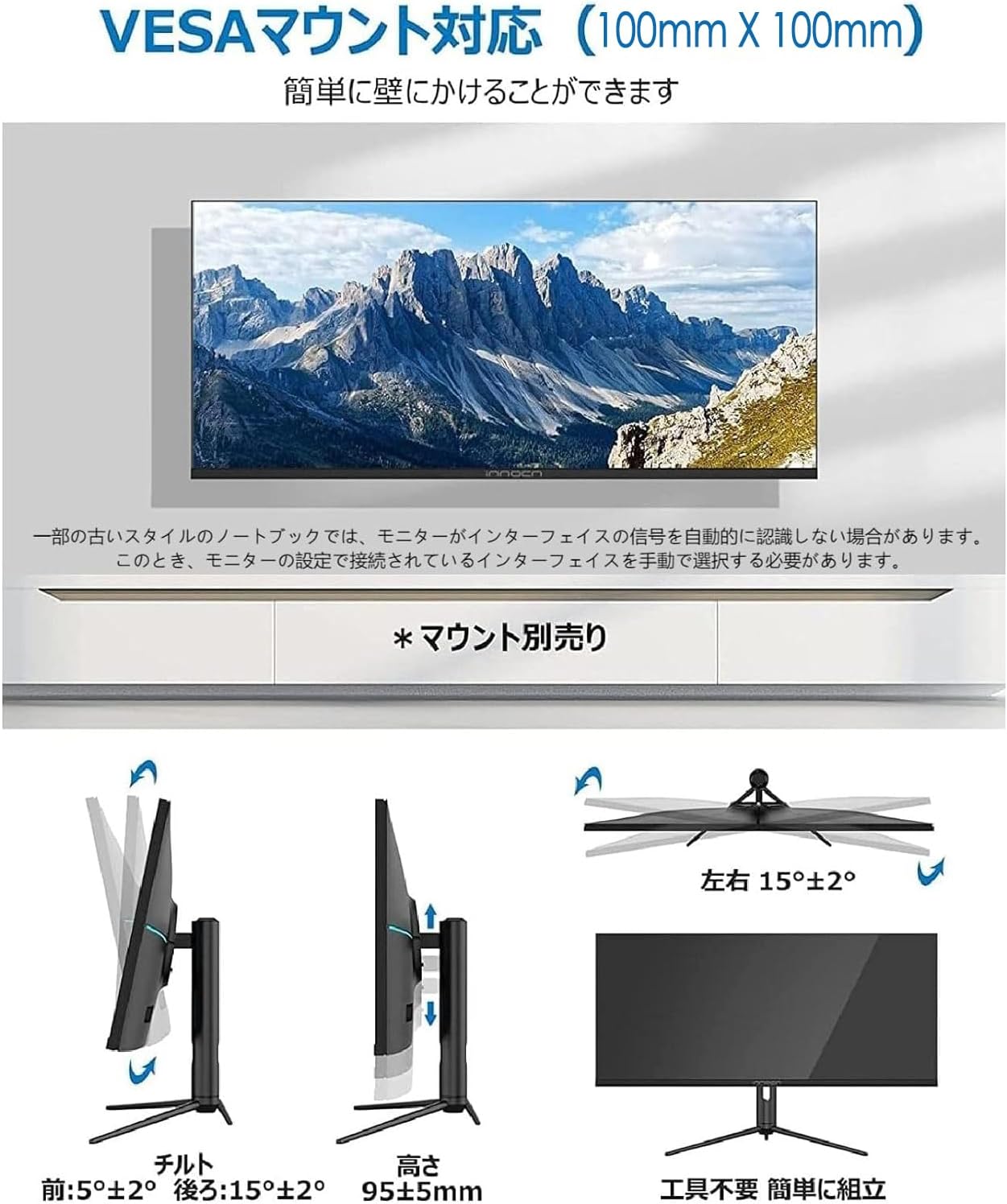
Image: Illustrations demonstrating the VESA mount compatibility (100x100mm) and the adjustable features of the monitor stand, including tilt (front: 5°±2°, rear: 15°±2°), height adjustment (95±5mm), and swivel (left/right 15°±2°).
4.2. Connections
Connect your devices to the monitor using the appropriate ports:
- DisplayPort (DP 1.4): For high-resolution video and audio transmission.
- HDMI (2.0) x2: For connecting various devices like gaming consoles, Blu-ray players, or other computers.
- USB-C (3.1) 90W: For video, data transfer, and power delivery (up to 90W) to compatible laptops or devices.
- Audio Out: For connecting external speakers or headphones.

Image: An overhead view of the monitor's rear, highlighting the available input ports: Audio Out, DisplayPort (Ver1.4), two HDMI (Ver2.0) ports, and a USB Type-C (Ver3.1) port with 90W power delivery, demonstrating multi-device connectivity.
5. Operating Instructions
5.1. Basic Operation
- Power On/Off: Press the power button located on the monitor to turn it on or off.
- OSD Menu: Use the joystick/buttons on the monitor to navigate the On-Screen Display (OSD) menu for various settings.
- Input Selection: Select the desired input source (DP, HDMI1, HDMI2, USB-C) through the OSD menu.
5.2. Display Features
- 40-inch Ultrawide WQHD (3440x1440) Display: The 21:9 aspect ratio provides an expansive workspace and immersive viewing experience, ideal for multitasking, gaming, and multimedia consumption. The 2K 1440p resolution ensures sharp and detailed images.
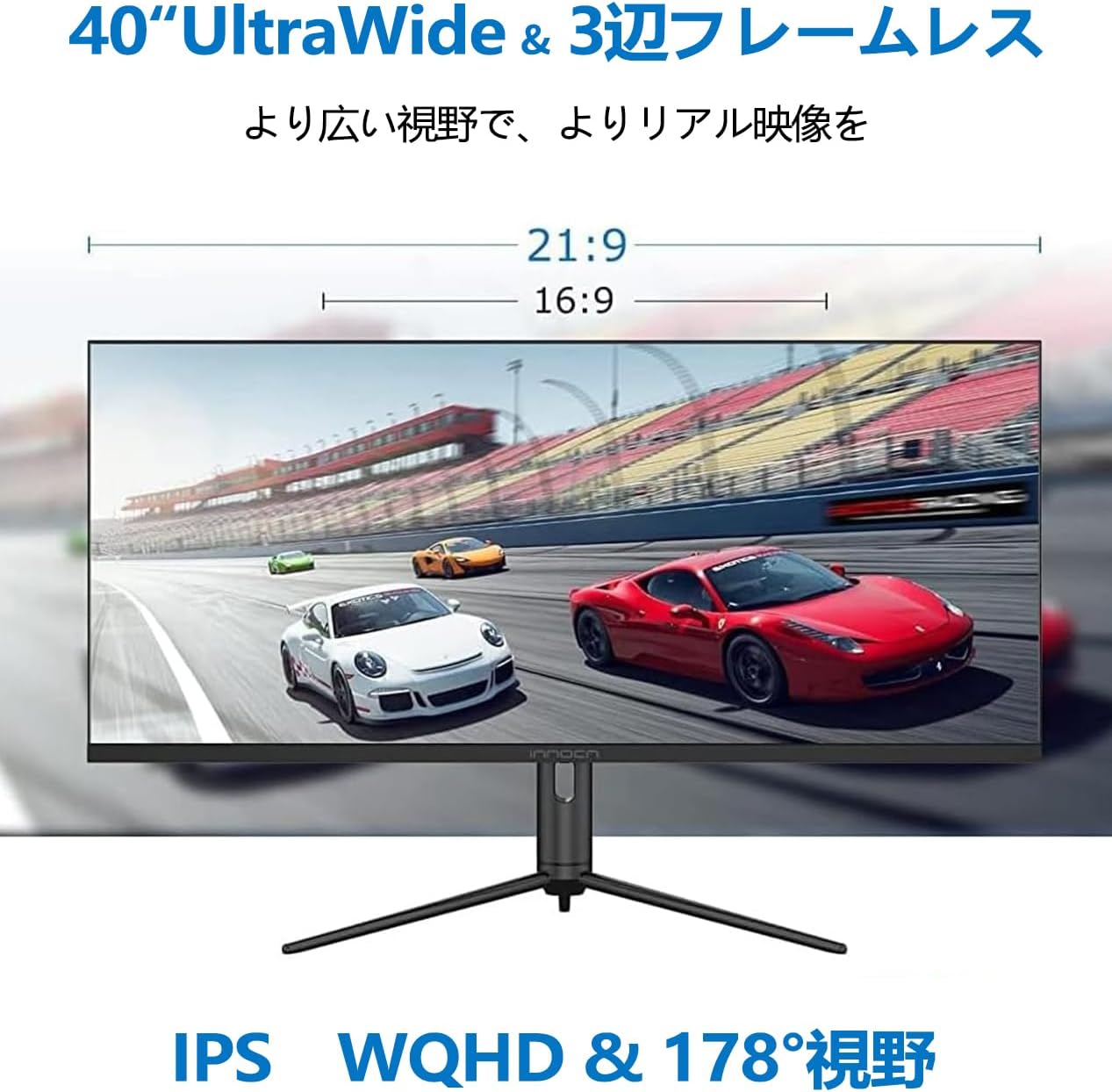
Image: The 40-inch ultrawide display of the INNOCN WR40 PRO monitor, demonstrating its expansive 21:9 aspect ratio compared to a standard 16:9, providing a wider field of view for enhanced productivity and immersion.
- 144Hz Refresh Rate & 1ms MPRT: Experience smooth, fluid visuals with a 144Hz refresh rate and a rapid 1ms Moving Picture Response Time (MPRT), reducing motion blur and ghosting, crucial for fast-paced gaming.

Image: A visual comparison demonstrating the superior smoothness and clarity of a 144Hz 1ms MPRT display (left) versus a conventional 75Hz 5ms monitor (right), highlighting reduced motion blur in gaming scenarios.
- AMD FreeSync Premium: Eliminates screen tearing and stuttering by synchronizing the monitor's refresh rate with your graphics card's frame rate, providing a seamless gaming experience.

Image: A side-by-side comparison showing the visual difference with FreeSync enabled (left), resulting in smooth motion, versus FreeSync disabled (right), which may exhibit screen tearing or choppiness during fast-moving scenes.
- HDR600 & 95% DCI-P3 Wide Color Gamut: Supports HDR600 for enhanced contrast and brightness, reproducing realistic images with deeper blacks and brighter whites. The 95% DCI-P3 color coverage ensures vibrant and accurate colors, suitable for professional content creation and immersive entertainment.

Image: A split image demonstrating the visual improvement with HDR600 enabled (left) compared to a non-HDR display (right), showing enhanced detail in both bright and dark areas. Below, a diagram illustrates the 95% DCI-P3 wide color gamut coverage for richer, more accurate colors.

Image: A visual comparison illustrating the high brightness of 350cd/m² (HDR600) of the product compared to a lower brightness display, emphasizing the vividness and clarity.

Image: A comparison showing the difference between 6-bit and 8-bit color depth, illustrating how 16.7 million display colors with 95% DCI-P3 wide color gamut provide smoother color transitions and richer hues.
- Delta E < 2 Color Calibration: The monitor is factory calibrated to achieve a Delta E value of less than 2, ensuring highly accurate color reproduction that closely matches standard colors. This is beneficial for tasks requiring precise color representation, such as photo editing.

Image: A vibrant display of fruits and vegetables on the monitor, demonstrating the accurate color reproduction with a Delta E value of less than 2, indicating high color fidelity.
- TÜV Rheinland Certified & Blue Light Reduction: The monitor is TÜV Rheinland certified for low blue light emission and flicker-free technology, reducing eye strain during prolonged use. This feature helps maintain eye comfort for extended gaming or work sessions.
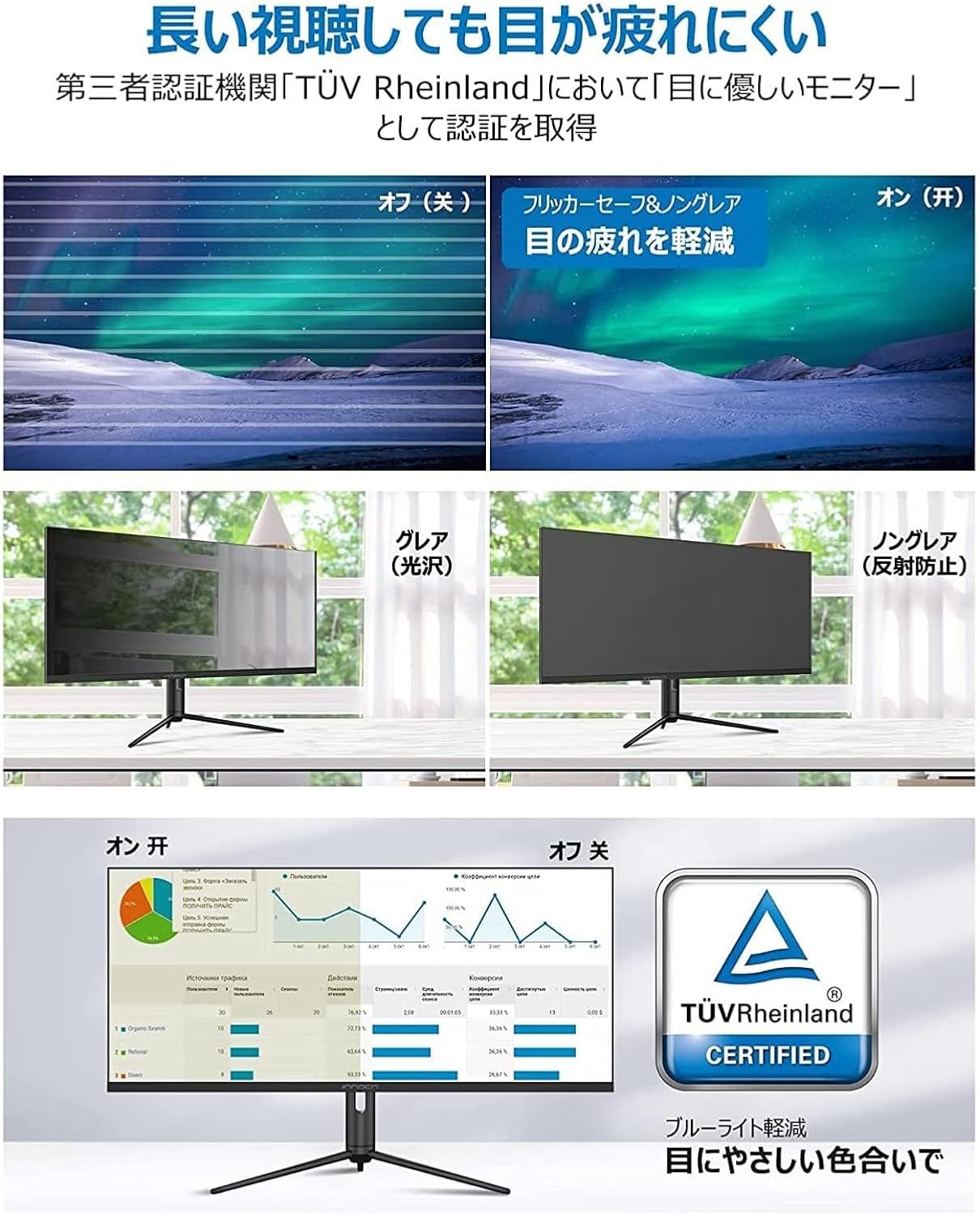
Image: A series of images illustrating the benefits of flicker-free and low blue light features, showing reduced eye strain. The TÜV Rheinland certification logo is also displayed, confirming eye-friendly design.
5.3. Special Features
- USB-C 90W Power Delivery: The USB-C port supports up to 90W power delivery, allowing you to charge compatible laptops or devices directly from the monitor while simultaneously receiving video and data signals.
- Built-in 5W Speakers: Integrated 5W speakers provide audio output without the need for external speakers.

Image: The INNOCN WR40 PRO monitor displaying a music performance, with visual cues indicating sound waves emanating from the sides, highlighting the built-in 5W speakers.
- Game Plus Function: Access various game-enhancing features through the OSD menu, including a crosshair overlay, timer, and FPS counter, which can be positioned as desired.
- RGB Lighting: The monitor features customizable RGB lighting effects on the rear, enhancing the gaming atmosphere.

Image: Rear view of the INNOCN WR40 PRO monitor, showcasing its customizable RGB lighting effects along the back panel, designed to enhance gaming immersion.
6. Maintenance
To ensure the longevity and optimal performance of your monitor, follow these maintenance guidelines:
- Cleaning the Screen: Gently wipe the screen with a soft, lint-free cloth. For stubborn marks, lightly dampen the cloth with water or a screen-specific cleaning solution. Do not spray liquid directly onto the screen.
- Cleaning the Casing: Use a soft, dry cloth to clean the monitor casing. Avoid using harsh chemicals or abrasive materials.
- Ventilation: Ensure that the ventilation openings on the monitor are not blocked to prevent overheating.
- Power Off: When not in use for extended periods, turn off the monitor and unplug it from the power outlet.
7. Troubleshooting
If you encounter issues with your monitor, refer to the following troubleshooting guide:
| Symptom | Possible Cause & Solution |
|---|---|
| Power LED is off |
|
| Screen is blank |
|
| Image is distorted or wavy patterns appear |
|
| Power LED is on, but no image appears |
|
| Screen displays "Out of Range" |
|
| Screen displays "No Signal" |
|
| "60" (or other numbers) displayed on the top right of the screen does not disappear | This usually indicates the display is in an abnormal setting state. Please try the following steps:
If you have any questions about display settings, please contact our support team. |

Image: A table outlining common monitor issues and their corresponding solutions, including problems with power, display, signal, and specific on-screen indicators.

Image: A visual guide detailing steps to resolve the issue of a persistent number (e.g., "60") appearing on the top right of the display, suggesting resetting settings or turning off refresh rate mode.
8. Specifications
| Feature | Detail |
|---|---|
| Brand | INNOCN |
| Model Number | WR40 PRO |
| Screen Size | 40 Inches |
| Resolution | 3440 x 1440 (WQHD Ultrawide) |
| Aspect Ratio | 21:9 |
| Refresh Rate | 144Hz |
| Response Time | 1ms MPRT |
| HDR Support | HDR600 |
| Color Gamut | 95% DCI-P3 |
| Color Accuracy | Delta E < 2 |
| Connectivity | DP 1.4, HDMI 2.0 (x2), USB-C 3.1 (90W PD), Audio Out |
| Speakers | Built-in 5W |
| VESA Mount | 100x100mm |
| Dimensions (W x H x D) | 944.1mm x 596.4mm x 286.8mm (with stand) |
| Weight | 10.98 kg (monitor only) / 13 kg (product size with packaging) |
| Eye Care Features | TÜV Rheinland Certified, Blue Light Reduction, Flicker-Free |

Image: A technical drawing illustrating the precise dimensions (width, height, depth) and weight (10.98 kg) of the INNOCN WR40 PRO monitor, including its stand.
9. Warranty and Support
INNOCN products are designed for reliability and performance. For warranty information and technical support, please refer to the warranty card included with your product or visit the official INNOCN website. If you encounter any issues not covered in this manual, please contact our customer support team for assistance.
Contact Information: service-japan@innocn.com


