
Dual Electronics DCA73W
Instruction Manual
Dual Electronics DCA73W 7-inch Certified Apple CarPlay Android Auto Double DIN Touchscreen Car Stereo
Model: DCA73W
Product Overview
The Dual Electronics DCA73W is a 7-inch double DIN touchscreen car stereo receiver designed to enhance your in-car audio and connectivity experience. It features both wired and wireless Apple CarPlay and Android Auto compatibility, allowing seamless integration with your smartphone for navigation, communication, and entertainment. The unit also includes built-in Bluetooth for hands-free calling and audio streaming, multiple USB inputs for playback and charging, and inputs for front and rear cameras.
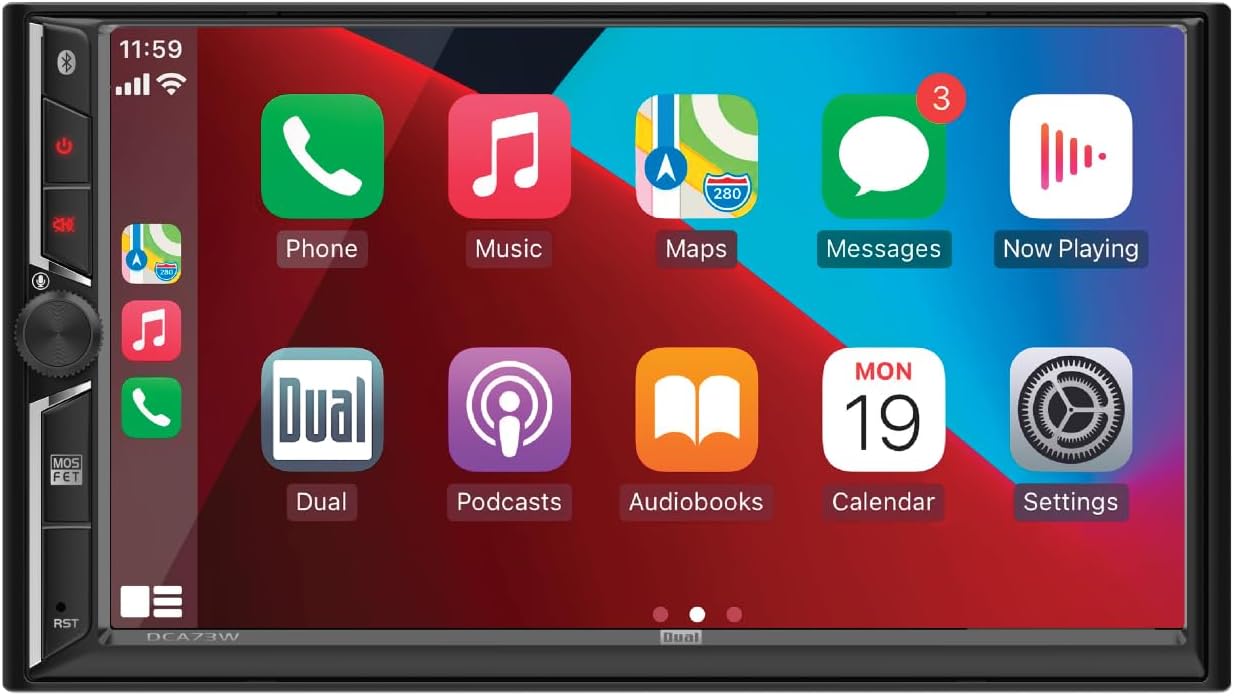
Figure 1: DCA73W unit displaying the Apple CarPlay interface.
What's in the Box
Upon unboxing your DCA73W unit, please verify that all components are present:
- DCA73W Car Stereo Radio Unit
- Wiring Harness
- External Microphone
- GPS Antenna
- Installation Screws

Figure 2: Included components for installation.
Setup and Installation
Professional installation is recommended for this product. Ensure the vehicle's battery is disconnected before beginning installation. Refer to your vehicle's service manual for specific dashboard removal and wiring diagrams.
Wiring Connections
Identify the various inputs and outputs on the rear of the unit. Proper connection is crucial for optimal performance.

Figure 3: Rear panel connections and their labels.
- Power Harness Input: Connect the main power and speaker wiring harness to this port.
- RCA Inputs and Outputs: Used for connecting external amplifiers, subwoofers, or other audio/video sources.
- Radio Antenna: Connect your vehicle's radio antenna here for AM/FM reception.
- GPS Antenna: Connect the included GPS antenna for accurate navigation with CarPlay/Android Auto.
- Wi-Fi Antenna: For wireless CarPlay/Android Auto connectivity.
- External Microphone: Plug in the included microphone for clear hands-free calling and voice commands.
- Rear Camera Input: Connect a compatible backup camera for rear view display.
- USB Input: Two rear USB inputs are provided for media playback and fast charging (2.1A).
Mounting the Unit
Secure the DCA73W unit into your vehicle's double DIN opening using the provided installation screws and mounting brackets (if applicable to your vehicle). Ensure the unit is firmly seated to prevent vibration and movement.
Operating Instructions
Touchscreen Interface
The 7-inch LED high-resolution touchscreen (1024 x 600) is the primary interface for controlling the unit. Navigate through menus, select functions, and interact with Apple CarPlay or Android Auto directly on the screen.
Apple CarPlay & Android Auto
The DCA73W supports both wired and wireless Apple CarPlay and Android Auto. This allows you to integrate your smartphone's features directly onto the stereo's display.

Figure 4: Wireless and wired connectivity for Apple CarPlay and Android Auto.
- Connecting: For wireless connection, ensure Bluetooth and Wi-Fi are enabled on your smartphone and pair it with the DCA73W. For wired connection, use a USB cable to connect your phone to one of the unit's USB ports.
- Navigation: Access Apple Maps, Google Maps, or Waze directly on the screen for turn-by-turn directions.
- Communication: Make and receive calls, send and receive text messages using voice commands or the touchscreen.
- Music & Media: Control music playback from your phone's apps (e.g., Apple Music, Spotify, Pandora).
- Voice Assistant: Utilize Siri (for Apple CarPlay) or Google Assistant (for Android Auto) for hands-free control.
Video 1: Overview of the DCA73W's features, including Apple CarPlay and Android Auto functionality, touchscreen operation, USB inputs, and camera inputs.
Bluetooth Connectivity
Pair your Bluetooth-enabled device to the DCA73W for hands-free calling and wireless audio streaming. Access your phonebook and view ID3 tags for music playback.
- Pairing: Go to the Bluetooth settings on the unit and your device, search for "DCA73W" and pair.
- Hands-Free Calling: Use the external microphone for clear conversations.
- Audio Streaming: Play music wirelessly from your smartphone or other Bluetooth devices.
USB Playback & Charging
The two rear USB inputs allow you to play MP3 files from USB drives and provide 2.1A fast charging for your devices.
Camera Inputs
The unit supports both front and rear camera inputs, providing enhanced visibility for parking and maneuvering.
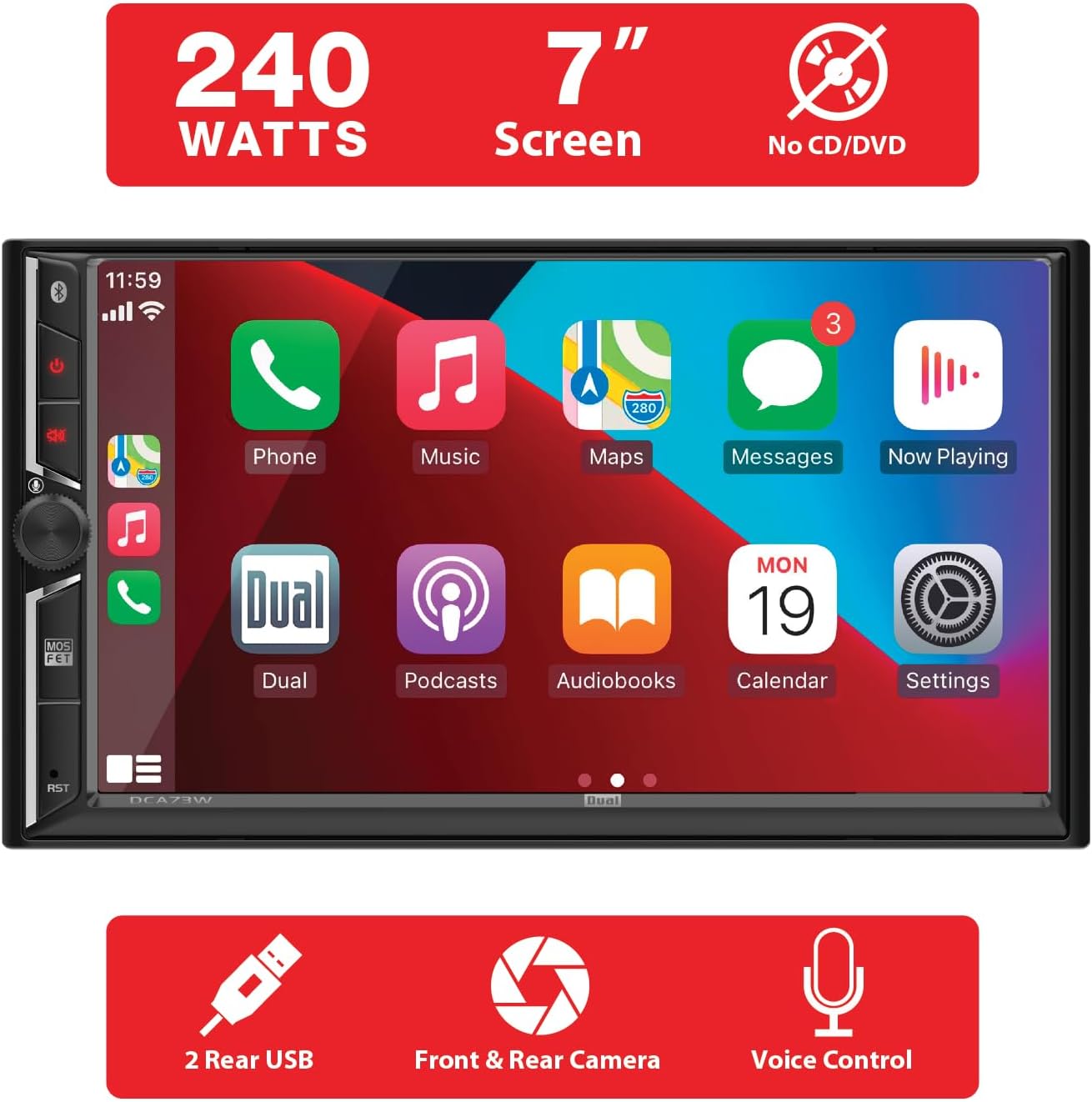
Figure 5: Key features including camera inputs and USB ports.
Audio Equalizer (EQ)
Customize your audio experience with the built-in equalizer, offering 8 preset EQ settings to match your listening preferences.
Maintenance
To ensure the longevity and optimal performance of your DCA73W unit, follow these maintenance guidelines:
- Cleaning the Screen: Use a soft, lint-free cloth to gently wipe the touchscreen. For stubborn smudges, slightly dampen the cloth with water or a screen-safe cleaner. Avoid abrasive materials or harsh chemicals.
- General Cleaning: Keep the unit free from dust and debris. Use a soft brush or compressed air to clean vents and button areas.
- Temperature: Avoid exposing the unit to extreme temperatures, both hot and cold, for extended periods.
- Liquid Exposure: Prevent any liquids from entering the unit. In case of accidental spills, immediately power off the unit and allow it to dry completely before use.
Troubleshooting
If you encounter issues with your DCA73W unit, refer to the following common problems and solutions:
| Problem | Possible Cause | Solution |
|---|---|---|
| Unit does not power on. | Incorrect wiring, blown fuse, vehicle battery issue. | Check power connections (constant and accessory). Verify vehicle fuses and the unit's fuse. Ensure battery is charged. |
| No sound. | Speaker wires disconnected, volume too low, mute activated, incorrect audio source. | Check speaker connections. Increase volume. Deactivate mute. Select correct audio source. |
| Bluetooth not connecting. | Device not in pairing mode, unit not discoverable, interference. | Ensure Bluetooth is enabled on both devices. Put unit in pairing mode. Try re-pairing. Move closer to the unit. |
| CarPlay/Android Auto not launching or disconnecting. | Faulty USB cable, phone software issue, Wi-Fi/Bluetooth interference (for wireless). | Use a certified USB cable. Restart your phone and the unit. Check phone settings for CarPlay/Android Auto permissions. Ensure strong Wi-Fi/Bluetooth signal. |
| Touchscreen unresponsive or slow. | Temporary software glitch, excessive pressure. | Perform a soft reset (refer to manual for reset button location, often a small pinhole). Apply gentle, firm pressure. |
If the problem persists after attempting these solutions, please contact Dual Electronics customer support.
Specifications
| Feature | Detail |
|---|---|
| Screen Size | 7-inch LED High Resolution Touch Screen (1024 x 600) |
| Product Dimensions | 8 x 9 x 2.76 inches |
| Item Weight | 2.79 pounds |
| Model Number | DCA73W |
| Connectivity Technology | RCA, Bluetooth, USB |
| Controller Type | Android (compatible with Apple CarPlay) |
| Special Features | Touchscreen, Equalizer, Apple CarPlay, Android Auto, Front & Rear Camera Input, USB Playback & Charge |
| Audio Output Mode | Stereo |
| Surround Sound Channel Config. | 4.0 |
| Video Encoding | H.264 |
| Color | Black |
Warranty Information
The Dual Electronics DCA73W comes with a 1-year standard warranty. This warranty can be extended to a 2-year warranty when the product is registered online at Dualav.com. Please retain your proof of purchase for warranty claims.
Customer Support
For further assistance, technical support, or warranty inquiries, please visit the official Dual Electronics website or contact their customer service department. Detailed contact information and FAQs can typically be found on their support pages.
Website: www.dualav.com
For the latest updates and support resources, refer to the product page on the manufacturer's website.
Related documentsDCA73W


Ask a question about this manual
Ask about setup, troubleshooting, compatibility, parts, safety, or missing instructions. Manuals+ will review the question and use this page’s manual context to help answer it.