1. Introduction
This user manual provides comprehensive instructions for the installation, operation, and maintenance of your Carpuride W702 Motorcycle GPS CarPlay Screen. This device is designed to enhance your riding experience by integrating wireless CarPlay and Android Auto functionalities, GPS navigation, and hands-free communication directly onto your motorbike's dashboard.
The Carpuride W702 features a 7-inch waterproof touchscreen, dual Bluetooth connectivity, and voice assistant compatibility, ensuring convenience and safety on the road. Please read this manual thoroughly before using the product to ensure proper operation and to maximize its features.
2. Safety Information
Always prioritize safety while operating your motorcycle. Ensure the device is securely mounted and does not obstruct your view or control of the motorcycle. Do not attempt to operate complex functions or make significant adjustments while riding. Use voice commands for navigation and communication whenever possible to keep your hands on the handlebars.
- Ensure all connections are secure and waterproof before riding, especially in wet conditions.
- Do not disassemble or modify the device. This may void the warranty and pose a safety risk.
- Keep the screen clean and free from obstructions to maintain clear visibility.
- Operate the device within the specified temperature range (-20°C to 70°C).
- Verify your phone supports wireless CarPlay or Android Auto before use.
3. Package Contents
Please check the box for the following items:
- 1x Carpuride W702 Motorcycle CarPlay Screen
- 1x Power Cable (for 12V battery connection)
- 1x 64G TF Card (pre-installed inside the device)
- 1x Extension Rod
- 1x U-shaped Support
- 1x USB Boost Voltage Cable (for 5V USB port connection)
- 1x User Manual

4. Product Overview
The Carpuride W702 is a robust and user-friendly device designed for motorcycle environments. Key features include:
- 7-inch HD IPS Touch Screen: Resolution of 1024*600 with 1000nit peak brightness for clear visibility in various lighting conditions.
- IP67 Waterproof & Durable Design: Ensures normal operation even in rain or direct sunlight.
- Wireless CarPlay & Android Auto: Seamless integration with your smartphone for navigation, calls, and music.
- Built-in Dual Bluetooth: Connects to both your smartphone and Bluetooth helmet/headphones simultaneously.
- Anti-Theft Detachable Bracket: Provides security and convenience.
- Built-in EQ: Customizable 16-band HD EQ for audio optimization.


5. Setup and Installation
The Carpuride W702 offers flexible installation options to suit various motorcycles.
5.1 Mounting the Device
The device comes with a bracket kit for secure mounting. There are two primary installation methods:
- Handlebar Mount: Attach the mount to your handlebar using a Phillips screwdriver. Clamp the connecting rod to the mount. Insert the device and adjust its position as desired, then tighten the adjustment ring to secure.
- Optional Steering Handle Installation / Any Screw Hole: The anti-theft anti-removal screw design allows for installation at various screw points on your motorcycle.

5.2 Power Connection Options
The W702 offers two ways to connect to power:
- Motorcycle Power Line (12V, 1A): Connect the red power wire to the motorcycle's battery positive terminal (ACC +12V) and the black ground wire to the negative terminal. The W702 has built-in reverse protection.
- Motorcycle USB Port (5V, 2.5A or higher): Use the provided USB boost cable to directly connect the W702 to the motorcycle's USB port. Ensure the USB port provides sufficient voltage and current (at least 5V, 2A) to prevent automatic shutdown.

Important Note:
- When using the motorcycle power line, ensure the output voltage and current are 12V, 1A.
- If using the USB port, ensure it provides at least 5V, 2A. Insufficient power may cause the device to shut down.
6. Operating Instructions
6.1 Powering On/Off
Press and hold the power button located on the side of the unit to turn it on or off. A short press after booting will display the volume bar.
6.2 Wireless CarPlay / Android Auto Connection
The Carpuride W702 supports wireless CarPlay for iPhones (iOS 6+) and wireless Android Auto for Android phones (Android 11+ with 5GHz Wi-Fi support).
- Ensure your smartphone's Bluetooth and Wi-Fi are enabled.
- On the W702, navigate to the connection settings.
- Pair your phone with the W702 via Bluetooth. Once paired, the device will automatically establish a Wi-Fi connection for CarPlay or Android Auto.
- For iPhone users, ensure Siri is enabled. For Android users, ensure the Android Auto app is updated to the latest version.


6.3 Dual Bluetooth Connectivity
The W702 allows simultaneous connection to your smartphone and a Bluetooth-enabled helmet or headphones.
- First, pair your smartphone with the W702 as described in Section 6.2.
- Ensure your Bluetooth helmet or earphone is turned on and in pairing mode.
- On the W702, navigate to the Bluetooth settings and search for your helmet/earphone. Select it to pair.

Note:
- The helmet or earphone must be turned on and in an active state to be discovered.
- Do not connect your mobile phone directly to the Bluetooth helmet or earphone, as this may interfere with the pairing process with the W702.
Video 6.1: This video demonstrates the steps to connect the Carpuride W702 to a phone and then to a Bluetooth helmet, ensuring seamless audio and communication during rides.
6.4 Navigation and Voice Control
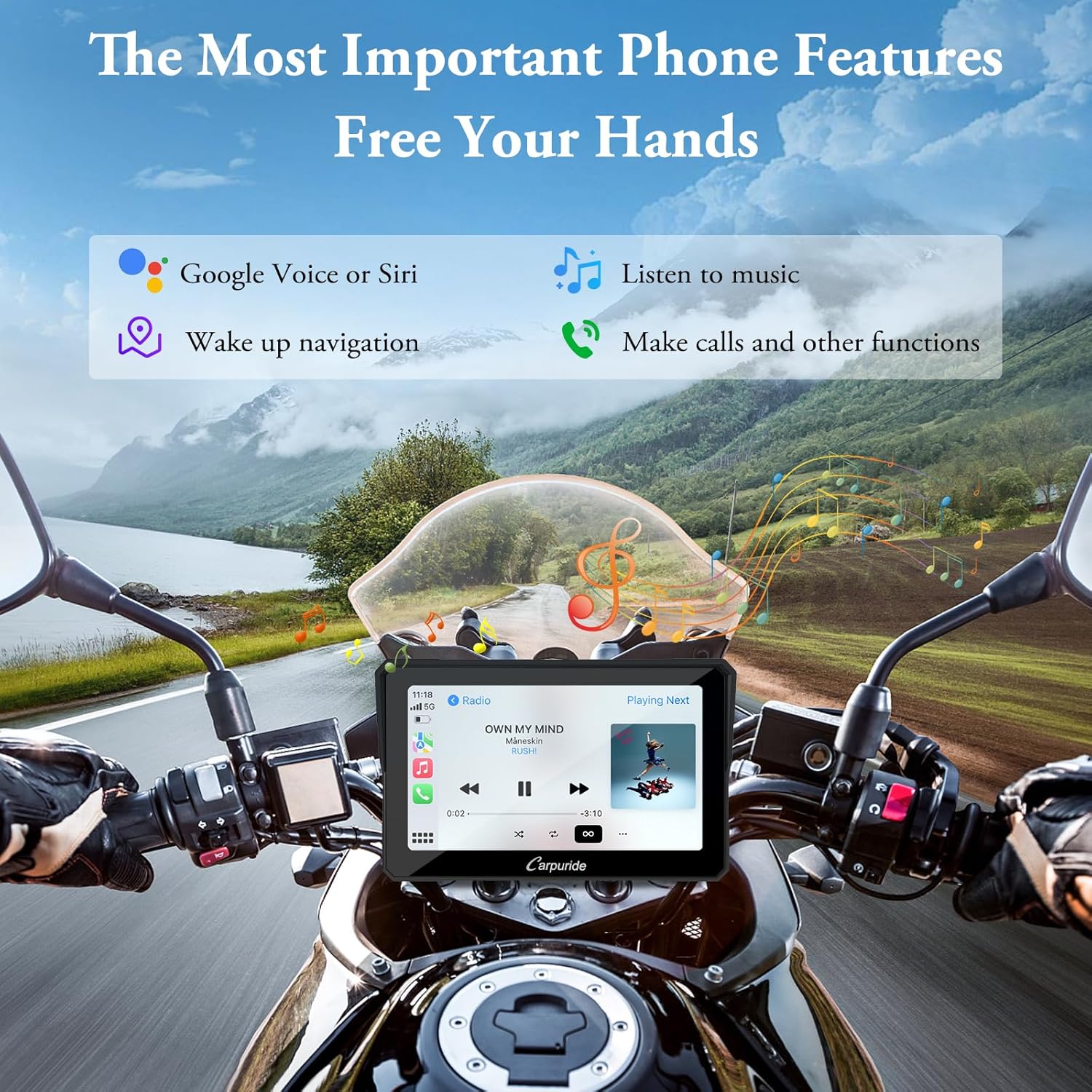
Once connected to CarPlay or Android Auto, you can use voice commands (Siri or Google Assistant) for navigation, making calls, sending messages, and playing music.
- Say "Hey Siri" or "Hey Google" to activate the voice assistant.
- Request directions to a destination, play specific music, or make phone calls.

Video 6.2: This video demonstrates the installation of the Carpuride moto bracket, showing how to securely mount the device on a motorcycle.
Video 6.3: A short clip showcasing the Carpuride moto CarPlay in action during road cycling, highlighting its usability while riding.
6.5 Media Playback and EQ Settings
The W702 supports music and video playback via the pre-installed 64G TF card. You can also stream music through your connected smartphone.
- Access the "Music" or "Card" application on the main screen to play local media.
- The built-in EQ allows you to customize sound effects. Click "EQ" to adjust the 16-band HD EQ or select preset modes like rock, classical, or jazz.
- The "Loud" option can be toggled to turn on/off the bass effect.

TF Card Note:
- The pre-installed 64G TF card is for storing music and videos only. It does not support software upgrades.
- To update software, use a smaller capacity TF card (4GB, 8GB, 16GB, or 32GB).
- The TF card is sealed inside the device at the factory. To access it, you will need to remove two screws and open the waterproof cover.
7. Maintenance
To ensure the longevity and optimal performance of your Carpuride W702, follow these maintenance guidelines:
- Cleaning: Use a soft, damp cloth to clean the screen and exterior. Avoid abrasive cleaners or solvents that could damage the display or casing.
- Waterproof Integrity: Periodically check the waterproof cover and connections to ensure they are securely sealed, especially after heavy rain or washing the motorcycle.
- Storage: If storing the motorcycle for an extended period, consider detaching the W702 unit and storing it in a cool, dry place to protect it from extreme temperatures and potential theft.
- Software Updates: Check the Carpuride official website for any available software updates to ensure you have the latest features and bug fixes. Follow the specific instructions provided with the update.
8. Troubleshooting
If you encounter issues with your Carpuride W702, refer to the following common problems and solutions:
| Problem | Possible Cause | Solution |
|---|---|---|
| Device does not power on. | Insufficient power supply; loose connection; blown fuse. | Check power cable connections. Ensure 12V/1A (power line) or 5V/2A (USB) supply. Check motorcycle's fuse. |
| Wireless CarPlay/Android Auto not connecting. | Bluetooth not paired; Wi-Fi interference; phone compatibility issue; app not updated. | Ensure phone Bluetooth is on and paired. Check phone's Wi-Fi (5GHz for Android Auto). Update Android Auto app. Ensure Siri is enabled for CarPlay. Restart both devices. |
| Audio cutting in/out or no sound. | Bluetooth connection unstable; incorrect audio output setting. | Ensure stable Bluetooth connection to helmet/headphones. Check audio output settings on the W702. Re-pair Bluetooth devices. |
| Screen not visible in bright sunlight. | Brightness setting too low. | Adjust screen brightness settings on the device. The 1000nit display is designed for high visibility. |
| TF card not recognized or media not playing. | Card not properly inserted; corrupted files; unsupported format. | Ensure TF card is fully inserted. Check media file formats. If issues persist, try reformatting the TF card (backup data first). |
9. Specifications
| Feature | Detail |
|---|---|
| Model Name | CARPURIDE W702 |
| Screen Size | 7 Inches |
| Display Type | HD IPS Touch Screen (1024*600 resolution, 1000nit peak brightness) |
| Waterproof Rating | IP67 |
| Connectivity | Wireless CarPlay, Wireless Android Auto, Dual Bluetooth, Wi-Fi |
| Power Input | 12V/1A (motorcycle power line) or 5V/2.5A (USB port) |
| Operating Temperature | -20°C to 70°C |
| Storage | 64G TF Card (pre-installed) |
| Product Dimensions | 7.2 x 1.74 x 4.49 inches |
| Item Weight | 1.85 pounds |
10. Warranty and Support
Carpuride products are designed for reliability and performance. We offer comprehensive support to ensure your satisfaction.
- Warranty: The Carpuride W702 comes with a 24-month warranty from the date of purchase, covering manufacturing defects.
- Return Policy: Enjoy a 30-day unconditional return policy.
- Customer Service: For any questions, technical support, or warranty claims, please contact Carpuride customer service.
