
1. Introduction
The UGREEN Revodok Max 213 Thunderbolt 4 Dock is a versatile 13-in-1 docking station designed to expand the connectivity of your laptop or computer. It offers high-speed data transfer, multiple display outputs, and powerful charging capabilities, making it an ideal solution for professionals and creative users seeking to enhance their workspace efficiency.
What's in the Box
- UGREEN Revodok Max 213 Thunderbolt 4 Dock
- 2.6ft Thunderbolt 4 Cable
- 180W GaN Charger
- Charging Cable

Figure 1: Contents of the UGREEN Revodok Max 213 package, including the dock, Thunderbolt 4 cable, 180W GaN charger, and charging cable.
2. Key Features
2.1. 13-in-1 Massive Expansion
The Revodok Max 213 offers extensive connectivity with 13 ports, including two Thunderbolt 4 (40Gbps, 15W), a DisplayPort 1.4, a 2.5GbE Ethernet, SD & TF 4.0 card readers, a USB-C 3.2 (10Gbps, 20W), two USB-A 3.2 (10Gbps), two USB-A 3.0, a 3.5mm audio jack, and a 180W DC power input. This comprehensive selection meets diverse high-performance expansion needs.

Figure 2: Detailed diagram illustrating all 13 ports available on the UGREEN Revodok Max 213 docking station.
2.2. Powerful Thunderbolt 4
Equipped with one upstream and two downstream Thunderbolt 4 ports, the dock supports data transfer speeds up to 40Gbps and display resolutions up to 8K. This enables high-performance workflows for demanding tasks.
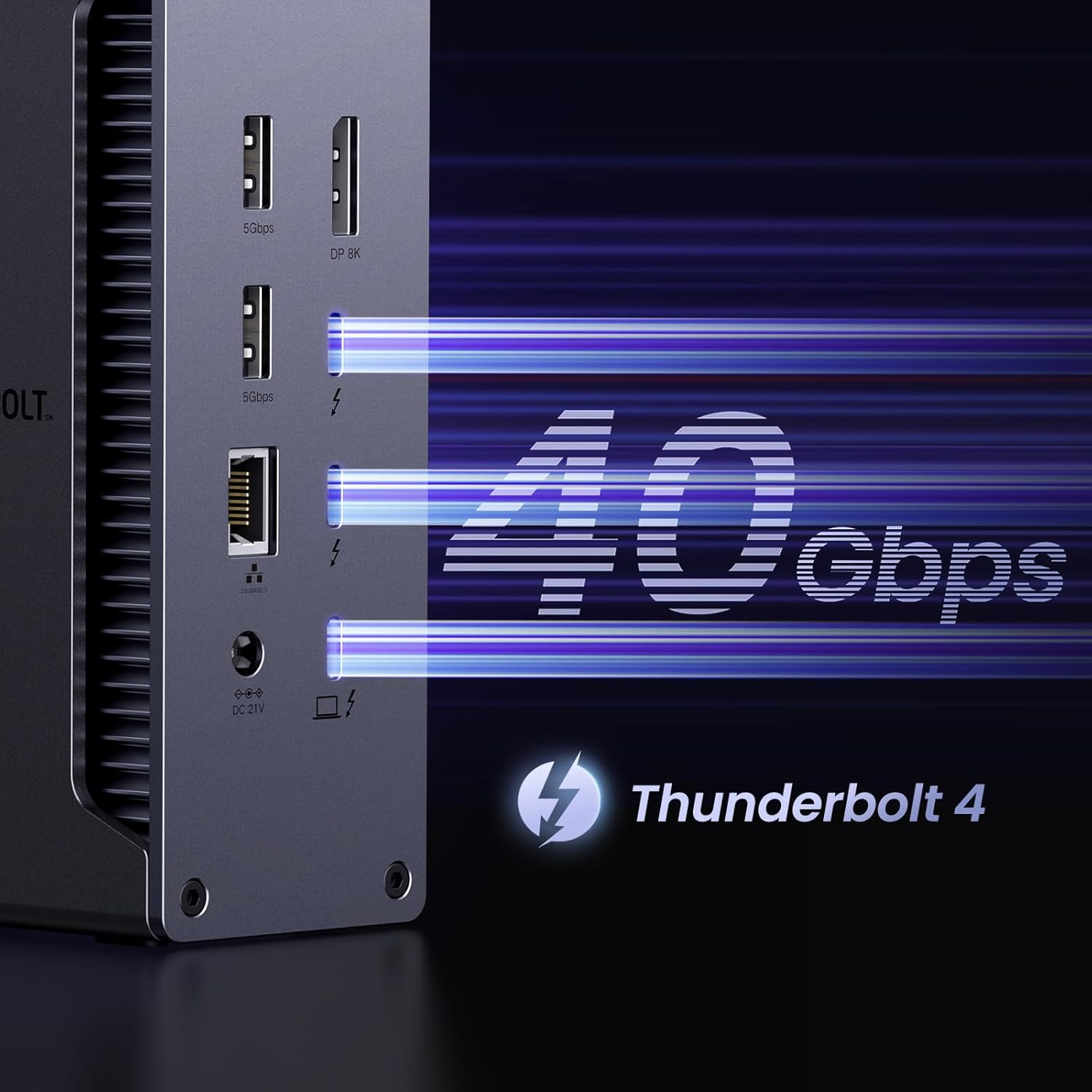
Figure 3: Visual representation of the 40Gbps data transfer speed supported by Thunderbolt 4 technology on the dock.
2.3. Dual 4K@60Hz or Single 8K Display Support
For Windows users, the dock supports a single monitor up to 8K@30Hz or dual monitors up to 4K@60Hz. For M1/M2/M3 Pro & M1/M2/M3 Max & Intel chip macOS users, it supports a single monitor up to 4K@60Hz or dual monitors up to 4K@60Hz. Original M1/M2/M3 macOS users can connect a single monitor up to 4K@60Hz. Ensure your computer supports DP 1.4 output and is connected to a Thunderbolt 4/3 or USB 4 port.

Figure 4: An example of a dual display setup, highlighting the efficiency of using the dock with multiple monitors.

Figure 5: Chart detailing various multiple display modes supported for both Windows and macOS operating systems.
2.4. 90W High-Speed Charging
With the included 180W GaN charger, the Thunderbolt 4 dock can deliver up to 90W of power to your laptop, eliminating the need for an additional charger. The dock must be connected to its charger to function.

Figure 6: Illustration of the power delivery capabilities, showing 180W input to the dock, 90W to the laptop, and 20W to a connected phone.
2.5. 2.5GbE Ethernet Port
The integrated 2.5 Gigabit Ethernet port provides ultra-fast and stable wired network connectivity, significantly improving internet speeds for demanding applications and large file transfers.
Figure 7: A close-up of the 2.5Gbps Ethernet port, emphasizing its high-speed network capabilities.
2.6. SD & TF 4.0 Card Readers
The dock features high-speed SD and TF 4.0 card readers, allowing for quick and efficient transfer of photos and videos from memory cards, essential for photographers and videographers.

Figure 8: The dock with a laptop and external keyboard, showing the convenient front-facing TF/SD 4.0 card readers.
3. Setup Guide
3.1. Connecting the Dock
- Power Connection: Connect the included 180W GaN charger to the DC 21V power input port on the back of the dock. Ensure the charger is plugged into a wall outlet. The dock requires external power to operate.
- Host Connection: Use the provided Thunderbolt 4 cable to connect your laptop's Thunderbolt 4/3 or USB 4 port to the designated Thunderbolt 4 host port on the back of the dock. This single cable handles data, video, and power delivery to your laptop.
- Peripherals: Connect your external monitors, USB devices (keyboard, mouse, external drives), Ethernet cable, and SD/TF cards to the appropriate ports on the dock.
- Power On: Press the power button on the front of the dock to turn it on. An indicator LED will illuminate to confirm power status.

Figure 9: Front and rear views of the UGREEN Revodok Max 213, showing all available ports for connection.
4. Operating Instructions
4.1. Display Configuration
The dock supports various display configurations depending on your operating system and hardware capabilities:
- Windows: Supports single 8K@30Hz display or dual 4K@60Hz displays.
- macOS (M1/M2/M3 Pro & M1/M2/M3 Max & Intel chip): Supports single 4K@60Hz display or dual 4K@60Hz displays.
- macOS (Original M1/M2/M3): Supports single 4K@60Hz display.
Ensure your system's display settings are configured correctly to utilize the desired resolution and refresh rate. You may need to adjust settings in your operating system's display preferences.
Figure 10: Comprehensive compatibility chart detailing supported display resolutions and refresh rates across different Windows and macOS systems.
Figure 11: Diagram illustrating how to connect displays to the dock for macOS systems with M1/M2/M3 chips.
Figure 12: Diagram illustrating how to connect displays to the dock for macOS systems with Pro/Max M-chips and Intel chips.
Figure 13: Diagram illustrating how to connect displays to the dock for Windows PCs and full-function USB-C laptops.
4.2. Power Delivery
The dock provides up to 90W of power to your connected laptop via the Thunderbolt 4 host port. The front USB-C 3.2 port also offers 20W Power Delivery for charging compatible devices like smartphones or tablets.
4.3. Network Connectivity
Utilize the 2.5GbE Ethernet port for a stable and high-speed internet connection. Simply connect an Ethernet cable from your router/modem to the dock's Ethernet port.
5. Specifications
| Feature | Specification |
|---|---|
| Product Dimensions | 5.85 x 3.79 x 2.05 inches |
| Item Weight | 1.72 pounds |
| Model Number | 25054 |
| Color | Dark Gray |
| Hardware Interface | microSDHC, USB 3.1 Type A, DisplayPort, USB 3.1 Type C, Ethernet, 3.5mm Audio, SDHC, Thunderbolt |
| Total USB Ports | 5 |
| Number of Ports | 13 |
| Wattage | 180 watts (Power Adapter) |
| Laptop Charging | Up to 90W |
| Front USB-C PD | 20W |
| Ethernet Speed | 2.5GbE |
| Display Output | Single 8K@30Hz or Dual 4K@60Hz (Windows); Single/Dual 4K@60Hz (macOS M1/M2/M3 Pro/Max & Intel); Single 4K@60Hz (macOS Original M1/M2/M3) |
6. Compatibility
The UGREEN Revodok Max 213 Thunderbolt 4 Dock is widely compatible with most Thunderbolt 4, Thunderbolt 3, USB 4, or USB-C computers and tablets.
Compatible Devices (Partial List):
- MacBooks (macOS 11.4 & above)
- Windows Laptops (Windows 10 & above)
- iPads with USB-C ports
- Dell XPS series, Microsoft Surface Pro, HP ENVY, ASUS Zenbook, Acer Swift Go
Note: Full-function USB-C laptops and tablets only support single display. Not compatible with Mac mini 2018 (Intel).

Figure 14: A visual representation of various compatible devices, including MacBooks, Windows laptops, and iPads.
7. Maintenance
To ensure the longevity and optimal performance of your UGREEN Revodok Max 213 Thunderbolt 4 Dock, please follow these maintenance guidelines:
- Cleaning: Use a soft, dry cloth to wipe the surface of the dock. Avoid using liquid cleaners or abrasive materials, which may damage the finish or internal components.
- Ventilation: Ensure the ventilation ribs on the sides of the dock are not obstructed to allow for proper heat dissipation. The metal casing is designed to help manage heat.
- Storage: When not in use for extended periods, store the dock in a cool, dry place away from direct sunlight and extreme temperatures.
- Handling: Handle the dock with care to prevent drops or impacts, which could damage internal circuitry or external ports.

Figure 15: An exploded view illustrating the upgraded cooling system, including cooling silica gel, aluminum shell, pleated aluminum design, and heightening pads for efficient heat management.
8. Troubleshooting
If you encounter issues with your UGREEN Revodok Max 213, please refer to the following common troubleshooting steps:
- No Power/Dock Not Turning On:
- Ensure the 180W GaN charger is securely connected to the dock's DC input and a working power outlet.
- Verify the power button on the front of the dock is pressed.
- Check if the power adapter itself is functioning correctly (e.g., try with another compatible device if possible).
- Display Issues (No Signal, Flickering, Incorrect Resolution/Refresh Rate):
- Ensure your laptop is connected to the dock via a Thunderbolt 4/3 or USB 4 port.
- Verify that your computer supports DP 1.4 output for optimal display performance.
- Check all display cables (DisplayPort, Thunderbolt) are securely connected to both the dock and your monitors.
- Adjust display settings in your operating system (e.g., Windows Display Settings, macOS System Settings > Displays) to ensure the correct resolution and refresh rate are selected.
- For dual monitor setups, confirm your system's compatibility with dual displays at the desired resolution (refer to Section 4.1).
- Try updating your graphics drivers and Thunderbolt drivers to the latest versions.
- USB Ports Not Functioning / Front USB-C Charging Issues:
- Ensure the dock is powered on.
- Try connecting the USB device to a different port on the dock.
- For charging issues with the front USB-C port, ensure your device supports 20W Power Delivery and use a compatible USB-C cable.
- Disconnect and reconnect the dock from your laptop.
- Ethernet Connectivity Problems:
- Verify the Ethernet cable is securely connected to both the dock and your router/modem.
- Check your network settings on your computer.
- Restart your router/modem and the dock.
If the issue persists after trying these steps, please contact UGREEN customer support for further assistance.
9. Warranty and Support
UGREEN products come with a standard warranty. For detailed warranty terms and conditions, please refer to the warranty card included with your product or visit the official UGREEN website.
For technical support, troubleshooting, or any inquiries regarding your UGREEN Revodok Max 213 Thunderbolt 4 Dock, please contact UGREEN customer support through their official channels. You can often find support contact information on the UGREEN website or within the product packaging.
An official User Guide (PDF) is also available for download: Download User Guide (PDF)
10. Official Product Videos
Below are official product videos from the seller, providing additional insights and demonstrations of the UGREEN Revodok Max 213 Thunderbolt 4 Dock.
Revodok Max 213 13-in-1 Thunderbolt 4 Dock - 40Gbps (Preview)
This short preview video highlights the key features and 40Gbps speed of the Revodok Max 213 dock.
UGREEN Revodok Max 213 13-in-1 Thunderbolt 4 Dock
An official overview video showcasing the UGREEN Revodok Max 213, emphasizing its 13-in-1 functionality and Thunderbolt 4 capabilities.


