
Depusheng US MX16
Depusheng MX16 16 Channel Sound Mixer Audio Mixing Console
Model: US MX16
Brand: Depusheng
1. Product Overview
The Depusheng MX16 is a professional 16-channel audio mixing console designed for a wide range of applications, including live broadcasts, podcasting, recording, and stage performances. It features comprehensive input/output options, advanced digital signal processing (DSP) effects, and versatile connectivity including USB and Bluetooth.

Figure 1: Depusheng MX16 16 Channel Sound Mixer, front view showcasing all controls and inputs.
Key Features:
- 16-Channel DJ Mixer: Equipped with 16 channels, each supporting XLR mic and 6.35mm inputs, suitable for multi-device connections.
- Integrated DSP Effects: Features 256 types of reverberation effects, adjustable via a dedicated knob for scene-specific sound tailoring.
- USB Connectivity: Allows direct connection to a computer for professional recording and playback, and supports USB interface storage devices.
- Bluetooth Functionality: Enables wireless connection for playing music from Bluetooth-enabled devices.
- 48V Phantom Power: Provides power for condenser microphones on XLR inputs.
- 7-Band Stereo Graphic Equalizer: For precise frequency control of the main mix.
- Comprehensive Outputs: Includes XLR outputs, 1/4'' (L/R) outputs, and RCA (L/R) inputs and outputs.
2. Setup Guide
2.1 Unpacking and Inspection
Carefully remove the mixer from its packaging. Inspect the unit for any signs of damage that may have occurred during transit. Ensure all accessories, including the USB to USB cable, are present.
2.2 Power Connection
Connect the provided power cable to the external power input socket on the mixer and then to a suitable power outlet. Ensure the power switch is in the OFF position before connecting. The mixer operates on 48 Volts (DC).
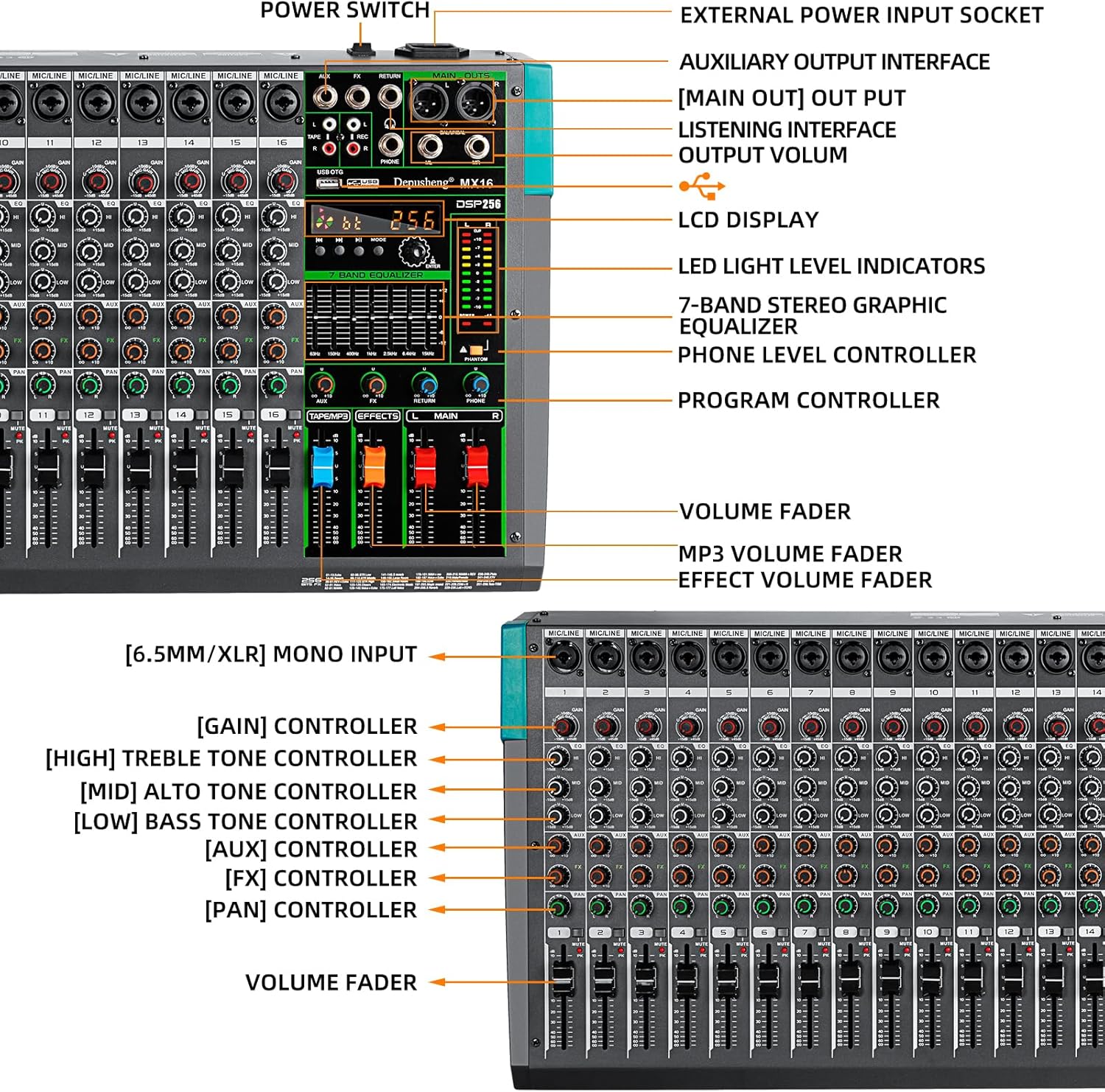
Figure 2: Rear panel connections and main controls, including the power switch and external power input socket.
2.3 Initial Audio Connections
Before powering on, connect your audio sources and output devices:
- Microphones/Instruments: Connect microphones (XLR or 6.35mm) or line-level instruments to the respective input channels. For condenser microphones, ensure 48V phantom power is enabled for the specific channel if required.
- Main Outputs: Connect your main speakers or power amplifier to the XLR or 1/4'' (L/R) main outputs.
- Headphones: Connect headphones to the dedicated headphone jack for monitoring.

Figure 3: A comprehensive diagram illustrating various input and output connections for the mixer, including guitars, microphones, mobile phones, computers, and speakers.
3. Operating Instructions
3.1 Channel Controls
Each of the 16 channels features a set of controls for individual signal processing:
- [GAIN] Controller: Adjusts the input sensitivity for the connected microphone or line-level device.
- [HIGH] Treble Tone Controller: Controls the high-frequency equalization for the channel.
- [MID] Alto Tone Controller: Controls the mid-frequency equalization for the channel.
- [LOW] Bass Tone Controller: Controls the low-frequency equalization for the channel.
- [AUX] Controller: Sends a portion of the channel signal to the auxiliary output for monitor mixes or external effects.
- [FX] Controller: Sends a portion of the channel signal to the internal DSP effects processor.
- [PAN] Controller: Adjusts the stereo position (left to right) of the channel signal in the main mix.
- Volume Fader: Controls the output level of the individual channel to the main mix.
- MUTE Button: Mutes the audio signal for the specific channel.
Figure 4: Detailed view of individual channel controls, including Gain, EQ (High, Mid, Low), AUX, FX, Pan, and Volume Fader.
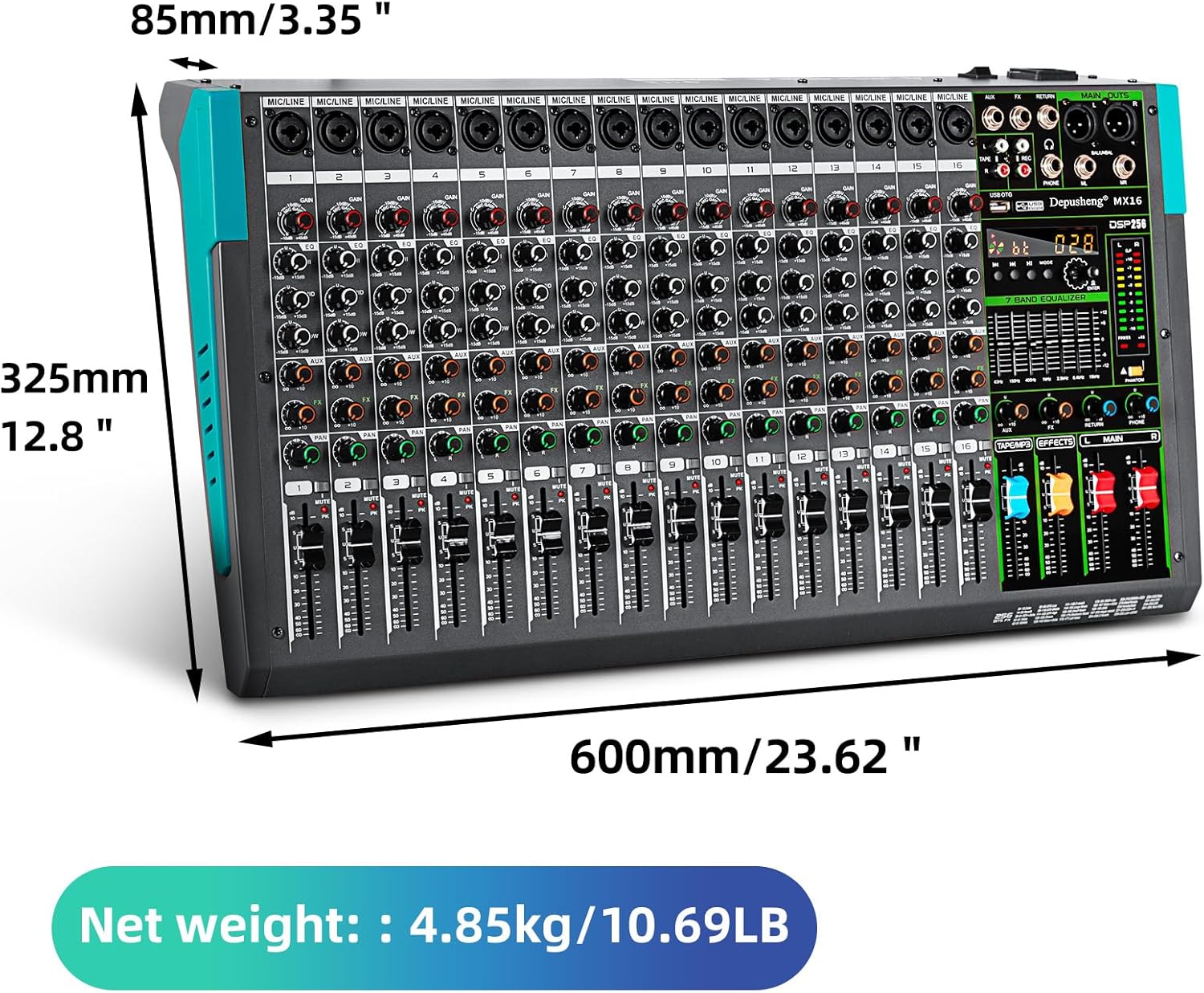
Figure 5: Close-up of the dual-purpose microphone input connectors (XLR and 6.35mm) on the mixer.
3.2 DSP Digital Effects
The MX16 features 256 types of digital effects, primarily reverberation. Use the dedicated DSP section to select and adjust effects.
- Program Controller: Use this knob to scroll through and select the desired effect program (1-256).
- Reverb Knob: Adjusts the intensity or parameter of the selected reverberation effect.
- FX Volume Fader: Controls the overall volume of the effects return to the main mix.

Figure 6: Display showing the 256 DSP effects and the corresponding adjustment knob.
3.3 USB Playback and Recording
The mixer supports USB connectivity for both playback from storage devices and recording to a computer.
- USB Playback: Insert a USB storage device (e.g., USB flash drive) into the USB port. Use the MP3 function controls and LCD display to navigate and play audio files.
- PC Recording: Connect the mixer to your computer using the provided USB to USB cable. The mixer will be recognized as an audio interface, allowing you to record the main mix directly to your digital audio workstation (DAW) software.
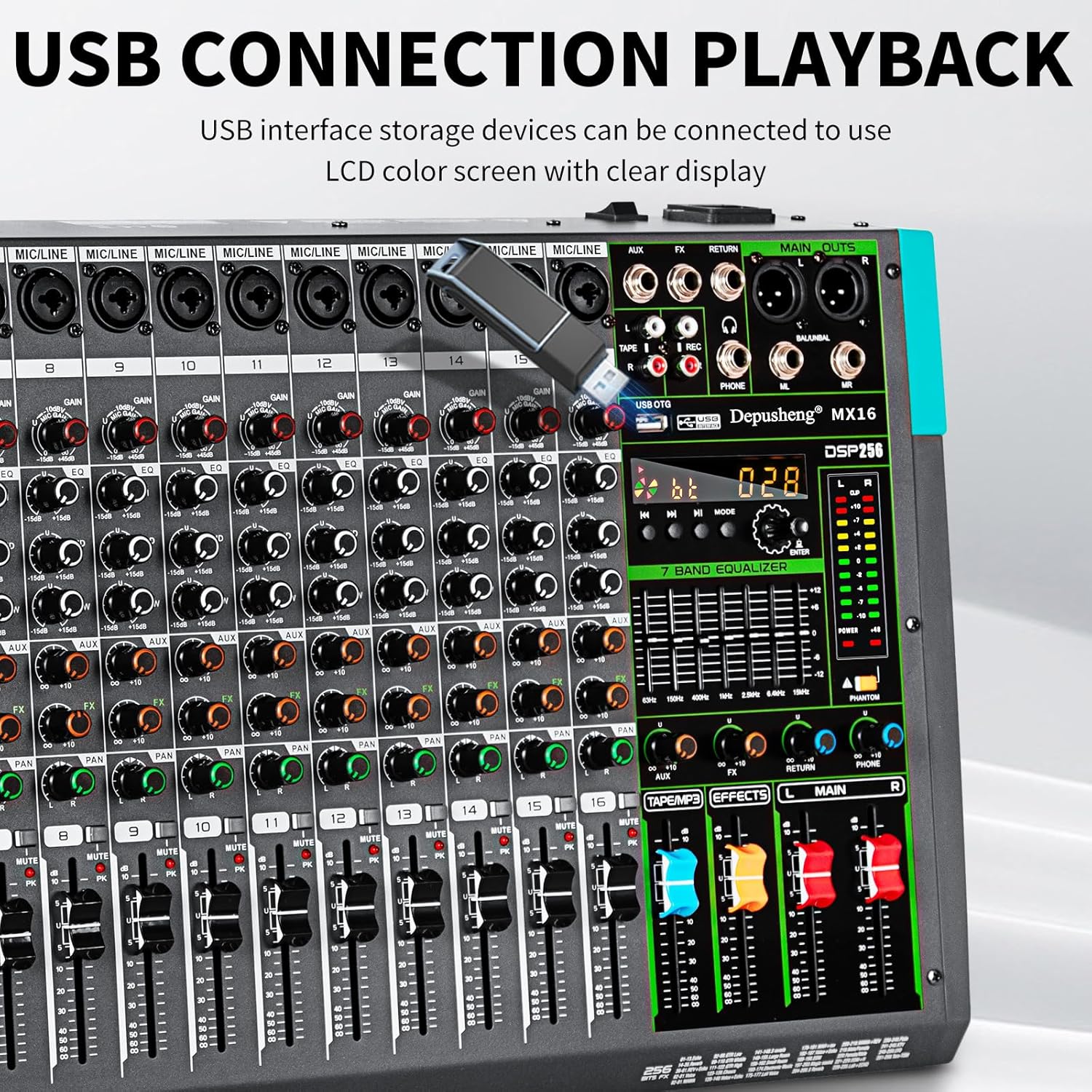
Figure 7: Illustrates connecting a USB flash drive for direct audio playback on the mixer.

Figure 8: Shows the mixer connected to a laptop via USB for recording or playback.
3.4 Wireless Bluetooth Connection
The MX16 allows for wireless audio streaming via Bluetooth:
- Pairing: Activate Bluetooth on your mobile device or computer. Select "Depusheng MX16" (or similar name) from the list of available devices to pair.
- Playback: Once paired, audio played on your Bluetooth device will be routed through the mixer. Adjust the Bluetooth input volume using the dedicated MP3 volume fader.

Figure 9: Depicts a smartphone wirelessly connected to the mixer via Bluetooth for audio playback.
3.5 Main Output and Monitoring
- Main Volume Faders: The L/R main faders control the overall output volume of the mixer.
- LED Light Level Indicators: Monitor your output levels using the LED meters to prevent clipping and ensure optimal signal strength.
- 7-Band Stereo Graphic Equalizer: Use this equalizer to fine-tune the overall frequency response of your main mix.
- Listening Interface Output Volume: Adjusts the volume for headphone monitoring.
4. Maintenance
Proper maintenance ensures the longevity and optimal performance of your Depusheng MX16 mixer.
- Cleaning: Use a soft, dry cloth to wipe down the surface of the mixer. For stubborn dirt, a slightly damp cloth can be used, followed by a dry cloth. Avoid using abrasive cleaners, solvents, or excessive moisture, which can damage the finish and internal components.
- Dust Protection: When not in use, cover the mixer with a dust cover to prevent dust and debris from accumulating on the controls and inside the unit.
- Storage: Store the mixer in a cool, dry place away from direct sunlight, extreme temperatures, and high humidity.
- Cable Management: Ensure all cables are neatly organized and not under strain to prevent damage to the connectors and ports.
5. Troubleshooting
This section addresses common issues you might encounter with your Depusheng MX16 mixer.
| Problem | Possible Cause | Solution |
|---|---|---|
| No sound output from main speakers. |
|
|
| Microphone not working. |
|
|
| No Bluetooth connection. |
|
|
| USB playback not working. |
|
|
6. Specifications
| Feature | Detail |
|---|---|
| Model Number | US MX16 |
| Number of Channels | 16 |
| Item Weight | 10.67 pounds (4.85 Kilograms) |
| Package Dimensions | 26.46 x 15.12 x 5.67 inches |
| Voltage | 48 Volts (DC) |
| Connectivity Technology | XLR jack, 6.35MM jack, RCA jack, USB, Bluetooth |
| Output Connector Type | XLR, RCA |
| DSP Effects | 256 kinds of reverberation effects |
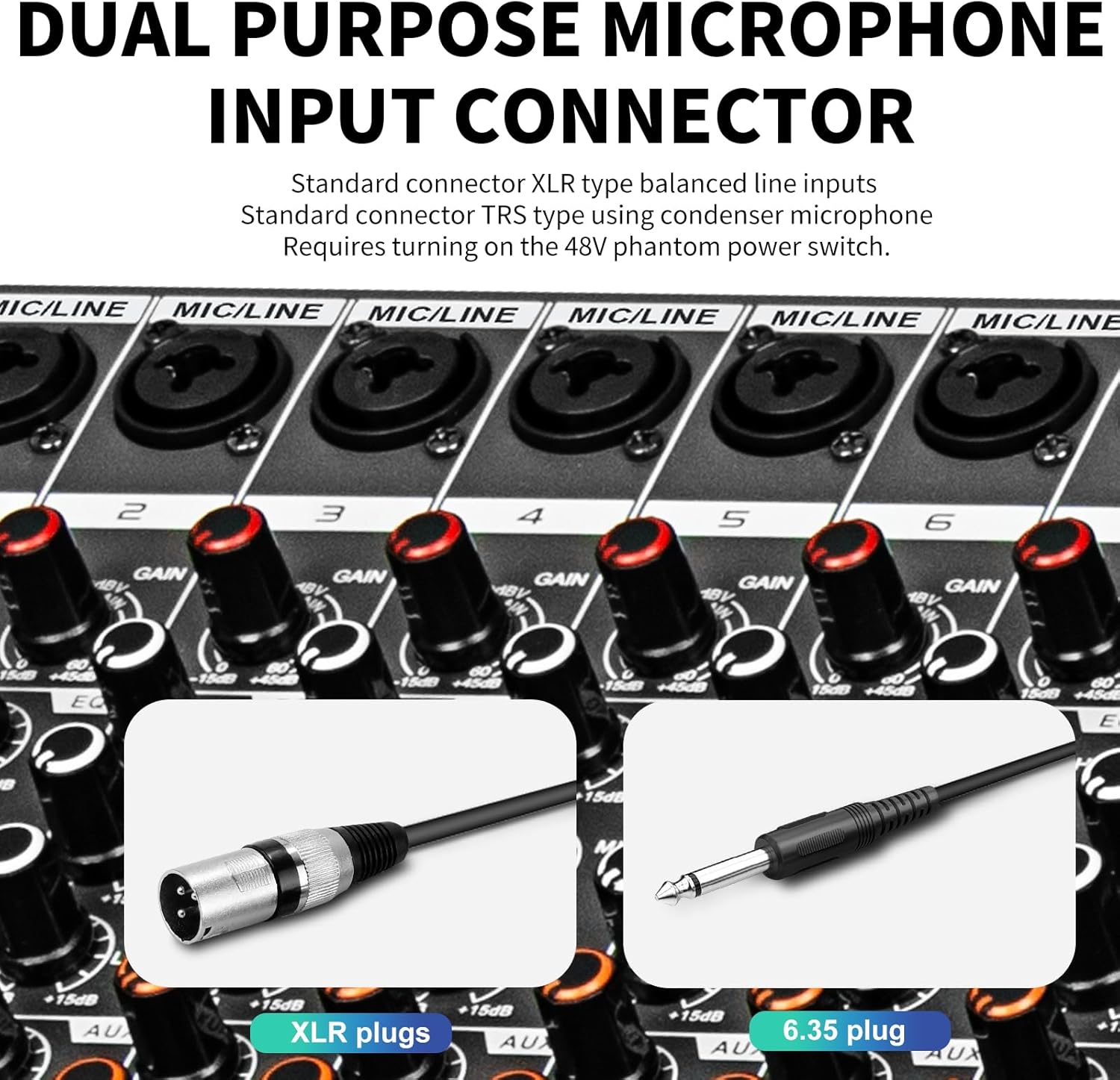
Figure 10: Physical dimensions of the Depusheng MX16 mixer.
7. Warranty and Support
For warranty information, technical support, or service inquiries, please contact Depusheng customer service through the official channels provided at the point of purchase or on the Depusheng brand website. Please have your model number (US MX16) and purchase details ready when contacting support.
8. Applications
The Depusheng MX16 mixer is versatile and suitable for various professional and semi-professional audio environments:
- KTV private rooms
- Recording studios
- Broadcasting rooms
- Conference projects
- Professional stage performances
- Live broadcasts
- Wedding performances
- Other occasions requiring multi-channel audio mixing

Figure 11: Examples of the mixer's use in settings such as weddings, parties, conferences, and professional stages.
Ask a question about this manual
Ask about setup, troubleshooting, compatibility, parts, safety, or missing instructions. Manuals+ will review the question and use this page’s manual context to help answer it.