
1. Product Overview
The IINE Switch Pro Controller is a versatile wireless gamepad designed for a superior gaming experience across multiple platforms. It features advanced Hall Effect joysticks and triggers to prevent drift, ensuring precision and durability. This controller supports wireless connectivity via Bluetooth 5.0 and can also be used in wired mode. Key features include NFC functionality, motion sensing, macro programming, adjustable rumble, and a convenient wake-up function.

Image 1.1: Front view of the IINE Switch Pro Controller, highlighting Hall Effect, NFC, Headset Jack, and Custom Button Mapping features.
2. Setup and Connection
2.1 Charging the Controller
Before initial use, fully charge the controller. Connect the included USB-C cable to the controller's charging port and the other end to a power source (e.g., console, PC, or USB wall adapter). The controller features a 1000mAh battery, providing approximately 15 hours of gameplay on a full charge. Charging typically takes 2-3 hours.

Image 2.1: Illustration of the controller's 1000mAh battery, 15 hours runtime, and 2-3 hours charging time.
2.2 Wireless Pairing
The controller supports wireless connection via Bluetooth 5.0 to Nintendo Switch, PC, Android, and iOS devices.
- Select Platform: Use the 'Easy-Switch Button' located on the back of the controller to select the desired platform (NS, Android, iOS, PC).
- Enter Pairing Mode: Press and hold the 'Pairing Button' (small button next to the Easy-Switch) for 3 seconds until the indicator lights flash rapidly.
- Connect on Device:
- Nintendo Switch: Go to 'Controllers' > 'Change Grip/Order' on the HOME Menu.
- PC: Go to Bluetooth settings and select 'Add device'.
- Android/iOS: Go to Bluetooth settings and select the controller from the available devices.
- Confirm Connection: Once connected, the indicator light(s) on the controller will become solid.

Image 2.2: Location of the Easy-Switch button for platform selection and the Pairing button for initiating Bluetooth connection.
2.3 Wired Connection
For a wired connection, simply connect the controller to your device using a USB-C cable. For Nintendo Switch, a wired connection is required to use the 3.5mm headset port.

Image 2.3: The 3.5mm headset port is functional only when the controller is wired to a Nintendo Switch console.
3. Operating Instructions
3.1 Hall Effect Joysticks and Triggers
The controller is equipped with Hall Effect joysticks and triggers, designed to provide precise input and eliminate stick drift over time. The analog triggers offer adjustable sensitivity for different game genres.
- Adjustable Triggers: Use the physical switches on the back of the controller to toggle between 'Short Gear' (quick response for shooting games) and 'Long Gear' (gradual input for racing games).
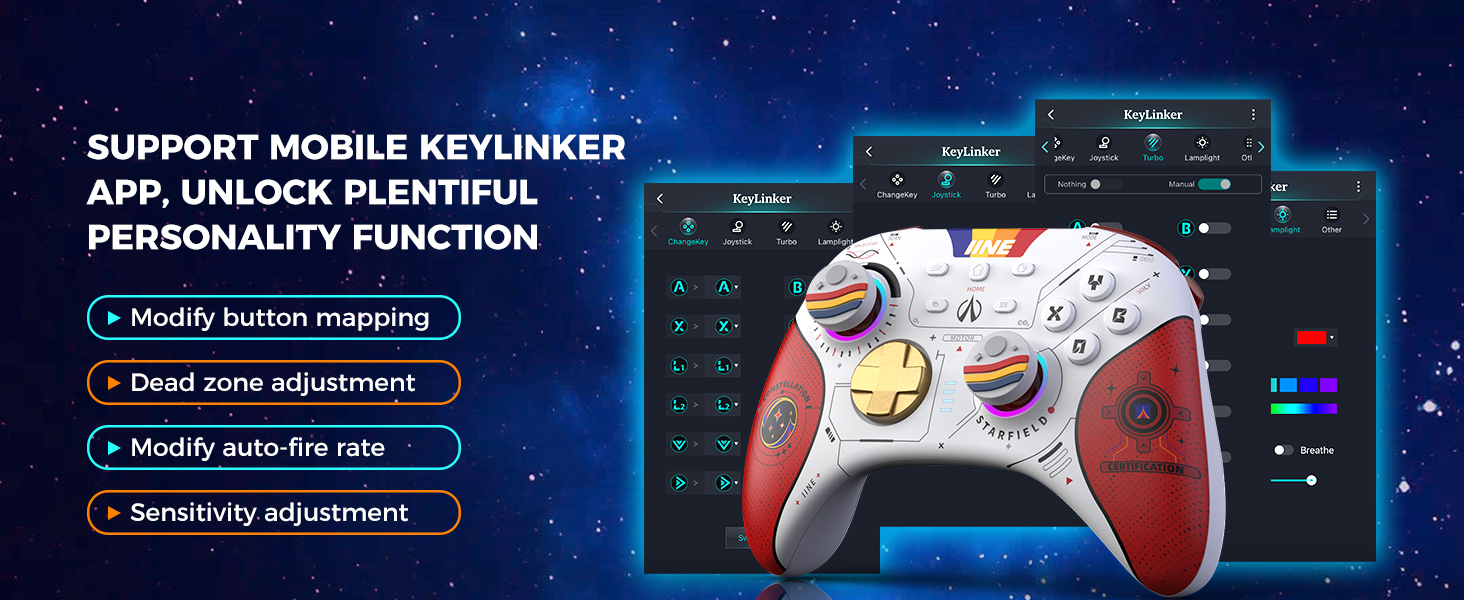
Image 3.1: Adjustable trigger settings for 'Short Gear' (shooting games) and 'Long Gear' (racing games).
3.2 Macro Programming
The controller features two programmable back buttons, MR and ML, allowing you to assign complex sequences or single button presses for quick execution.
- Enter Programming Mode: Press and hold the 'Macro' button (usually a small button near MR/ML) until the indicator light changes.
- Record Macro: Press the MR or ML button, then input the desired button sequence.
- Save Macro: Press the 'Macro' button again to save and exit programming mode.

Image 3.2: Back buttons MR and ML for macro programming, enabling functions like one-button zoom, sprint, or combos.
3.3 NFC Functionality
The controller supports NFC (Near Field Communication) for compatible devices, such as scanning Amiibo figures on Nintendo Switch.

Image 3.3: The controller's NFC function allows interaction with compatible devices and accessories.
3.4 Motion Sensing (6-axis Gyro)
The integrated 6-axis gyroscope provides precise motion control for games that support this feature, enhancing immersion and gameplay.

Image 3.4: The 6-axis gyroscope enables motion control for compatible games on platforms like Nintendo Switch.
3.5 Adjustable Rumble
Customize your gaming feedback with four levels of adjustable rumble vibration. This allows you to tailor the intensity of haptic feedback to your preference for different in-game events like collisions, explosions, or fighting.

Image 3.5: Visual representation of the four adjustable rumble levels (0, 30, 70, 100) for various in-game effects.
3.6 Wake-up Function
When connected to a Nintendo Switch console, you can press the HOME button on the controller to wake up the console from sleep mode.

Image 3.6: The HOME button can be used to wake up Nintendo Switch, Switch Lite, and Switch OLED consoles.
3.7 Keylinker APP Support
For advanced customization, download the Keylinker mobile application. This app allows you to:
- Modify button mapping.
- Adjust joystick dead zones.
- Modify auto-fire rates.
- Adjust sensitivity settings.

Image 3.7: Screenshots of the Keylinker app demonstrating options for button remapping, dead zone, auto-fire, and sensitivity adjustments.
4. Maintenance
4.1 Cleaning
To clean the controller, use a soft, dry cloth. For stubborn dirt, a slightly damp cloth with mild soap can be used, ensuring no liquid enters the controller's openings. Avoid harsh chemicals or abrasive materials.
4.2 Storage
Store the controller in a cool, dry place away from direct sunlight and extreme temperatures. The controller comes with a protective carrying case, which is recommended for storage and transport to prevent damage.

Image 4.1: The included storage bag provides full protection for the controller with shockproof layers and a soft lining.
5. Troubleshooting
5.1 Controller Not Connecting/Pairing
- Ensure the controller is charged.
- Verify the correct platform is selected using the 'Easy-Switch Button'.
- Make sure the controller is in pairing mode (indicator lights flashing rapidly).
- Disable and re-enable Bluetooth on your device.
- Try connecting the controller via USB-C cable to confirm functionality.
- If connecting to PC, ensure you have the latest Bluetooth drivers installed.
5.2 Input Lag or Disconnections
- Ensure the controller is within 10 meters of the connected device.
- Minimize interference from other wireless devices.
- Ensure the controller's battery is not low.
- Consider using a wired connection if wireless performance is consistently poor.
5.3 Buttons or Joysticks Not Responding
- Restart the controller and attempt to reconnect.
- Check for any physical obstructions or debris around the buttons/joysticks.
- Perform a factory reset if available (refer to the Keylinker APP or manufacturer's website for specific instructions).
6. Specifications
| Model Number | B0CLYF3WF7 |
| Brand | IINE |
| Compatible Devices | Nintendo Switch, PC, Android, Mac, Tablet, Phone |
| Connectivity Technology | Wireless (Bluetooth 5.0), Wired (USB-C) |
| Special Features | Hall Effect Joysticks, Hall Effect Triggers, NFC, Motion Sense (6-axis Gyro), Macro Programming, Adjustable Rumble (4 levels), Wake-up Function, Turbo Auto-Fire, 3.5mm Headset Port |
| Battery Capacity | 1000mAh |
| Battery Life | Approx. 15 hours |
| Charging Time | Approx. 2-3 hours |
| Manufacturer | WEUTOP |
7. Warranty and Support
For warranty information and technical support, please refer to the official IINE website or contact the retailer where the product was purchased. Keep your proof of purchase for warranty claims.