1. Introduction
This user manual provides essential information for setting up, operating, and maintaining your HUAWEI 4G CPE 3 Router. Please read this manual carefully before using the device to ensure proper and safe operation. This router provides high-speed internet access via 4G LTE and Wi-Fi connectivity for multiple devices.
2. Safety Information
Always observe the following safety precautions to avoid injury or damage to the device:
- Use only the original power adapter provided with the device.
- Do not expose the device to extreme temperatures, direct sunlight, or high humidity.
- Keep the device away from water and other liquids.
- Do not attempt to disassemble or repair the device yourself. Contact authorized service personnel for assistance.
- Ensure proper ventilation around the device to prevent overheating.
3. Package Contents
Verify that your package contains the following items:
- HUAWEI 4G CPE 3 Router (B535-333)
- Power Adapter
- Ethernet Cable
- Quick Start Guide
- Warranty Card
4. Product Overview
Familiarize yourself with the router's components and indicators.
Front Panel

Image: Front view of the HUAWEI 4G CPE 3 Router, showing the indicator lights for power, network status, Wi-Fi, and signal strength.
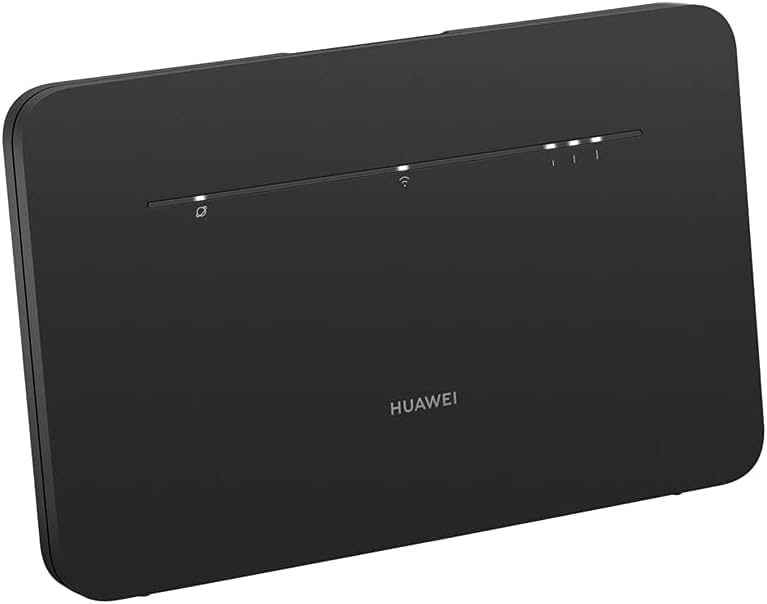
Image: Angled view of the HUAWEI 4G CPE 3 Router, providing a better perspective of its compact design and indicator lights.
- Power Indicator: Indicates the power status.
- Network Status Indicator: Shows the network connection status (e.g., 4G, 3G, no service).
- Wi-Fi Indicator: Shows the Wi-Fi status.
- Signal Strength Indicators: Displays the strength of the cellular signal.
Rear Panel (Ports)
- Power Port: Connects to the power adapter.
- LAN/WAN Port: Connects to a computer or other network device, or to an external modem.
- LAN Ports: Connects to computers or other network devices.
- External Antenna Ports: For connecting optional external antennas to improve signal reception.
- Reset Button: Used to restore factory settings.
- SIM Card Slot: Insert your 4G SIM card here.

Image: Side view of the HUAWEI 4G CPE 3 Router, illustrating its slim profile and the detachable stand for vertical placement.
5. Setup
5.1. SIM Card Installation
- Ensure the router is powered off.
- Locate the SIM card slot on the router.
- Insert a standard Nano-SIM card into the slot with the gold contacts facing down and the notched corner aligned correctly. Push until it clicks into place.
5.2. Power Connection
- Connect the power adapter to the router's power port.
- Plug the other end of the power adapter into a wall outlet.
- The router will automatically power on. Wait for the indicator lights to stabilize.
5.3. Initial Configuration
- Connect to the Router:
- Via Wi-Fi: On your computer or smartphone, search for the Wi-Fi network name (SSID) printed on the label at the bottom of the router. Connect to it using the Wi-Fi password (Key) also found on the label.
- Via Ethernet: Connect one end of an Ethernet cable to a LAN port on the router and the other end to your computer's Ethernet port.
- Access the Web Management Page: Open a web browser (e.g., Chrome, Firefox) and enter the default IP address
192.168.8.1in the address bar. - Log In: Enter the default username
adminand passwordadmin(or as printed on the router's label). - Follow Setup Wizard: The first time you log in, a setup wizard may guide you through basic settings like changing the Wi-Fi name and password, and setting up the administrator password. It is highly recommended to change the default administrator password for security.
6. Operating
6.1. Connecting Devices
You can connect devices to your router via Wi-Fi or Ethernet cable.
- Wi-Fi Connection: On your device, select the router's Wi-Fi network (SSID) and enter the Wi-Fi password. The router supports both 2.4GHz and 5GHz Wi-Fi bands for optimal performance.
- Ethernet Connection: For wired devices like desktop computers, smart TVs, or gaming consoles, connect an Ethernet cable from the device to any available LAN port on the router.

Image: HUAWEI 4G CPE 3 Router depicted with a diagram showing Wi-Fi signal coverage across different rooms, highlighting both 2.4GHz and 5GHz bands.
6.2. Managing Settings
Access the web management page (192.168.8.1) to configure advanced settings:
- Network Settings: Configure APN settings, network mode (4G only, 3G only, auto), and roaming options.
- Wi-Fi Settings: Change SSID, password, security type (WPA2-PSK recommended), and enable/disable guest Wi-Fi.
- Security: Set up firewall rules, MAC filtering, and parental controls.
- System: Manage user accounts, update firmware, and view system logs.
6.3. Indicator Lights
| Indicator | Status | Description |
|---|---|---|
| Power | Solid White | Device is powered on. |
| Off | Device is powered off. | |
| Network Status | Solid White | Connected to 4G/3G network. |
| Solid Red | No SIM card, invalid SIM, or no network service. | |
| Wi-Fi | Solid White | Wi-Fi is enabled. |
| Off | Wi-Fi is disabled. | |
| Signal Strength | Multiple Bars White | Indicates cellular signal strength (more bars = stronger signal). |
7. Maintenance
7.1. Firmware Updates
Regularly check for firmware updates via the web management page (System > Firmware Update). Keeping your firmware up-to-date ensures optimal performance, security, and access to new features.
7.2. Resetting the Device
If the router is not functioning correctly, you can perform a factory reset:
- With the router powered on, use a sharp object (e.g., a paperclip) to press and hold the Reset button for approximately 5-10 seconds until all indicators flash.
- Release the button. The router will restart with factory default settings.
Note: A factory reset will erase all custom configurations, including Wi-Fi name, password, and administrator password.
7.3. Cleaning
Use a soft, dry cloth to clean the router's exterior. Do not use liquid cleaners or aerosols.
8. Troubleshooting
Here are solutions to common issues you might encounter:
- No Internet Connection:
- Check if the SIM card is inserted correctly and activated.
- Verify the Network Status Indicator is white. If red, check SIM or network coverage.
- Ensure APN settings are correct in the web management page.
- Restart the router.
- Slow Internet Speed:
- Check signal strength indicators; relocate the router for better signal.
- Reduce the number of connected devices or bandwidth-intensive activities.
- Ensure no obstacles are blocking Wi-Fi signals.
- Cannot Access Web Management Page:
- Ensure your device is connected to the router's Wi-Fi or via Ethernet.
- Verify you are entering the correct IP address (
192.168.8.1). - Try a different web browser.
- Temporarily disable firewall or antivirus software on your computer.
- Forgot Wi-Fi Password or Administrator Password:
- Perform a factory reset (refer to Section 7.2). This will revert all settings to default, including passwords.
9. Specifications
| Feature | Description |
|---|---|
| Model Name | HUAWEI B535-333 |
| Brand | HUAWEI |
| Color | Black |
| Operating System | Huawei proprietary OS |
| Connectivity Technology | Wi-Fi, 4G LTE |
| Wireless Communication Standard | 802.11ac (Wi-Fi 5) |
| Frequency Band Class | Dual-Band (2.4GHz & 5GHz) |
| Security Protocol | WPA2-PSK |
| Compatible Devices | PC, smartphone, tablet, game console, Smart TV |
| Recommended Use | Provides Internet access for multiple devices, supports VOIP services |
10. Warranty and Support
For warranty information and technical support, please refer to the warranty card included in your package or visit the official HUAWEI support website. Keep your purchase receipt as proof of purchase for warranty claims.
Online Support: Visit the official HUAWEI support website for FAQs, troubleshooting guides, and software downloads.
Customer Service: Contact HUAWEI customer service for further assistance if issues persist.


