
Introduction
This user manual provides comprehensive instructions for the setup, operation, maintenance, and troubleshooting of your Fanvil W610W Portable WiFi Phone. Please read this manual carefully before using the device to ensure proper functionality and to avoid damage.
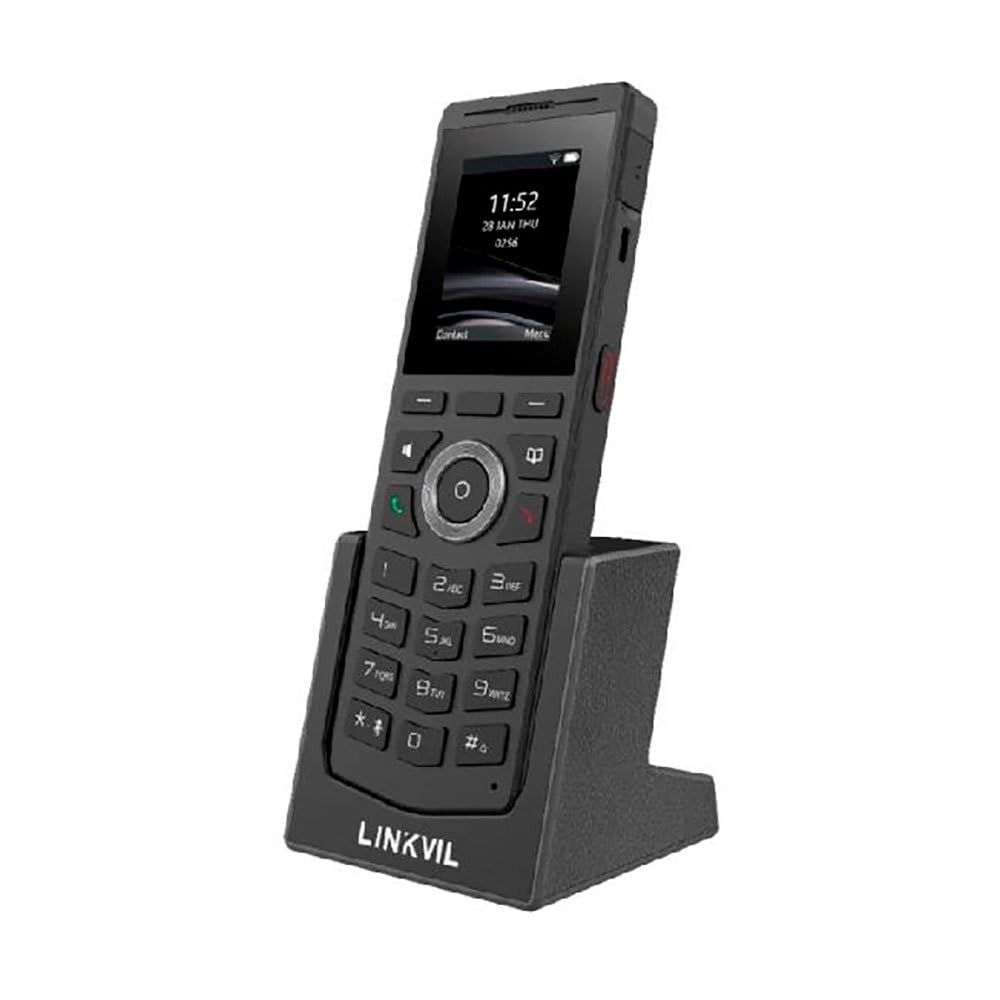
Figure 1: Fanvil W610W Portable WiFi Phone with charging cradle.
The image displays the Fanvil W610W phone, a sleek black device with a color screen showing the time (11:52) and date (23 JAN THU). Below the screen is a standard phone keypad with numerical buttons and navigation keys. The phone is seated in a matching black charging cradle, which has "LINKVIL" embossed on its front base.
The Fanvil W610W is a robust and portable WiFi phone designed for professional environments, offering reliable communication with advanced features such as dual-band Wi-Fi, Bluetooth 5.0, and support for multiple SIP lines.
Package Contents
- Fanvil W610W Portable WiFi Phone
- Charging Cradle
- Power Adapter
- Rechargeable Battery (may be pre-installed)
- Quick Start Guide (if applicable)
Setup
1. Battery Installation and Charging
- Locate the battery compartment on the back of the phone.
- Insert the provided 1900mAh rechargeable battery, ensuring correct polarity.
- Close the battery compartment cover securely.
- Place the phone into the charging cradle.
- Connect the power adapter to the charging cradle and then to a power outlet.
- Allow the phone to charge fully before first use (approximately 4 hours). The battery indicator on the screen will show charging status.
2. Initial Power On
Press and hold the Power button (usually on the side or top) until the screen illuminates.
3. Network Configuration (Wi-Fi)
- Navigate to Settings > Network > Wi-Fi.
- Enable Wi-Fi. The phone will scan for available networks.
- Select your desired 2.4GHz or 5GHz Wi-Fi network from the list.
- Enter the Wi-Fi password if prompted.
- Confirm connection. The Wi-Fi icon will appear on the status bar.
4. SIP Account Registration
The Fanvil W610W supports up to 4 SIP lines. Configuration typically requires details from your VoIP service provider or PBX administrator.
- Navigate to Settings > Accounts > SIP Account.
- Select an available account slot.
- Enter the following information provided by your administrator:
- Account Name
- SIP Server Address
- SIP User ID
- Authentication Username
- Authentication Password
- Save the settings. The account status icon should indicate successful registration.
Operating Instructions
Making Calls
- Dialing: Enter the phone number using the keypad and press the Call button.
- From Contacts: Navigate to Contacts, select a contact, and press the Call button.
- Redial: Press the Call button to access the call history and select a number to redial.
Receiving Calls
When an incoming call rings, press the Call button to answer. To reject, press the End Call button.
Call Features
- Hold: During a call, press the Hold soft key.
- Transfer: During a call, press the Transfer soft key, dial the new number, and press Transfer again.
- Conference: During a call, press the Conf soft key, dial the second party, and then press Conf again to join all parties.
- Mute: Press the Mute button to mute your microphone during a call.
- Push-to-Talk (PTT): Utilize the dedicated PTT button for one-key calling in supported environments.
Bluetooth Headset Pairing
The W610W supports Bluetooth 5.0 for wireless headsets.
- Navigate to Settings > Bluetooth.
- Enable Bluetooth.
- Put your Bluetooth headset into pairing mode.
- Select your headset from the list of available devices and confirm pairing.
Maintenance
Cleaning
- Use a soft, dry, lint-free cloth to clean the phone and screen.
- Do not use liquid cleaners, aerosols, or abrasive materials.
Battery Care
- Charge the battery regularly to maintain optimal performance.
- Avoid extreme temperatures, which can reduce battery life.
- If the phone will not be used for an extended period, charge it to about 50% and store it in a cool, dry place.
Firmware Updates
Periodically check for firmware updates to ensure your phone has the latest features and security enhancements. Updates can typically be performed via the phone's web interface or through your system administrator.
Troubleshooting
| Problem | Possible Cause | Solution |
|---|---|---|
| Phone does not power on. | Low or depleted battery; faulty battery; power adapter issue. | Ensure battery is charged. Check power adapter connection. Try a different power outlet. |
| Cannot connect to Wi-Fi. | Incorrect password; out of range; Wi-Fi network issues. | Verify Wi-Fi password. Move closer to the access point. Restart router/access point. |
| Cannot make or receive calls. | SIP account not registered; network connectivity issues; incorrect SIP settings. | Check SIP account status (should be registered). Verify network connection. Re-enter SIP account details. Contact your VoIP administrator. |
| Poor call quality (echo, static). | Weak Wi-Fi signal; network congestion; headset issues. | Improve Wi-Fi signal strength. Reduce network traffic. Test with a different headset or without one. |
Specifications
- Model: W610W
- Dimensions: 5.91 x 5.91 x 3.15 inches
- Weight: 15.1 ounces (0.43 Kilograms)
- Display: 2" Color Screen
- Connectivity: Dual-Band Wi-Fi (2.4GHz/5GHz), Bluetooth 5.0
- SIP Lines: Supports 4 SIP lines
- Battery: 1900mAh rechargeable battery
- Talk Time: Up to 9 hours
- Standby Time: Up to 200 hours
- Drop Safe: From 1.8 meters
- Features: 16 DSS keys, PTT one-key calling, Roaming protocols (802.11k/v/r), HD voice, Multilingual UI, Voicemail, Enhanced call features.
- Power Source: Battery Powered
- Color: Black
- Manufacturer: Fanvil
- First Available: October 26, 2023
Warranty Information
Fanvil products typically come with a standard manufacturer's warranty. For specific warranty terms and conditions, please refer to the warranty card included with your product or visit the official Fanvil website. Keep your purchase receipt as proof of purchase for warranty claims.
Support
For technical assistance, troubleshooting beyond this manual, or warranty inquiries, please contact your product vendor or Fanvil customer support. You may find contact information on the Fanvil official website or in your product packaging.
Online Resources:
- Fanvil Official Website: www.fanvil.com (Example link, actual link may vary)
- Product Support Pages: Refer to the support section on the Fanvil website for firmware, FAQs, and additional documentation.


