
1. Introduction
This manual provides detailed instructions for the installation, operation, and maintenance of your EKAT Car Radio. This unit is designed for Mercedes Benz Smart Fortwo models from 2005 to 2010. Please read this manual thoroughly before installation and use to ensure proper function and safety.
Key Features:
- 9-inch Android 13 Touch Screen
- 2GB RAM + 64GB ROM
- Wireless/Wired CarPlay & Android Auto
- Bluetooth 5.1 for Hands-Free Calling and Audio Streaming
- Built-in GPS Navigation
- WiFi Hotspot Connectivity
- AHD Backup Camera Support
- Steering Wheel Control Compatibility
- FM RDS Radio and EQ Audio Settings
- Split Screen Functionality
2. Safety Information
- Always ensure the vehicle is parked and the engine is off before performing any installation or wiring.
- Professional installation is recommended to avoid damage to the unit or vehicle.
- Do not operate the device in a way that distracts you from driving.
- Keep the unit away from water and excessive heat.
- Use only specified power cables and accessories.
3. Package Contents
Verify that all items listed below are included in your package:
- EKAT Car Radio Unit
- Power Cable
- 2* USB Cables
- GPS Antenna
- RCA Cable
- Radio Antenna
- Microphone (MIC)
- AHD Camera
- Camera Input Cable
- Antenna Adapter
- Installation Accessories (brackets, screws)

Figure 3.1: Included Package Contents
4. Setup and Installation
This unit is designed for plug-and-play installation for Mercedes Benz Smart Fortwo models (2005-2010). However, professional installation is highly recommended.
4.1 Pre-Installation Check
- Before purchasing and installation, verify your car model, year, and the shape of the center console.
- Ensure the vehicle's electrical system is disconnected before starting installation.

Figure 4.1: Before and After Installation Example
4.2 Wiring Connections
Connect the provided wiring harness to your vehicle's existing wiring. Ensure all connections are secure.
4.2.1 Backup Camera Wiring
To connect the AHD backup camera:
- Connect the Red Cable (1) to the positive pole of the car's reversing light cable.
- Connect the Black Cable (2) to the negative pole of the car's reversing light cable.
- The other two red extension cables (3) and (4) do not need to be connected for standard operation.
Tip: The reversing input must be plugged in even when the reversing camera is not used.

Figure 4.2: Backup Camera Wiring Diagram
4.3 Steering Wheel Control Setup
After physical installation, you need to configure the steering wheel controls:
- Navigate to Settings on the car radio.
- Go to Factory Setup and enter the password 1234.
- Select Party Control Learning (or similar option for steering wheel learning).
- Follow the on-screen instructions to assign functions to your steering wheel buttons.

Figure 4.3: Steering Wheel Control Learning Interface
5. Operating Instructions
5.1 Android 13 System & Display
The unit runs on the Android 13 operating system with a 4-core CPU, 2GB RAM, and 64GB ROM. The 9-inch 2.5D tempered glass screen provides a 1080P HD display for clear visuals.

Figure 5.1: Android 13 System Interface
5.2 CarPlay & Android Auto
Connect your smartphone via Wireless or Wired CarPlay/Android Auto using the "Speed-pla APP". This allows access to navigation, phone contacts, email, notifications, and music. Use voice assistants for calls, navigation, and music playback.
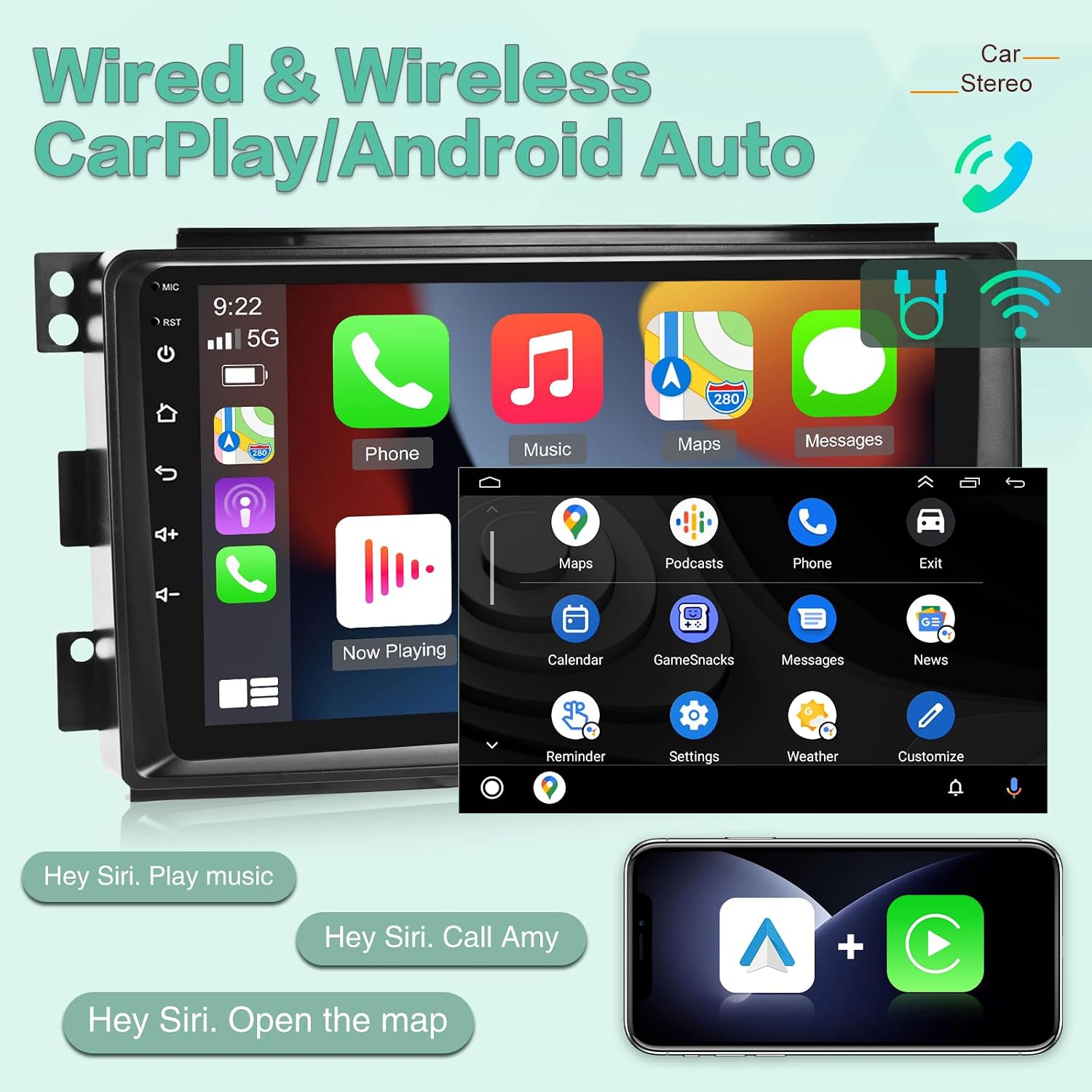
Figure 5.2: CarPlay & Android Auto Interface
5.3 GPS Navigation
The unit includes built-in GPS navigation, supporting both online and offline maps. Ensure the GPS antenna is properly connected for optimal performance.
5.4 WiFi Hotspot Connectivity
Connect to a WiFi network or your phone's hotspot to access online features, download apps from the Play Store (e.g., YouTube, TikTok, Spotify), and browse the internet.
5.5 Bluetooth 5.1
Utilize Bluetooth 5.1 for hands-free calling and wireless audio streaming from your smartphone. Pair your device through the Bluetooth settings menu on the car radio.
5.6 FM RDS Radio
Tune into FM radio stations and receive RDS (Radio Data System) information, which can include station names, song titles, and traffic news.
5.7 EQ Audio Settings
Adjust the equalizer (EQ) settings to customize the audio output to your preference, enhancing the sound quality for various music genres.
5.8 Split Screen Functionality
Use the split-screen feature to run two applications simultaneously, such as navigation and music playback, for enhanced multitasking.

Figure 5.3: FM RDS Radio, Split Screen, and Steering Wheel Control Features
5.9 AHD Backup Camera Display
When the vehicle is in reverse, the display automatically switches to the AHD backup camera view, providing assistance for safe parking and reversing.
5.10 Mirror Link
Mirror Link allows you to display your smartphone's screen directly onto the car radio's display, enabling access to your phone's apps and content.

Figure 5.4: Mirror Link and Display Specifications
6. Maintenance
- Clean the screen with a soft, dry cloth. Avoid abrasive cleaners.
- Keep the unit free from dust and debris.
- Ensure proper ventilation around the unit to prevent overheating.
- Regularly check wiring connections for security.
7. Troubleshooting
| Problem | Possible Cause | Solution |
|---|---|---|
| Unit does not power on. | Incorrect wiring, blown fuse, power supply issue. | Check power cable connections. Verify vehicle fuse. Consult a professional for wiring inspection. |
| No sound or poor sound quality. | Speaker wiring issues, volume too low, incorrect audio settings. | Check speaker connections. Adjust volume and EQ settings. Ensure correct audio output is selected. |
| Steering wheel controls not working. | Not configured, incorrect wiring. | Perform steering wheel control learning as described in Section 4.3. Check wiring harness. |
| Backup camera not displaying. | Camera not connected, incorrect wiring, camera fault. | Ensure camera and reversing input cables are correctly connected (Section 4.2.1). Test camera functionality. |
| CarPlay/Android Auto not connecting. | Incorrect app, cable issue, phone settings. | Ensure "Speed-pla APP" is used. Try a different USB cable. Check phone's CarPlay/Android Auto settings. |
8. Specifications
| Brand | EKAT |
| Model Number | b1841fc3-1e7f-458b-8a8f-f2b6e1b25e2f |
| Operating System | Android 13 |
| Display Size | 9 Inches |
| Display Type | 2.5D Tempered Glass, 1080P HD Touch Screen |
| Memory (RAM+ROM) | 2GB RAM + 64GB ROM |
| Connectivity Technology | Bluetooth 5.1, WiFi |
| Compatible Devices | Smartphone (for CarPlay/Android Auto/Mirror Link) |
| Audio Output Mode | Stereo |
| Supported Internet Services | YouTube, TikTok, Spotify (via Play Store) |
| Video Encoding | H.264, H.265/HEVC |
| Item Weight | 1.27 kg |
9. Warranty and Support
EKAT provides the following support and warranty for this product:
- 2-Year Warranty: The product comes with a 2-year warranty from the date of purchase.
- 30-Day Money Back Service: If you are not satisfied with the product, you may be eligible for a refund within 30 days of purchase.
- Technical Support: 7*24 hours of after-sales technical support is available.
For any inquiries, technical assistance, or warranty claims, please contact EKAT customer service via your Amazon Order or through the EKAT Store page on Amazon.

Figure 9.1: Warranty and Support Information