
Product Overview
The Hikity 1 Din Car Stereo is a versatile in-car entertainment system featuring a 6.9-inch HD touchscreen. It integrates modern connectivity options such as wired Apple CarPlay and Android Auto, Bluetooth 5.0, and Mirror Link functionality. The unit also includes an FM radio tuner, multi-band equalizer, support for steering wheel controls, and a dedicated input for a rear view camera.

Image: Front view of the Hikity 1 Din Car Stereo with its 6.9-inch touchscreen display.
Key Features:
- 6.9-inch HD Touch Screen: Provides a clear and vivid display with a resolution of 1280 x 480 pixels.
- Wired Apple CarPlay & Android Auto: Seamlessly connect your smartphone via USB for navigation, music, calls, and more.
- Bluetooth 5.0: For stable hands-free calling and wireless audio streaming.
- Mirror Link Function: Display your phone's screen content directly on the car stereo via USB cable.
- FM Radio Tuner: Access preset stations for music, news, and weather broadcasts.
- Multi-band EQ: Customize audio output with various sound effect adjustments.
- Steering Wheel Control (SWC) Support: Control essential functions directly from your vehicle's steering wheel.
- HD Rear Camera Input: Automatically displays the rear view when reversing (camera included).
- Dual USB Ports: For connectivity and charging.
Setup and Installation
Proper installation is crucial for the optimal performance of your Hikity car stereo. It is recommended to have this unit installed by a professional car audio technician.
Package Contents:
Before installation, verify that all components are present:
- Car MP5 Player (Main Unit)
- Power Cable
- Horn Cable
- Accessories (Mounting brackets, screws)
- Microphone (MIC)
- Remote Control
- User Manual
- Rear Camera (12LED)

Image: Product dimensions (187mm width, 70mm height, 80mm depth) and a visual list of included accessories: Horn Cable, Power Cable, Remote Control, User Manual, MIC, 12LED Rear Camera.
Installation Dimensions:
The installation dimensions for this 1 Din car stereo are approximately 187mm (Width) x 80mm (Depth) x 70mm (Height).

Image: Visual comparison showing the installation effect of the Hikity car stereo compared to a traditional car radio, highlighting the larger screen.
Wiring Diagrams:
Refer to the following diagrams for correct wiring connections. Incorrect wiring can damage the unit or your vehicle's electrical system.

Image: Main wiring diagram illustrating connections for front/rear speakers, auto antenna power, steering wheel controls (SW1, SW2), reverse input, illumination, ACC (ignition switch), B+ (constant power), and GND (ground).
Backup Camera Wiring:
Connect the included rear camera according to the diagram below. The pink wire (Reverse) should be connected to the vehicle's reverse light signal for automatic camera activation.

Image: Backup camera wiring diagram detailing the connection of the camera's power and video signal to the car stereo and the reverse light circuit.
Operating Instructions
Power On/Off:
- Press and hold the power button on the front panel to turn the unit on or off.
- A short press of the power button typically mutes/unmutes the audio.
Touchscreen Interface:
Navigate through menus and functions by tapping or swiping on the 6.9-inch HD touchscreen. The main menu provides access to various features like Radio, PhoneLink (CarPlay/Android Auto/Mirror Link), USB, AUX, Movie, BT (Bluetooth), and Setup.

Image: The car stereo's 1080P HD display showcasing the Bluetooth connection screen and a high-definition image.
Apple CarPlay / Android Auto:
Connect your iPhone or Android smartphone to the car stereo via a USB cable. The system will automatically launch Apple CarPlay or Android Auto, allowing you to access compatible apps, navigation, music, and voice assistants directly from the stereo's screen.
- Ensure your phone is unlocked and has CarPlay/Android Auto enabled.
- Use a high-quality USB data cable for stable connection.
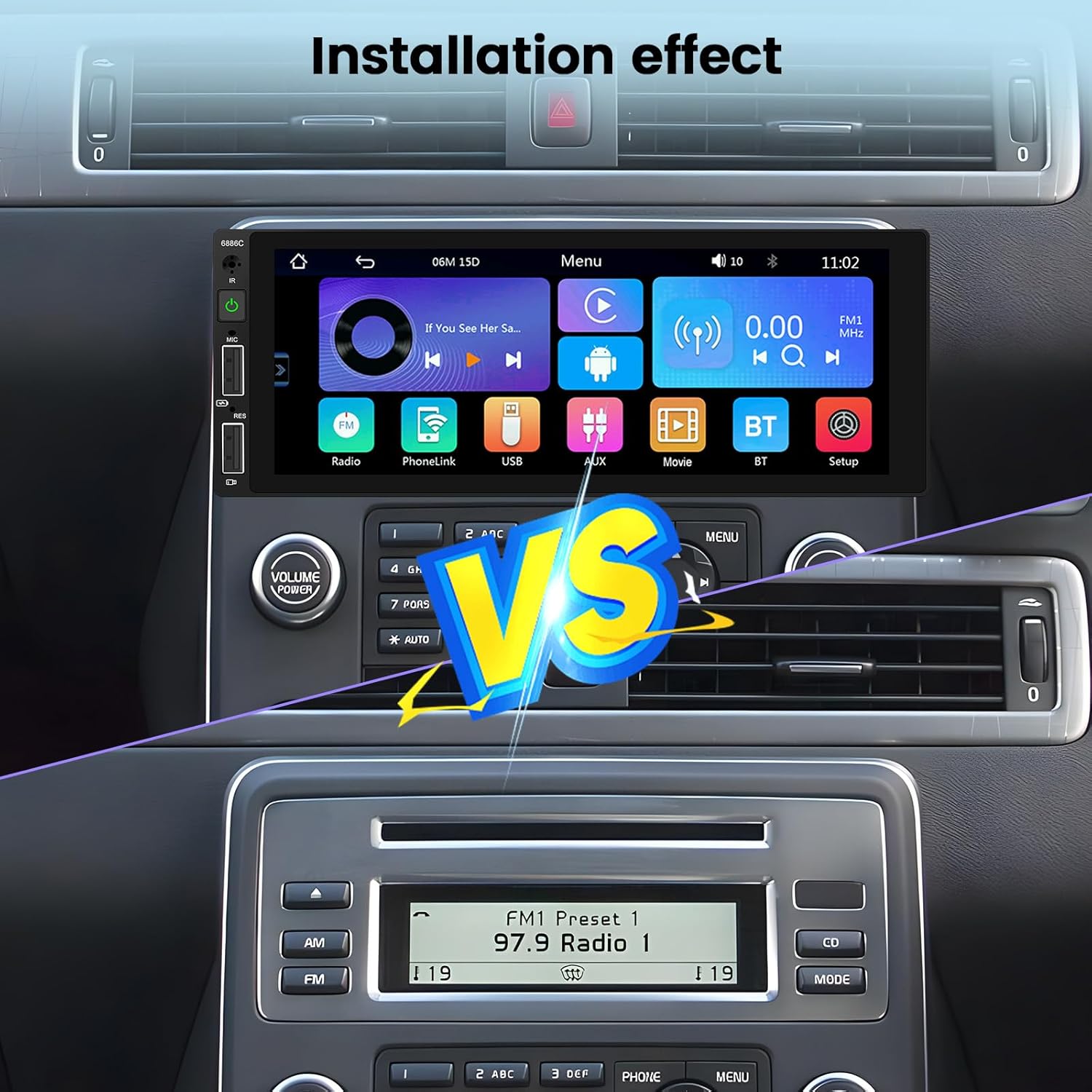
Image: The car stereo demonstrating wired CarPlay and Android Auto functionality, showing phone integration via USB.
Mirror Link:
Mirror Link allows you to display your smartphone's screen content on the car stereo. Connect your phone via USB cable and follow the on-screen prompts to activate Mirror Link. This feature is useful for displaying maps, videos, or other applications not natively supported by CarPlay/Android Auto.

Image: The car stereo displaying a mirrored navigation app from a smartphone, connected via USB for Mirror Link.
Bluetooth Connectivity:
Pair your smartphone with the car stereo via Bluetooth for hands-free calling and audio streaming.
- Go to the 'BT' or 'Bluetooth' menu on the car stereo.
- Enable Bluetooth on your smartphone and search for available devices.
- Select 'Hikity' or the device name displayed on the stereo.
- Confirm the pairing code if prompted.

Image: The car stereo interface showing Bluetooth call management (answer/hang up) and music playback, as well as the USB port for fast charging and data.
FM Radio:
Access the 'Radio' function from the main menu. You can manually tune to stations or use the auto-scan feature to find and save available stations.
Equalizer (EQ) Settings:
Customize your audio experience by adjusting the equalizer settings. Access the EQ menu through 'Setup' or 'Sound Setup'. You can select from preset modes (e.g., Jazz, Classic, Pop) or manually adjust frequency bands for a personalized sound.

Image: The car stereo interface displaying the FM radio tuner with preset stations and the multi-band equalizer for sound customization.
Steering Wheel Control (SWC):
If your vehicle supports steering wheel controls, you can configure them to operate the car stereo. This requires a learning process within the stereo's settings.
- Go to 'Settings' > 'Steering Wheel Control' or 'Wheel' in the menu.
- Follow the on-screen instructions to assign functions to your vehicle's steering wheel buttons. This typically involves pressing a button on the steering wheel and then selecting the corresponding function on the stereo's screen.

Image: The car stereo displaying the backup camera view and the interface for setting up steering wheel controls.

Image: A detailed view of the steering wheel control setup screen, with a note emphasizing the need to complete the button learning process for functionality.
Rear Camera:
When the vehicle is shifted into reverse gear, the car stereo will automatically display the feed from the connected rear camera. The camera provides a 140° wide-angle view with HD night vision capabilities.
Adjustable Button Colors:
You can customize the color of the physical buttons on the car stereo to match your vehicle's interior lighting or personal preference. This setting is typically found in the 'Display Settings' or 'Setup' menu.

Image: Visual representation of the car stereo's buttons with different color options, demonstrating the customizable button backlighting.
Maintenance
To ensure the longevity and optimal performance of your Hikity car stereo, follow these maintenance guidelines:
- Cleaning the Screen: Use a soft, lint-free cloth to gently wipe the touchscreen. For stubborn smudges, slightly dampen the cloth with water or a screen-safe cleaner. Avoid abrasive materials or harsh chemicals.
- General Cleaning: Keep the unit free from dust and debris. Use a soft brush or compressed air to clean around buttons and ports.
- Avoid Extreme Temperatures: Do not expose the unit to extreme heat or cold for extended periods, as this can affect its electronic components.
- Cable Management: Ensure all cables are securely connected and not pinched or damaged.
Troubleshooting
If you encounter issues with your car stereo, refer to the following common troubleshooting steps:
No Power:
- Check all power connections (B+, ACC, GND) to ensure they are secure and correctly wired.
- Verify the vehicle's fuse for the car stereo.
- Ensure the ignition is on (ACC power).
No Sound:
- Check speaker wiring connections.
- Ensure the volume is not muted or set to zero.
- Verify the audio source (FM, USB, Bluetooth) is correctly selected.
CarPlay/Android Auto Not Connecting:
- Use an original or certified high-quality USB data cable.
- Ensure your smartphone's operating system is up to date.
- Restart both your phone and the car stereo.
- Check phone settings to ensure CarPlay/Android Auto is enabled.
Rear Camera Not Displaying:
- Verify the camera's power and video signal connections.
- Ensure the pink 'Reverse' wire is correctly connected to the vehicle's reverse light signal.
- Check if the camera itself is functioning.
Steering Wheel Controls Not Working:
- Ensure the SWC wires (SW1, SW2) are correctly connected.
- Perform the steering wheel button learning process in the stereo's settings.
If these steps do not resolve the issue, please contact Hikity customer support for further assistance.
Specifications
| Brand | Hikity |
| Model Number | 6886C |
| Screen Size | 6.9 Inches |
| Screen Resolution | 1280 x 480 |
| Connectivity Technology | Bluetooth, USB (Wired CarPlay/Android Auto/Mirror Link) |
| Bluetooth Version | 5.0 |
| Special Features | Android Auto, Apple CarPlay, Built-in Bluetooth, FM Tuner, Mirror Link, Rear Camera Input, Steering Wheel Control Support |
| Compatible Devices | Smartphones (iOS and Android) |
| Audio Output Mode | Stereo |
| Surround Sound Configuration | 2.0 |
| Video Encoding Support | MKV/RMVB/AVI/MP4/MDV etc. |
| Color | Black |
| Product Dimensions (D x W x H) | 80mm x 187mm x 70mm |
| Output Power | 45 Watts x 4 Channels |
| Control Method | Touchscreen, Remote Control, App (via connected smartphone) |
| Country of Origin | China |
Warranty and Support
Product Warranty:
This Hikity car stereo comes with a 12-month warranty from the date of purchase, covering manufacturing defects and malfunctions under normal use.
Customer Support:
Hikity provides lifetime online support for this product. If you have any questions, require technical assistance, or need to claim warranty service, please contact our support team. We aim to respond to all inquiries within 24 hours.
Contact Email: hikitysales@163.com
Please include your product model number (6886C) and a detailed description of your issue when contacting support to ensure a prompt resolution.