
GOJOHO 2GB RAM+32GB ROM
GOJOHO Car Stereo Head Unit User Manual
Model: 2GB RAM+32GB ROM for KIA K3 Cerato Forte (2013-2018)
Introduction
This manual provides comprehensive instructions for the installation, operation, and maintenance of your GOJOHO Car Stereo Head Unit. This unit features a 9-inch IPS touch screen, built-in DSP, Wireless Carplay, Android Auto, and GPS Navigation, designed for KIA K3 Cerato Forte models manufactured between 2013 and 2018. Please read this manual thoroughly before installation and use to ensure proper functionality and safety.

Image: Front view of the GOJOHO 9-inch Car Stereo Head Unit with its custom bezel for KIA K3 Cerato Forte.
Package Contents
Verify that all items listed below are included in your package:
- 1 × Android device (Head Unit)
- 1 × Plastic panel (Bezel)
- 1 × Main power cable
- 1 × RCA cable
- 1 × Astern input cable (Rear Camera Cable)
- 1 × GPS antenna
- 1 × Astern camera (Backup Camera)
- 2 × USB cables
- 1 × Radio cable adapter
- 1 × CANbus cable
- 1 × CANbus box
- 1 × User Manual
- 2 × Installation tools

Image: Visual representation of all included components in the GOJOHO car stereo package.
Compatibility
This head unit is compatible with KIA K3 Cerato Forte models from 2013 to 2018. It is crucial to verify your vehicle's existing radio and wiring harness before purchase and installation.
Important: If your car currently has a factory screen, or if the car CD player and power cord ports do not match the standard configuration shown in the incompatibility image, this equipment is not compatible. Please ensure your vehicle's interface matches the compatible configuration.
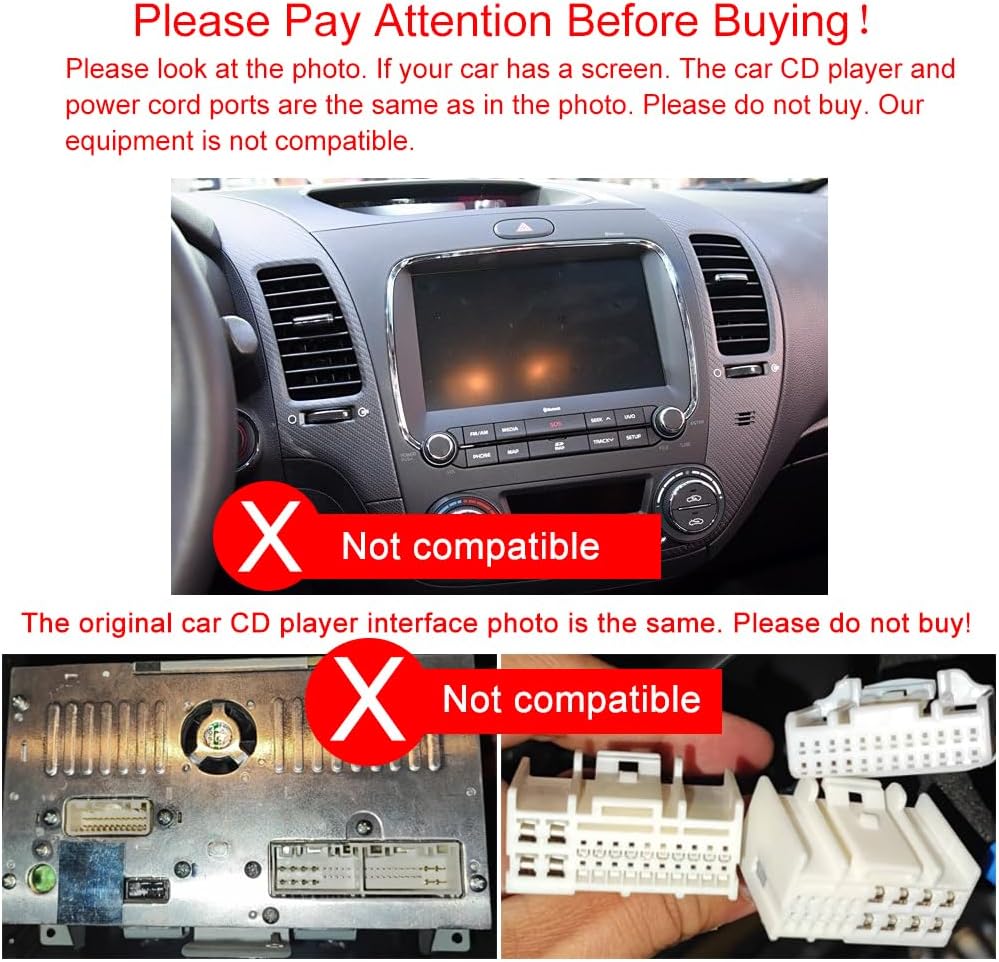
Image: Examples of incompatible car stereo setups, showing a factory screen and non-standard wiring ports.
Key Features
- Operating System: Android 13.0
- Memory: 2GB RAM + 32GB ROM
- Display: 9-inch IPS Touch Screen with 1280*720 Resolution, supports 4K video format
- Connectivity: Built-in Wi-Fi, Bluetooth, USB
- Smartphone Integration: Wireless/Wired Apple Carplay and Android Auto
- Audio: Built-in DSP, 15-band EQ settings, 4*50W amplification, subwoofer output, supports lossless music
- Navigation: Built-in GPS function, supports online maps (e.g., Google Maps, Waze)
- Camera Support: RCA connector rear view camera display (standard camera included)
- Control: Supports Steering Wheel Control
- Multimedia: Supports online video/TV/movie/music/radio/YouTube, SD card/USB drive up to 2GB RAM+32GB ROM (FAT32 or NTFS)
- Language Support: Over 79 languages, including English and French
Setup and Installation
Installation of this head unit requires basic automotive electrical knowledge. If you are unsure about any steps, it is recommended to seek professional installation.
Pre-Installation Checks:
- Verify Compatibility: Double-check that your vehicle (KIA K3 Cerato Forte 2013-2018) and its existing radio setup are compatible as described in the Compatibility section.
- Disconnect Battery: Before starting any electrical work, disconnect the negative terminal of your vehicle's battery to prevent short circuits.
- Review Wiring Diagram: Familiarize yourself with the wiring diagram provided in the user manual (physical copy) and the included cables.
Installation Steps (General):
- Remove Old Head Unit: Carefully remove the existing factory radio and trim panels using the provided installation tools.
- Connect Wiring Harness: Connect the GOJOHO main power cable, RCA cable, CANbus cable, and other necessary wiring harnesses to the vehicle's corresponding connectors. Ensure all connections are secure.
- Install GPS Antenna: Mount the GPS antenna in a location with a clear view of the sky, typically on the dashboard or under the windshield, ensuring it is not obstructed by metal.
- Install USB Cables: Route the USB cables to a convenient location, such as the glove compartment or center console.
- Connect Rear View Camera: If installing the backup camera, route the camera cable from the rear of the vehicle to the head unit and connect it to the "Astern input" port. Ensure the camera receives power (usually from the reverse light circuit).
- Test Connections: Before fully reassembling, reconnect the vehicle battery and perform a basic test of the head unit's functions (power on, audio, touch screen, radio, camera input).
- Secure Head Unit: Mount the GOJOHO head unit into the dashboard opening and secure it. Reinstall all trim panels.
Operating Instructions
1. Wireless Carplay and Android Auto
The head unit supports both wireless and wired Apple Carplay and Android Auto. This allows you to integrate your smartphone for navigation, calls, messages, and music.
- Wireless Connection: Enable Bluetooth and Wi-Fi on your smartphone. On the head unit, open the Carplay/Android Auto application (often labeled "ZLINK" or similar). Follow the on-screen prompts to pair your phone via Bluetooth. Once paired, the system will establish a Wi-Fi connection for wireless Carplay/Android Auto.
- Wired Connection: Connect your smartphone to one of the USB ports on the head unit using a certified USB cable. The system should automatically detect and launch Carplay/Android Auto.
- Voice Control: Use voice commands (Siri for Carplay, Google Assistant for Android Auto) by pressing the voice control button on the head unit or steering wheel, or by saying the wake word.

Image: Display showing the Carplay interface on the head unit, with a smartphone demonstrating the connection.
2. GPS Navigation
The head unit includes a built-in GPS module and supports various navigation applications. You can use pre-installed maps or download others from the Google Play Store.
- Accessing Navigation: Tap the "Navi" icon on the home screen or select your preferred navigation app.
- Online Maps: Connect the head unit to a Wi-Fi hotspot (e.g., from your smartphone) to use online mapping services like Google Maps or Waze for real-time traffic updates.
- Offline Maps: Some navigation apps allow downloading maps for offline use, which is useful in areas with poor cellular reception.

Image: The head unit displaying a GPS navigation map with route information and controls.
3. Bluetooth Hands-free Function
Connect your smartphone via Bluetooth for hands-free calling and audio streaming.
- Pairing: Go to the Bluetooth settings on the head unit and enable Bluetooth. On your phone, search for available devices and select the head unit (e.g., "GOJOHO Car Stereo"). Confirm the pairing code if prompted.
- Hands-free Calls: Once paired, you can make and receive calls directly from the head unit's interface. The phonebook function allows access to your contacts.
- Bluetooth Music: Stream audio from your phone to the car stereo. Control playback (play/pause, skip tracks) from the head unit.

Image: The head unit displaying the Bluetooth dial pad and music playback interface, with a phone showing an incoming call.
4. FM Radio
Access local radio stations with the built-in FM tuner.
- Tuning: Open the "Radio" application. You can manually tune to frequencies or use the auto-scan function to find available stations.
- Presets: Save your favorite stations as presets for quick access.
- RDS Function: The unit supports RDS (Radio Data System) to display station information where available.
- DAB+ (Optional): DAB+ digital radio functionality is supported but requires an additional DAB+ stick, which is not included.

Image: The head unit displaying the FM radio interface with frequency selection and station presets.
5. Steering Wheel Control
The head unit supports your vehicle's factory steering wheel controls, allowing you to manage audio and calls without taking your hands off the wheel.
- Configuration: Access the "Steering Learn" or "Steering Wheel Control" settings in the head unit's menu. Follow the on-screen instructions to map your vehicle's steering wheel buttons to the corresponding functions on the head unit.
- Functions: Typically, you can control volume, skip tracks, change radio stations, and answer/end calls directly from your steering wheel.

Image: The head unit displaying the "Steering Learn" menu, with an inset showing a car's steering wheel controls.
6. Rear View Camera
A standard definition reversing camera is included, providing a visual aid for parking and reversing maneuvers.
- Automatic Display: When the vehicle is shifted into reverse gear, the head unit will automatically switch to the rear view camera display.
- Parking Guidelines: The display includes dynamic or static parking guidelines to assist with maneuvering.
- HD Camera Support: The device supports optional HD reversing cameras, which can be purchased separately for enhanced clarity.

Image: The head unit displaying the rear view camera feed with parking guidelines, showing a car backing up.
7. Digital Sound Processor (DSP)
The built-in DSP allows for advanced audio customization to optimize your listening experience.
- 15-Band Graphic Equalizer: Adjust specific frequency bands to tailor the sound output to your preferences.
- Preset Modes: Select from various preset equalizer modes such as Pop, Rock, Jazz, Classical, Flat, User, and Voice.
- Sound Delay: Adjust sound delay settings to optimize the sound stage for different seating positions.
- Subwoofer Output: Dedicated output for connecting an external subwoofer.

Image: The head unit displaying the DSP sound settings interface with equalizer adjustments and sound profiles.
8. Other Functions
- OBD2 Support: Connect an optional OBD2 scanner via Bluetooth to monitor vehicle diagnostics.
- TPMS Support: Connect an optional TPMS (Tire Pressure Monitoring System) for real-time tire pressure data.
- DVR Support: Supports connection to an optional Digital Video Recorder (DVR) for dashcam functionality.
- Headrest Monitor Support: Output video to external headrest monitors for passenger entertainment.

Image: Icons and screen displays illustrating support for OBD2, TPMS, DAB Stick, and Headrest Monitors.
Maintenance
- Screen Cleaning: Use a soft, lint-free cloth specifically designed for electronics screens. Do not use abrasive cleaners or solvents.
- Software Updates: Periodically check for available software updates from the manufacturer to ensure optimal performance and access to new features.
- Cable Connections: Ensure all cables remain securely connected. Loose connections can lead to intermittent issues.
- Avoid Extreme Temperatures: Prolonged exposure to extreme heat or cold can affect the unit's performance and lifespan.
Troubleshooting
This section addresses common issues you might encounter. For problems not listed here, please contact customer support.
- No Power / Unit Does Not Turn On:
- Check all power connections, including the main power cable and ground wire.
- Ensure the vehicle's fuse for the radio is not blown.
- Verify the vehicle battery is charged.
- No Sound / Distorted Audio:
- Check speaker wire connections.
- Verify volume settings on the head unit and any connected devices.
- Ensure the correct audio source is selected.
- Check DSP settings; reset to default if necessary.
- Touch Screen Unresponsive / Inaccurate:
- Restart the head unit.
- Ensure the screen is clean and free of debris.
- If the issue persists, a factory reset might be necessary (note: this will erase all user data).
- Carplay/Android Auto Not Connecting:
- Ensure Bluetooth and Wi-Fi are enabled on your phone and the head unit.
- Try connecting with a different USB cable (for wired connection).
- Restart both your phone and the head unit.
- Check for software updates for both the head unit and your phone.
- GPS Signal Lost / Inaccurate Navigation:
- Ensure the GPS antenna is properly installed and has a clear view of the sky.
- Check the GPS antenna connection to the head unit.
- Update navigation maps if available.
- Battery Drain Issue:
- Verify that the constant power (B+) and accessory power (ACC) wires are correctly connected according to the vehicle's wiring diagram. Incorrect wiring can cause the unit to draw power even when the ignition is off.
- Ensure the CANbus box is correctly installed and functioning, as it manages power states in some vehicles.
- If the unit turns on by itself after the car is locked, this indicates a wiring issue, likely with the ACC or CANbus connection. Professional inspection is recommended.
Specifications
| Model Number | 2GB RAM+32GB ROM |
| Operating System | Android 13.0 |
| RAM | 2GB |
| ROM | 32GB |
| Display Size | 9 Inches |
| Resolution | 1280 x 720 |
| Connectivity Technology | Bluetooth, USB, Wi-Fi |
| Special Features | Bluetooth, Touchscreen, Built-in DSP, Wireless Carplay, Android Auto, GPS Navigation |
| Audio Output Mode | Stereo |
| Mounting Type | Dashboard Mount |
| Item Weight | 3.2 pounds |
| Product Dimensions | 12 x 11 x 4.5 inches |
Warranty and Support
Warranty Information:
This GOJOHO Car Stereo Head Unit comes with a 1-year warranty from the date of purchase. This warranty covers manufacturing defects and malfunctions under normal use. It does not cover damage caused by improper installation, misuse, accidents, or unauthorized modifications.
Customer Support:
For technical assistance, troubleshooting, or warranty claims, please contact GOJOHO customer support. Refer to the contact information provided with your purchase documentation or visit the official GOJOHO website for support details.
When contacting support, please have your product model number (2GB RAM+32GB ROM) and proof of purchase readily available.
Ask a question about this manual
Ask about setup, troubleshooting, compatibility, parts, safety, or missing instructions. Manuals+ will review the question and use this page’s manual context to help answer it.