
1. Introduction
Thank you for choosing the TOHUNZO Cloud LED Lights. This product is designed to create a dynamic and colorful lighting experience in various indoor settings. It features multicolor LED lighting, music synchronization, and control via a remote or a dedicated mobile application. Please read this manual carefully before installation and use to ensure proper operation and safety.

Cloud lights installed in a large room during daytime, showing their appearance when not illuminated.
2. Safety Information
- This product is intended for indoor use only. Do not expose to water or high humidity.
- Ensure the power source is compatible with the product's voltage requirements (7V adapter).
- Handle the cloud material gently to prevent damage or shedding.
- Keep out of reach of children and pets to avoid entanglement or ingestion of small parts.
- Do not attempt to modify or repair the product. Contact customer support for assistance.
- Unplug the device from the power source before cleaning or maintenance.
3. Package Contents
Verify that all items are present in your package:
- 3 x Cloud Light Units
- 1 x LED Controller with USB Cable
- 1 x Remote Control
- Ceiling Buckles / Adhesive Hooks (for installation)
- Instruction Manual
4. Setup
Follow these steps to install your TOHUNZO Cloud LED Lights:
- Prepare the Clouds: Gently fluff the cloud material to achieve your desired shape. Be careful not to pull too hard to avoid shedding.
- Choose Installation Location: Select a suitable indoor location on your ceiling or wall.
- Mount the Clouds: Use the provided ceiling buckles or adhesive hooks to hang each cloud unit securely. Ensure they are stable.
- Connect LED Strips: Each cloud unit contains an LED strip. Connect these strips to the main LED controller. The connections are detachable for ease of installation.
- Connect Power: Plug the USB cable from the LED controller into a 7V USB adapter (not included) or a compatible USB power source (e.g., USB socket, computer USB interface, power bank).
- Power On: Once connected, the lights should power on. If not, check all connections and the power source.
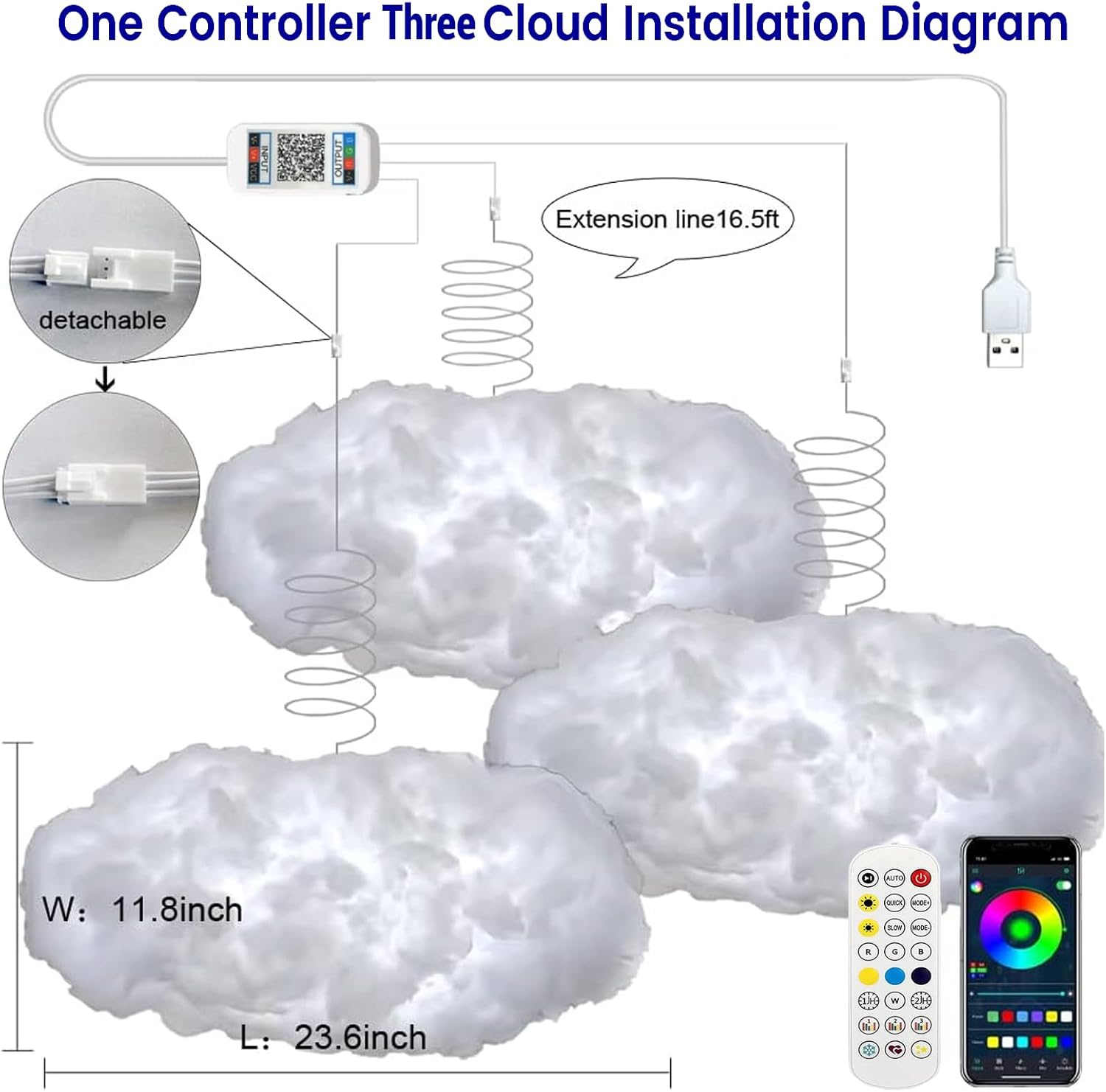
Installation diagram showing three cloud lights connected to a controller and USB power source, with dimensions and control options.
5. Operating Instructions
5.1. Power On/Off
The cloud lights will power on automatically when connected to a power source. Use the remote control or mobile app to turn them off and on.
5.2. Remote Control
The included remote control allows for basic functions such as:
- Turning lights On/Off
- Changing colors
- Adjusting brightness
- Selecting preset lighting modes
5.3. Mobile App Control (Magic Lantern APP)
For advanced control and features, download the 'Magic Lantern' app on your smartphone. The app connects via Bluetooth.
- Download the App: Scan the QR code provided in the packaging or search for 'Magic Lantern' in your app store.
- Enable Bluetooth: Ensure Bluetooth is enabled on your smartphone.
- Connect to Lights: Open the app and follow the on-screen instructions to connect to your cloud lights.
The app offers extensive features:
- 213+ Style Modes: Choose from a wide variety of dynamic lighting effects.
- Millions of Colors: Customize colors with a color wheel.
- Mic Mode: Lights react to ambient sounds.
- Music Sync: Lights change color according to the rhythm of music played through the app.
- Timer Setting: Schedule automatic on/off times.

Screenshots of the 'Magic Lantern' mobile application interface, showing style modes, mic mode, color selection, timer settings, and music sync.
5.4. Music Sync Mode
The cloud lights feature a built-in microphone that allows them to react to sounds. Additionally, through the mobile app, you can play music, and the lights will synchronize with the melody, creating an immersive atmosphere.

Children singing under colorful cloud lights, illustrating music synchronization.
5.5. Timing Mode
Utilize the mobile app's timing function to set specific schedules for your cloud lights. You can program them to turn on and off automatically at preset times, assisting with sleep and wake-up routines.

Child sleeping and waking up with cloud lights, demonstrating the timing function via a mobile app.
Video demonstrating the TOHUNZO Cloud LED Lights, showcasing lightning effects, color changes via remote control, and mobile app control.
6. Maintenance
- Cleaning: To clean the cloud material, gently dust it with a soft, dry cloth. Avoid using water or cleaning solutions, as this may damage the material or electrical components.
- Handling: Always handle the cloud units with care. Excessive pulling or rough handling can cause the cotton material to shed or deform.
- Storage: If storing the lights, ensure they are clean and dry. Store them in a cool, dry place away from direct sunlight.
7. Troubleshooting
- Lights not turning on:
- Check if the USB cable is securely connected to both the controller and the power source.
- Ensure the 7V USB adapter (if used) is functioning correctly.
- Verify that the remote control or app is sending the 'On' command.
- Remote control not working:
- Check if the remote's battery needs replacement.
- Ensure there are no obstructions between the remote and the LED controller.
- App not connecting or controlling lights:
- Confirm Bluetooth is enabled on your smartphone.
- Restart the app and try reconnecting.
- Ensure the lights are powered on.
- Cotton material shedding:
- This can occur with rough handling. Handle the clouds gently during installation and adjustment.
- Avoid placing the clouds in high-traffic areas where they might be frequently touched.
- Music sync not working with personal music:
- The app's music sync feature typically works with music played directly through the app or via the built-in microphone reacting to ambient sound. Direct synchronization with external music libraries on your phone may not be supported.
8. Specifications
| Brand | TOHUNZO |
| Model Number | FY |
| Number of Cloud Units | 3 |
| Product Dimensions (per cloud) | Approximately 12"D x 24"W x 198"H (Note: 198"H seems like a typo, likely refers to total length of strip or a different dimension. Please refer to product packaging for exact cloud dimensions.) |
| Item Weight | Approximately 3.47 pounds (total for 3 clouds) |
| Material | Nylon (Shade), Metal (Base) |
| Light Source Type | LED |
| Light Color | Multicolor |
| Power Source | AC/DC (USB powered, requires 7V adapter) |
| Control Method | App, Remote Control |
| Indoor/Outdoor Usage | Indoor Only |
| Water Resistance Level | Not Water Resistant |
9. Warranty Information
For warranty details, please refer to the documentation included with your purchase or contact the seller directly. Warranty terms typically cover manufacturing defects for a specified period from the date of purchase.
10. Customer Support
If you encounter any issues or have questions regarding your TOHUNZO Cloud LED Lights, please contact the seller or manufacturer for assistance. Provide your product model number (FY) and purchase details when seeking support.