
Gavigain Gavigaintfe12b0c5z
Gavigain 1080P HD Indoor Camera User Manual
Model: Gavigaintfe12b0c5z
Introduction
This manual provides detailed instructions for the installation, operation, and maintenance of your Gavigain 1080P HD Indoor Camera. This smart camera offers features such as 1080P HD video, 360° panoramic view, motion detection, two-way audio, and various night vision modes, making it suitable for monitoring pets, babies, or general home security.
Package Contents
Please verify that all items are present in your package:
- Gavigain 1080P HD Indoor Camera
- USB Charging Cable
- Mounting Screws and Wall Anchors
- User Manual (this document)

Image: The Gavigain 1080P HD Indoor Camera, USB charging cable, and mounting hardware (screws and wall anchors).
Product Components
Familiarize yourself with the various parts of your camera:
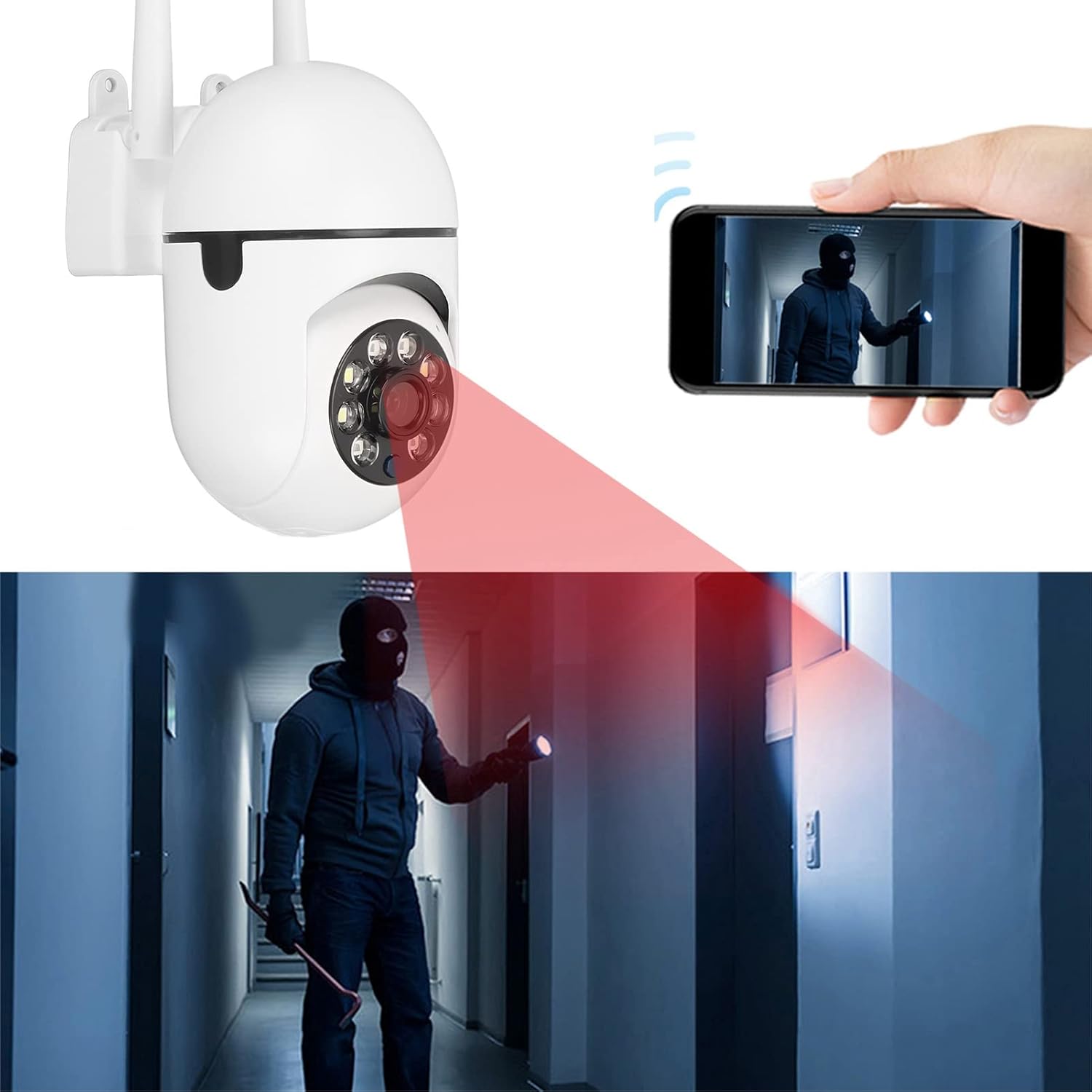
Image: Detailed diagram showing the camera's components, including the HD lens, infrared night viewing lights, full-color night viewing lights, microphone, speaker, antennas, charging port, reset button, and memory card slot.
- HD Lens: Captures 1080P video.
- Infrared Night Viewing Light: For black and white night vision.
- Full Color Night Viewing Light: For color night vision.
- Microphone: For two-way audio communication.
- Speaker: For two-way audio communication and alerts.
- Antennas: For Wi-Fi connectivity.
- Charging Port: Micro USB port for power supply.
- Reset Button: Used for resetting the device.
- Memory Card Slot: Supports local storage via microSD card (up to 128GB).
Setup
1. Powering On the Camera
- Connect the provided USB charging cable to the camera's charging port.
- Plug the other end of the USB cable into a compatible USB power adapter (not included) and then into a power outlet.
- The camera will power on, and an indicator light will show its status.
2. App Download and Account Creation
- Download the recommended mobile application (e.g., "YI IoT" or similar, check product packaging for specific app name) from your smartphone's app store (App Store for iOS, Google Play Store for Android).
- Open the app and create a new user account. Follow the on-screen instructions for registration.
3. Device Pairing
- Ensure your smartphone is connected to a 2.4GHz Wi-Fi network. The camera supports 2.4GHz Wi-Fi only.
- In the app, tap "Add Device" or the "+" icon to begin the pairing process.
- Select your camera model from the list of available devices.
- Follow the app's instructions to connect the camera to your Wi-Fi network. This usually involves scanning a QR code generated by the app with the camera's lens or listening for an audio prompt.
- Once connected, the camera's indicator light will change, and you will receive a confirmation in the app.
4. Physical Installation (Optional)
The camera can be placed on a flat surface or mounted to a wall or ceiling. If mounting:
- Choose a suitable location for optimal viewing coverage.
- Use the provided mounting screws and wall anchors to secure the camera base to the desired surface.
- Attach the camera to the mounted base.

Image: The camera shown mounted on a wall and inverted for ceiling installation, demonstrating flexible placement options.
Operating Instructions
1. Live View and 360° Pan/Tilt
- Open the mobile app and select your camera to view the live feed.
- Use the on-screen controls to pan (horizontal 360°) and tilt (vertical 90°) the camera lens to adjust your viewing angle.
2. Two-Way Audio
- In the live view, tap the microphone icon to speak through the camera's speaker.
- The camera's built-in microphone will capture audio from the camera's environment.
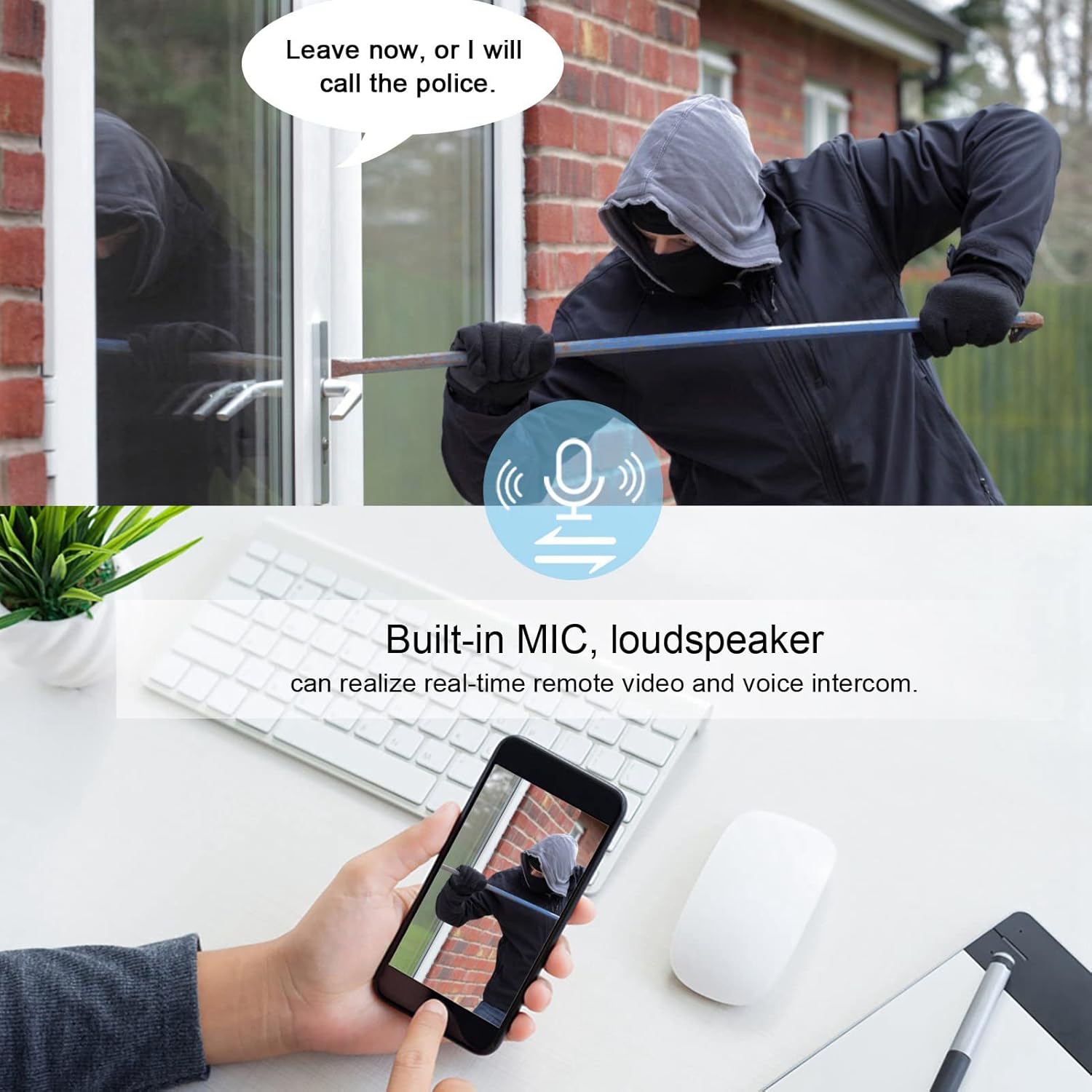
Image: A person viewing the camera feed on a smartphone, demonstrating the two-way audio feature with a speech bubble indicating communication.
3. Motion Detection and Alerts
- Enable motion detection in the app settings.
- Configure alert sensitivity and notification preferences.
- Receive instant mobile alerts when motion is detected.
4. Night Vision Modes
The camera supports multiple night vision modes:
- IR Night Vision: Provides clear black and white video in low-light conditions using infrared LEDs.
- Full-Color Night Vision: Utilizes built-in lights to provide color video even in darkness.
- Automatic Night Vision: The camera automatically switches between day and night modes based on ambient light.
- Floodlight Function: Can be activated to illuminate the area, enhancing visibility and acting as a deterrent.

Image: The camera emitting a red light, indicating night vision activation, with a person in a dark hallway being illuminated, showcasing the floodlight function.
5. Recording and Storage
- Continuous 24/7 Recording: The camera can record continuously when powered.
- Local Storage: Insert a microSD card (up to 128GB, not included) into the memory card slot for local video storage.
- Cloud Storage: Optional cloud storage services may be available through the app for remote backup of footage. Refer to the app for subscription details.
- Access recorded footage via the mobile application.
Maintenance
- Cleaning: Gently wipe the camera lens and body with a soft, dry cloth. Avoid using harsh chemicals or abrasive materials.
- Firmware Updates: Regularly check the mobile app for firmware updates to ensure optimal performance and security. Follow the app's instructions for updating.
- Power Supply: Ensure a stable power supply to the camera for uninterrupted operation.
Troubleshooting
- Camera Not Connecting to Wi-Fi:
- Ensure your Wi-Fi network is 2.4GHz.
- Check Wi-Fi password accuracy.
- Move the camera closer to the Wi-Fi router.
- Reset the camera using the reset button and try pairing again.
- No Live View/Offline:
- Verify the camera is powered on and connected to Wi-Fi.
- Check your internet connection.
- Restart the camera and the mobile app.
- Motion Alerts Not Received:
- Ensure motion detection is enabled in the app settings.
- Check app notification permissions on your smartphone.
- Adjust motion detection sensitivity.
- Poor Video Quality:
- Ensure the camera lens is clean.
- Check your Wi-Fi signal strength; a weak signal can affect streaming quality.
- Adjust video resolution settings in the app if available.
Specifications
| Feature | Detail |
|---|---|
| Model Number | Gavigaintfe12b0c5z |
| Video Capture Resolution | 1080p, 3 MP |
| Connectivity Technology | Wired (Power), Wi-Fi (Data) |
| Wireless Communication Technology | Wi-Fi |
| Compatible Devices | Smartphone |
| Controller Type | Amazon Alexa (Voice Control) |
| Mounting Type | Wall Mount |
| Indoor/Outdoor Usage | Indoor, Outdoor (IP65 rated) |
| Special Feature | Motion Sensor, 2-Way Audio, Night Vision (IR, Full-Color, Auto, Floodlight) |
| Alert Type | Motion Only |
| Storage Options | Local (up to 128GB microSD), Cloud Service (optional) |
| Item Weight | 9.2 ounces (0.26 Kilograms) |
| Material | Acrylonitrile Butadiene Styrene (ABS) |
| International Protection Rating | IP65 |
Warranty and Support
For warranty information and technical support, please refer to the documentation included with your product or contact Gavigain customer service directly. Contact details are typically found on the product packaging or the manufacturer's official website.
Related Documents - Gavigaintfe12b0c5z
 |
PANORAXY Yi IoT Home Security Camera: Setup and User Guide Learn how to set up and use your PANORAXY Yi IoT Home Security Camera. This guide covers app download, Wi-Fi connection, cloud storage options, installation, and app features for seamless home monitoring. |
 |
Uniarch Pan&Tilt Wi-Fi Camera - Quick Guide Quick start guide for the Uniarch Pan&Tilt Wi-Fi Camera (1080P, 360 Degree). Learn how to set up, install, and use this indoor security camera with phone app, night vision, and motion detection. |
 |
JAIOT Indoor Security Camera Quick Start Guide | Setup, Alexa Integration, Troubleshooting Get started with your JAIOT indoor security camera. This guide covers setup, app download, Alexa connection, and troubleshooting for your JAIOT camera, including Wi-Fi setup and device pairing. |
 |
Xbro XC100 Indoor Cam User Manual User manual for the Xbro XC100 Indoor Cam, detailing setup, features, and customer service information. |
 |
Victure Indoor Cam PC420 Functions Guide and Catalogue A comprehensive guide to the Victure Indoor Cam PC420, covering its functions, setup, features like 1080P FHD, two-way audio, motion/sound detection, night vision, storage options, and connectivity with Alexa. |
 |
Geeni Smart Wi-Fi Camera Start Guide A comprehensive start guide for the Geeni Smart Wi-Fi Camera, covering setup, connection modes (Easy Mode and QR Code Mode), settings, live view, playback, troubleshooting, and technical specifications. It details how to download the Geeni app, register an account, connect the camera to Wi-Fi, and manage its features. |
Ask a question about this manual
Ask about setup, troubleshooting, compatibility, parts, safety, or missing instructions. Manuals+ will review the question and use this page’s manual context to help answer it.