
1. Introduction
1.1 Welcome
Thank you for choosing the Generic RK3326S M108 10.1-inch Android Tablet. This manual provides essential information for setting up, operating, and maintaining your device. Please read it carefully to ensure optimal performance and longevity of your tablet.
1.2 Package Contents
Verify that all items are present in your package:
- Generic RK3326S M108 10.1-inch Android Tablet
- USB Port Cable
- A/C Adapter
1.3 Product Overview
Familiarize yourself with the physical components of your tablet.
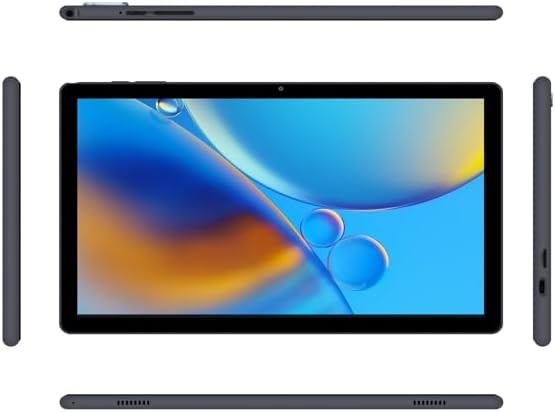
Image 1.1: Front, top, bottom, and side views of the Generic RK3326S M108 Tablet, illustrating its overall design and profile.
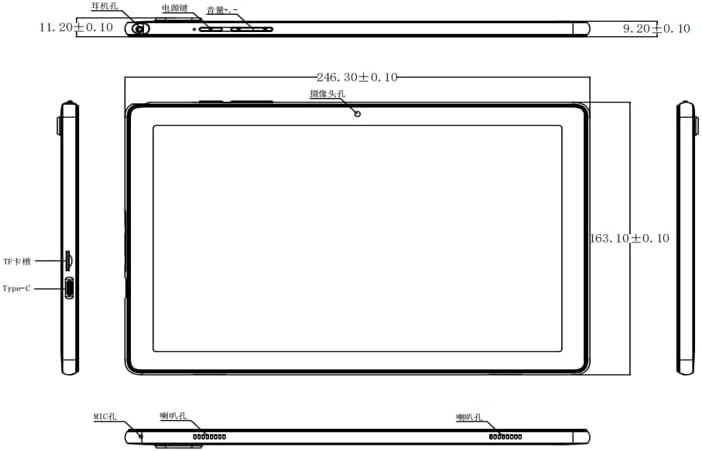
Image 1.2: Technical diagram detailing the tablet's dimensions and port locations, including the headphone jack, power button, volume controls, TF card slot, and Type-C USB port.
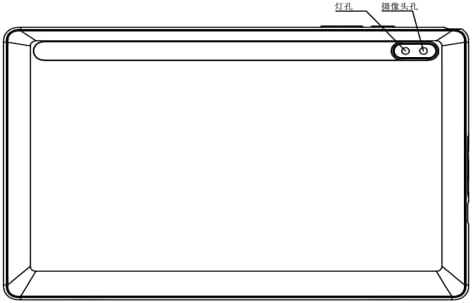
Image 1.3: Rear view of the tablet, highlighting the dual camera module and flash light.
2. Setup
2.1 Charging the Tablet
Before first use, fully charge your tablet. Connect the provided USB cable to the tablet's Type-C port and the A/C adapter, then plug the adapter into a power outlet. The battery indicator on the screen will show charging status.
2.2 Powering On/Off
- To Power On: Press and hold the Power button (refer to Image 1.2) until the screen lights up.
- To Power Off: Press and hold the Power button until a menu appears, then select 'Power off'.
- To Restart: Press and hold the Power button until a menu appears, then select 'Restart'.
2.3 Initial Setup
Upon first power-on, the tablet will guide you through the initial setup process:
- Select your preferred language.
- Connect to a Wi-Fi network.
- Sign in with your Google Account or create a new one. This is necessary for downloading apps from the Google Play Store.
- Follow the on-screen prompts to complete the setup.
2.4 Inserting a MicroSD Card
To expand storage, you can insert a MicroSD card (not included) into the TF card slot (refer to Image 1.2). The tablet supports expansion up to 512GB. Ensure the tablet is powered off before inserting or removing the card.
3. Operating Your Tablet
3.1 Basic Navigation
The tablet features a 10.1-inch IPS touch screen. Use the following gestures for navigation:
- Tap: Select an item or open an app.
- Swipe: Scroll through pages or menus.
- Pinch: Zoom in or out on images and web pages.
- Long Press: Access contextual menus or move icons.
3.2 Connecting to Wi-Fi
To connect to a Wi-Fi network:
- Go to Settings > Network & internet > Wi-Fi.
- Turn on Wi-Fi.
- Select your desired network from the list.
- Enter the password if prompted, then tap Connect.
3.3 Bluetooth Pairing
To pair with a Bluetooth device:
- Go to Settings > Connected devices > Bluetooth.
- Turn on Bluetooth.
- Ensure your Bluetooth device is in pairing mode.
- Select the device from the list and follow any on-screen instructions to complete pairing.
3.4 Camera Usage
The tablet is equipped with a 2.0MP front camera and a 5.0MP rear camera with flash. Open the Camera app to take photos or record videos. You can switch between front and rear cameras within the app interface.
3.5 GPS Functionality
The built-in GPS allows for location services and navigation. Ensure location services are enabled in your tablet's settings for apps to utilize GPS.
3.6 Managing Storage
Your tablet comes with 64GB of internal storage. You can view and manage your storage by going to Settings > Storage. For additional space, use a MicroSD card as described in Section 2.4.
3.7 Battery Management
The 6000mAh battery provides up to 8 hours of use. To optimize battery life:
- Reduce screen brightness.
- Turn off Wi-Fi and Bluetooth when not in use.
- Close unused applications running in the background.
- Enable battery saver mode in settings.
4. Maintenance
4.1 Cleaning the Tablet
To clean your tablet, power it off and use a soft, lint-free cloth. For stubborn smudges, slightly dampen the cloth with water or a screen cleaner designed for electronics. Avoid harsh chemicals or abrasive materials.
4.2 Software Updates
Periodically check for software updates to ensure your tablet has the latest features and security enhancements. Go to Settings > System > System update to check for and install updates.
4.3 Data Backup
Regularly back up your important data to prevent loss. You can use cloud services (like Google Drive), transfer files to a computer, or save them to an external MicroSD card.
5. Troubleshooting
This section addresses common issues you might encounter with your tablet.
| Issue | Solution |
|---|---|
| Tablet won't turn on | Ensure the tablet is charged. Connect it to the A/C adapter and wait a few minutes before attempting to power on again. If it still doesn't turn on, try a long press (10-15 seconds) of the power button. |
| Wi-Fi connection issues | Check if Wi-Fi is enabled in settings. Restart your Wi-Fi router. Forget the network and reconnect. Ensure you are within range of the Wi-Fi signal. |
| Slow performance | Close unused apps. Clear cache for frequently used apps. Restart the tablet. Check for available storage space and free up if necessary. |
| Battery drains quickly | Reduce screen brightness. Disable Wi-Fi, Bluetooth, and GPS when not in use. Close background apps. Check battery usage in settings to identify power-hungry apps. |
| Apps crashing or freezing | Restart the app. Clear the app's cache and data in Settings > Apps. Uninstall and reinstall the app. Ensure the tablet's software is up to date. |
6. Specifications
Detailed technical specifications for the Generic RK3326S M108 Tablet:
| Feature | Detail |
|---|---|
| Model Name | M108 |
| Item Model Number | RK3326S |
| Operating System | Android 11 |
| Processor | Quad-Core, 1.5 GHz (Rockchip) |
| RAM | 2GB |
| Internal Storage | 64GB |
| Expandable Storage | Up to 512GB via MicroSD card (not included) |
| Screen Size | 10.1 inches |
| Screen Resolution | 1280 x 800 IPS |
| Touch Screen | 5-Point Capacitive (G+P) |
| Front Camera | 2.0 MP |
| Rear Camera | 5.0 MP with Flash Light |
| Connectivity | Wi-Fi 2.4GHz 802.11b/g/n, Bluetooth 4.1 |
| GPS | Built-in GPS |
| Battery | 6000 mAh (up to 8 hours use) |
| Ports | Type-C USB, 3.5mm Headphone Jack, TF Card Slot |
| Dimensions (LxWxH) | 9.68 x 6.4 x 0.35 inches |
| Item Weight | 1.98 pounds |
| Color | Black |
7. Warranty and Support
This product is covered by a standard manufacturer's warranty. For specific warranty terms and conditions, please refer to the documentation included with your purchase or contact the retailer. For technical support or further assistance, please reach out to the customer service provided by your point of purchase.