
1. Product Overview
The Dioche 1080P HD Smart Camera is designed for home security and monitoring, offering high-definition video, motion detection, and night vision capabilities. This manual provides essential information for setting up, operating, and maintaining your camera.

Image 1.1: Front view of the Dioche 1080P HD Smart Camera.
Video 1.1: An overview of the Dioche 1080P HD Smart Camera's design and features.
2. Key Features
- 1080P HD Video: Captures clear, high-definition video for detailed monitoring.
- Advanced Night Vision: Provides clear images in low-light conditions, extending visibility up to 40ft.
- Motion Detection: Automatically detects movement and sends alerts to your mobile device.
- Two-Way Audio: Allows for communication through the camera via the mobile application.
- Remote Monitoring: Access live video feed and recorded footage from anywhere using your smartphone.
- Cloud Storage: Offers an option for secure storage of surveillance footage.
- Easy Installation: Designed for quick and straightforward setup.
3. Package Contents
Please verify that all items are present in your package:
- 1 x Dioche 1080P HD Smart Camera
- 1 x Charging Cable
- 1 x Instruction Manual (this document)
- 2 x Expansion Tubes
- 2 x Screws

Image 3.1: All components included in the product package.
4. Product Diagram
Familiarize yourself with the different parts of your Dioche Smart Camera:
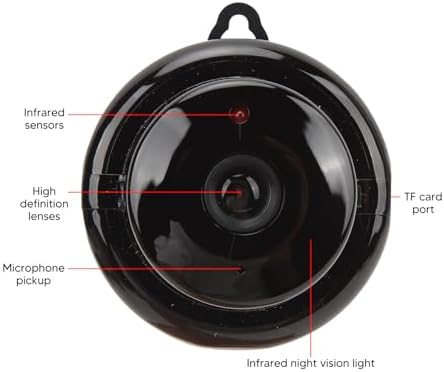
Image 4.1: Labeled diagram of the camera's components.
- Infrared Sensors: Detect ambient light levels for automatic night vision activation.
- High Definition Lenses: Capture 1080P resolution video.
- Microphone Pickup: Records audio and enables two-way communication.
- TF Card Port: Slot for inserting a MicroSD card (not included) for local storage.
- Infrared Night Vision Light: Emits infrared light for clear viewing in dark conditions.
5. Setup Instructions
Follow these steps to set up your Dioche Smart Camera:
- Power On: Connect the camera to a power source using the provided charging cable. The camera will power on automatically.
- Download App: Download the recommended mobile application (e.g., "V380 Pro" or similar, refer to packaging for specific app name) from your smartphone's app store (Android or iOS).
- Create Account: Open the app and register a new account or log in if you already have one.
- Add Device: Follow the in-app instructions to add your new camera. This typically involves scanning a QR code on the camera or manually selecting the device type and connecting to its Wi-Fi hotspot.
- Connect to Wi-Fi: Configure the camera to connect to your home 2.4GHz Wi-Fi network. Ensure your smartphone is also connected to the same network during setup.
- Mount Camera: Choose a suitable location for your camera. It can be placed on a flat surface or mounted to a wall or ceiling using the included screws and expansion tubes. Ensure the camera has a clear view of the area you wish to monitor.

Image 5.1: Example of mounting the camera to a surface.
6. Operating Instructions
Once set up, you can control and monitor your camera using the mobile application:
- Live View: Open the app and select your camera to view the live video feed.
- Motion Detection Alerts: Enable motion detection in the app settings to receive push notifications on your phone when movement is detected. Adjust sensitivity as needed.
- Night Vision: The camera automatically switches to night vision mode in low light. You can typically toggle this feature manually within the app if desired.
- Two-Way Audio: Use the microphone and speaker icons in the app to listen to the camera's environment or speak through the camera.
- Recording and Playback: Access recorded footage from the cloud storage or MicroSD card (if installed) through the app's playback feature.
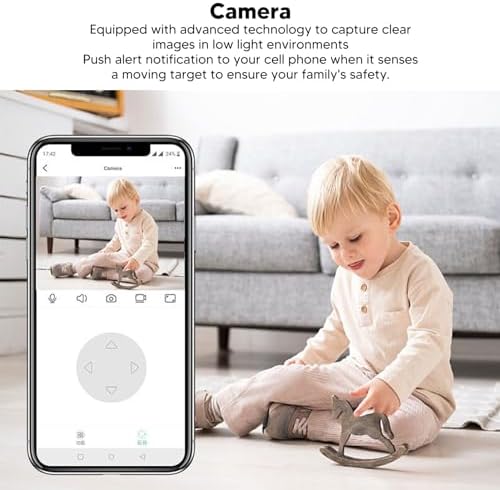
Image 6.1: Using the mobile application for live monitoring.
Image 6.2: Demonstration of the camera's night vision capability.
7. Maintenance
To ensure optimal performance and longevity of your camera:
- Cleaning: Gently wipe the camera lens and body with a soft, dry cloth. Avoid using harsh chemicals or abrasive materials.
- Placement: Ensure the camera is placed in a stable location, away from direct sunlight, extreme temperatures, and moisture.
- Software Updates: Regularly check the mobile application for firmware updates for your camera to ensure you have the latest features and security enhancements.
8. Troubleshooting
If you encounter issues with your camera, refer to the following common problems and solutions:
| Problem | Possible Solution |
|---|---|
| Camera offline/Cannot connect | Ensure the camera is powered on. Check your Wi-Fi connection and signal strength. Restart the camera and your router. Re-add the camera in the app if necessary. |
| No motion detection alerts | Verify motion detection is enabled in the app settings. Adjust sensitivity. Check app notification settings on your phone. |
| Poor video quality | Ensure the lens is clean. Check your internet connection speed. Adjust video quality settings in the app if available. |
| Two-way audio not working | Check microphone and speaker permissions for the app on your phone. Ensure volume is up on both ends. |
If the problem persists, please contact customer support.
9. Specifications
Detailed technical specifications for the Dioche 1080P HD Smart Camera:

Image 9.1: Camera dimensions.
| Feature | Detail |
|---|---|
| Model Name | Diocherkmcdyn6vq |
| Video Capture Resolution | 1080p |
| Connectivity Protocol | Wi-Fi (2.4GHz) |
| Special Feature | Motion Sensor, Night Vision, Two-Way Audio |
| Compatible Devices | Smartphone (Android, iOS) |
| Mount Type | Wall Mount |
| Enclosure Material | Acrylonitrile Butadiene Styrene (ABS) |
| Recommended Uses | Baby Monitoring, Home Security, Pet Monitoring |
| Are Batteries Required | No (Powered via USB cable) |
10. Warranty and Support
For warranty information and technical support, please refer to the product packaging or contact the retailer where you purchased the Dioche 1080P HD Smart Camera. Keep your proof of purchase for warranty claims.