
Introduction
This manual provides comprehensive instructions for the Spirit Of Gamer XPERT K200 Wireless and Bluetooth RGB Gaming Keyboard. Please read this manual carefully before using the product to ensure proper operation and to maximize your experience. Keep this manual for future reference.
Product Overview
The XPERT K200 is an ultra-compact 60% TKL (Ten Keys Less) mechanical keyboard designed for gaming and productivity. It features 64 keys with anti-ghosting mechanical red switches, offering a responsive and precise typing experience. Its compact design provides more desk space for mouse movement.

Image: Spirit Of Gamer XPERT K200 keyboard highlighting its key features: ultra-compact TKL format, mechanical anti-ghosting switches, multi-platform compatibility (Windows, iOS, Android), and rechargeable lithium battery.

Image: The XPERT K200 keyboard showcasing its 60% ultra-compact form factor, designed to save desk space.
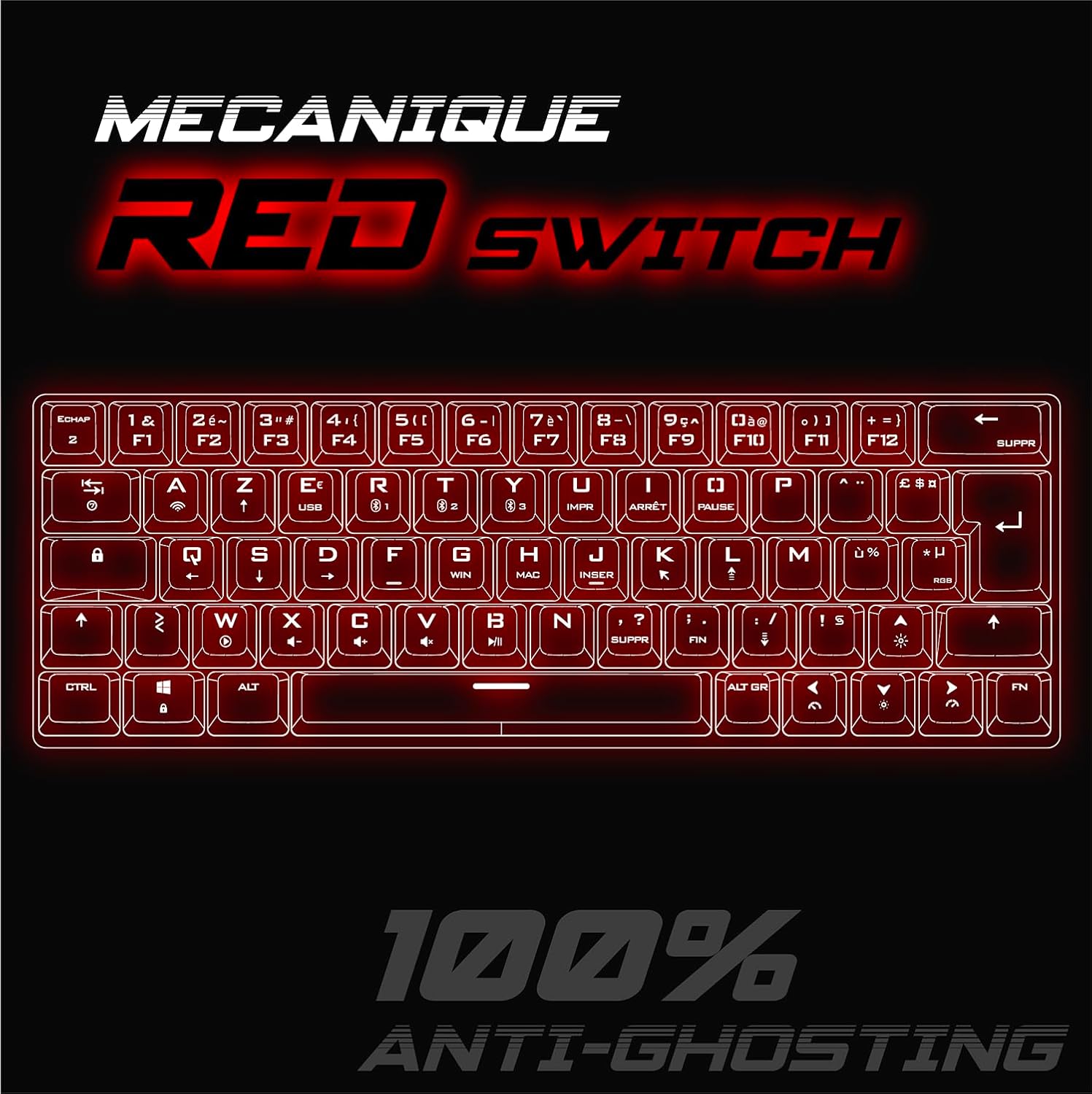
Image: Detail of the XPERT K200 keyboard emphasizing its mechanical red switches and 100% anti-ghosting capability for precise input.
Setup
Package Contents
- Spirit Of Gamer XPERT K200 Keyboard
- USB-C Cable
- User Manual (this document)
Connection Modes
The XPERT K200 keyboard supports three connection modes:
- Wired Mode: Connect via the included USB-C cable.
- 2.4 GHz Wireless Mode: Connect using the USB dongle (receiver).
- Bluetooth Mode: Connect wirelessly to up to three different devices.

Image: The XPERT K200 keyboard illustrating its three connection modes: 2.4 GHz wireless, USB wired, and Bluetooth (with three pairing slots).
Initial Setup
- Charging: Before first use, fully charge the keyboard using the provided USB-C cable. Connect the cable to the keyboard's USB-C port and to a powered USB port on your computer or a USB wall adapter.
- Mode Selection: Use the switch on the keyboard to select your desired connection mode (Wired, 2.4G, or BT).
Operating Instructions
Connecting via 2.4 GHz Wireless
- Locate the USB 2.4 GHz receiver (dongle) usually stored in a compartment on the keyboard or in the packaging.
- Plug the USB receiver into an available USB port on your computer.
- Set the keyboard's mode switch to "2.4G".
- The keyboard should automatically connect. If not, press FN + R to initiate pairing.
Connecting via Bluetooth
The keyboard can store up to three Bluetooth profiles.
- Set the keyboard's mode switch to "BT".
- Press and hold FN + Q, FN + W, or FN + E for 3-5 seconds to enter pairing mode for the desired profile (Q, W, or E). The indicator light will flash rapidly.
- On your device (PC, smartphone, tablet), open Bluetooth settings and search for "XPERT K200" or a similar name.
- Select the keyboard to pair. The indicator light will stop flashing once connected.
- To switch between paired Bluetooth devices, simply press FN + Q, FN + W, or FN + E (short press) for the corresponding device.
Wired Connection
- Connect the USB-C cable to the keyboard and the other end to a USB port on your computer.
- Set the keyboard's mode switch to "Wired" or "USB".
- The keyboard will function as a standard wired keyboard and will also charge.
Function Keys (FN Combinations)
Due to its compact 60% layout, many functions are accessed via the FN key in combination with other keys. Refer to the keycaps for secondary functions, often indicated by smaller icons or text.
- FN + F1-F12: Access multimedia controls and system functions.
- FN + Arrow Keys: Control lighting effects (direction, speed).
- FN + U/I/O/P: (Example, check actual keycaps) Adjust volume, play/pause.
- FN + WIN: Lock/unlock Windows key.
- FN + MAC: Switch between Windows and Mac layouts (if supported).
RGB Lighting Modes
The XPERT K200 features customizable RGB backlighting with 7 different colors and 22 effects. Lighting can be configured directly on the keyboard using key combinations.
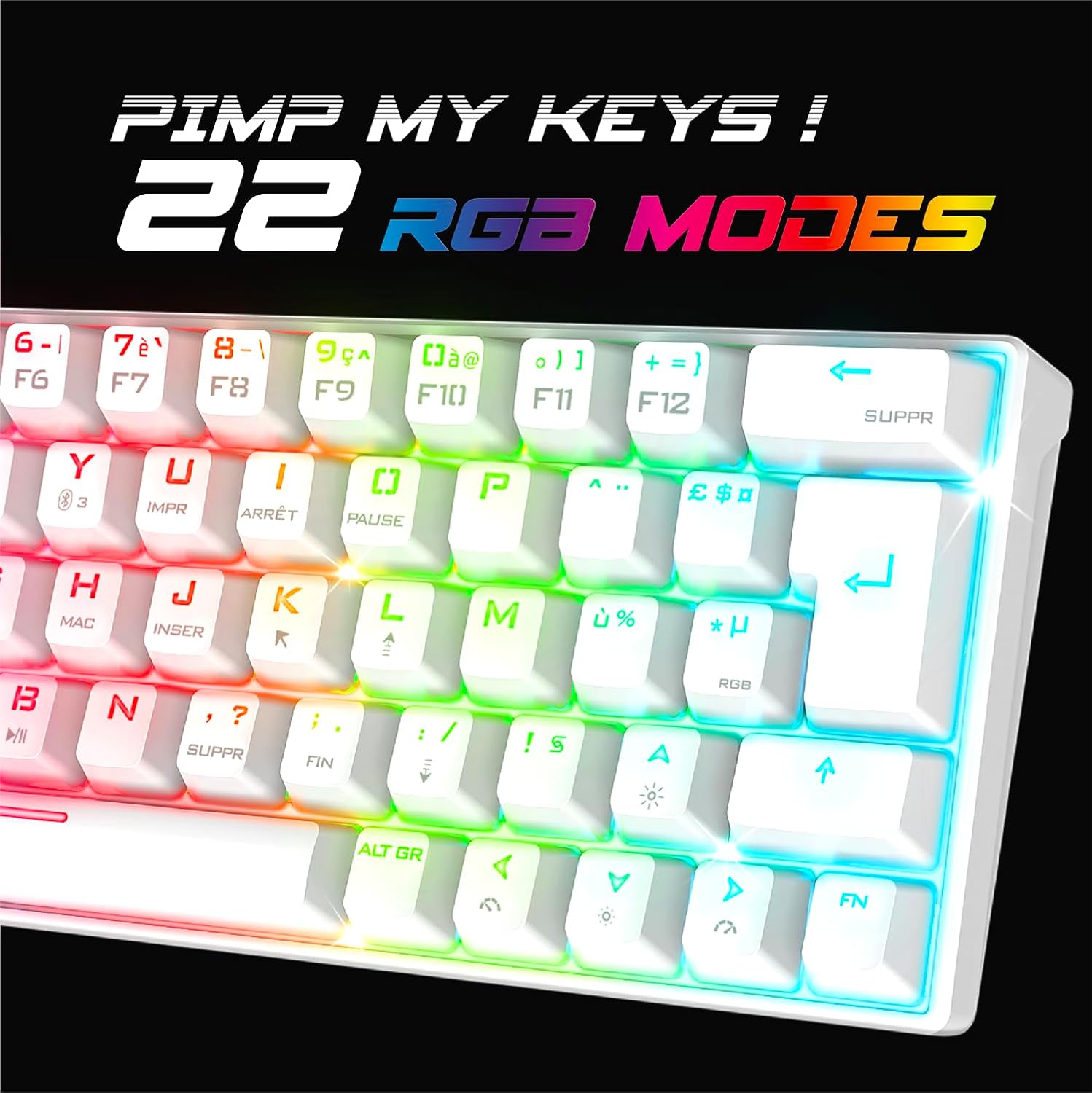
Image: The XPERT K200 keyboard displaying its vibrant RGB backlighting and highlighting the 22 available lighting modes.
Adjusting Lighting Effects
- FN + \|: Cycle through different RGB lighting effects.
- FN + ↑ (Up Arrow): Increase brightness.
- FN + ↓ (Down Arrow): Decrease brightness.
- FN + ← (Left Arrow): Decrease effect speed.
- FN + → (Right Arrow): Increase effect speed.
- FN + RGB Key: Change static RGB color (if applicable to the current mode).
Battery and Charging
The XPERT K200 is equipped with an 1800 mAh rechargeable Lithium battery, providing up to 180 hours of autonomy (usage time may vary depending on RGB lighting intensity and usage patterns).
Charging the Keyboard
- Connect the included USB-C cable to the keyboard's USB-C port and to a powered USB port (e.g., computer, wall adapter).
- The charging indicator light will illuminate during charging and turn off when fully charged.
- The keyboard can be used in wired mode while charging.
Battery Status
A low battery indicator (usually a flashing light) will alert you when the battery needs recharging.
Maintenance
Cleaning
- Disconnect the keyboard from all power sources and devices before cleaning.
- Use a soft, dry cloth to wipe the surface of the keyboard.
- For stubborn dirt, a slightly damp cloth with mild soap can be used, ensuring no liquid enters the keyboard.
- Use compressed air to remove dust and debris from between the keycaps.
- Avoid using harsh chemicals, solvents, or abrasive cleaners.
Storage
- Store the keyboard in a cool, dry place away from direct sunlight and extreme temperatures.
- If storing for an extended period, ensure the battery is partially charged (around 50%) to prolong its lifespan.
Troubleshooting
| Problem | Possible Cause | Solution |
|---|---|---|
| Keyboard not responding (Wired) | Loose USB-C cable connection. Incorrect mode selected. | Ensure the USB-C cable is securely connected. Set the keyboard mode switch to "Wired" or "USB". Try a different USB port or cable. |
| Keyboard not responding (2.4 GHz Wireless) | USB receiver not plugged in. Incorrect mode selected. Low battery. Pairing issue. | Ensure the USB receiver is plugged into a working USB port. Set the keyboard mode switch to "2.4G". Charge the keyboard. Re-pair by pressing FN + R. |
| Keyboard not responding (Bluetooth) | Bluetooth not enabled on device. Incorrect mode selected. Low battery. Pairing issue. Device limit reached. | Ensure Bluetooth is enabled on your device. Set the keyboard mode switch to "BT". Charge the keyboard. Re-pair by holding FN + Q/W/E. Ensure you are selecting the correct paired profile. |
| Keys not registering or ghosting | Dust/debris under keycap. Software conflict. | Clean the keycap area with compressed air. Restart your computer. Ensure anti-ghosting is active (it is by default for mechanical switches). |
| RGB lighting not working or stuck | Low battery. Incorrect lighting mode selected. | Charge the keyboard. Cycle through lighting modes using FN + \|. Adjust brightness with FN + ↑/↓. |
| Short battery life | High brightness RGB. Frequent wireless use. | Reduce RGB brightness. Consider using wired mode when possible. Ensure the keyboard is fully charged. |
Specifications
| Feature | Detail |
|---|---|
| Model | XPERT K200 |
| Brand | Spirit Of Gamer |
| Layout | 60% TKL AZERTY |
| Switch Type | Mechanical Red Switches |
| Anti-Ghosting | 100% Anti-Ghosting |
| Connectivity | 2.4 GHz Wireless, Bluetooth (3 profiles), USB Wired |
| Backlight | RGB (7 colors, 22 effects) |
| Battery | 1800 mAh Lithium Rechargeable |
| Battery Life | Up to 180 hours (without RGB) |
| Compatibility | PC (Windows), Smartphone, Tablet |
| Dimensions (L x W x H) | 29.1 x 10.4 x 4 cm |
| Included Components | USB-C Cable |

Image: Physical dimensions and weight of the XPERT K200 keyboard.
Warranty and Support
The Spirit Of Gamer XPERT K200 keyboard comes with a 2-year manufacturer's warranty. This warranty covers defects in materials and workmanship under normal use.
Warranty Claims
For warranty claims or technical support, please contact your retailer or the official Spirit Of Gamer customer service. Keep your proof of purchase for warranty validation.
Limitations
The warranty does not cover damage caused by misuse, accidents, unauthorized modifications, or normal wear and tear.