
IMSTAM Wireless 4K Car Camera User Manual
Model: 4K Front Cam 64GB F7 F7x Model a (LI1984921)
Introduction
Thank you for choosing the IMSTAM Wireless 4K Car Camera. This dash cam is designed to provide high-resolution video recording for your vehicle, enhancing driving safety and providing evidence in case of incidents. This manual provides detailed instructions for the installation, operation, and maintenance of your device.
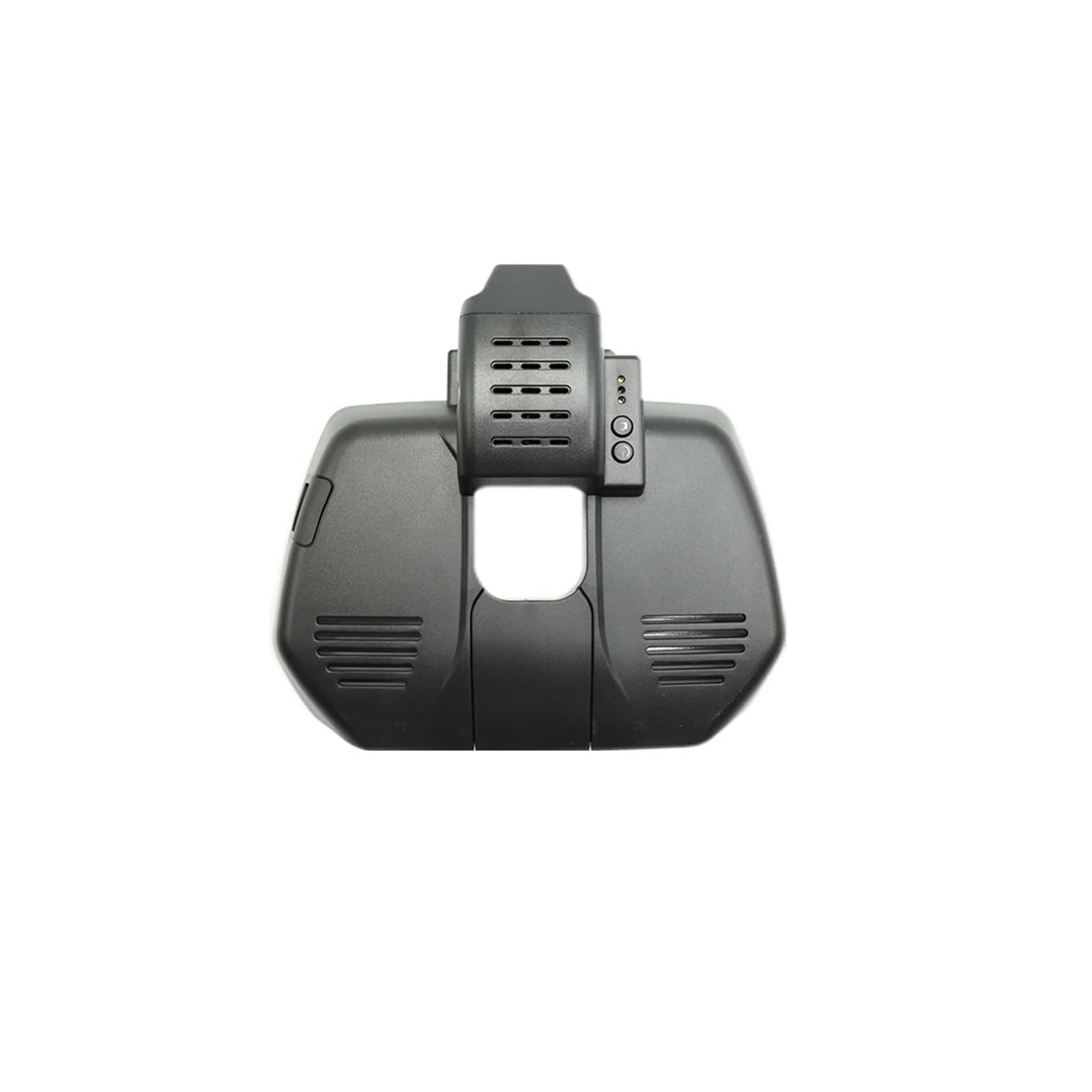
Image: IMSTAM Wireless 4K Car Camera installed in a vehicle, with a smartphone displaying the live feed from the camera.
Compatibility
This IMSTAM Wireless 4K Car Camera (4K Front Cam 64GB F7 F7x Model a) is compatible with the following vehicle models:
- HAVAL H6
- HAVAL H9
- HAVAL F7
- HAVAL F7x
- HAVAL DARGO
- GWM POER
- Cannon
- Cannon-L
- Cannon-X
Note: This specific model is not applicable to HAVAL H6 with right-hand drive.
Key Features
- 4K UHD High Resolution: Records videos up to 2160P, capturing clear details with an advanced Novatek chip and f/1.6 big aperture lens.
- Superior Night Vision: Equipped with wide dynamic range (WDR) technology for clear video capture even in low-light conditions, ensuring visibility of license plates and road signs.
- Loop Recording: Automatically overwrites the oldest footage when the memory card is full, ensuring continuous recording without manual intervention.
- G-Sensor: Detects sudden collisions and automatically saves and locks relevant footage to prevent it from being overwritten.
- Wireless Connectivity (WiFi & App): Connects to a smartphone app for easy video download, preview, editing, and sharing.
- Plug and Play Installation: Designed for easy, non-destructive installation, often powered directly from the vehicle's USB port.
- OEM Look: Integrates seamlessly with the original car rearview mirror cover for a discreet and factory-fitted appearance.
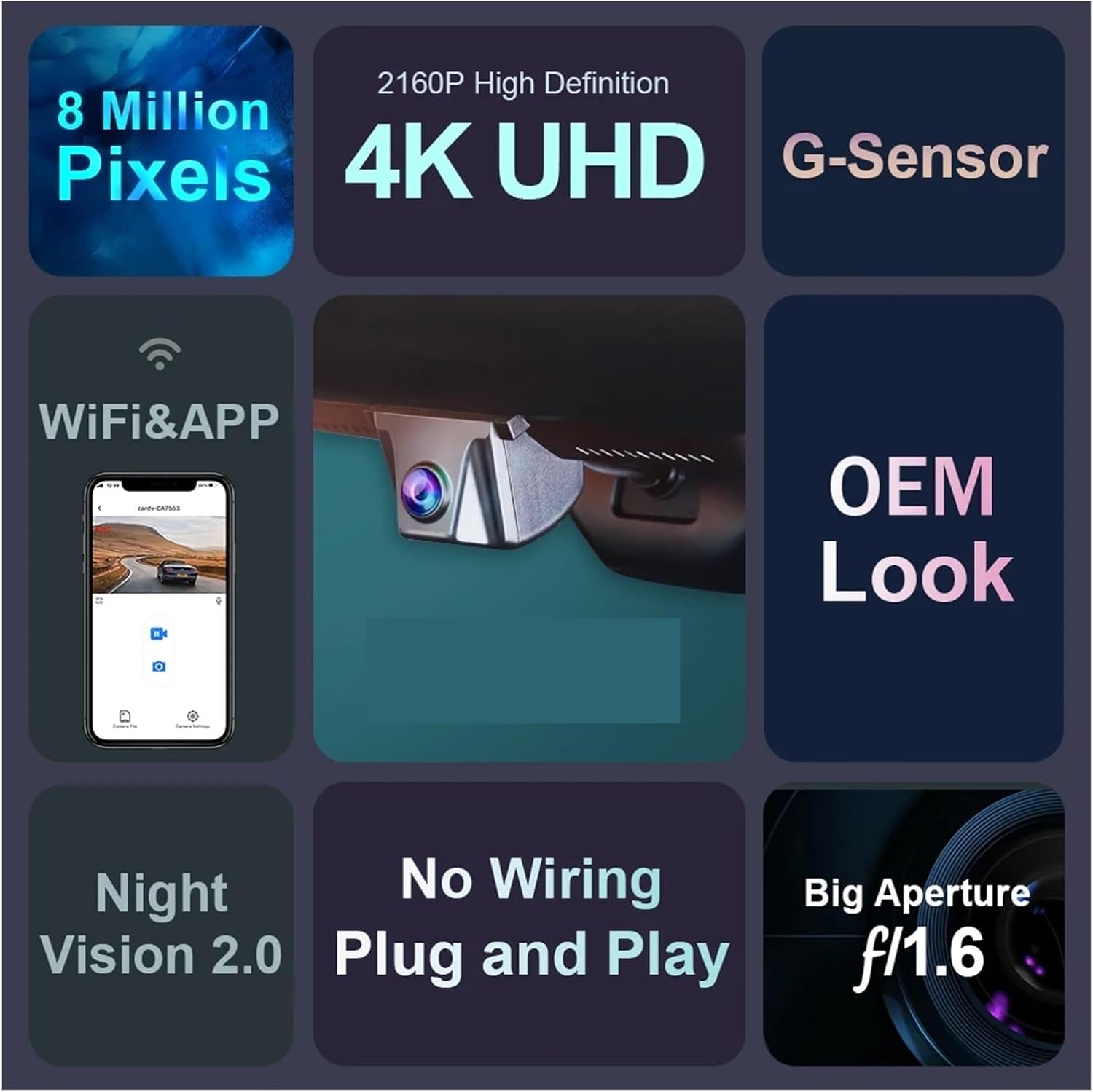
Image: Infographic highlighting the key features of the IMSTAM 4K Car Camera.
What's in the Box
The package for your IMSTAM Wireless 4K Car Camera includes:
- 1 × Dash Cam Unit
- 1 × Memory Card (64GB pre-installed or included)
- 1 × Plug-and-Play Power Cable (USB powered for single front camera version)
Note: For specific models or if a fuse box/OBD cable is required, please contact customer support.
Setup and Installation
The IMSTAM Wireless 4K Car Camera is designed for a simple, non-destructive installation process. The single front camera version typically draws power from a USB source.
Installation Steps:
- Prepare the Area: Ensure your vehicle's ignition is off. Locate the original rearview mirror cover or the designated installation area on your windshield.
- Remove Original Cover: Carefully remove the original back cover of your rearview mirror or the existing housing where the dash cam will be integrated.
- Connect Power: Connect the provided plug-and-play power cable to the dash cam. For the single front camera, this typically connects to a USB port.
- Install Dash Cam: Align the IMSTAM dash cam with the mounting points. Gently push and secure the dash cam into place, ensuring it fits perfectly like an original car accessory.
- Route Cable: Neatly route the power cable to avoid obstruction and ensure a clean look.
- Test Functionality: Turn on your vehicle's ignition and verify that the dash cam powers on and begins recording.
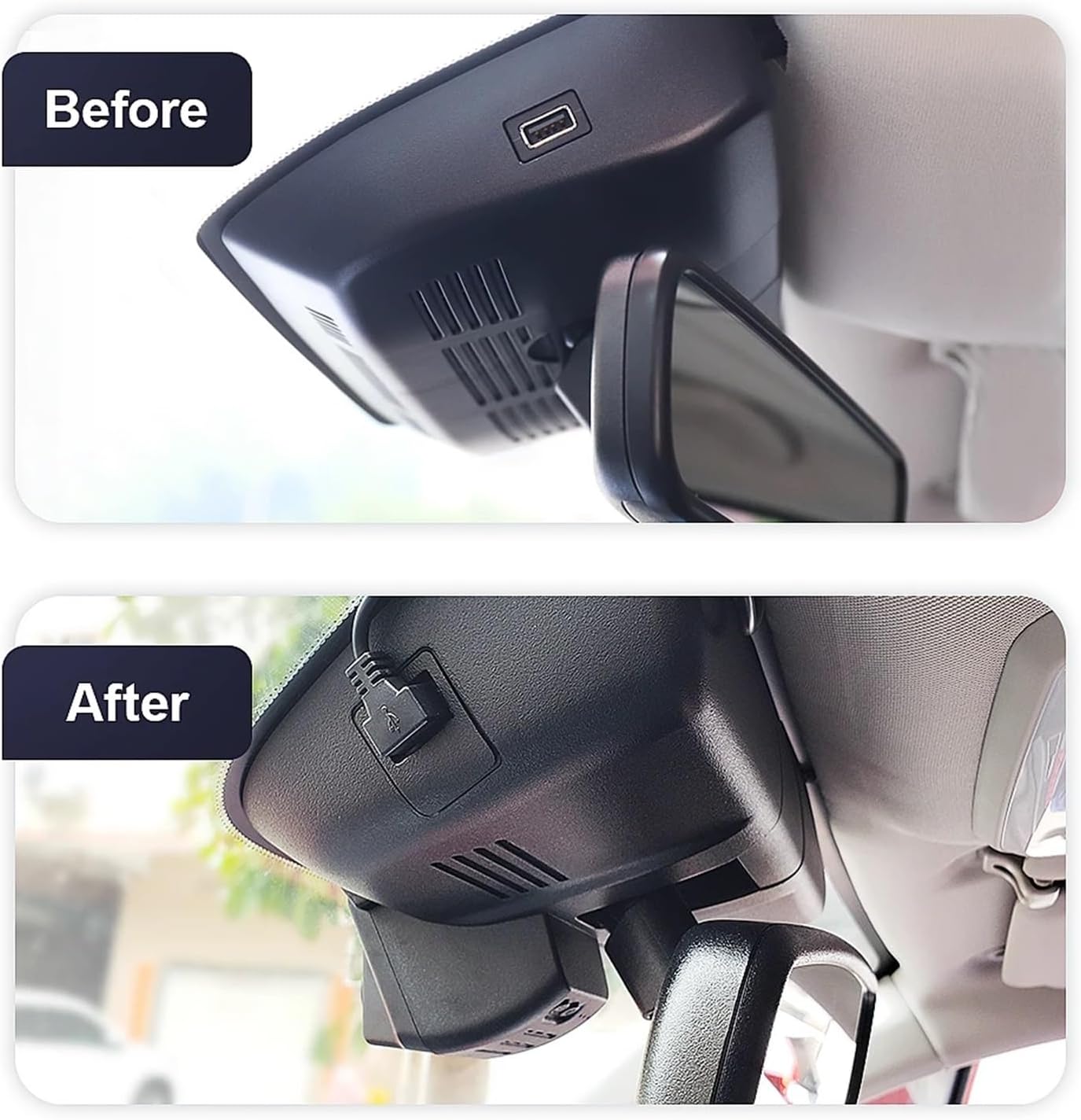
Image: Before and after views of the dash cam installation, demonstrating its integrated fit.

Image: Step-by-step visual guide for installing the dash cam.
Operating Instructions
Automatic Recording:
Once powered on, the dash cam will automatically begin recording. The Loop Recording feature ensures continuous recording by overwriting the oldest files when the memory card is full. Important footage saved by the G-Sensor will be protected from being overwritten.
G-Sensor Function:
The built-in G-Sensor detects sudden impacts or rapid acceleration/deceleration. When triggered, it automatically locks the current video segment, preventing it from being deleted by loop recording. This ensures critical event footage is preserved.
WiFi & App Connection:
To access recordings, adjust settings, or manage files, connect your smartphone to the dash cam via Wi-Fi using the dedicated app.
- Download App: Search for the official IMSTAM dash cam app on your smartphone's app store and install it.
- Enable Wi-Fi: Ensure the dash cam's Wi-Fi is active (refer to in-app instructions if needed).
- Connect: On your smartphone, go to Wi-Fi settings and connect to the dash cam's Wi-Fi network (SSID and password usually found on the device or in the app).
- Manage Files: Open the app to view live footage, download recorded videos, trim/edit clips, and share them directly from your phone.

Image: Workflow for connecting to the dash cam via WiFi and managing videos through the smartphone app.
Maintenance
Proper maintenance ensures the longevity and optimal performance of your dash cam.
- Clean the Lens: Regularly wipe the camera lens with a soft, lint-free cloth to ensure clear recordings. Avoid abrasive materials.
- Memory Card Care: Periodically format the memory card (e.g., once a month) using the dash cam's settings or the app. This helps maintain card health and prevents data corruption. Back up important files before formatting.
- Temperature: Avoid exposing the dash cam to extreme temperatures for extended periods, as this can affect battery life and electronic components.
- Firmware Updates: Check the manufacturer's website or app for any available firmware updates to ensure your device has the latest features and bug fixes.
Troubleshooting
If you encounter issues with your IMSTAM Wireless 4K Car Camera, refer to the following common solutions:
Camera Not Powering On:
- Check the power connection. Ensure the USB cable is securely plugged into both the dash cam and the vehicle's power source.
- Verify the vehicle's USB port is active (some ports only activate with ignition).
- Test with a different USB cable or power adapter if available.
Recording Issues (e.g., blurry, choppy, or no recording):
- Ensure the memory card is inserted correctly and is not full.
- Format the memory card.
- Clean the camera lens.
- Check if the memory card is a high-speed card (Class 10 or U3 recommended for 4K recording).
Wi-Fi Connection Problems:
- Ensure the dash cam's Wi-Fi is enabled.
- Restart both the dash cam and your smartphone.
- Ensure you are within close proximity to the dash cam.
- Re-enter the Wi-Fi password if prompted.
If these steps do not resolve the issue, please contact customer support for further assistance.
Specifications
| Model Number | LI1984921 |
| ASIN | B0CLM1K7VY |
| Resolution | 4K UHD (2160P) |
| Lens Aperture | f/1.6 |
| Storage | 64GB Memory Card (Included) |
| Features | Loop Recording, G-Sensor, Night Vision, Wi-Fi & App Connectivity |
| Power Source | USB (for single front camera version) |
| Item Weight | 1.76 ounces |
| Package Dimensions | 1.18 x 0.79 x 0.39 inches |
Warranty and Support
For warranty information, technical support, or any product-related inquiries, please refer to the documentation included with your purchase or contact the manufacturer directly. Contact details can typically be found on the product packaging or the official IMSTAM website.