
Introduction
This manual provides detailed instructions for the installation, operation, and maintenance of your IMSTAM 4K Wireless Dash Cam. Please read this manual thoroughly before using the product to ensure proper function and safety.
The IMSTAM 4K Wireless Dash Cam is designed to provide high-resolution video recording for your vehicle, offering features such as 4K UHD resolution, night vision, G-sensor for incident detection, and seamless loop recording. It integrates discreetly into your vehicle's interior, maintaining an OEM look.
Safety Information
- Do not attempt to disassemble or modify the device. This may cause damage and void the warranty.
- Ensure the dash cam is securely mounted and does not obstruct the driver's view or interfere with vehicle controls.
- Use only the provided power cables and accessories. Using incompatible accessories may cause damage or fire.
- Avoid exposing the device to extreme temperatures, direct sunlight for prolonged periods, or excessive moisture.
- Regularly check the memory card for errors and ensure it is functioning correctly.
Package Contents
Verify that all items are present in the package:
- 1 × Dash Cam
- 1 × Memory Card (64GB)
- Power Cable (USB or Fuse Box, depending on model and vehicle)
- Installation Tools (if applicable)
- User Manual (this document)
Product Overview and Features
The IMSTAM 4K Wireless Dash Cam is designed for seamless integration and high-performance recording.
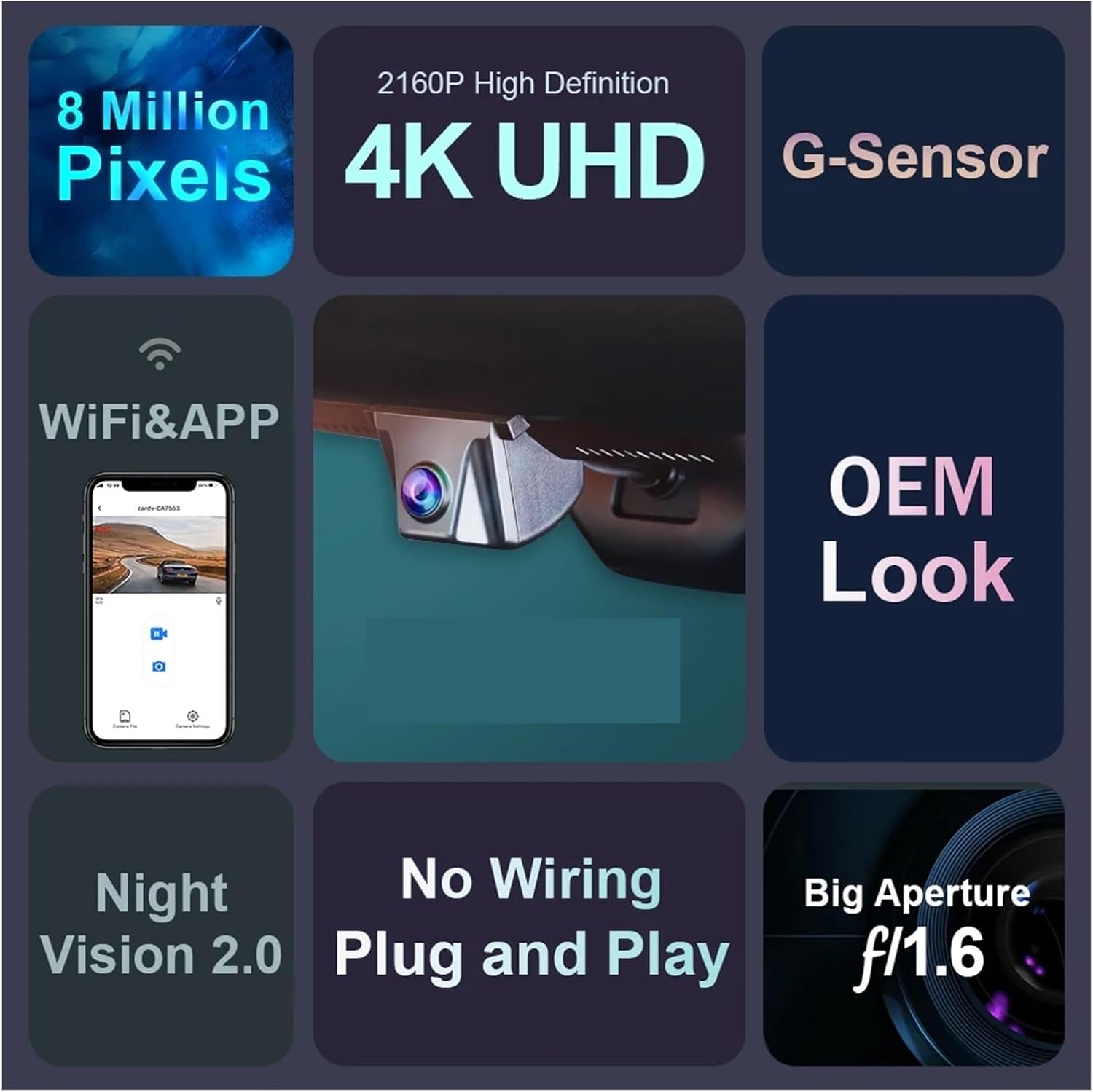
Image: Key features of the IMSTAM 4K Wireless Dash Cam.
- 4K UHD High Resolution: Records videos up to 2160P with an advanced Novatek chip and f/1.6 aperture lens.
- Superior Night Vision: Equipped with wide dynamic range technology for clear recording in low-light conditions.
- G-Sensor: Automatically detects sudden collisions and locks relevant footage to prevent overwriting.
- Loop Recording: Continuously records by overwriting the oldest files when the memory card is full.
- WiFi & APP Connectivity: Allows for wireless preview, download, editing, and sharing of recorded videos via a smartphone application.
- OEM Look: Designed to perfectly fit the original car rearview mirror cover for a discreet installation.
- Plug and Play Installation: Simplifies the installation process with minimal wiring.
Installation Guide
This dash cam is designed for a plug-and-play installation, integrating seamlessly with your vehicle's existing structure. It is compatible with HAVAL H6, H9, F7, F7x, DARGO, GWM POER, Cannon, Cannon-L, and Cannon-X models. Note: This model is not applicable for HAVAL H6 with right-hand drive.
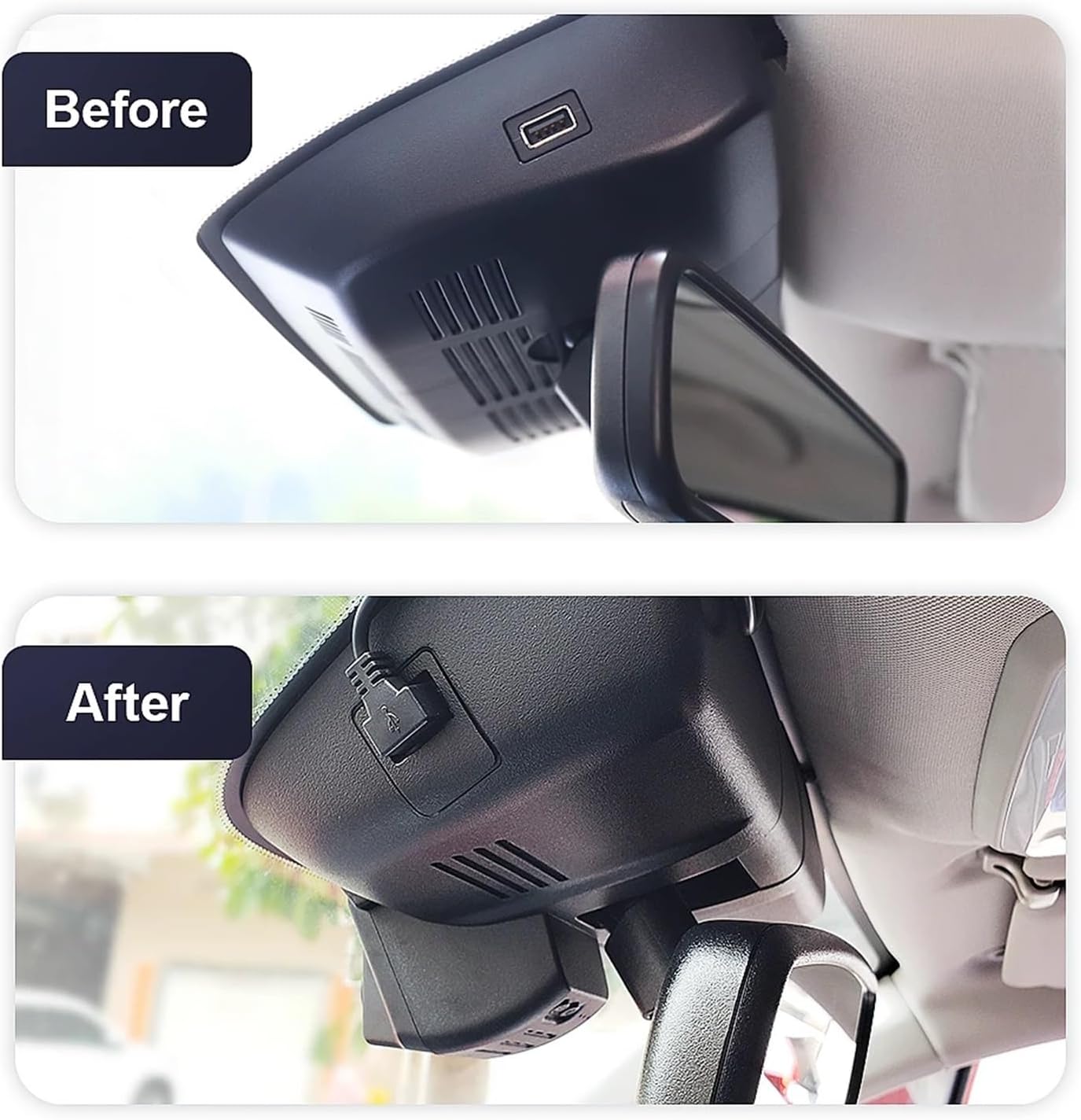
Image: Before and After installation view, demonstrating the integrated design.
Installation Steps:

Image: Step-by-step visual guide for dash cam installation.
- Step 1: Remove Original Cover. Carefully detach the original rearview mirror cover from your vehicle.
- Step 2: Connect Dash Cam. Align the dash cam with the mounting area and connect the necessary power cables. The single front camera version typically powers from USB.
- Step 3: Secure Wiring. Route the power cable discreetly to avoid interference. Ensure all connections are firm.
- Step 4: Reattach Cover. Replace the dash cam and its cover, ensuring it snaps securely into place, matching the original car's aesthetic.
For specific vehicle models, the power source may vary. The default cable is for USB power. If your vehicle requires power from the fuse box or an OBD cable, please contact customer support for the correct cable.
Operating Instructions
Powering On/Off:
The dash cam will automatically power on and begin recording when your vehicle's ignition is turned on. It will power off automatically when the ignition is turned off.
Recording Modes:
- Continuous Loop Recording: The camera records continuously in short segments. When the memory card is full, the oldest unprotected files are overwritten.
- G-Sensor Emergency Recording: In the event of a sudden impact or collision, the built-in G-sensor will detect the event and automatically lock the current video segment, preventing it from being overwritten by loop recording.
Using the Mobile App (WiFi Connection):
The dash cam connects to your smartphone via Wi-Fi, allowing you to manage recordings and settings.

Image: Mobile app interface for managing dash cam footage.
- Connect to WiFi: Turn on the dash cam and enable Wi-Fi on your smartphone. Search for the dash cam's Wi-Fi network (usually named "Fitcamx" followed by a series of characters) and connect to it. The default password can be found in the app or on the device.
- Live Preview: Once connected, open the dedicated app to view a live feed from the dash cam.
- Download Videos: Browse recorded videos and select files to download directly to your phone's gallery.
- Edit & Share: The app allows for basic video editing and direct sharing to social media or other platforms.
- Settings: Adjust dash cam settings such as resolution, G-sensor sensitivity, and loop recording duration through the app.
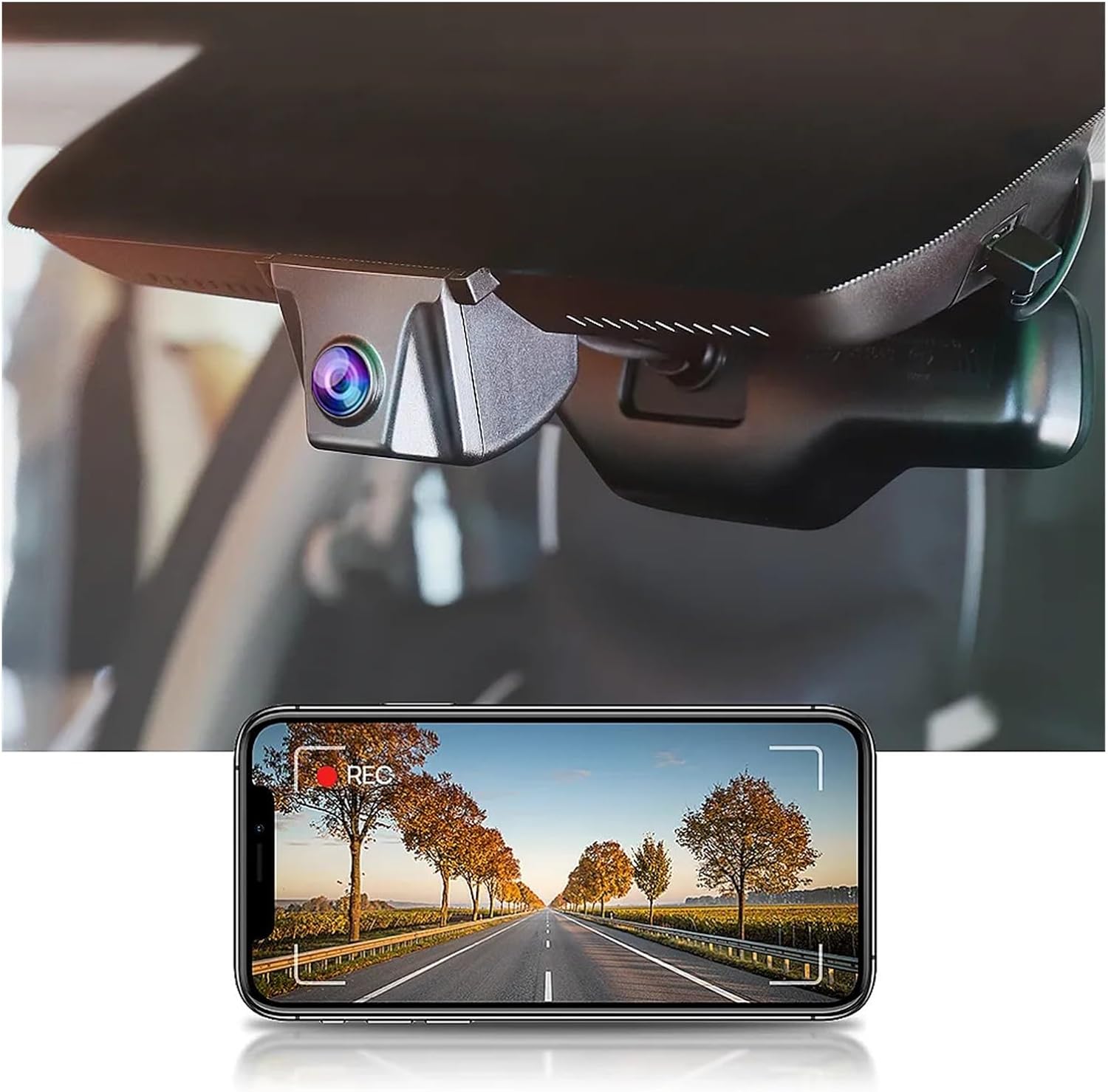
Image: Dash cam in operation, showing live view on a smartphone.
Maintenance
- Cleaning: Use a soft, dry cloth to clean the lens and the body of the dash cam. Do not use chemical cleaners or abrasive materials.
- Memory Card: Format the memory card regularly (e.g., once a month) through the dash cam's settings or the mobile app to ensure optimal performance and prevent data corruption. Replace the memory card if it shows signs of wear or error.
- Firmware Updates: Check the manufacturer's website or the mobile app periodically for firmware updates to ensure your dash cam has the latest features and bug fixes.
Troubleshooting
| Problem | Possible Solution |
|---|---|
| Dash cam does not power on. | Check the power connection. Ensure the vehicle's ignition is on. Verify the power cable is securely plugged into both the dash cam and the power source. |
| Recording stops or freezes. | Format the memory card. Ensure the memory card is a high-speed (Class 10 or U3) card. Replace the memory card if it is old or damaged. |
| Video quality is poor. | Clean the camera lens. Ensure the protective film has been removed from the lens. Check settings in the app to confirm 4K resolution is selected. |
| Cannot connect to Wi-Fi. | Ensure Wi-Fi is enabled on your phone and the dash cam. Restart both devices. Verify the correct Wi-Fi password. Move closer to the dash cam. |
| G-sensor is too sensitive/not sensitive enough. | Adjust the G-sensor sensitivity settings via the mobile application. |
Specifications
| Feature | Detail |
|---|---|
| Brand | IMSTAM |
| Model Name | LI1984921 |
| Vehicle Service Type | Car |
| Connectivity Technology | USB |
| Video Capture Resolution | 1080p, 4K |
| Included Components | Memory Card |
| Mounting Type | Adhesive Mount |
| Color | H6 Model B |
| Item Weight | 50 Grams |
| Optical Sensor Technology | CMOS |
| Compatible with Vehicle Type | Car |
| Auto Part Position | Rear (Note: This refers to the general category of car parts, the dash cam is front-facing.) |
| Auto Part Orientation | Drivers Side |
| Built-In Media | Memory Card |
Warranty Information
IMSTAM products are covered by a limited warranty against defects in materials and workmanship. The specific warranty period may vary by region and product. Please retain your proof of purchase for warranty claims.
This warranty does not cover damage caused by improper installation, accident, abuse, misuse, natural disaster, or unauthorized modification or repair. For detailed warranty terms and conditions, please refer to the official IMSTAM website or contact customer support.
Customer Support
If you encounter any issues or have questions regarding your IMSTAM 4K Wireless Dash Cam that are not addressed in this manual, please contact our customer support team:
- Website: Visit the official IMSTAM website for FAQs, support resources, and contact information.
When contacting support, please have your product model (H6 Model B) and purchase information ready.