
1. Introduction
Thank you for choosing the T-DAGGER TGK-303 Mechanical Gaming Keyboard. This manual provides essential information for setting up, operating, and maintaining your keyboard to ensure a reliable and enjoyable user experience. Please read this manual thoroughly before using the product.
2. Product Overview
The T-DAGGER TGK-303 is a full-sized mechanical gaming keyboard designed for performance and durability. It features OUTEMU mechanical switches and a single-color running backlight for an enhanced gaming and typing experience.
Key Features:
- OUTEMU Mechanical Switches: Provides tactile feedback and durability for consistent performance.
- Single-Color Running Backlight: Enhances visibility and aesthetics with dynamic lighting effects.
- Full-Size Layout: 104 keys for comprehensive functionality.
- USB Connectivity: Ensures reliable and fast connection to your device.
Product Images:
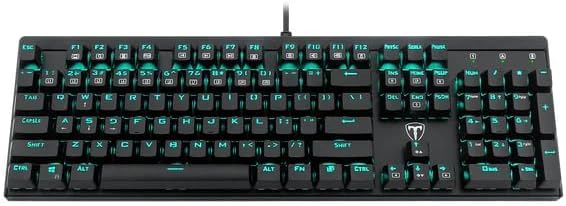
Figure 2.1: Top-down view of the T-DAGGER TGK-303 mechanical gaming keyboard, showcasing its full 104-key layout and single-color backlighting.

Figure 2.2: Angled view of the T-DAGGER TGK-303 keyboard, highlighting its ergonomic design and keycap profile.

Figure 2.3: Close-up view of the OUTEMU mechanical switches and keycaps on the T-DAGGER TGK-303 keyboard, demonstrating the switch mechanism.
3. Setup
- Unpack the Keyboard: Carefully remove the T-DAGGER TGK-303 keyboard from its packaging.
- Connect to Computer: Locate an available USB port on your computer. Plug the USB connector of the keyboard into the USB port.
- Driver Installation: The keyboard is plug-and-play. Your operating system should automatically detect and install the necessary drivers. No additional software installation is typically required.
- Verify Functionality: Once connected, test the keyboard by typing in a text editor or browser to ensure all keys are responsive.
4. Operating Instructions
Basic Keyboard Functions:
The T-DAGGER TGK-303 functions as a standard 104-key keyboard. All keys perform their labeled functions directly.
Backlight Control:
The keyboard features a single-color running backlight. Control functions are typically accessed using the Fn key in combination with other keys.
- Fn + Scroll Lock: Toggles backlight modes or effects. Press repeatedly to cycle through available modes.
- Fn + Up Arrow: Increases backlight brightness.
- Fn + Down Arrow: Decreases backlight brightness.
- Fn + Left/Right Arrow: Adjusts backlight speed or direction for running effects (if applicable).
Note: Specific key combinations for backlight control may vary slightly. Refer to the keyboard's keycap legends for exact markings if available.
5. Maintenance
Proper maintenance ensures the longevity and performance of your keyboard.
- Cleaning:
- Disconnect the keyboard from your computer before cleaning.
- Use a soft, lint-free cloth slightly dampened with water or a mild cleaning solution to wipe the keycaps and surface.
- For dust and debris between keys, use compressed air.
- Avoid using harsh chemicals, abrasives, or solvents.
- Storage: Store the keyboard in a dry, cool environment away from direct sunlight and extreme temperatures.
- Handling: Avoid dropping the keyboard or exposing it to excessive force, which can damage the mechanical switches or internal components.
6. Troubleshooting
If you encounter issues with your T-DAGGER TGK-303 keyboard, refer to the following common solutions:
| Problem | Solution |
|---|---|
| Keyboard not responding |
|
| Backlight not working or stuck |
|
| Certain keys not working |
|
7. Specifications
| Feature | Detail |
|---|---|
| Brand | T-DAGGER |
| Model | TGK-303 |
| Connectivity Technology | USB |
| Keyboard Description | Mechanical |
| Mechanical Switches | OUTEMU |
| Recommended Uses | Gaming |
| Special Features | Backlit |
| Backlighting Color Support | Single Color (Running Backlight) |
| Style | Modern |
| Hand Orientation | Ambidextrous |
| Button Quantity | 104 |
| Product Dimensions | 43.4 x 13.4 x 3.7 cm |
| Item Weight | 350 g |
8. Warranty and Support
T-DAGGER products are designed for quality and reliability. For warranty information, technical support, or service inquiries, please refer to the warranty card included with your product or visit the official T-DAGGER website. Keep your purchase receipt as proof of purchase for warranty claims.
For further assistance, you may contact your retailer or the T-DAGGER customer support team.
