
1. Introduction
The IMSTAM Fitcamx 4K Car DVR Dash Cam is designed to provide high-resolution video recording for your vehicle, enhancing driving safety and providing evidence in case of incidents. This dash cam integrates seamlessly with your Peugeot 508, offering a discreet and factory-fitted appearance. It features 4K UHD video recording, superior night vision, loop recording, and G-sensor functionality.

Image 1.1: Overview of the Fitcamx 4K Dash Cam, showing its integration into the vehicle and the accompanying smartphone application for live view and control.
2. What's in the Box
Please verify that all components are present in the package before proceeding with the installation.
- 1 × Dash Cam
- 1 × Memory Card (Pre-installed or separate, depending on version)
- 1 × Power Cable (Plug and Play)
- 1 × Removal Pry Tool
- 1 × User Manual
3. Installation Guide
The Fitcamx dash cam is designed for a plug-and-play installation, requiring no damage to your vehicle's original structure. It typically draws power from the rain sensor area.
3.1. Preparation
- Ensure the vehicle's ignition is off.
- Locate the original cover near your rearview mirror or rain sensor.
- Have the provided removal pry tool ready.
3.2. Installation Steps
- Carefully use the removal pry tool to detach the original plastic cover surrounding the rearview mirror or rain sensor.
- Disconnect any existing wiring from the original cover, if applicable.
- Connect the provided plug-and-play power cable from the dash cam to the vehicle's power source, typically found in the rain sensor wiring harness.
- Align the Fitcamx dash cam unit with the mounting area and secure it in place, ensuring it replaces the original cover seamlessly.
- Tuck any excess cable neatly to avoid obstruction.

Image 3.1: Before and After installation comparison, demonstrating the dash cam's integrated fit.
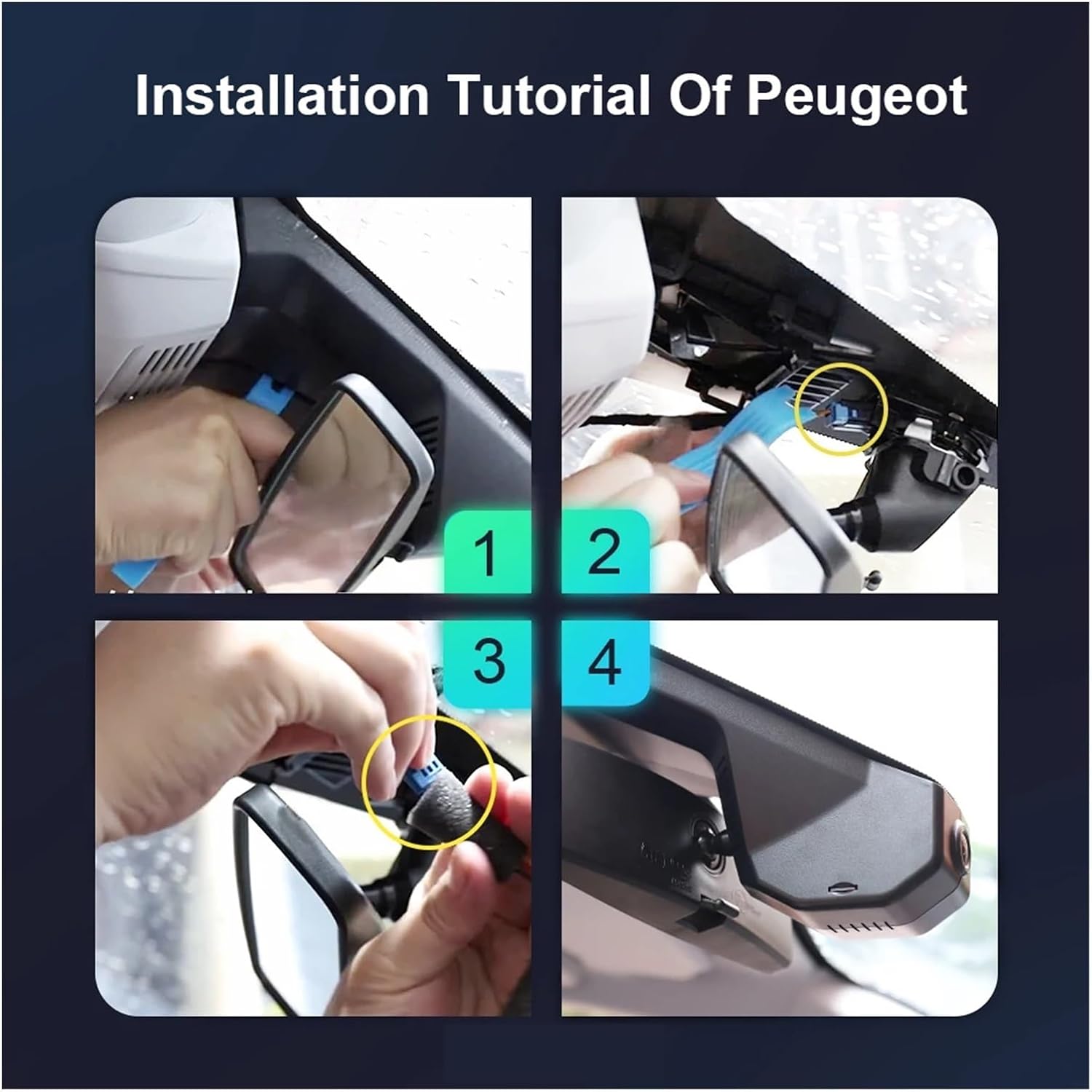
Image 3.2: Detailed installation tutorial for Peugeot vehicles, showing the four main steps to replace the original cover with the dash cam.
4. Operating Instructions
Once installed, the Fitcamx dash cam operates automatically when the vehicle's ignition is turned on. It records continuously, ensuring your journeys are documented.
4.1. Key Features
- 4K UHD High Resolution: Records videos up to 2160P resolution, capturing clear and detailed footage with an advanced Novatek chip and f/1.6 aperture lens. The CMOS sensor enhances image performance, revealing more driving details.
- Superior Night Vision: Equipped with Wide Dynamic Range (WDR) technology, the dash cam captures vivid moments clearly even at night, including license plates and road signs.
- Loop Recording: Automatically overwrites the oldest footage with new content when the memory card is full, ensuring continuous recording without manual intervention.
- G-Sensor: Detects sudden collisions or impacts. When triggered, it automatically saves and locks the relevant footage to a separate file, preventing it from being overwritten.
- WiFi & App Connectivity: Connect your smartphone to the dash cam via Wi-Fi to access live preview, download recorded videos, edit footage, and share directly from the Fitcamx application.

Image 4.1: Visual representation of the dash cam's primary features.
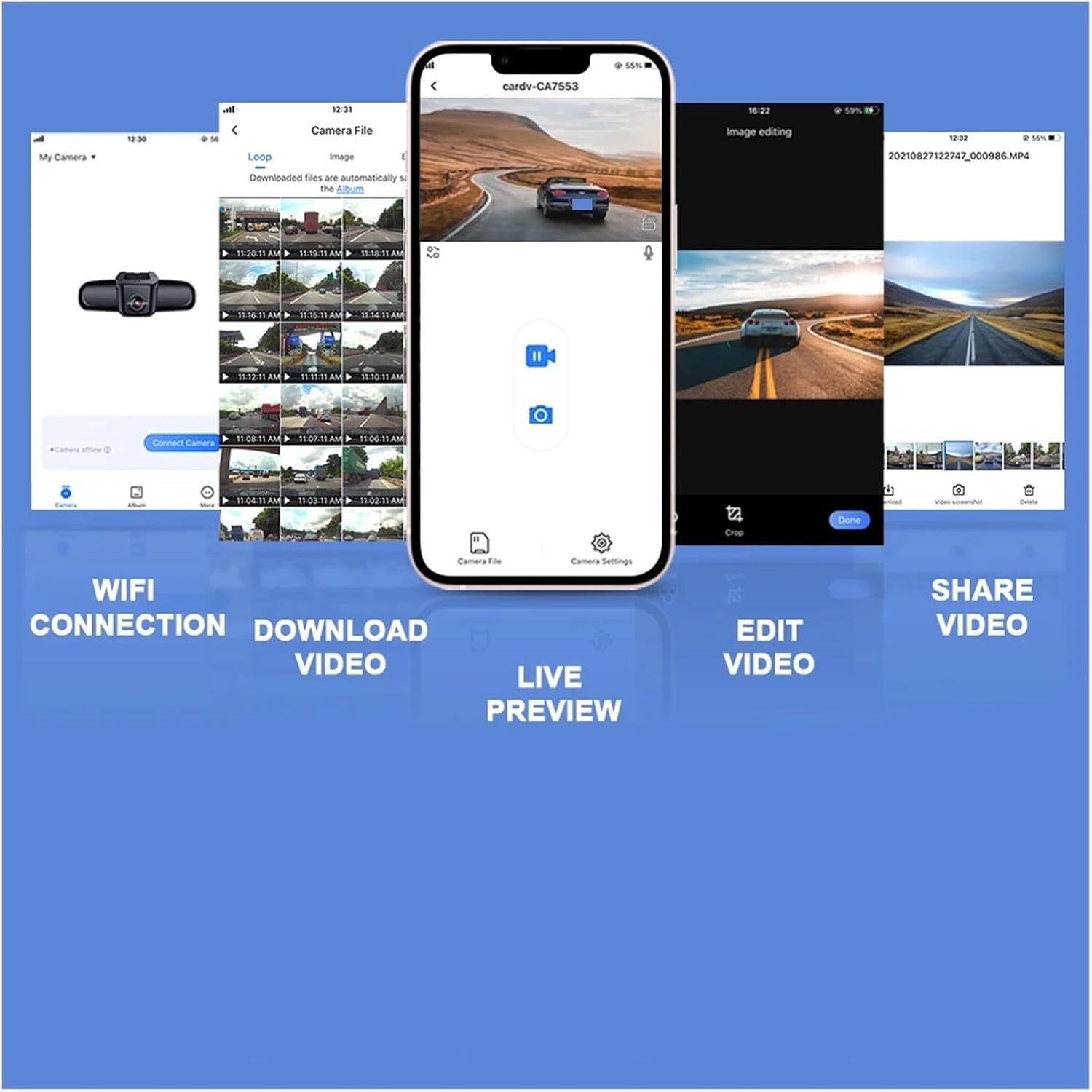
Image 4.2: Screenshots of the Fitcamx mobile application, illustrating its various functions including WiFi connection, video management, and live viewing.
4.2. Using the Mobile App
Download the official Fitcamx app from your smartphone's app store. Connect to the dash cam's Wi-Fi network (SSID and password usually found on the device or in the manual). Through the app, you can:
- View live footage from the camera.
- Browse and download recorded videos to your phone.
- Adjust camera settings (e.g., resolution, G-sensor sensitivity).
- Trim and share video clips.
5. Maintenance
Proper maintenance ensures the longevity and optimal performance of your dash cam.
- Cleaning: Gently wipe the camera lens and body with a soft, dry cloth. Avoid using harsh chemicals or abrasive materials that could scratch the lens or housing.
- Memory Card: Periodically format the memory card (at least once a month) through the dash cam's settings or the mobile app to prevent data corruption and ensure smooth recording. Replace the memory card if you notice frequent errors or reduced performance.
- Firmware Updates: Check the official Fitcamx website or app for any available firmware updates. Keeping the firmware updated can improve performance and add new features.
- Temperature: Avoid exposing the dash cam to extreme temperatures for extended periods, as this can affect battery life and electronic components.
6. Troubleshooting
If you encounter issues with your Fitcamx dash cam, refer to the following common problems and solutions:
- Camera Not Powering On:
- Ensure the vehicle's ignition is on.
- Check the power cable connection to the dash cam and the vehicle's power source.
- Verify the vehicle's power outlet (e.g., rain sensor power) is functional.
- Recording Issues (e.g., no recording, corrupted files):
- Ensure a compatible memory card is inserted correctly.
- Format the memory card.
- If issues persist, try a new, high-quality memory card.
- Wi-Fi Connection Problems:
- Ensure the dash cam's Wi-Fi is enabled.
- Restart both the dash cam and your smartphone.
- Confirm you are connecting to the correct Wi-Fi network (SSID) and using the correct password.
- Poor Video Quality:
- Clean the camera lens.
- Ensure the protective film has been removed from the lens.
- Check video resolution settings in the app.
For further assistance, please contact customer support.
7. Specifications
| Feature | Description |
|---|---|
| Brand | IMSTAM |
| Model Name | LI1984921 |
| Vehicle Service Type | Car |
| Video Capture Resolution | 1080p, 4K |
| Included Components | Cable, Removal Pry Tool, User Manual |
| Mounting Type | Adhesive Mount |
| Color | Black |
| Control Method | Touch (via app) |
| Item Weight | 50 Grams |
| Optical Sensor Technology | CMOS |
| Compatible with Vehicle Type | Car |
| Auto Part Position | Rear (refers to mounting area, not rear camera) |
| Batteries Included | Yes |
| Manufacturer | LI1984921 |
8. Warranty and Support
This IMSTAM Fitcamx Dash Cam comes with a standard manufacturer's warranty against defects in materials and workmanship. Please refer to the warranty card included in your package for specific terms and conditions, including the warranty period.
For technical support, troubleshooting assistance, or warranty claims, please contact IMSTAM customer service through the contact information provided on the official product website or your purchase platform. Keep your proof of purchase handy when contacting support.