Introduction
Thank you for purchasing the Gigastone KM-7500B Bluetooth Karaoke Microphone. This device combines a wireless microphone and a portable Bluetooth speaker, designed for various audio applications including karaoke, public speaking, and music playback. This manual provides detailed instructions for setup, operation, maintenance, and troubleshooting to ensure optimal performance and longevity of your product.
Package Contents
Please check the package contents upon unboxing to ensure all items are present:
- 1 x Gigastone KM-7500B Karaoke Microphone
- 1 x Micro USB Charging Cable
- 1 x Audio Cable (3.5mm)
- 1 x User Manual
Product Overview
Familiarize yourself with the various parts and controls of your Gigastone KM-7500B microphone.
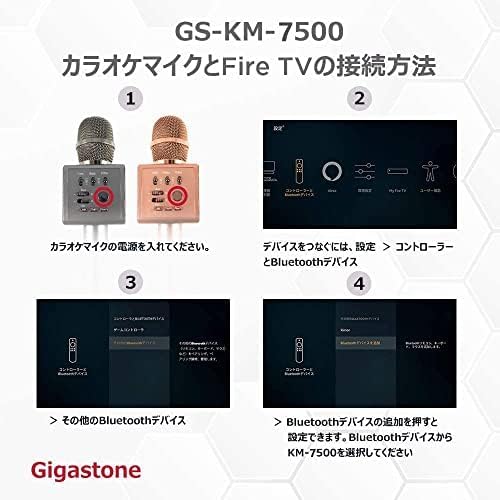
Image: Front and bottom view of the Gigastone KM-7500B microphone, highlighting its controls and ports. The image labels the Microphone, Speaker, and Handle sections. Controls include Bass adjuster, Echo adjuster, Treble adjuster, Music volume adjuster, Vocal volume adjuster, Power button, Next button, Play/pause button, and Previous button. Ports on the bottom include USB port, Micro USB charging port, and Headphone jack/AUX in.
- Microphone: Sound input component.
- Speaker: Integrated 10W speaker for audio output.
- Handle: Ergonomic grip for handheld use.
- Bass Adjuster: Controls the low-frequency audio output.
- Echo Adjuster: Adjusts the echo effect for vocals.
- Treble Adjuster: Controls the high-frequency audio output.
- Music Volume Adjuster: Regulates the volume of background music.
- Vocal Volume Adjuster: Regulates the volume of your voice.
- Power Button: Turns the device on/off.
- Next Button: Skips to the next track.
- Play/Pause Button: Starts or pauses music playback.
- Previous Button: Skips to the previous track.
- USB Port: For connecting a USB drive for music playback.
- Micro USB Charging Port: For charging the microphone's internal battery.
- Headphone Jack / AUX In: For connecting headphones or an external audio source.
Setup
1. Charging the Microphone
Before first use, fully charge the microphone. Connect the Micro USB charging cable to the microphone's charging port and the other end to a USB power adapter (not included) or a computer's USB port. The charging indicator light will illuminate during charging and turn off when fully charged. A full charge provides approximately 8-10 hours of singing time.
2. Power On/Off
Press and hold the Power button for a few seconds to turn the microphone on or off. A voice prompt will indicate the power status.
3. Bluetooth Pairing
The microphone will automatically enter Bluetooth pairing mode when powered on. The Bluetooth indicator light will flash. To pair with your device:
- Enable Bluetooth on your smartphone, tablet, or other smart device.
- Search for available Bluetooth devices.
- Select "KM-7500B" from the list of devices.
- Once connected, a voice prompt will confirm successful pairing, and the Bluetooth indicator light will stop flashing.

Image: The Gigastone KM-7500B microphone emitting Bluetooth waves, illustrating its Bluetooth 5.0 capability for a longer distance and stronger connection.
4. Connecting via 3.5mm Audio Jack (AUX)
Use the provided audio cable to connect the microphone's 3.5mm AUX In port to the audio output of your device (e.g., smartphone, PC, MP3 player). This allows the microphone to function as a speaker for your device's audio.
5. Connecting via USB Drive
Insert a USB drive containing MP3 music files into the USB port on the bottom of the microphone. The microphone will automatically detect and play the music files.
6. Connecting to Amazon Fire TV
The KM-7500B can be connected to an Amazon Fire TV device for an enhanced karaoke experience. Follow these steps:
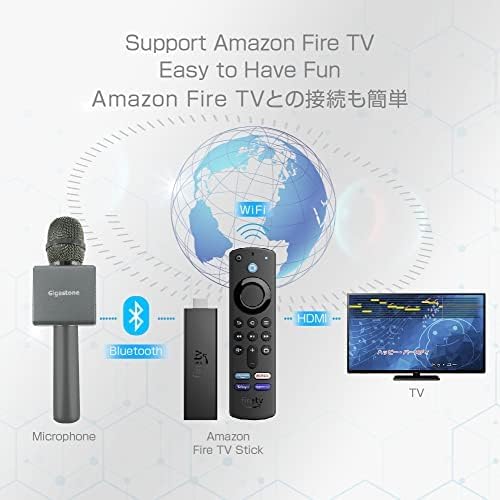
Image: An illustration demonstrating how to connect the Gigastone microphone to an Amazon Fire TV Stick via Bluetooth, which then connects to a TV via HDMI, enabling easy karaoke setup.

Image: A four-panel diagram illustrating the connection process for the Gigastone KM-7500B karaoke microphone with an Amazon Fire TV. Steps include powering on the microphone, navigating to 'Settings > Controllers & Bluetooth Devices' on Fire TV, selecting 'Other Bluetooth Devices', and then choosing 'KM-7500B' to add the device.
- Ensure your Gigastone KM-7500B microphone is powered on and in pairing mode.
- On your Amazon Fire TV, navigate to Settings.
- Select Controllers & Bluetooth Devices.
- Choose Other Bluetooth Devices.
- Select Add Bluetooth Devices and then select KM-7500B from the list to pair.
Operating Instructions
1. Basic Functions
- Volume Control: Use the 'Music Volume' and 'Vocal Volume' adjusters to set desired levels.
- Sound Effects: Adjust 'Bass', 'Treble', and 'Echo' sliders to customize your sound.
- Music Playback: Use 'Previous', 'Play/Pause', and 'Next' buttons for media control when connected via Bluetooth or USB.
2. Singing Mode
Once connected to a music source (Bluetooth, AUX, or USB), play your desired track. Adjust the 'Music Volume' and 'Vocal Volume' to balance the music and your voice. Use the 'Echo' slider for a reverberation effect.

Image: A person enthusiastically singing into the Gigastone KM-7500B microphone, highlighting its 10W power output for a loud and enjoyable experience.
3. Speaker Mode
The microphone can function as a standalone Bluetooth speaker. Simply connect your device via Bluetooth or AUX, and play music. The microphone will output the audio through its integrated speaker.
4. Recording Function
Connect the microphone to your smartphone or PC using the audio recording cable. Use a compatible recording application on your device to record your singing or speech.
5. Vocal Removal Function
The microphone features a vocal removal function. Press the designated button (often the power button or a specific mode button, refer to your device's specific labeling) to cut the vocal part of a song, allowing you to sing along to instrumental tracks.

Image: A man singing into the Gigastone microphone, with a background screen illustrating the 'Vocal Removal Function' which removes vocals from a song, allowing the user to enhance their own voice.
Maintenance
- Cleaning: Use a soft, dry cloth to clean the microphone's surface. Do not use abrasive cleaners or solvents.
- Storage: Store the microphone in a cool, dry place away from direct sunlight and extreme temperatures.
- Battery Care: To prolong battery life, avoid fully discharging the battery frequently. Charge the microphone regularly, even if not in use for extended periods.
- Avoid Moisture: Do not expose the microphone to water or excessive humidity.
Troubleshooting
| Problem | Possible Cause | Solution |
|---|---|---|
| Microphone does not power on. | Low battery. | Charge the microphone fully. |
| Cannot pair via Bluetooth. | Bluetooth is off on your device; microphone is not in pairing mode; too many devices connected. | Ensure Bluetooth is enabled on your device. Power cycle the microphone to enter pairing mode. Disconnect other Bluetooth devices. |
| No sound from speaker. | Volume too low; incorrect connection mode; device not playing audio. | Increase 'Music Volume' and 'Vocal Volume'. Verify correct connection (Bluetooth, AUX, USB). Ensure your connected device is playing audio. |
| Poor sound quality / static. | Interference; low battery; microphone too far from source. | Move away from other electronic devices. Charge the microphone. Reduce distance between microphone and connected device. |
Specifications
| Feature | Detail |
|---|---|
| Model Name | KM-7500B |
| Connectivity Technology | Bluetooth 5.0 |
| Speaker Output | 10W |
| Microphone Form Factor | Handheld |
| Power Source | Built-in 2200mAh Rechargeable Battery (Corded Electric for charging) |
| Battery Life | 8-10 hours (singing time) |
| Audio Sensitivity | 50 Decibels |
| Connector Type | USB Type-C (charging), USB (drive), 3.5mm Jack (AUX In) |
| Compatible Devices | Smartphone, PC, Karaoke Machine, iOS, Android, Amazon Fire TV |
| Special Feature | Volume Control, Echo Effect, Bass/Treble Adjustment, Vocal Removal Function |
| Polar Pattern | Unidirectional |
| UPC | 804272767964 |
Warranty and Support
Gigastone products are designed for reliability and performance. For warranty information or technical support, please refer to the official Gigastone website or contact their customer service directly. Keep your purchase receipt as proof of purchase for warranty claims.
Gigastone maintains branch offices globally to provide customer support. For assistance, please visit www.gigastone.com or refer to the contact information provided on your product packaging.


