
1. Introduction
This manual provides detailed instructions for the proper setup, operation, and maintenance of your Wantek 783F Headset. Please read this manual thoroughly before using the product to ensure optimal performance and longevity. Keep this manual for future reference.
2. Product Overview
The Wantek 783F Headset is a versatile single-ear headphone designed for clear communication and audio. It features a noise-cancelling microphone and multiple connectivity options for broad compatibility.
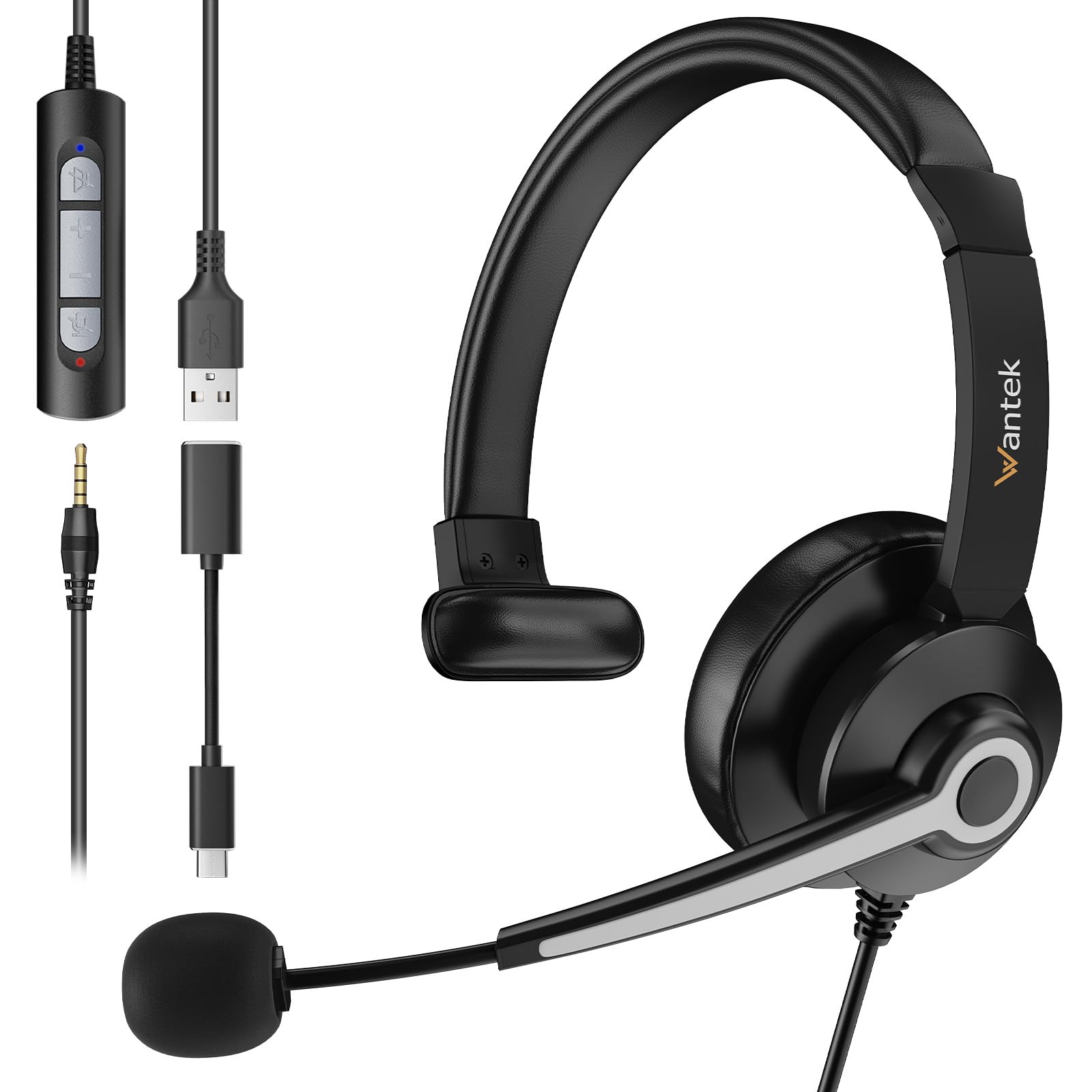
Image 2.1: Wantek 783F Headset with its inline controller and multiple connection options (3.5mm, USB, Type-C).
Key features include:
- Wide Compatibility: Connects via USB, 3.5mm, and Type-C.
- Crystal Clear Calls: Noise-cancelling microphone reduces background noise by up to 97%.
- Comfortable Design: Lightweight with a soft faux leather headband and 270° rotatable microphone boom.
- Easy Inline Control: Physical buttons for speaker mute, volume up/down, and microphone mute.
3. Setup Instructions
The Wantek 783F Headset offers plug-and-play functionality, requiring no additional drivers for most operating systems.
3.1 Connecting the Headset
Your headset can be connected to various devices using one of the three provided interfaces:
- 3.5mm Jack: Connect the 3.5mm jack directly to devices such as smartphones, tablets, or laptops with a compatible audio port.
- USB-A Connector: Use the USB-A adapter to connect the headset to computers, laptops, or gaming consoles (e.g., PlayStation, Xbox) with a USB-A port.
- USB Type-C Adapter: Attach the Type-C adapter to the USB-A connector, then plug it into devices with a USB Type-C port, such as newer laptops, MacBooks, or Android phones.

Image 3.1: Connection diagram illustrating how to connect the headset using 3.5mm, USB, and Type-C interfaces to different devices.
3.2 Initial Device Recognition
After connecting, your device should automatically recognize the headset. You may need to select the headset as the default audio input and output device in your operating system's sound settings or within your communication application (e.g., Zoom, Skype, Microsoft Teams).
4. Operating Instructions
The Wantek 783F Headset features an inline control unit for convenient audio management.
4.1 Inline Control Functions

Image 4.1: Detailed view of the inline controller, highlighting its buttons and their functions.
- Speaker Mute Button: Press to mute or unmute the headset's speaker audio. An indicator light may show the mute status.
- Volume Up (VOL+): Press to increase the listening volume.
- Volume Down (VOL-): Press to decrease the listening volume.
- Mic Mute Button: Press to mute or unmute the microphone. An indicator light may show the mute status.
4.2 Microphone Adjustment
The microphone boom can be rotated 270 degrees. Position the microphone approximately 1-2 inches from your mouth for optimal voice pickup. The flexible design allows for precise positioning.
4.3 Usage Scenarios
The headset is suitable for various applications, including:
- Online meetings (Zoom, Skype, Webex, Google Meet)
- Call center operations
- Online learning and tutoring
- Voice chat and gaming
- General audio listening

Image 4.2: Examples of the headset in use across different environments, demonstrating its versatility.
5. Maintenance
Proper care and maintenance will extend the life of your headset.
5.1 Cleaning
- Use a soft, dry cloth to wipe the headset and inline controller.
- For stubborn dirt, slightly dampen the cloth with water. Avoid using harsh chemicals or abrasive cleaners.
- Do not immerse the headset or any of its components in water.
5.2 Storage
- Store the headset in a cool, dry place away from direct sunlight and extreme temperatures.
- Avoid tangling the cable. Use the small clip on the wire to manage the cable and prevent damage.
6. Troubleshooting
If you encounter issues with your headset, refer to the following common solutions:
- No Sound:
- Ensure the headset is securely connected to your device.
- Check the inline volume control and increase the volume.
- Verify that the speaker mute button on the inline controller is not active.
- Confirm the headset is selected as the default playback device in your computer's sound settings.
- Microphone Not Working:
- Ensure the microphone mute button on the inline controller is not active.
- Check that the microphone boom is properly positioned.
- Confirm the headset is selected as the default recording device in your computer's sound settings or communication application.
- Test the microphone with another application or device.
- Distorted Audio:
- Lower the volume on both the headset and your device.
- Ensure the connection is stable and free from interference.
- Test with another audio source or device.
7. Specifications
Below are the technical specifications for the Wantek 783F Headset:
| Feature | Specification |
|---|---|
| Brand Name | Wantek |
| Item Model Number | XUC783 |
| Product Dimensions | 12 x 12 x 5 cm |
| Item Weight | 182 Grams |
| Color | Black |
| Connectivity Technology | Wired |
| Headphones Jack | 3.5 mm Jack |
| Noise Control | Passive Noise Cancellation |
| Control Type | Voice Control (via inline controller) |
| Cable Feature | Detachable (adapters) |
| Material | Polycarbonate (PC), Aluminum, Faux Leather |
| Compatible Devices | Cellphones, Desktops, Laptops, Music Production Equipment, Tablets |
| Recommended Uses | Calling, Gaming, Motorcycling, Running |
8. Warranty and Support
Wantek products are manufactured to high-quality standards. For information regarding warranty coverage, terms, and conditions, please refer to the warranty card included with your purchase or visit the official Wantek website.
For technical support, troubleshooting assistance beyond this manual, or to inquire about replacement parts, please contact Wantek customer service through their official support channels.
