
Introduction
This manual provides essential instructions for the installation, operation, and maintenance of your PUNEHOD L1800/R1390 DTF Printer Ink Dampers. These dampers are designed to regulate ink flow, prevent clogging, and ensure consistent printing performance for compatible DTF printers. Please read this manual thoroughly before use.
Product Overview
The PUNEHOD Ink Damper set includes four individual ink dampers, compatible with L1800 and R1390 DTF printer models. Each damper is a critical component in the ink delivery system, ensuring a steady and clean ink supply to the print head.

Image: Four PUNEHOD ink dampers shown individually and installed within a printer's ink system.
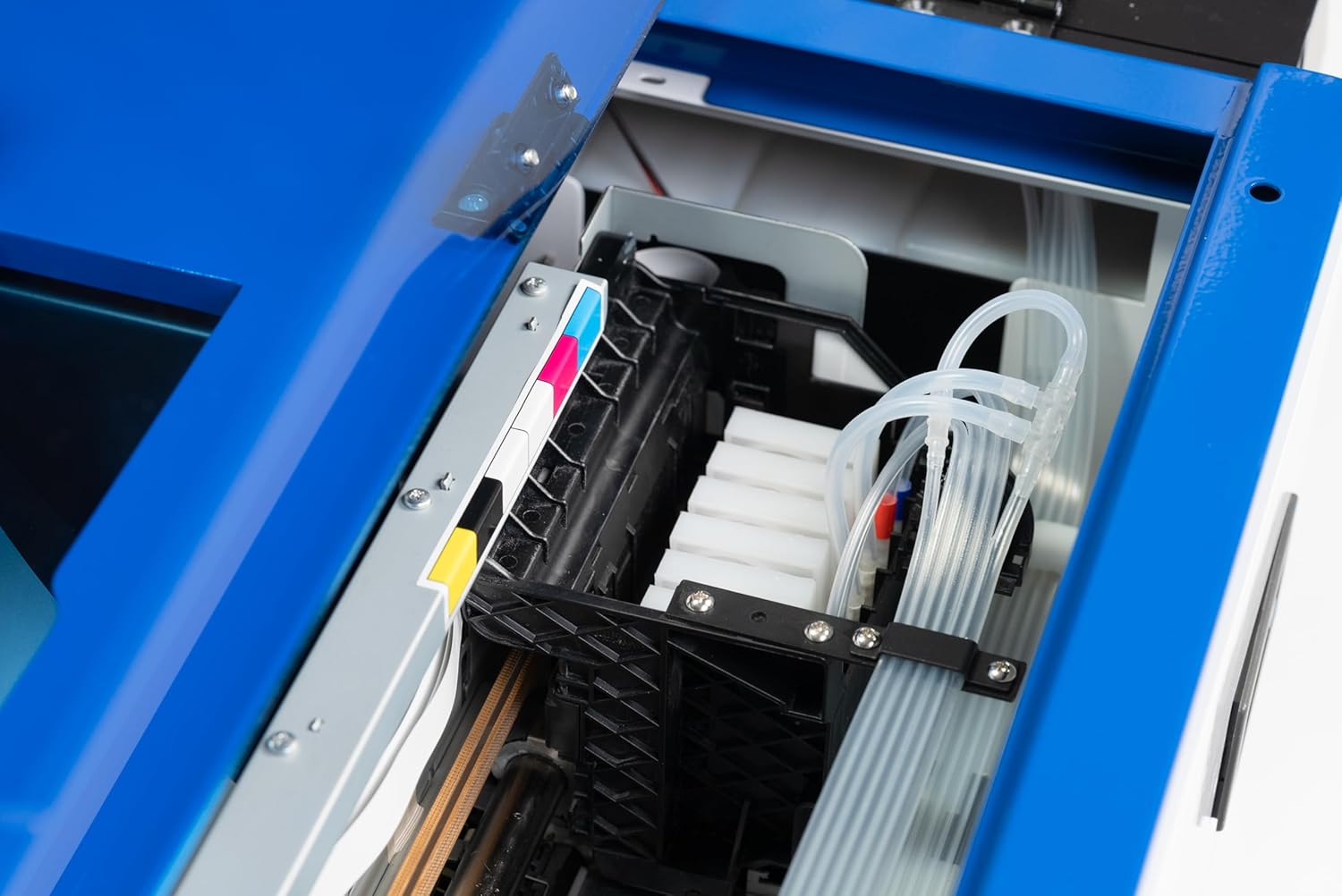
Image: An internal view of a DTF printer, highlighting the clear ink lines and the installed ink dampers.
Setup and Installation
Follow these steps to install or replace the ink dampers in your DTF printer. It is recommended to wear gloves to avoid ink stains.
- Preparation: Ensure your printer is powered off and disconnected from the power source. Open the printer cover to access the ink system.
- Locate Existing Dampers: Identify the current ink dampers connected to the ink tubes and the print head.
- Remove Old Dampers: Carefully disconnect the ink tubes from the old dampers. Gently unclip or slide out the old dampers from their housing. Be prepared for potential ink drips.
- Install New Dampers: Connect the ink tubes to the new PUNEHOD ink dampers, ensuring a secure fit. The dampers are designed to fit specific ink channels (colors).
- Secure Dampers: Place the new dampers into their designated slots within the printer's ink system.
- Fill Dampers (if necessary): If the dampers are empty, use a syringe to gently draw ink through the damper until it is filled, ensuring no air bubbles are present.
- Perform Initial Ink Charge/Cleaning: After installation, perform an initial ink charge or head cleaning cycle through your printer's software to prime the system and ensure proper ink flow.

Image: Top shows a syringe filling an ink damper. Bottom shows a hand draining waste ink from the printer's waste tank.
Installation Videos
Video: This video demonstrates the process of handling DTF transfer ink and the ink dampers, including filling procedures.
Video: A guide on how to use and install ink dampers specifically for the R1390 printer model.
Video: This video illustrates the replacement process for printer ink dampers.
Operation
Once installed, the ink dampers operate automatically as part of your printer's ink delivery system. Their primary function is to maintain a consistent ink pressure and filter out impurities, ensuring a smooth and uninterrupted flow of ink to the print head during printing operations. No direct user interaction is typically required during normal printing.
Maintenance
Regular maintenance of your ink dampers and the surrounding ink system is crucial for optimal printer performance and longevity.
- Ink Level Monitoring: Ensure ink tanks are adequately filled to prevent air from entering the damper system.
- Waste Ink Management: Regularly check and empty the printer's waste ink tank to prevent overflow and potential damage.
- Damper Inspection: Periodically inspect the dampers for signs of wear, damage, or excessive ink residue. Replace dampers if they appear clogged or compromised.
- Printer Cleaning Cycles: Utilize your printer's built-in cleaning cycles as recommended by the printer manufacturer to keep the print head and ink paths clear.
Troubleshooting
If you encounter issues related to ink delivery, consider the following troubleshooting steps:
- Poor Print Quality (Streaks, Missing Lines): This often indicates a clogged print head or an issue with ink flow. Perform a head cleaning cycle. If the problem persists, inspect the dampers for clogs or air bubbles.
- Ink Leaks: Check all connections between ink tubes and dampers. Ensure dampers are securely seated in their positions.
- No Ink Flow: Verify ink levels in the tanks. Check for kinks or blockages in the ink tubes. Ensure dampers are correctly installed and not completely dry.
- Damper Replacement: If a damper is visibly damaged, heavily clogged, or not functioning correctly after cleaning attempts, it should be replaced.
For persistent issues, refer to your printer's specific troubleshooting guide or contact PUNEHOD customer support.
Specifications
| Product Name | PUNEHOD DTF Printer Ink Damper |
| Model Number | Damper 4Pcs |
| Compatibility | Epson L1800, R1390 DTF Printers |
| Quantity | 4 Pieces per set |
| Function | Regulates ink flow, prevents clogging |
Warranty and Support
PUNEHOD is committed to providing high-quality products and customer satisfaction. If you have any questions regarding the installation, operation, or performance of your ink dampers, please contact PUNEHOD customer support. You can typically find contact information through your order page or the after-sales service channels provided with your purchase. PUNEHOD aims to reply to inquiries within 24 hours.
For additional resources and product information, visit the official PUNEHOD store: PUNEHOD Store


